Ever heard your own voice echo weirdly in your headset mid-game? Or realized you were basically yelling only after your teammates told you to chill?
That usually happens when your mic monitoring level is off. Mic monitoring simply lets you hear your own voice through your headset in real time, helping you control how loud or quiet you sound.
When set right, it keeps your voice natural, reduces strain, and improves communication in games, chat, or live streams.
In this blog, I will break down the Best Mic Monitoring Level for Gaming, Chat, and streaming, how to set it correctly, and the mistakes that can ruin your audio experience.
What Does “Mic Monitoring Level” Actually Mean?
Mic monitoring level simply refers to how loud your own voice sounds in your headphones while you speak.
When it is too low, you cannot hear yourself clearly, so you may end up talking louder than needed without realizing it.
When it is too high, your voice becomes distracting and can create a feedback-like effect in your ears. The right level lets you hear your voice naturally without overpowering game audio.
This is also one of the reasons why mic monitoring is for podcasts, as it helps maintain a steady and controlled speaking tone.
Latency also plays a role. High latency monitoring causes a delayed version of your voice, which feels confusing.
Low-latency monitoring sounds instant and natural. Hardware monitoring is usually better than software monitoring because it avoids delay.
Best Mic Monitoring Level by Use Case
The ideal mic monitoring level varies depending on how you use your mic. Gaming, voice chat, streaming, and podcast-style setups all require slightly different balances.
- Gaming: Recommended level is between 20 and 40 percent. You only need light awareness of your voice so game audio stays dominant, and concentration remains uninterrupted.
- Voice Chat: Recommended level sits around 40 to 60 percent. You talk more frequently, so hearing yourself helps maintain a steady volume and prevents you from speaking louder.
- Streaming: The recommended range is roughly 50 to 70 percent, depending on the setup. Consistent monitoring helps streamers keep a stable voice presence and avoid sudden volume spikes.
- Podcast / Just Chatting: Monitoring level usually works best around 60 to 80 percent. Higher feedback helps maintain controlled speech, making your voice sound steady.
How to Set Your Mic Monitoring Level?
Setting the right mic monitoring level is simple once you know where to look. The steps vary slightly depending on your device, headset, or software.
1. On Windows
Open Settings, then go to System and select Sound. Under Input devices, choose your microphone and open Device Properties to access monitoring-related options.
If you are using an Xbox controller or a compatible headset, the Xbox Accessories App also allows you to adjust mic monitoring levels.
Test your voice while adjusting the slider so you can hear yourself clearly without overpowering your game or desktop audio.
2. On Headsets with Built-In Monitoring
Many gaming headsets, such as HyperX Cloud series, SteelSeries Arctis, and Astro A50, include hardware mic monitoring through a dial or knob.
Start with the monitoring level set to zero. Slowly increase it while speaking normally until you can hear your voice clearly in your headphones.
The goal is to hear yourself naturally without the monitoring sounding louder than your game or background audio.
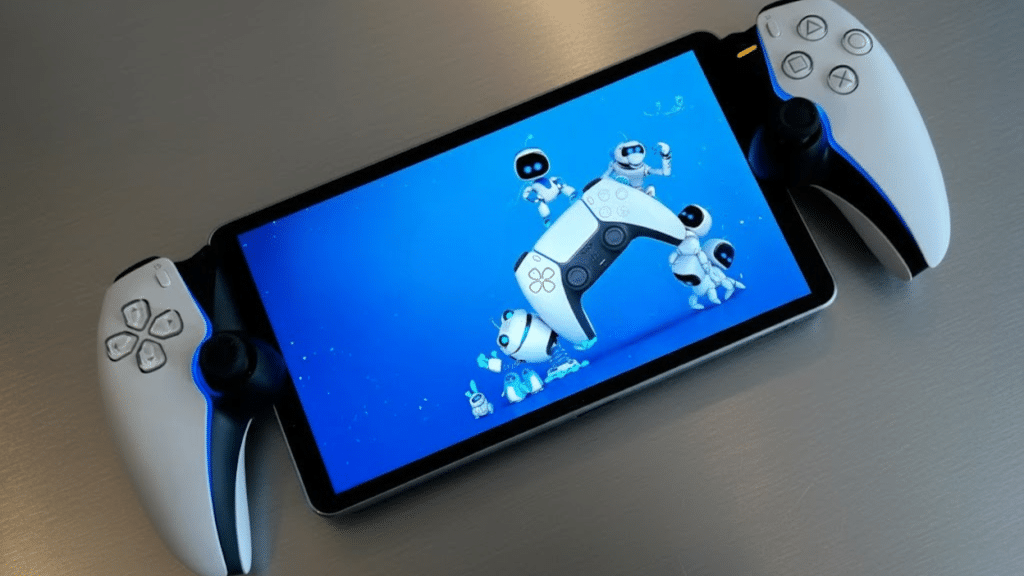
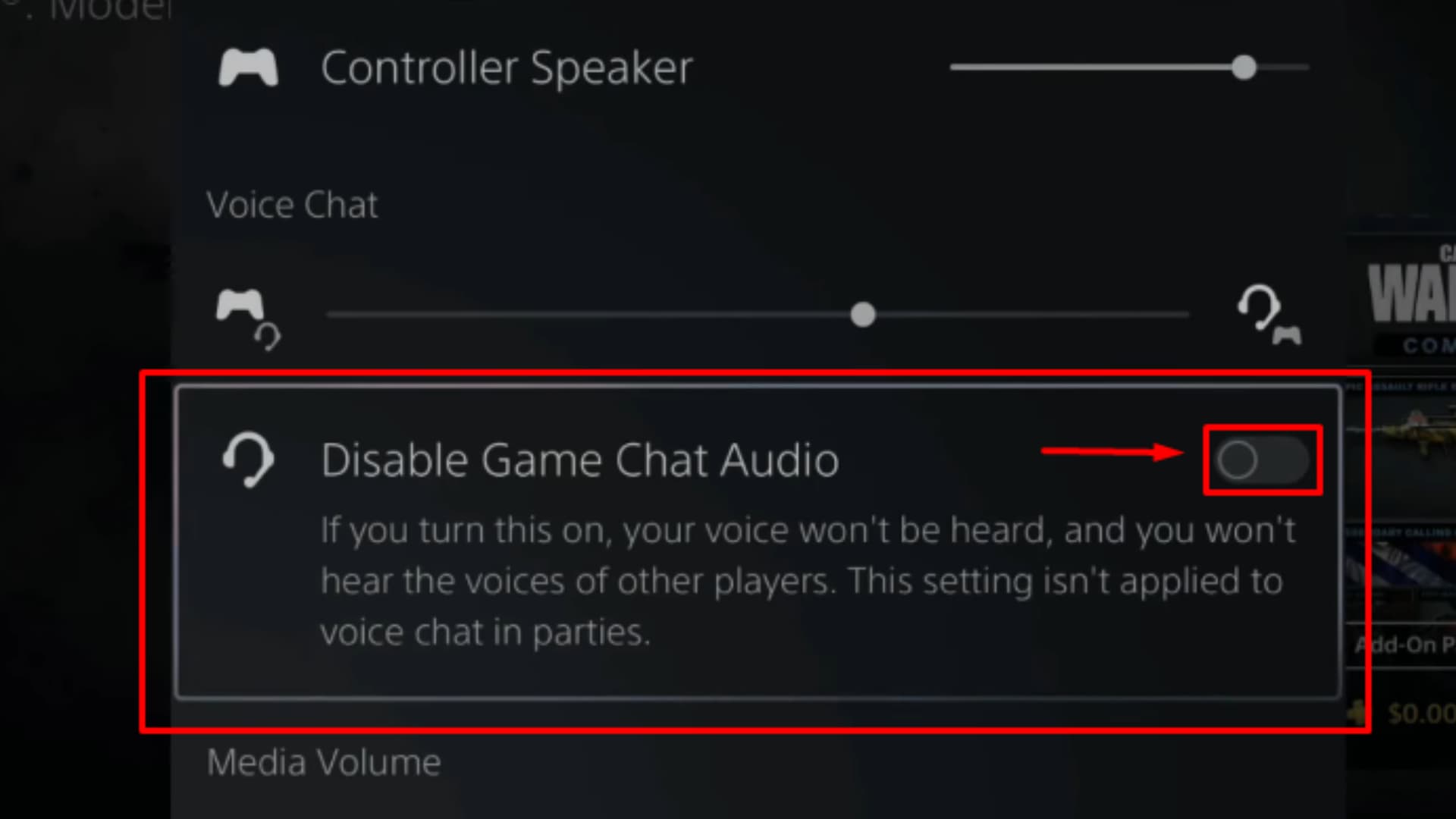
3. On PS5
On PS5, mic monitoring is controlled through the sidetone setting. Open Settings, then navigate to Sound and select Microphone.
Inside the microphone menu, locate the Sidetone Volume option. Increase or decrease it while speaking into your headset mic.
Keep adjusting until your voice sounds natural and balanced with the console audio. Avoid pushing it too high, since excessive sidetone can make your own voice distracting.
4. On Xbox
To adjust mic monitoring on Xbox, press the Xbox button and open Profile and System. Go to Settings, then navigate to Accessibility and select Audio.
Inside this menu, you will find the Mic Monitoring slider. Increase it gradually while speaking into your headset to test the feedback.
The goal is to reach a level where you hear yourself clearly without it interfering with in-game sound or party chat.
5. In Software
Software monitoring is useful when your headset or audio interface lacks hardware monitoring. In OBS, open Advanced Audio Settings and set your microphone source to Monitor and Output.
This allows you to hear your own voice through your selected monitoring device. Keep in mind that software monitoring introduces latency.
Lower buffer settings help reduce delay, but your PC must be powerful enough to handle it smoothly.
Does Mic Monitoring Affect What Others Hear?
A common misconception is that adjusting sidetone changes how your voice sounds to teammates or viewers. It does not.
Mic monitoring only affects what you hear in your own headset.
Your stream output, Discord transmission, and in-game voice chat are entirely separate from your sidetone signal. Sidetone’s only job is to help you regulate your own volume in real time.
Common Mistakes People Make with Mic Monitoring
Many gamers and streamers ignore mic monitoring settings or configure them incorrectly, which leads to poor communication, inconsistent voice levels, and distracting audio during sessions.
- Setting It Too High: Turning the monitoring too high makes your voice overly prominent in your headset, quickly becoming distracting and breaking immersion during gameplay.
- Confusing Monitoring with Mic Volume: Mic monitoring controls what you hear, while mic volume controls what others hear. Mixing these settings often leads to uneven audio levels.
- Ignoring Mic Monitoring Completely: Not using monitoring at all often leads to voice creep, where you gradually speak louder during long sessions without realizing it.
- Not Adjusting for Different Scenarios: A monitoring level that works for gaming may not suit streaming or chatting, so levels should be adjusted depending on the situation.
Conclusion
Getting the Best Mic Monitoring Level for Gaming, Chat, and streaming is less about a fixed number and more about finding a balance that feels natural in your headset.
When the level is set correctly, you stay aware of your voice without it distracting you from gameplay, conversation, or streaming.
It also helps keep your volume consistent and prevents the common problem of gradually talking louder over time.
If possible, prioritize hardware-level sidetone over software monitoring for the lowest latency. Start within the recommended range for your use case, run the self-test described above, and fine-tune from there.
Start with a lower level, then increase it slowly until your voice sounds clear but not overpowering.
If you have tried mic monitoring in your setup, share your experience and drop your thoughts in the comments below.