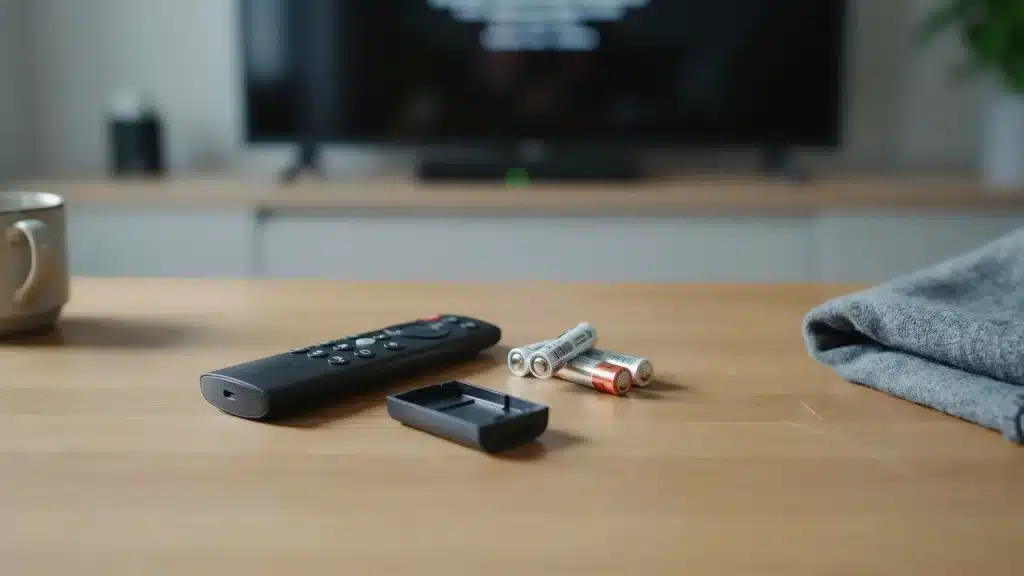
Is your Fire TV remote suddenly unresponsive when you are in the middle of streaming a show or movie?
A remote that stops responding can often be traced to simple issues like weak batteries, lost Bluetooth pairing, temporary remote glitches, or connection problems with the Fire TV device.
If you are dealing with a Fire TV remote not working issue, the right troubleshooting steps can usually restore control quickly.
The solutions below focus on common user fixes and official troubleshooting methods to help identify the cause and resolve the problem without immediately replacing the remote.
Why is Your Fire TV Remote Not Working? Common Causes Explained
A Fire TV remote can stop responding for several reasons, and identifying the cause makes troubleshooting much easier. The most common issue is weak or drained batteries, which can prevent the remote from sending signals properly.
Since Fire TV remotes use Bluetooth, the connection can also be lost and require re-pairing. In some cases, the Fire TV device itself may need a restart to clear temporary system errors.
Most Fire TV remotes run on Class 2 Bluetooth, which has an effective range of roughly 30 feet in open space, so signal strength drops off quickly once walls, furniture, or other electronics get in the way.
Software glitches after updates, damaged internal components, or physical wear can also affect remote performance, and it helps to recycle old electronics once a remote reaches the end of its life. Distance and interference from other wireless devices can also reduce connection reliability.
The right solution depends on what the remote is doing, such as showing no light, blinking unexpectedly, failing to pair, or not responding at all. Identifying these signs helps narrow down the fix quickly.
Try These Quick Fixes First Before Resetting Your Fire TV Remote
Before resetting your remote, try these simple checks first. Many connection and response issues can be fixed within a few minutes.
- Replace batteries: Using and replacing batteries correctly helps prevent performance issues and safety problems.
- Check battery contacts: Confirm the batteries are inserted correctly and clean the contacts if needed.
- Move closer to Fire TV: Keep the remote within range and remove anything blocking the connection.
- Restart Fire TV: Unplug your Fire TV device for 60 seconds, then reconnect it.
- Remove interference: Move nearby Bluetooth devices or wireless devices that may affect the signal, since switching to dual-band can also reduce network crowding.
- Test the buttons: Press different buttons to check if the remote responds or only certain buttons fail.
If these quick checks do not restore control, move on to advanced fixes like resetting the remote, checking LED signals, or pairing it again with your Fire TV device.
Check Your Fire TV Remote Light Color to Find the Problem
The LED light on your Fire TV remote can quickly show what is wrong. Checking the color helps identify the issue before trying random fixes.
| Remote Light | What It Usually Means |
What to Try |
|---|---|---|
| No light | Battery or hardware issue | Replace batteries or test the remote |
| Slow red blink | Low battery | Install fresh AAA batteries |
| Fast red blink | Remote error | Reset the remote |
| Orange light | Remote is not paired | Pair the remote again |
| White light | Fire TV connection issue | Restart Fire TV |
| Blue light | Remote is working normally | Check the Fire TV device |
Note: If the LED shows an issue but the remote still does not respond after the recommended fix, restart your Fire TV and try pairing the remote again.
Using the LED signals saves time by pointing you toward the right solution instead of testing unrelated fixes, especially since understanding how Bluetooth works makes pairing issues easier to diagnose. Once you identify the light pattern, follow the matching troubleshooting step to restore your remote connection.
How to Fix a Fire TV Remote That Won’t Pair or Connect
Pairing problems are one of the most common reasons a Fire TV remote stops responding. These steps cover reconnecting the remote, resetting connection settings, and adding a replacement remote when needed.
1. Pair Your Fire TV Remote Again Using the Home Button
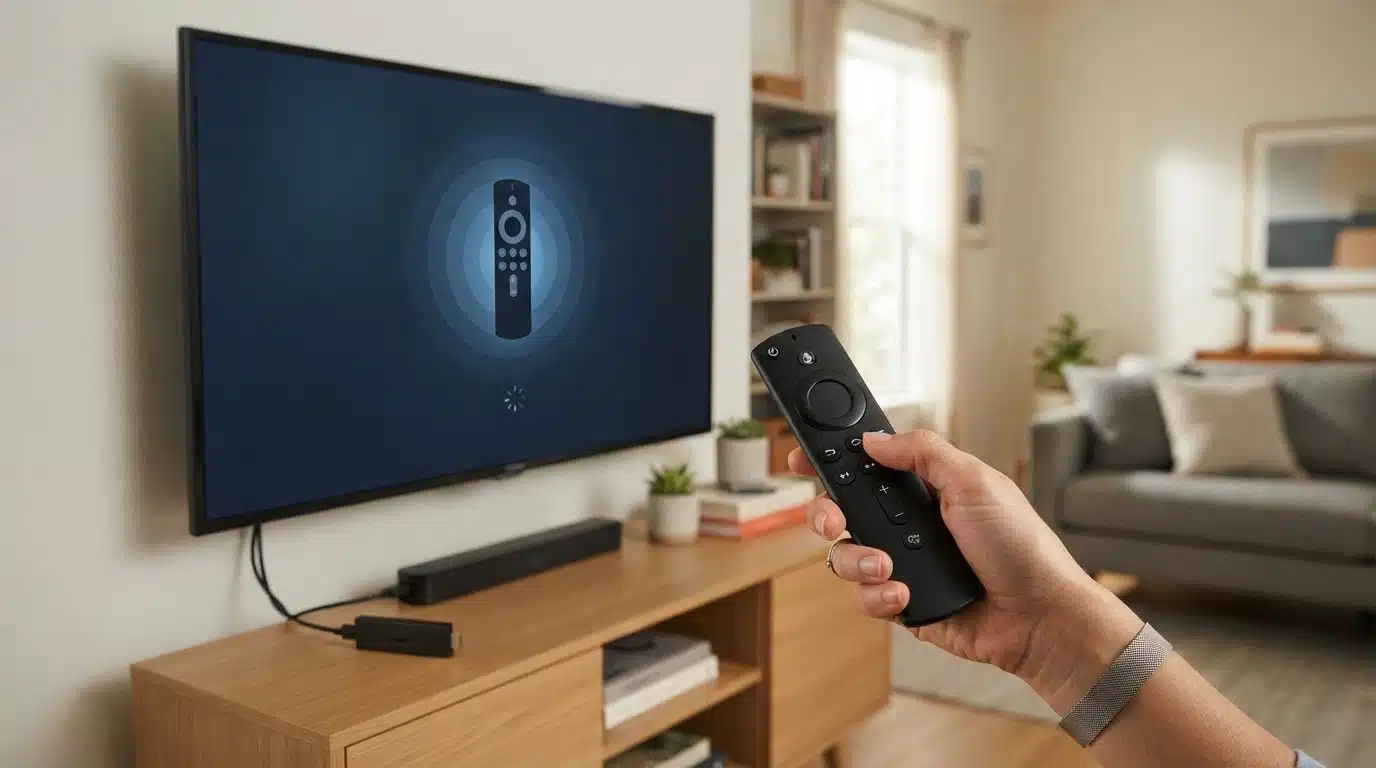
If your remote loses its Bluetooth connection, pairing it again can usually restore control. Turn on your Fire TV device and keep the remote nearby.
Press and hold the Home button for about 10 seconds until the pairing process starts. Wait for the on-screen confirmation that the remote has connected. If it does not pair, restart the Fire TV and repeat the process while keeping the remote close.
In testing across several Fire TV Stick generations, the pairing window is generous, so it is fine to release and re-press the Home button if a confirmation prompt doesn’t appear within the first few seconds.
Tip: If pairing fails several times, remove the remote batteries, restart the Fire TV device, and try the pairing process again.
2. Reset the Remote Before Pairing Again
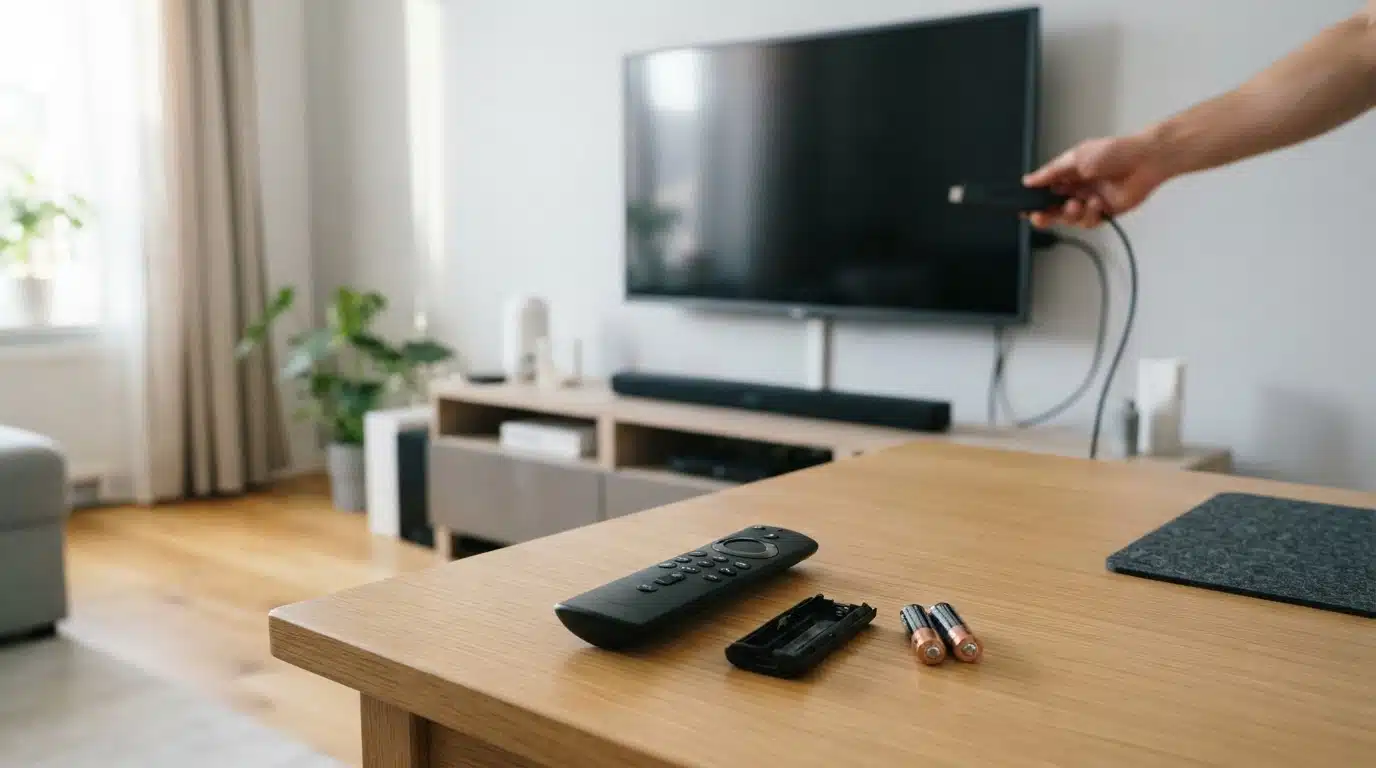
Resetting helps when the remote remains unresponsive after battery replacement or fails to connect repeatedly, a pattern that shows up in typical smart home issues as well. Remove the batteries, unplug your Fire TV device, and wait before reconnecting it.
Depending on your remote model, use the correct button combination to reset it. After the reset is complete, reinstall the batteries, restart your Fire TV, and try pairing the remote again.
Note: Reset steps can vary by Fire TV remote generation, so use the button combination that matches your specific model.
3. Fix Pairing Problems After Replacing Batteries
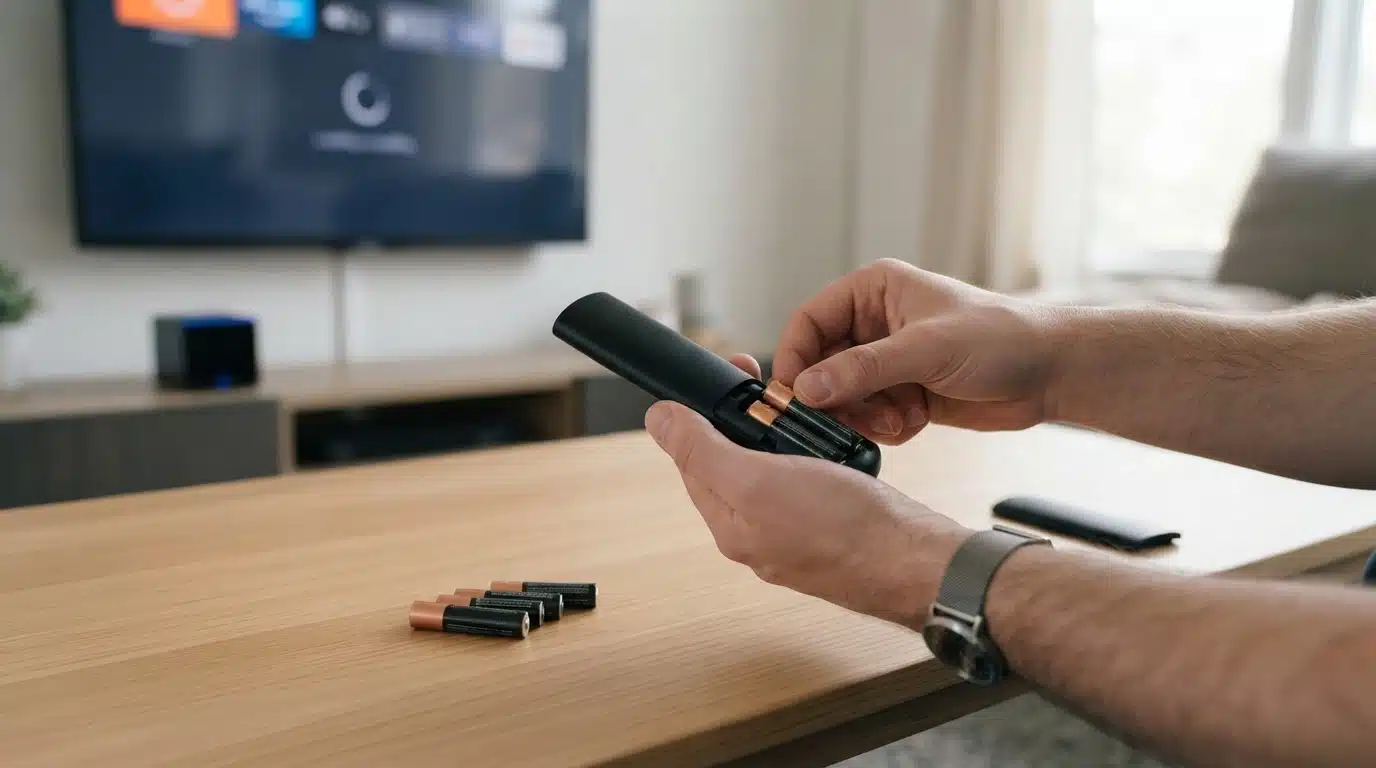
Changing batteries can sometimes interrupt the remote’s Bluetooth connection, especially if the remote loses its stored pairing information, so following basic battery care tips can help.
Start by removing and reinstalling the new batteries, then restart your Fire TV device. Once the device loads, hold the Home button to begin pairing. Keep the remote close until the connection is confirmed on the screen.
Tip: Avoid using partially used batteries during setup, as low power can prevent the remote from completing the pairing process.
4. Connect a Replacement Fire TV Remote
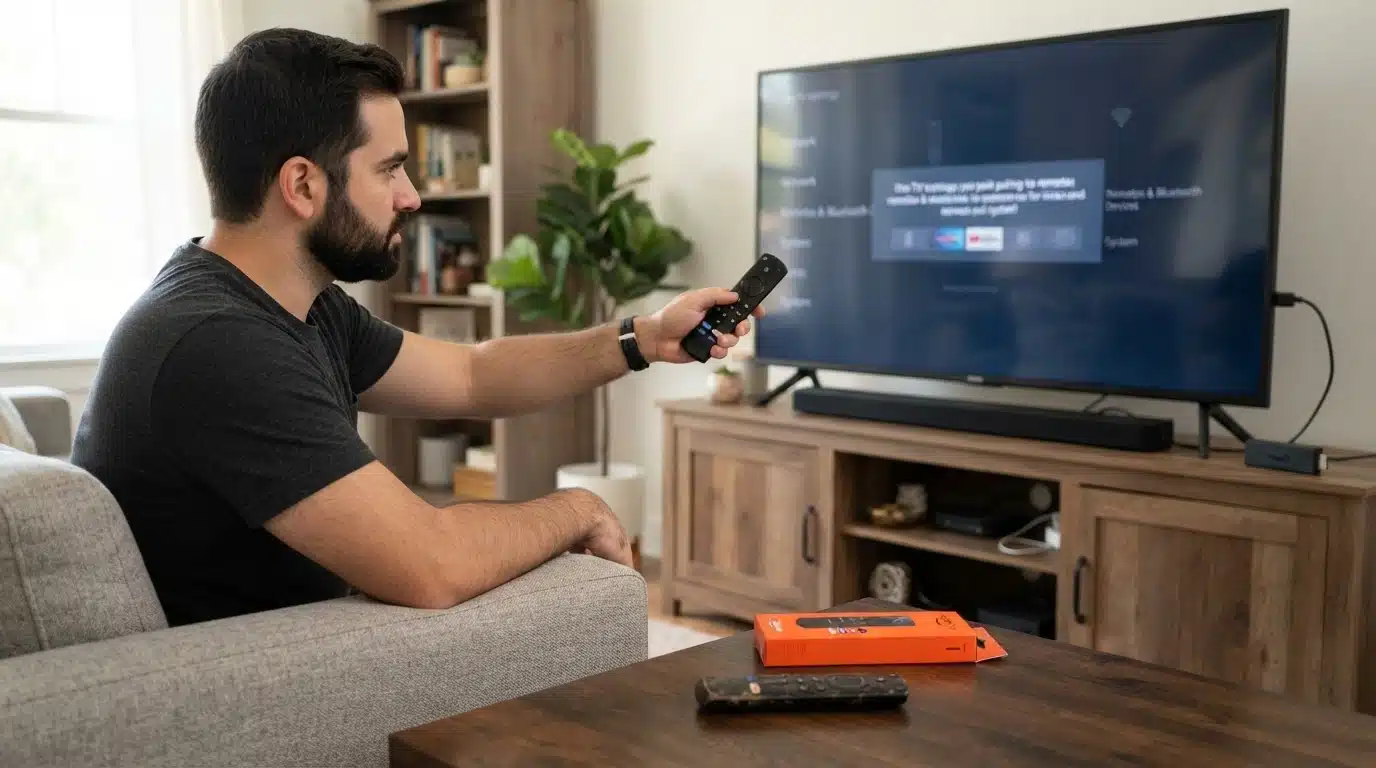
A new Fire TV remote must be compatible and paired before it can control your device. If you still have access to your Fire TV, open Settings > Controllers & Bluetooth Devices to add a new remote.
Select the replacement remote and follow the pairing instructions. Check that the remote model supports your specific Fire TV Stick or Fire TV device before purchasing.
Note: If you cannot access settings without a working remote, use the Fire TV mobile app as a temporary controller to complete setup, a step similar to linking phone to TV for casting content.
Pairing issues usually come from lost Bluetooth connections rather than a damaged remote. Following the correct reconnect or reset process can often bring the remote back without needing a replacement.
Field-Tested Fixes for a Fire Stick Remote that Suddenly Stopped Working
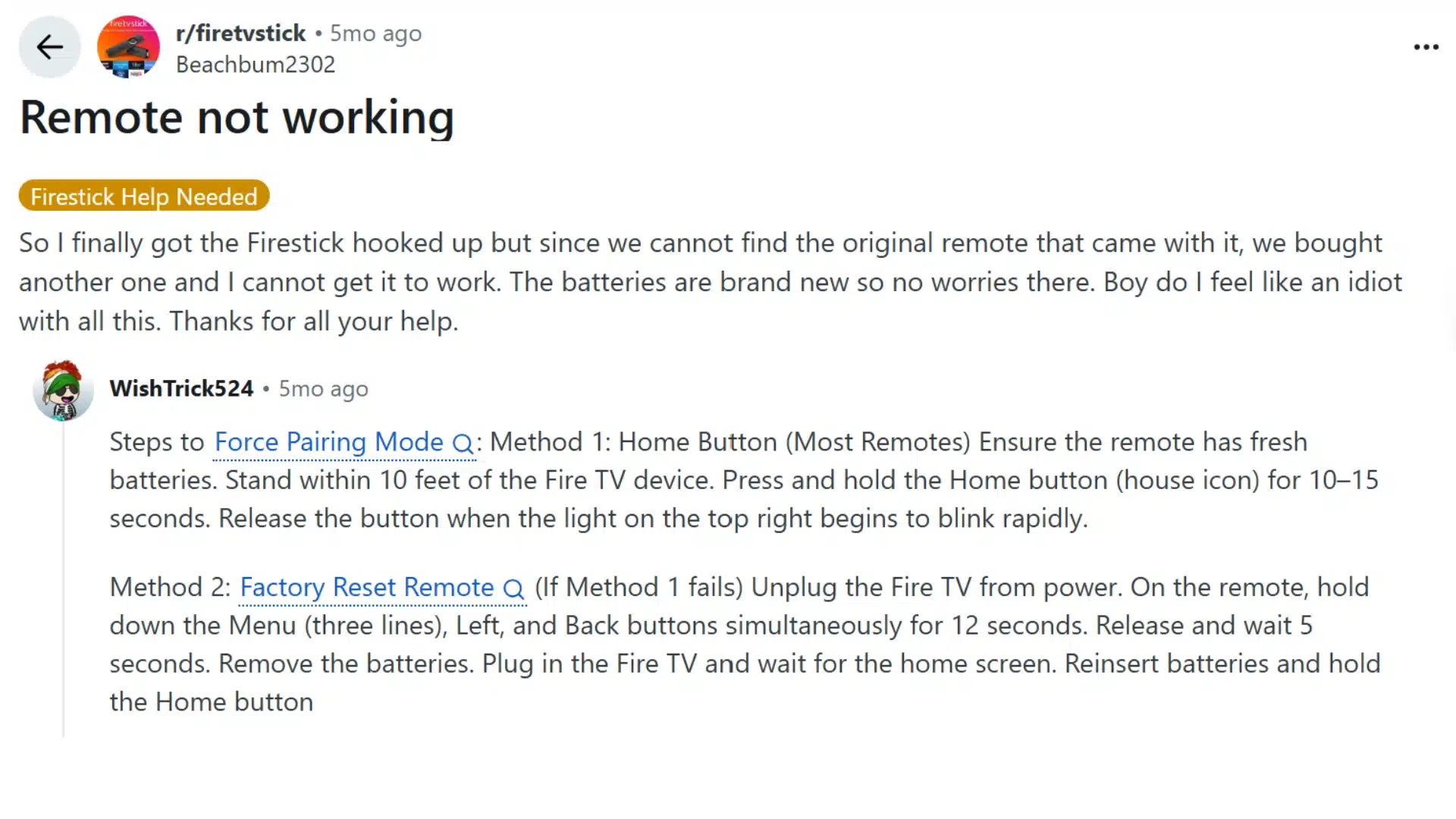
Many Fire TV users report that sudden remote failures are often linked to temporary pairing, power, or Bluetooth issues rather than a completely broken remote.
Community discussions commonly suggest unplugging the Fire TV for about 60 seconds to clear temporary freezes before reconnecting it.
Users also recommend removing the remote batteries for a few minutes and pressing several buttons before reinstalling them to clear any temporary glitch.
Trying a completely fresh set of batteries can also help, even when the remote light still works. If you are using the Fire TV mobile app, make sure your phone and Fire TV are connected to the same Wi-Fi network.
Moving nearby Bluetooth devices away may reduce interference, while testing the remote with another compatible Fire TV can help determine whether the remote or Fire TV device is causing the problem.
What to Do When Your Fire TV Remote Has No Light or Only Some Buttons Work
A Fire TV remote can fail in different ways, and each symptom points to a different cause. Checking the LED, buttons, and connection behavior helps identify the right fix.
1. No LED Light
When the remote shows no light at all, it may not be receiving power or could have a hardware problem. Start with the basics before assuming the remote is damaged.
- Check and replace the batteries with fresh AAA batteries.
- Make sure the batteries are installed in the correct direction.
- Clean the battery contacts if they appear dirty or corroded.
- Check for cracks, liquid damage, or physical wear.
- Consider replacing the remote if it remains completely unresponsive after testing.
2. Some Buttons Not Responding
If only certain buttons fail, the issue may be limited to the remote’s buttons rather than the connection. Simple cleaning and resets can sometimes restore normal operation.
- Clean around the affected buttons to remove dirt or debris.
- Check if any buttons feel stuck or physically damaged.
- Reset the remote to clear temporary software issues.
- If specific buttons continue failing, the remote may have internal hardware damage.
3. Remote Lights Up but Fire TV Does Nothing
A working LED does not always mean the remote is connected correctly. If the light responds but the Fire TV ignores commands, the problem is usually related to pairing or device communication.
- Restart the Fire TV device to refresh the connection.
- Reconnect the remote through the pairing process.
- Remove the remote and pair it again with your Fire TV.
Testing these symptoms separately helps avoid unnecessary replacements. A remote with power issues, button failures, or pairing problems usually requires a different solution, so identifying the exact behavior is the fastest way to fix it.
Use the Fire TV Remote App as a Temporary Solution
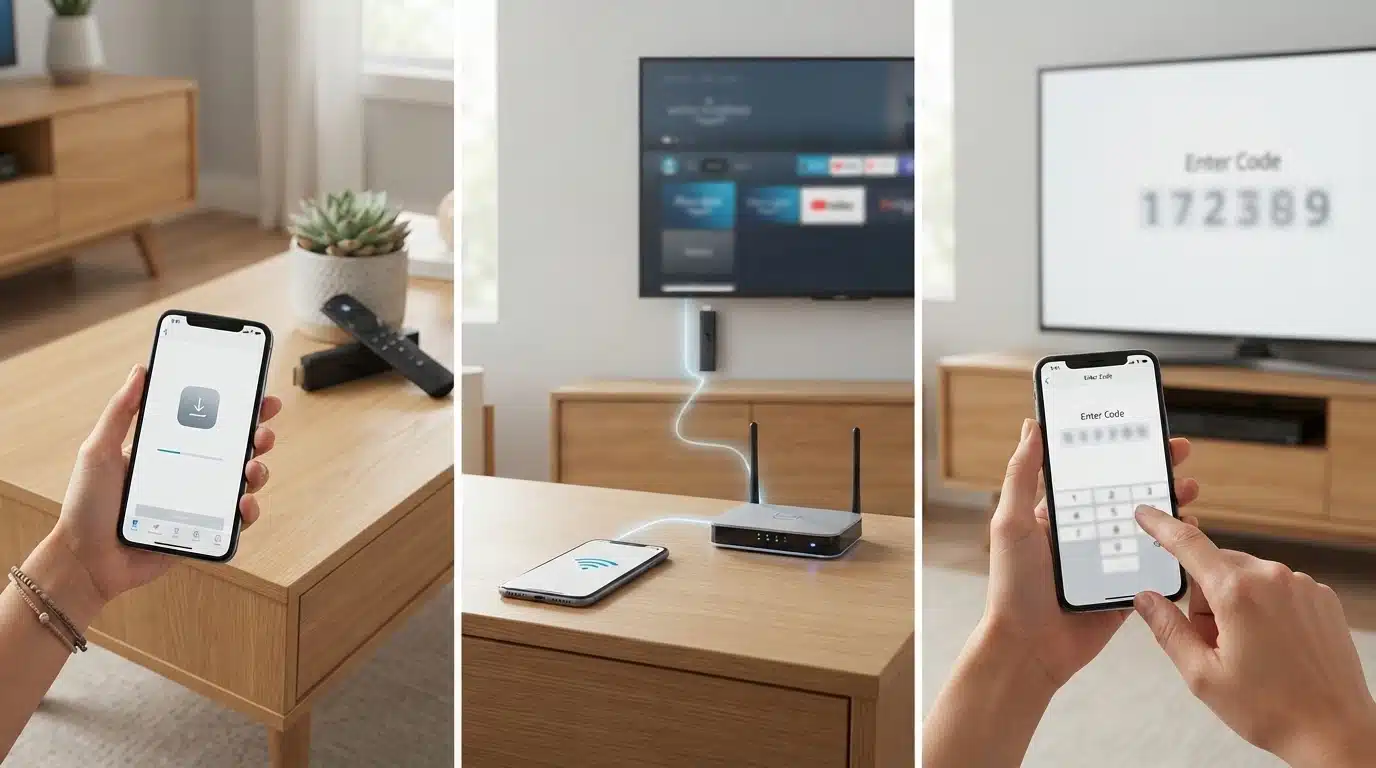
If your physical remote is unavailable, the Amazon Fire TV app can work as a temporary controller. It connects through Wi-Fi and lets you navigate your device without a replacement remote.
Step 1: Download the Amazon Fire TV app: Install the official Fire TV app on your smartphone from the App Store or Google Play Store. Open the app and allow the required permissions.
Step 2: Connect your phone and Fire TV to the same Wi-Fi network: Network connection problems can prevent devices from communicating properly.
Step 3: Select your Fire TV device: Open the app and choose your Fire TV device from the available list. Wait for the connection request to appear on your television screen.
Step 4: Enter the pairing code shown on TV: Type the code displayed on your Fire TV screen into the app. Once verified, your phone will work as a remote control.
Using the Fire TV app can help you regain control quickly while you troubleshoot or replace a faulty physical remote. It is especially useful when pairing problems prevent normal remote access.
When Should You Replace Your Fire TV Remote?
Not every remote issue requires a replacement. Checking a few signs first can help you decide if the remote is damaged or if troubleshooting can restore it.
Replace the remote if:
- New batteries do not help
- Remote shows no light response
- Buttons are physically damaged
- Liquid damage occurred
- Reset and pairing attempts fail
Before replacing:
- Confirm the Fire TV device itself works
- Try the Fire TV mobile app
- Check remote compatibility
Replacing the remote should be the final step after ruling out battery, pairing, and device connection problems. A quick compatibility check ensures the new remote works with your specific Fire TV model.
Final Remote Check
A Fire TV remote problem is often caused by simple issues like weak batteries, lost pairing, connection glitches, or temporary device errors. Checking the remote symptoms and following the right troubleshooting steps can usually restore control without replacing it.
If you are dealing with aFire TV remote not working issue, start with quick fixes like checking the batteries, restarting the device, resetting, or pairing the remote again before considering a replacement.
Have you tried any other fixes that worked for your Fire TV remote? Comment below with your thoughts and share your experience.
Frequently Asked Questions
Can I Use a Fire TV Remote Without Wi-Fi?
No. The physical Fire TV remote pairs and communicates over Bluetooth, so it works fine without an internet connection once it is paired. The Fire TV mobile app is different: it sends commands over your home network, so your phone and Fire TV need to share the same Wi-Fi network for it to work as a remote.
How Long Does a Fire TV Remote Usually Last?
A Fire TV remote can last several years with normal use, and Amazon doesn’t publish a fixed lifespan. In practice, how long it lasts depends most on battery habits, how often the buttons get pressed, and whether it survives an occasional drop or spill.
Can I Pair More than One Fire TV Remote?
Yes. Fire TV devices support multiple paired remotes at the same time, which is useful if a household prefers a spare on hand. Add an additional remote through Settings, then Controllers and Bluetooth Devices, and follow the same pairing steps used for the original remote.
Why Does My Fire TV Remote Work from Close Range Only?
Short-range response almost always points to weak batteries, Bluetooth interference, or a connection that never fully stabilized. Fresh batteries solve this most often, since the remote needs steady power to maintain a stable Bluetooth signal at a distance. If new batteries do not help, move other wireless devices farther from the Fire TV and check for physical obstructions between the remote and the receiver.