Changing an Outlook signature should take only a few minutes, yet it often turns into an unexpected headache.
A missing edit button, a signature that refuses to save, or one that disappears without warning can leave you wondering what went wrong.
If you are trying to figure out how to change the signature in Outlook, you are not alone. I ran into the same problems while updating my own signature, and the fixes were not always as obvious as they should have been.
Below, I’ll show you how to add a signature in Outlook and walk through the most common issues users discuss on community forums, so you can get everything working properly.
How to Change Your Signature in Outlook on Windows
Classic Outlook and New Outlook store signature settings in different places. Before you begin, confirm which version you’re using.
You can check under File > Office Account or by looking for the New Outlook toggle in the upper-right corner.
For Classic Outlook:
- Select File, then Options.
- Click Mail, then Signatures.
- Choose the signature you want to edit from the list.
- Update the text in the Edit signature box.
- Click OK, then OK again to close the dialog.
For New Outlook:
- Select Settings, then Accounts, then Signatures.
- If you manage more than one account, pick the right one from the dropdown.
- Select the edit icon next to the signature you want to change.
- Make your edits, then select Save.
One thing that often surprises users is that changes only apply to new emails. Existing drafts keep the old signature unless you replace it manually.
Microsoft’s official signature setup guide covers both versions in greater depth, including how to add logos and hyperlinks.
Tip: If Outlook keeps using an older signature, check the Default signature settings for your email account. Editing a signature does not automatically make it the default for new emails or replies.
How to Change Your Signature in Outlook on the Web
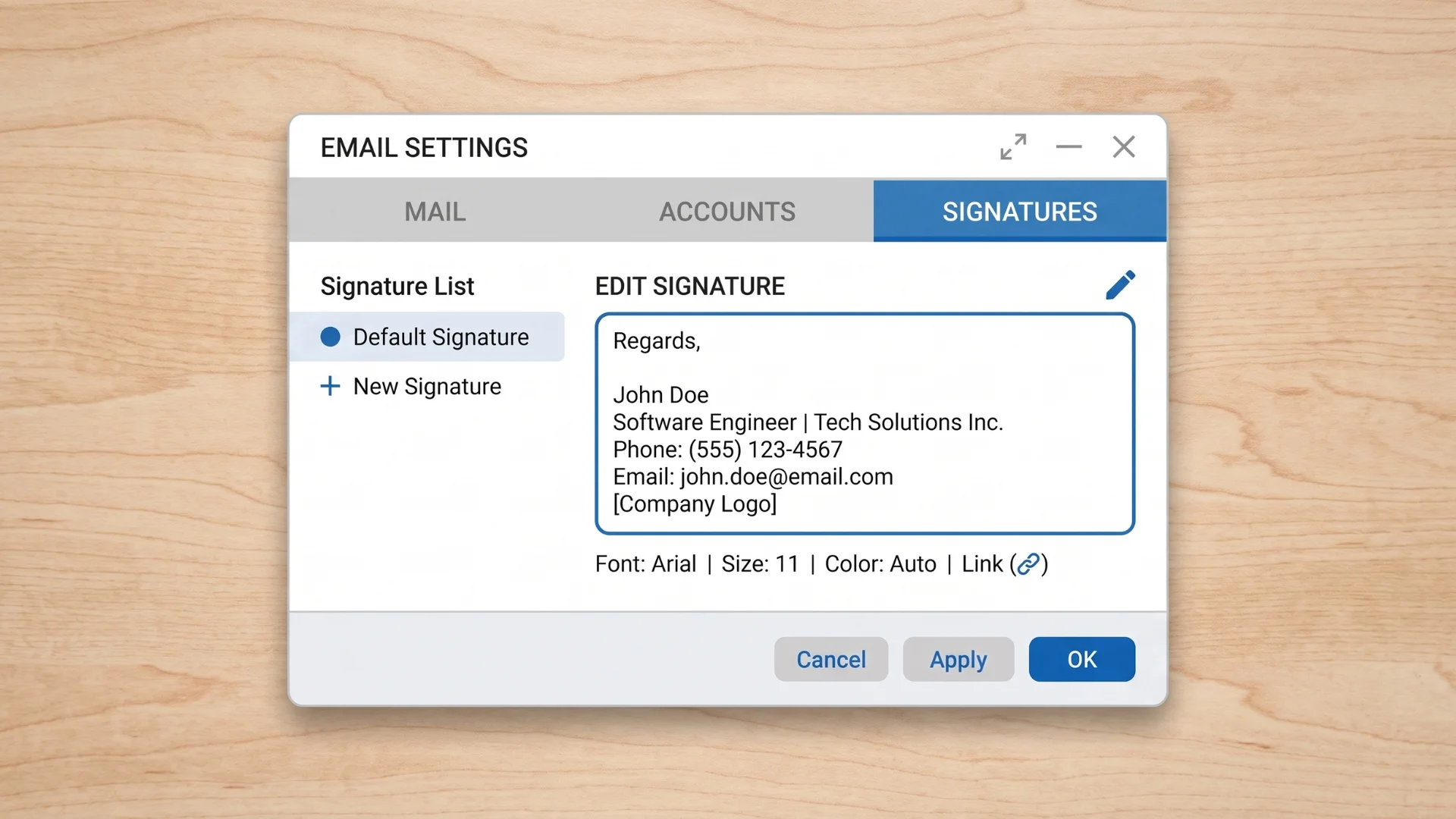
Outlook.com and Outlook on the web for business use the same signature settings.
- Select Settings (gear icon), then View all Outlook settings
- Go to Mail > Compose and reply
- Edit your signature in the text box
- Choose whether to apply it to new emails, replies, and forwards, or both
- Click Save
One of the most common mistakes is closing the browser tab before clicking Save. Unlike the desktop app, Outlook on the web does not autosave signature changes.
Also, a signature created here does not automatically sync with every connected app. If your team manages email alongside content writing tools, you may notice formatting or signature inconsistencies across platforms.
If you use multiple connected apps, understanding software integrations can also help explain why signature settings do not always sync as expected.
How to Change Your Signature in Outlook for Mac
Outlook for Mac keeps signature settings under the app menu rather than a gear icon, which trips up people switching from Windows.
- Open the Outlook menu, then select Settings.
- Under Email, select Signatures.
- Pick the signature you want to change under Signature name, then select Edit.
- Update the text, then select Save.
Unlike the classic Windows version, changes here can take effect immediately without a separate confirmation step, though this varies by build.
If you want to set different signatures for new messages versus replies, that is handled under Choose default signature in the same window, and each mail account needs its own default set individually.
How to Add a Signature in Outlook Mobile
Adding a signature in the Outlook mobile app is quick, but the experience differs between Android and iPhone.
On Android:
- Open Outlook and tap the menu icon, then Settings
- Select your account, then tap Signature
- Enter your signature and add any links
- Tap Done
On iPhone:
- Open Outlook and tap Settings
- Select your account, then tap Signature
- Enter or edit your signature
- Tap the back arrow to save
The setup is similar on both devices, but each platform has its own quirks. The exact menus and available formatting options can vary depending on your device and the version of the Outlook app you are using.
One important difference is formatting. Android supports text-only signatures, while iPhone allows HTML formatting, including logos and styled links.
Also, neither app automatically imports your desktop signature, so you will need to recreate or paste it manually. This limitation is a common complaint on Microsoft forums and is due to platform differences rather than a setting you can change.
Common Outlook Signature Problems & How to Fix Them

Most Outlook signature problems begin after you finish the setup. If your changes refuse to save, disappear later, or become impossible to edit, one of the issues below is usually the cause.
Your Signature Disappears After Restarting Outlook
If your signature saves temporarily but disappears or reverts after restarting Outlook, the problem is typically caused by a corrupted signature file, an organization-wide Group Policy, or a sync conflict between roaming signatures and a locally stored version.
On Windows, recreating the signature after deleting the existing signature files in the AppData folder often resolves the issue.
If you use a work account, keep in mind that your IT department may enforce policies that automatically overwrite or prevent signature changes.
One community thread covers this exact scenario, including the folder location and how workplace policies can affect saved signatures.
You Can’t Edit Part of Your Outlook Signature
If Outlook only lets you type at the end of your signature, or the cursor always jumps to the bottom, the signature is usually affected by broken formatting.
This commonly happens after copying content from Microsoft Word or another rich-text editor.
The simplest fix is to clear the existing formatting or recreate the signature using plain text. Once everything works normally, add formatting back gradually to avoid bringing the same formatting issue back.
Your Outlook Keeps Using the Old Signature
If Outlook keeps inserting an older signature after you make changes, check which signature is set as the default for new emails and replies.
Also, close any email drafts that were open before updating your signature, as Outlook does not automatically replace signatures in existing drafts.
Your Signature Looks Different on Mobile
A different-looking signature on mobile is usually expected, not a bug. Outlook stores mobile and desktop signatures separately, so changes made on one device do not automatically appear on the other.
For the most consistent results, keep your mobile signature simple, especially on Android, which does not support full HTML formatting.
Before assuming something is broken, check these:
- Edit the correct email account
- Verify roaming signatures are enabled
- Restart Outlook completely
If the problem persists, it is likely tied to your Outlook account or organization rather than your device. When contacting support, include your Outlook version, platform, and account type to help identify the issue more quickly.
Outlook Signature Tips that Actually Work
After reading enough Outlook support threads, you start to notice the same advice appearing again and again because it actually works.
- Build in plain text first, then add formatting
- Test your signature in a real email draft
- Name signatures by purpose, not version
- Keep mobile signatures to 2–3 lines
- Rebuild a broken signature instead of patching it
I have tested these approaches myself, and starting with plain text has been the most reliable. It avoids many formatting and editing issues, making future updates much smoother and eliminating the need for repeated trips back to the signature settings.
Final Outlook
If you know how to change the signature in Outlook, keeping it up to date becomes much easier. From my own experience, building the signature in plain text first and testing it before adding extra formatting has been the most reliable approach.
It takes a few extra minutes, but it prevents many of the problems that lead people to search for fixes later.
While Outlook handles signatures differently on Windows, Mac, the web, and mobile, the process is straightforward once you know where the settings are. Whether you need to know how to add a signature in Outlook or edit an existing one, this guide covers the steps.
Hopefully, this helped you change your signature in Outlook without the usual frustration.
If you ran into a problem not covered here or found a fix that worked for you, leave a comment below. Your experience could help someone else troubleshoot the same issue much faster.
Frequently Asked Questions
Can I Set Different Signatures for New Emails and Replies in Outlook?
Yes. Outlook lets you use one signature for new emails and another for replies and forwards.
Why Doesn’t My Signature Appear when I Reply from My Phone?
By default, Mobile Outlook may only apply signatures to new emails. Check your signature settings for replies and forwards.
Can I Use a Simple Horizontal Line as My Outlook Signature?
Yes. You can insert a horizontal line with the formatting tools or use dashes or underscores as a plain-text divider.
Will Reinstalling Outlook Delete My Saved Signatures?
Usually not. Windows stores signatures separately from the app, but backing them up is still a good idea before reinstalling Outlook.