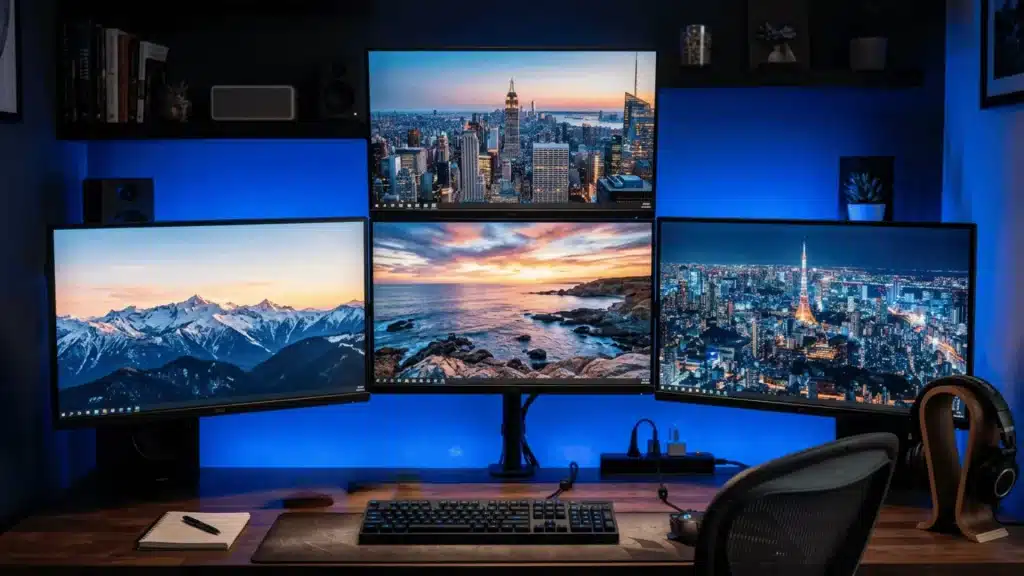
You may have a browser open, a spreadsheet on the side, a video call running, and a chat window that keeps pulling your attention away. A second screen helps, but for some workflows, even that can feel tight.
At this point, a 4-monitor setup makes sense. It connects four displays to one computer, usually in extended mode, so each screen works as its own workspace.
Your computer needs enough display outputs, the right cables, a sturdy desk, and a layout that stays comfortable for long work sessions. Multi-monitor setups help with coding, research, dashboards, editing, and app switching.
This blog breaks down what you need, how to arrange the screens, how to connect them, and how to keep the setup comfortable for daily use.
What You Need for a 4 Monitor Setup?
Before buying four displays, check whether your computer can actually run them. A 4-monitor setup depends on the right hardware, not just the number of screens.
For desktops, check that the GPU can run four displays at once. For a laptop, check the external display limit, as many models require a Thunderbolt dock, a USB-C dock, or a DisplayLink adapter.
DisplayPort and HDMI are the most common connections. DisplayPort is especially useful because MST can run multiple displays through a compatible hub or daisy-chain setup.
You also need a sturdy, deep desk that can handle four 24-inch or 27-inch monitors, plus space for your keyboard, mouse, speakers, and accessories.
If you are already building a connected desk or work-from-home space, a smart home setup guide can also help you plan the wider workspace around lighting, power, and device placement.
The Best 4 Monitor Setup Layouts for Your Workflow
There is no single best 4-monitor layout for everyone. The right arrangement depends on what you do most during the day.
1. 2×2 Grid Layout
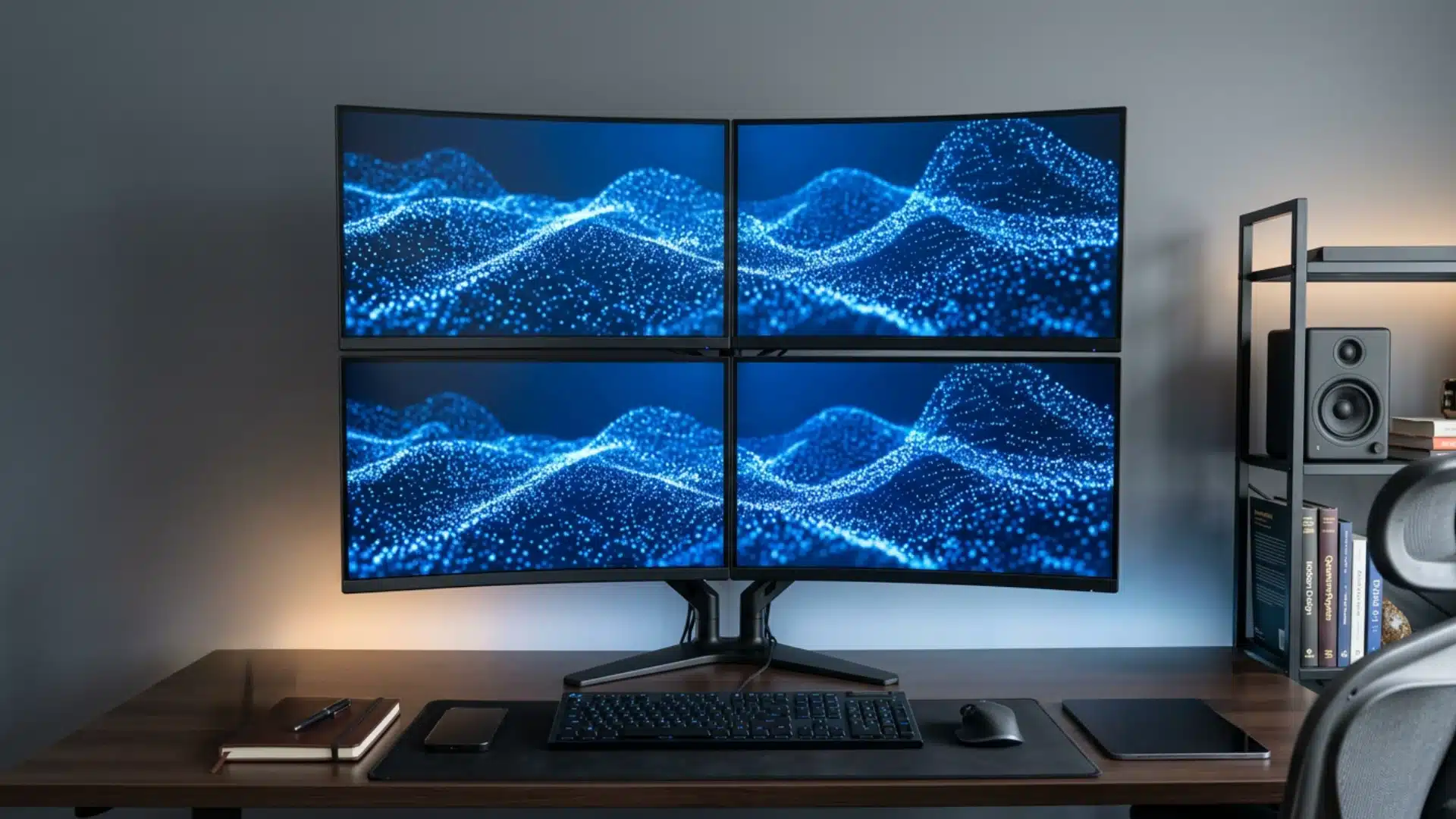
A 2×2 grid places two monitors on the bottom row and two directly above them. It works well for dashboards, security feeds, analytics panels, and monitoring-heavy work.
The desk footprint stays compact, which is useful if your workspace is not very wide. The trade-off is neck movement.
If the upper monitors sit too high, looking up repeatedly becomes uncomfortable during long sessions. Keep the top row lower than you might expect; they should be for occasional viewing, not constant use.
2. Horizontal Row Layout

A horizontal row places all four monitors side by side. This layout suits trading setups, racing simulators, video editing timelines, and workflows that benefit from a wide continuous field of view.
The main problem is the outer screens. If all four monitors are flat in a straight line, the far-left and far-right displays force significant neck rotation.
A curved or angled arrangement handles this much better, angle each side monitor inward so your eyes do most of the movement, not your neck.
3. Primary-Plus-Three Arrangement
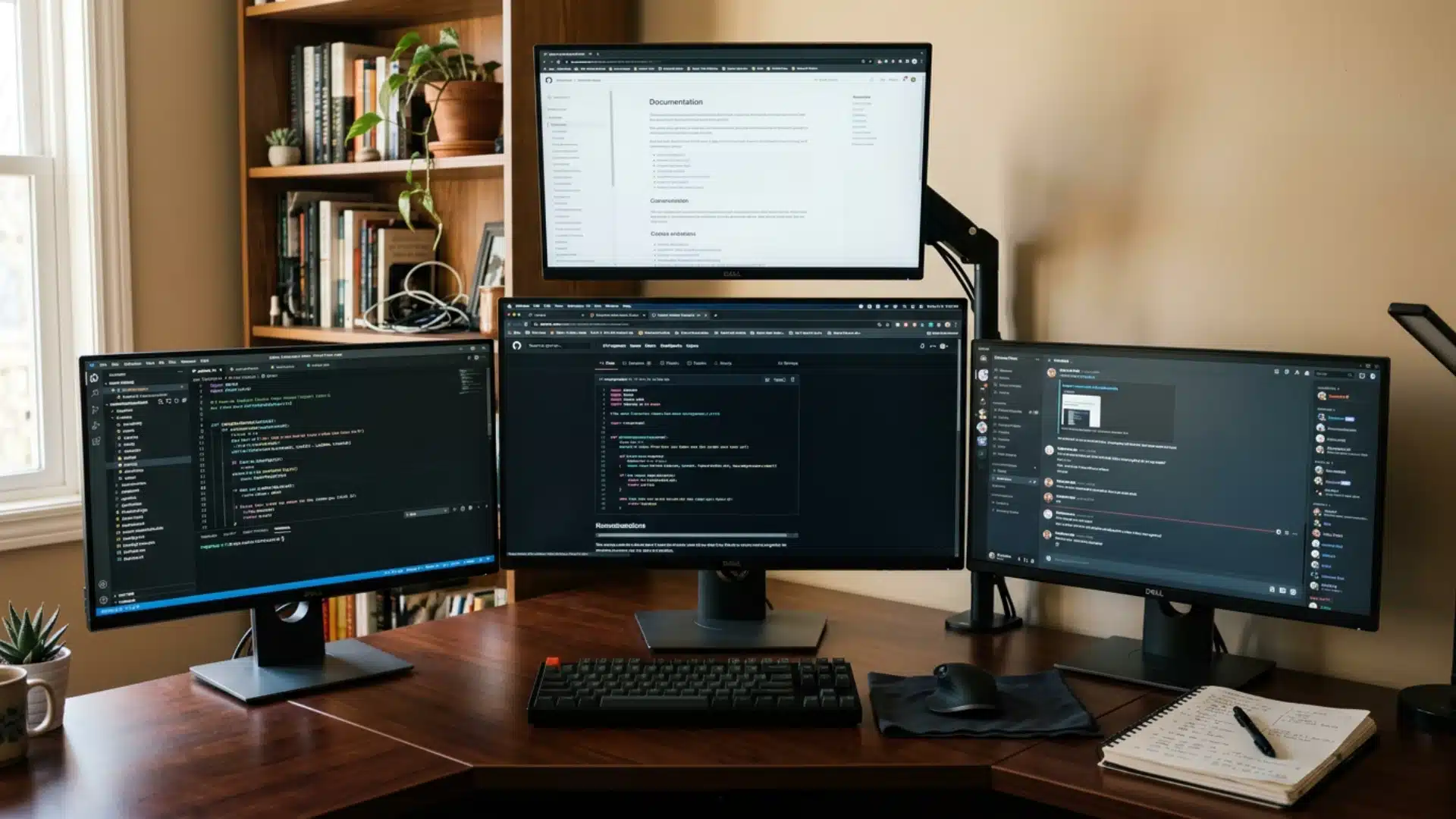
A primary-plus-three layout keeps one monitor directly in front of you and places the other three around it. This layout is practical because it keeps one main screen for focus and uses the other three for support.
This is one of the best layouts for writing, coding, research, content creation, and office work.
Your main task stays on the center display, while the side screens hold reference material, email, chat, preview windows, or media.
For example, a developer may use the center screen for code, one side screen for documentation, another for a browser preview, and the fourth for terminal windows or project notes.
4. Wide Arc Layout
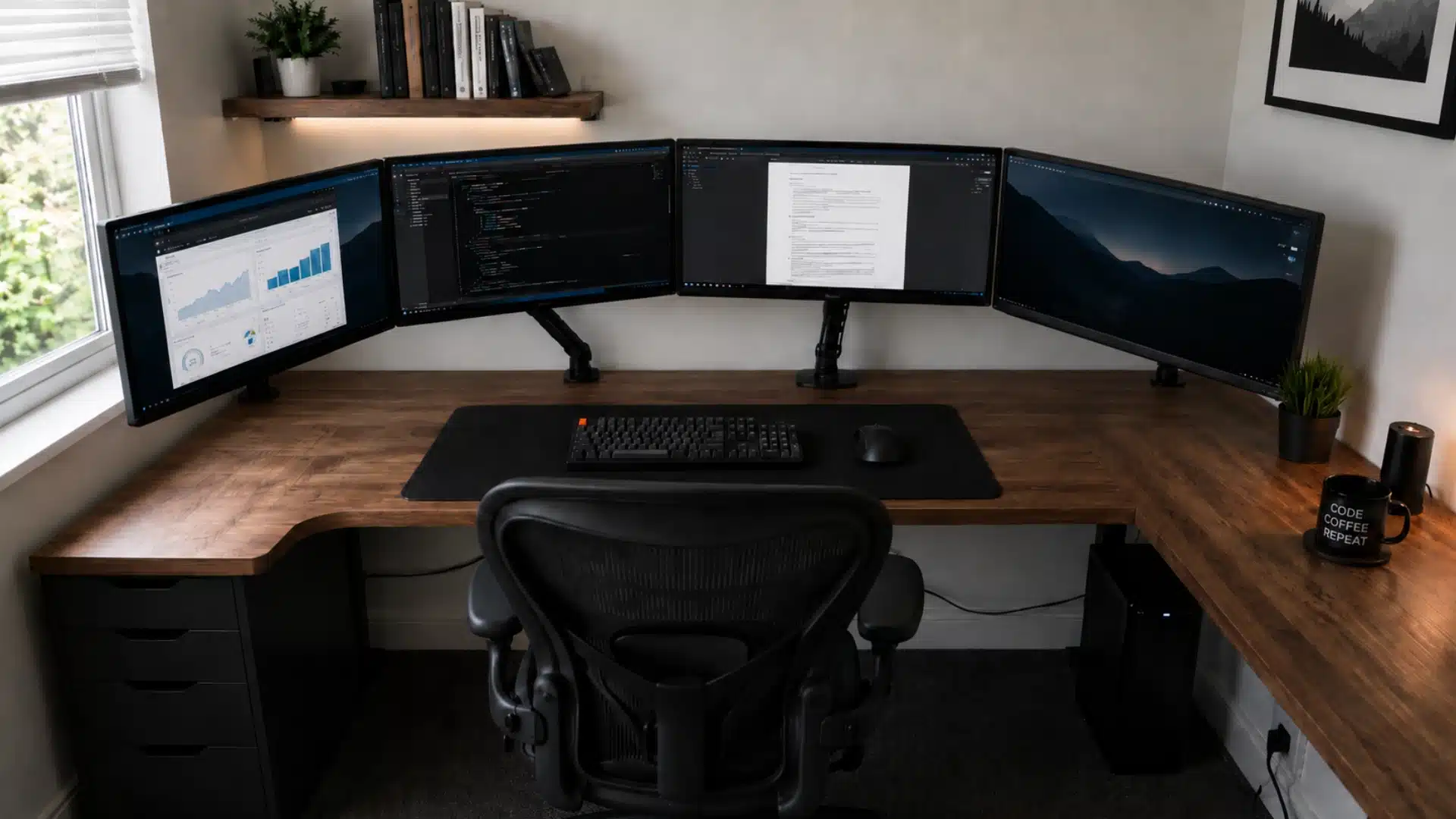
A wide arc layout places all monitors in a gentle curve around your seating position.
This is often the most comfortable layout for a 4-monitor setup because the screens face you instead of forcing you to twist your neck.
The key is angle. Side monitors should turn slightly inward, so your eyes move more than your neck. This setup feels cleaner, more natural, and easier to use for long sessions.
If you are unsure which layout to choose, start with a primary-plus-three setup or a wide arc. Both are easier to live with than a flat four-screen row.
Ergonomic Rules for a 4 Monitor Setup
A 4-monitor setup improves your workflow only if it stays comfortable. Poor screen placement causes neck strain, eye fatigue, and posture problems that build up over weeks.
- Primary monitor position: Directly in front of you, top of the screen at or just below eye level, roughly 60–80 cm from your eyes.
- Side monitor angle: Rotate side monitors inward by 15–20 degrees to reduce neck rotation. You should not need to turn your head more than 30 degrees to see any screen.
- Upper monitors in a 2×2 grid: Keep them as low as physically possible. They should be for occasional glances, not sustained reading.
- 20-20-20 rule: Every 20 minutes, look at something about 20 feet away for 20 seconds. It helps reduce eye strain during long sessions.
- Monitor arm vs. stand: A monitor arm gives much better control over height, tilt, and spacing than a basic stand, and it keeps the desk surface cleaner.
I’d add one practical note: spend more time on the angle of your side screens than most guides suggest. Even a few extra degrees of inward rotation can make a noticeable difference by the end of a long day.
Related home monitoring devices can also help make the workspace more comfortable by improving lighting and temperature, and by enabling health tracking during long work sessions.
How to Set Up 4 Monitors: Step by Step
Once your hardware is ready, setting up 4 monitors is mostly about connecting each display, checking that your computer detects them, and arranging them to match your desk layout.
1. Connect the Monitors
Connect each monitor to your PC, GPU, dock, or adapter. Use DisplayPort when possible, especially for high-resolution or high-refresh-rate monitors.
HDMI also works, but the port and cable must support your target resolution and refresh rate.
Avoid basic HDMI splitters, as they usually duplicate the same screen. For 4 independent monitors, you need extended displays.
Before moving ahead, check that every cable is firmly plugged in and not loose at either end. If you are using adapters, make sure they support video output, not just charging or data transfer.
2. Turn Everything On
Turn on the monitors first, then start your computer. This helps your system detect all connected screens.
If a monitor shows no signal, check the cable, input source, and port. You may need to select HDMI, DisplayPort, or USB-C from the monitor menu.
Give the system a few seconds to recognize all displays after startup. If one screen still stays blank, try swapping the cable or using another port to find the issue.
3. Open Display Settings
On Windows, right-click the desktop and open Display settings. Click Identify to see which number matches each monitor.
On macOS, go to System Settings > Displays. Arrange the monitors according to their actual positions and ensure they are set to extended mode, not mirrored mode.
Extended mode is important because it gives every monitor its own workspace. Mirrored mode only copies the same screen, which defeats the purpose of a 4-monitor setup.
4. Match the Layout to Your Desk
Drag the display boxes until they match your physical setup. If a monitor is above your main screen, place it above the main display in settings.
This makes your mouse move naturally between screens. If the layout is wrong, the cursor may jump in the wrong direction.
Take a minute to test the cursor movement from left to right and top to bottom. A well-designed layout makes multitasking feel smoother and reduces confusion when moving windows.
5. Set Resolution and Refresh Rate
Set each monitor to its native resolution for the sharpest image. If your monitors have different sizes, adjust scaling so text and icons look balanced.
Also, check the refresh rate. Your system may default to 60Hz even if your monitor supports 120Hz, 144Hz, or higher.
For the best result, match each monitor’s settings with what the screen actually supports. This helps avoid blurry visuals, laggy movement, and uneven text size across displays.
6. Test the Setup
Move your mouse across all 4 screens and drag windows between them. Check for cursor alignment, scaling issues, flickering, black screens, or blurry text.
Once everything works properly, organize the cables with ties, clips, or sleeves to keep the setup clean.
Testing before cable management saves time if you need to change a port or replace a cable. After the setup feels stable, you can arrange your workspace for comfort and daily use.
Mistakes to Avoid When Building a 4-Monitor Setup
A 4-monitor setup is not hard to build, but a few mistakes can make it frustrating.
- Skipping GPU compatibility: Buying monitors before confirming your GPU, laptop, or dock actually supports four simultaneous displays.
- Using an HDMI splitter: A splitter duplicates one image across multiple screens. They do not create independent extended displays.
- Mixing very different monitor sizes: Large resolution gaps between screens cause cursor drift and awkward window movement when dragging across displays.
- Setting the top row too high in a 2×2 grid: Upper monitors should sit lower than feels instinctive. They are for occasional use, not sustained viewing.
- Short cables with no routing plan: Measure cable runs before buying. Short cables limit placement and create a tangle behind the desk.
- Treating all four screens equally: One monitor should be your primary work screen. The others are support. Spreading equal attention across all four reduces focus rather than improving it.
What People on Reddit Think About 4-Monitor Setups

Reddit users generally feel that a 4-monitor setup is useful if you have the space and a real need for it.
Another user said moving from one monitor to two helped a lot, and even with three, they sometimes wanted a fourth.
Their point was clear: If your workflow needs four screens, it does not feel like overkill.
One Reddit user also shared that they use four monitors with a desktop and keep a laptop nearby for email, Teams, Netflix, or Spotify.
They felt that switching to a single large curved monitor might even feel like a downgrade.
Overall, Reddit feedback suggests four monitors are not for everyone, but they can be practical for heavy multitaskers who keep several apps open at once.
Is a 4 Monitor Setup Worth It?
A 4-monitor setup is worth it if your work genuinely needs more screen space.
It makes the most sense for people who use several apps at once, such as developers, traders, analysts, editors, researchers, streamers, and remote workers.
It can reduce window switching and help keep important tools visible.
Research on multi-monitor workstations suggests that users often perceive multiple displays as useful and desirable, especially in professional workflows.
If your work is mostly writing, email, or web browsing, four monitors may be more than you need. Two or three screens might feel cleaner.
But if you constantly jump between apps, a 4-monitor setup can feel like a real upgrade. The key is to build it around your workflow, not around the idea of having the biggest desk possible.
Conclusion
A 4-monitor setup works best when it feels intentional rather than crowded. The real value comes from turning your desk into a workspace where every screen has a clear purpose, and nothing feels wasted.
Before you finalize your setup, think about your daily workflow, viewing comfort, and how often you actually need all four screens active.
That will help you build a cleaner, smarter desk instead of just adding more display space. A thoughtful setup can make your work feel faster, calmer, and easier to manage every day.
Have you built a 4-monitor setup, or are you planning one? Share your layout, monitor sizes, and setup questions in the comments.
Frequently Asked Questions
Do I Need a Special Graphics Card for Four Monitors?
You may need one if your current GPU does not support four displays at once. Always check the maximum display support before buying monitors or adapters.
Does Running Four Screens Affect Gaming Performance?
Yes, running four screens can affect gaming performance, especially if the game runs across multiple displays or if the other screens are showing video, streams, or heavy apps.
Can I Mix HDMI, DisplayPort, and USB-C Monitors?
Yes, you can mix HDMI, DisplayPort, and USB-C connections as long as your computer, dock, or adapter supports the total number of displays, resolution, and refresh rate you want.