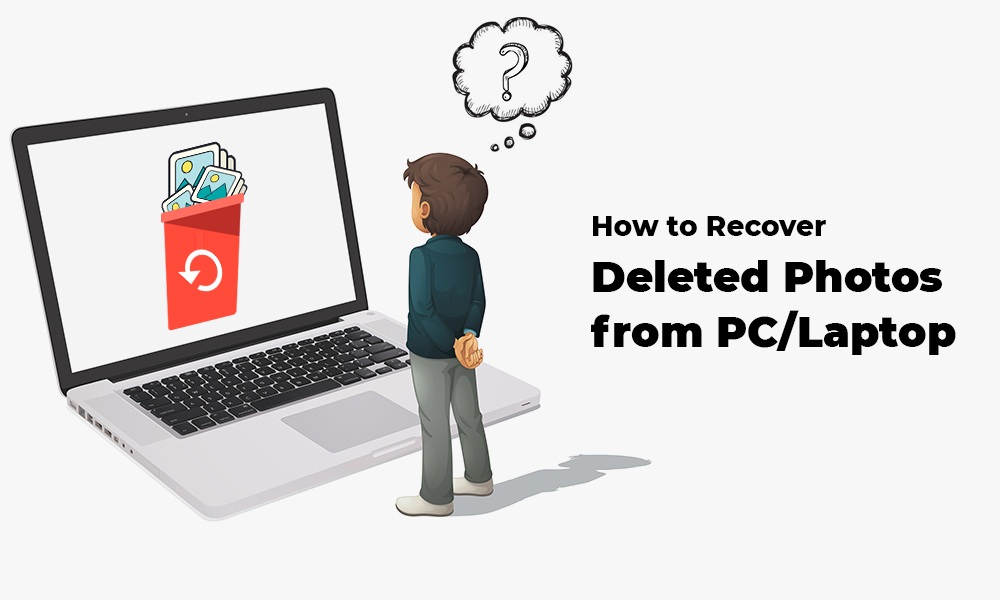
Ever wondered what if your important photos get deleted on Windows PC? Losing photos from your computer can be distressing, especially if it holds valuable memories, travel pictures, or creative projects.
If you notice that some of your photos are missing, it’s important to act quickly and use the right recovery methods.
In this guide, we’ll explore different methods – including manual DIY workarounds, previously created backups, and third-party photo recovery software – to help you recover your deleted photos. Just go with these methods one by one to learn how to recover deleted photos from Windows PC.
Understanding What Happens When Photos Are Deleted
Before you apply any method to recover deleted photos from Windows PC, it’s important to understand what actually happens when a file is deleted.
Every deleted photo on your Windows PC is not immediately erased from its hard drive. Instead, it goes to the Recycle Bin and remains there until permanently erased. Even when the Recycle Bin is emptied, the file’s data often remains on the drive until new data overwrites it.
This means recovery is often possible if you act quickly and avoid saving new files to the same drive.
Why Photos Get Deleted on Windows?
Identifying the exact cause of photo loss on your Windows PC helps you determine adequate photo recovery workarounds. Some common reasons why photos get deleted are:
- Accidental Deletion: Photos may be deleted unintentionally while organising files, cleaning storage, or selecting multiple items quickly without noticing important images included.
- Emptying the Recycle Bin: Whenever you delete a photo on your Windows PC, it goes to the Recycle Bin folder, where it stays until you remove it permanently. Once you empty the Recycle Bin, those photos are deleted from the system’s visible storage and are no longer easily restored.
- Formatting a Drive: Formatting a hard drive, SSD, or USB erases stored data structures, which can remove photos if backups were not created beforehand.
- Virus or Malware Attacks: Malicious programs like viruses or malware may delete, hide, encrypt, or damage photo files, leading to missing images or inaccessible folders on your computer.
- Windows Updates or Reset: Sometimes, recent system updates or resets may remove files, change settings, or delete user data if backups were not properly configured.
Quick Methods to Recover Deleted Photos from Windows PC
Now that you are familiar with different reasons for your photo loss, it’s time to explore adequate photo recovery workarounds. Here are some quick and easy DIY methods to get your lost photos back:
Method 01: Check the Recycle Bin
The first and easiest place to check for your deleted photos is the Recycle Bin folder. You can follow the below steps to recover photos from the Recycle Bin:
- Double-click the Recycle Bin icon on your desktop.
- Browse or search for your deleted photos.
- Right-click the photo you want to recover.
- Click Restore to save selected photos to their original location.
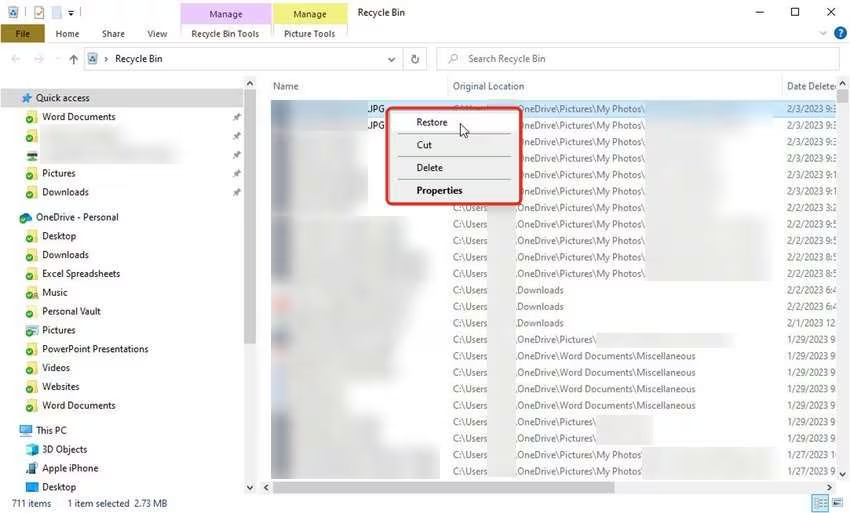
If you need to restore multiple photos, you can select all at once and then restore them. However, if you used Shift + Delete or emptied the Recycle Bin, this photo recovery method might not work.
Method 02: Restore from File History
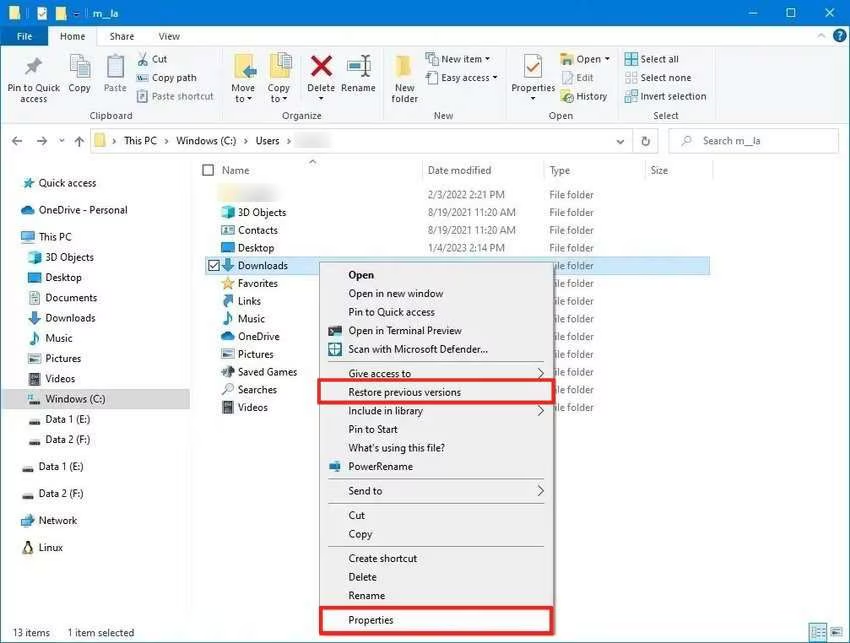
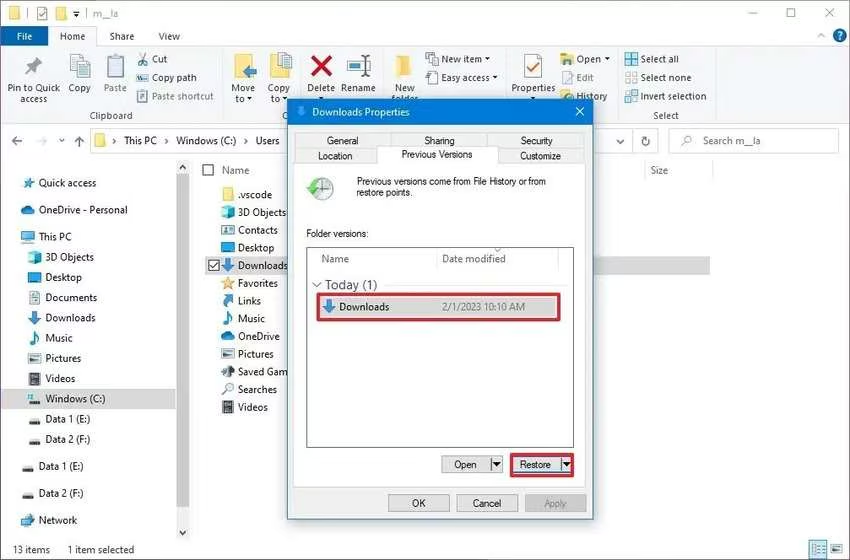
Windows provide in-built File History backup feature, which, when enabled on your PC, automatically saves copies of files. If this feature was enabled before the photos were deleted, you can restore them easily. To recover your photos using File History:
- Open the folder where the deleted photos were stored.
- Right-click inside the folder, then select Restore previous versions.
- Select the backup version that you need to restore from the list.
- Click Restore to save selected photos at the desired location.
Method 03: Check Cloud Storage
Many people sync their photos to cloud services. If you use cloud backup services like Microsoft OneDrive, Google Photos, or Dropbox, your deleted photos may still exist there. Here’s how to recover it:
- Firstly, log in to your cloud account.
- Check the Trash or Deleted Files section.
- Browse through the deleted folder, select required photo and save it back to your device.
Most cloud services keep deleted files for 30–60 days before permanently removing them.
Method 04: Recover Photos Using Third-Party Software
If the photos are not in backups or the Recycle Bin, you can use third-party photo recovery software like Stellar Photo Recovery. These tools scan your hard drive or other storage media for deleted files that have not yet been overwritten. You can use the all-in-one Stellar photo recovery software to recover photos deleted from memory cards, SD cards, and other internal or external storage devices. It also supports recovery of files lost due to accidental deletion, formatting, system errors, or many other reasons.
The Stellar Photo Recovery software supports the recovery of deleted photos, videos, and audio files in three simple steps. The preview feature of this software lets you preview the recoverable files before saving them on your device. Here’s how to retrieve deleted photos from Windows PC using this amazing photo recovery software:
Step 1: Download and install the Stellar Photo Recovery software from its official website on your Windows PC.
Step 2: Launch the software and from the homepage, select the type of data you need to restore or tap “Recover Everything”. Click Next to continue.
Step 3: Choose the storage drive where your deleted files were stored and click Scan to initiate the scanning process.
Step 4: Once the scan is complete, preview the recoverable files and click Recover to save them at the desired location.
Note: Do not install recovery software on the same drive where the photos were lost, as it may overwrite recoverable data.
Tips for Successful Photo Recovery
When trying to recover deleted photos, timing and caution matter. Follow these best practices:
- Stop Using the Drive: Avoid saving new files, installing programs, or copying data to the affected drive, as this may overwrite deleted data and make recovery complex.
- Apply Recovery at the Earliest: The sooner you attempt recovery, the higher the chances of successful recovery.
- Use Reliable Software: Choose well-known photo recovery software tools to avoid malware or scams.
- Perform Deep Scans: If Quick scans may fail to find deleted files, deep scans can detect more recoverable data.
Wrapping Up
Accidentally deleting your important photos from Windows PC can be distressing, but recovery is often possible.
Start by checking the Recycle Bin and backups. If that does not work, use third-party photo recovery software such as Stellar Photo Recovery to scan your drive.
The key is to act quickly and avoid overwriting the deleted files. In many cases, photos that seem permanently lost can still be restored with the right method.
Moreover, to prevent data loss, keep regular backups, use cloud storage, and scan your device for malware regularly. Taking these precautions will ensure that your valuable memories remain safe even if something unexpected happens.