Most people have a pair of headphones that sound perfectly fine until they hear what those same headphones can do in the right setup.
The stereo image feels flat. Explosions land in the center of your skull. Background audio seems to be painted onto a wall rather than existing in a space around you.
There is usually a reason for that, and it has nothing to do with the headphones themselves.
Windows has a spatial audio setting that most users have never touched, and in many listening situations, turning it on makes an immediate difference.
That setting is Windows Sonic for Headphones, and it costs nothing to try.
What is Windows Sonic for Headphones?
Windows Sonic for Headphones is a free spatial sound feature built into Windows 10 and Windows 11. It changes regular headphone audio into a wider, more directional sound field.
Instead of hearing sound only from the left and right sides, the effect can make certain sounds feel like they are coming from around the listener.
It works through software, so no special headset is required. Any normal stereo headphones can use it via a 3.5mm jack, USB, or Bluetooth.
The feature adjusts timing, volume, and frequency cues to create a sense of space. Games and movies usually benefit more because footsteps, voices, effects, and action scenes can feel easier to place.
So, Windows Sonic is mainly about direction and space, not making every sound richer.
How Does Windows Sonic Use HRTF?
The processing behind Windows Sonic relies on HRTF, short for Head-Related Transfer Function.
HRTF is a set of audio cues that describes how sound waves change as they travel around a person’s head and ears before reaching the eardrum.
By applying those cues to a stereo signal, the software can make certain sounds feel like they are coming from specific directions, including behind and overhead.
Where Does Windows Sonic for Headphones Work Best?

Windows Sonic works best when the audio already has clear direction. Games, movies, and busy voice calls usually show the biggest change.
It feels weaker with plain music, low-quality videos, or content mixed only for basic stereo.
- FPS and open-world games: Footsteps, gunfire, traffic, and background effects can feel easier to place, especially in games with good sound design.
- Movies and streaming: Action scenes, crowd noise, weather effects, and dialogue may feel wider and more spaced out through regular headphones.
- Long video calls: Different voices can feel slightly more separated, which may make group meetings easier to follow.
- Story-driven games: Voices, room sounds, and background music can feel more natural when the game uses detailed environmental audio.
- Casual TV shows: Indoor scenes, crowd sounds, and background effects may feel wider, but the change is usually softer than in games.
Windows Sonic vs Dolby Atmos vs DTS: Which One Sounds Better?
These three tools do the same basic job, but they do not feel the same in daily use. The real difference comes down to price, app support, and how each one handles games, movies, and music.
| Feature | Windows Sonic | Dolby Atmos | DTS Headphone:X |
|---|---|---|---|
| Cost | Free | Paid | Paid |
| Setup | Built into Windows | Needs the Dolby Access app | Needs DTS Sound Unbound app |
| Gaming | Good for basic direction | Better with supported games | Strong for footstep focus |
| Music | Can feel thin on stereo tracks | Best with Atmos music | Often better for normal stereo music |
| Movies | Good with surround sound content | Best with Atmos movies | Good, but support is less common |
| Best for | Free for everyday use | Big cinematic sound | Competitive style listening |
Headset choice matters just as much as the spatial audio software you run on top of it, since weaker drivers will limit how much of the effect comes through regardless of which option you pick.
Why Does Windows Sonic Sound Different Depending on the Headset?
Windows Sonic can sound wide, sharp, flat, or even muddy depending on the headset. The software stays the same, but headphone tuning changes the result.
- Generic ear model: Windows Sonic uses average ear-based sound cues, so every listener and headset may not receive the same direction effect.
- Driver quality: Weak drivers may miss small sound changes, so the effect feels wider instead of more accurate or easier to place.
- Headphone design: Open-back headphones often feel more natural, while bass-heavy closed-back headsets can blur voice and footstep placement.
- Sound tuning: Boosted bass or sharp treble can interfere with how Sonic handles spatial cues, affecting the sense of distance and direction in games and films.
- Comfort factor: A headset that sounds good but feels tiring may not suit long use. See this guide to sleeping safely with headphones.
Does Windows Sonic Improve Sound Quality?
Windows Sonic can improve how sound feels, but it does not improve pure audio fidelity. The distinction is worth understanding before you enable it.
For music, the processing may make the audio feel wider, but it can also make vocals and individual instruments sound less natural.
That is why many people switch it off during listening sessions. The benefit is more consistent in games and movies. Footsteps, voices, weather, traffic, and action effects carry directional data that the software can work with.
Headphones also matter. A clear, balanced headset tends to show the spatial effect more accurately than a bass-heavy one.
Open-back designs, in particular, often produce a more convincing result with Windows Sonic enabled.
The right way to think about Windows Sonic is as a space-and-direction feature, not a sound quality booster.
Best Windows Settings to Test Windows Sonic
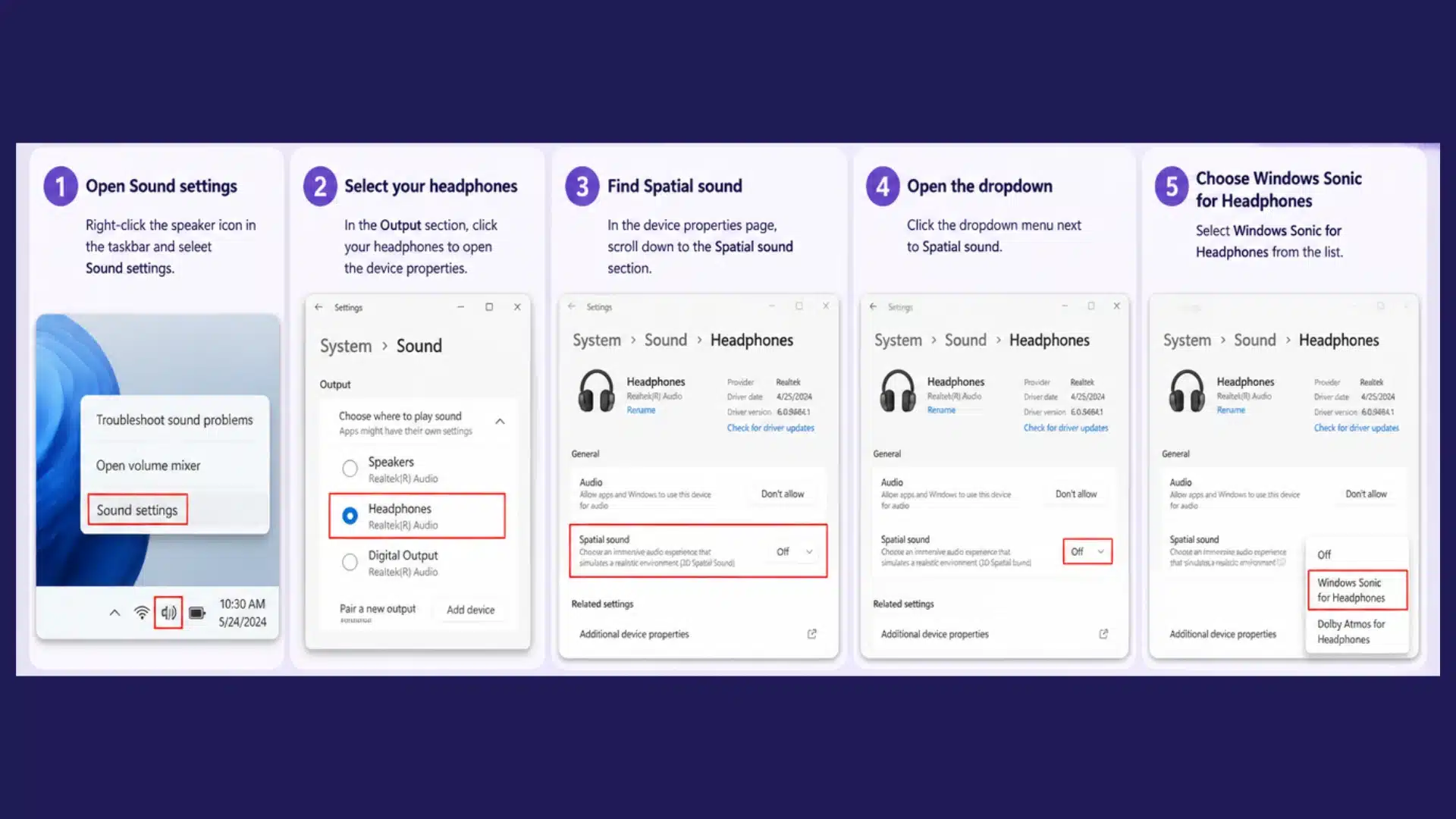
Turning on Windows Sonic in Windows 11 is easy, but testing it properly gives a better idea of how much it helps. A rushed test can make the change feel smaller than it really is.
To enable it on Windows 11:
- Right-click the speaker icon in the taskbar.
- Select Sound settings.
- Under Output, choose your headphones.
- Scroll to Spatial sound.
- Select Windows Sonic for Headphones from the menu.
For a fair test, use the same game or movie scene twice. Listen with Windows Sonic on, then replay the same part with it off.
Pairing Windows Sonic with other well-chosen audio gear is part of the broader conversation around Bluetooth speaker sound quality and how different hardware choices shape the listening experience across your home setup.
Should Gamers Use Windows Sonic?
For most PC gamers, yes, it is worth trying. The quickest test is simple: play a familiar map or scene for around twenty minutes with Windows Sonic on, then replay it with the setting off.
Footsteps, background effects, and environmental direction usually make the difference obvious. Turn it on when a game lacks built-in spatial audio, and turn it off when the game already has its own system.
The quickest test is simple. Play a familiar map or scene for twenty minutes with Windows Sonic on, then replay it with the setting off.
Footsteps, background effects, and environmental direction usually make the difference clear.
Windows Sonic uses minimal system resources and should not affect frame rate, so testing it costs nothing.
The one category where it tends to cause problems is rhythm games and timing-sensitive titles. Even a small processing delay can throw off audio cues, and the safer call is to keep it disabled.
Windows Sonic also works on Xbox consoles, including Xbox One, Series S, and Series X, through the audio settings menu.
Common Problems with Windows Sonic
Windows Sonic works fine for most users, but a few issues are common enough to note before turning it on.
- Audio sounds hollow: This usually happens with basic stereo content or headphones that do not handle spatial processing well. Test it with a surround-supported game.
- Positioning feels wrong or off: Windows Sonic may be conflicting with the game’s own spatial audio system. Disable the in-game audio effect and use only one spatial layer at a time.
- Setting turns off: Windows Sonic works per device, so it may reset when headphones change. Check the sound menu after switching audio outputs.
- Slight audio delay: Most users will not notice it, but rhythm games and fast shooters may feel better with Windows Sonic turned off.
- Option is grayed out: This usually points to an audio driver issue. Update the driver or check the headset software that may control sound modes.
Conclusion
Windows Sonic for Headphones is one of those rare Windows features that costs nothing yet can noticeably change how audio feels through a standard headset.
The effect is not about boosting sound quality but about creating a stronger sense of space and direction, which is why many gamers and movie fans prefer it.
Results vary depending on the headset, content, and whether other spatial audio tools are active, so personal testing is the best way to judge it.
Since it takes only a few seconds to enable, there is little reason not to try it and decide based on real listening experience.
Have you used Windows Sonic for your Headphones? Share your thoughts in the comments below.
Frequently Asked Questions
Does Windows Sonic Improve Sound Quality for Podcasts and Audiobooks?
No, Windows Sonic usually adds little to podcasts or audiobooks. Clear, balanced headphones with Sonic turned off often sound more natural for voice content.
Does Windows Sonic Add Any Strain to My PC’s CPU or GPU?
No. Windows Sonic adds very little processing load, so it should not strain your CPU or GPU or noticeably affect gaming performance.
Should I Keep Windows Sonic on All the Time?
Not necessarily. Many users prefer it for games and movies but switch it off for music, where standard stereo often sounds more natural.