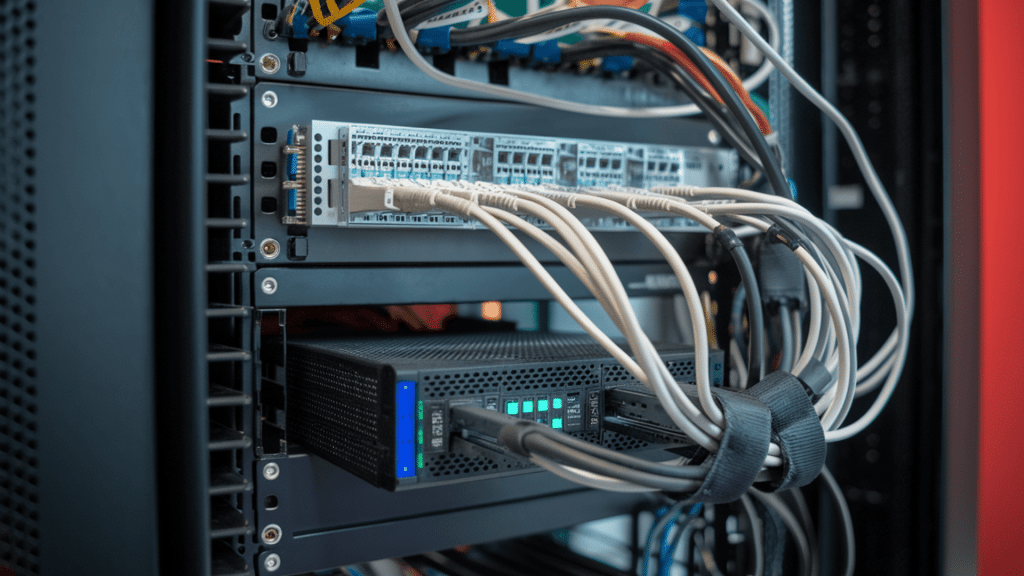
Your Wi-Fi drops right in the middle of an important video call, or your smart TV buffers endlessly during movie night.
Does it sound familiar to you as well?
A well-set home network helps your devices stay connected smoothly and reduces the chance of interruptions during daily use.
In today’s digital world, where smartphones, laptops, smart TVs, and home security systems all compete for bandwidth, getting your network right from the start makes all the difference.
The good news is that setting up a reliable network doesn’t require technical expertise or expensive equipment.
You’ll learn to pick the right equipment, set it up correctly, boost performance, and fix common issues that slow your internet.
What a Home Network Setup Is and Why It Matters
A home network setup is the system that connects your devices, like phones, laptops, and smart TVs, to the internet.
It includes your modem, router, and the cables or wireless links that help everything communicate. A clear setup enables you to get a steady speed, better security, and smooth streaming or work use.
It also makes it easier to add new devices without slowing things down.
A good setup keeps your data safe and reduces internet drop-offs that interrupt daily tasks. When your network is arranged the right way, you can fix small issues faster because you know how each part works.
A solid setup matters for busy homes where many people use the internet at once.
With the right approach, you can enjoy simple, reliable connections that support work, school, and entertainment without constant problems.
Basic Home Network Setup Steps
Getting your home network running requires several foundational steps that work together to deliver internet access throughout your space. These steps form the backbone of any reliable network.
Step 1: Choosing the Right Internet Plan and Provider
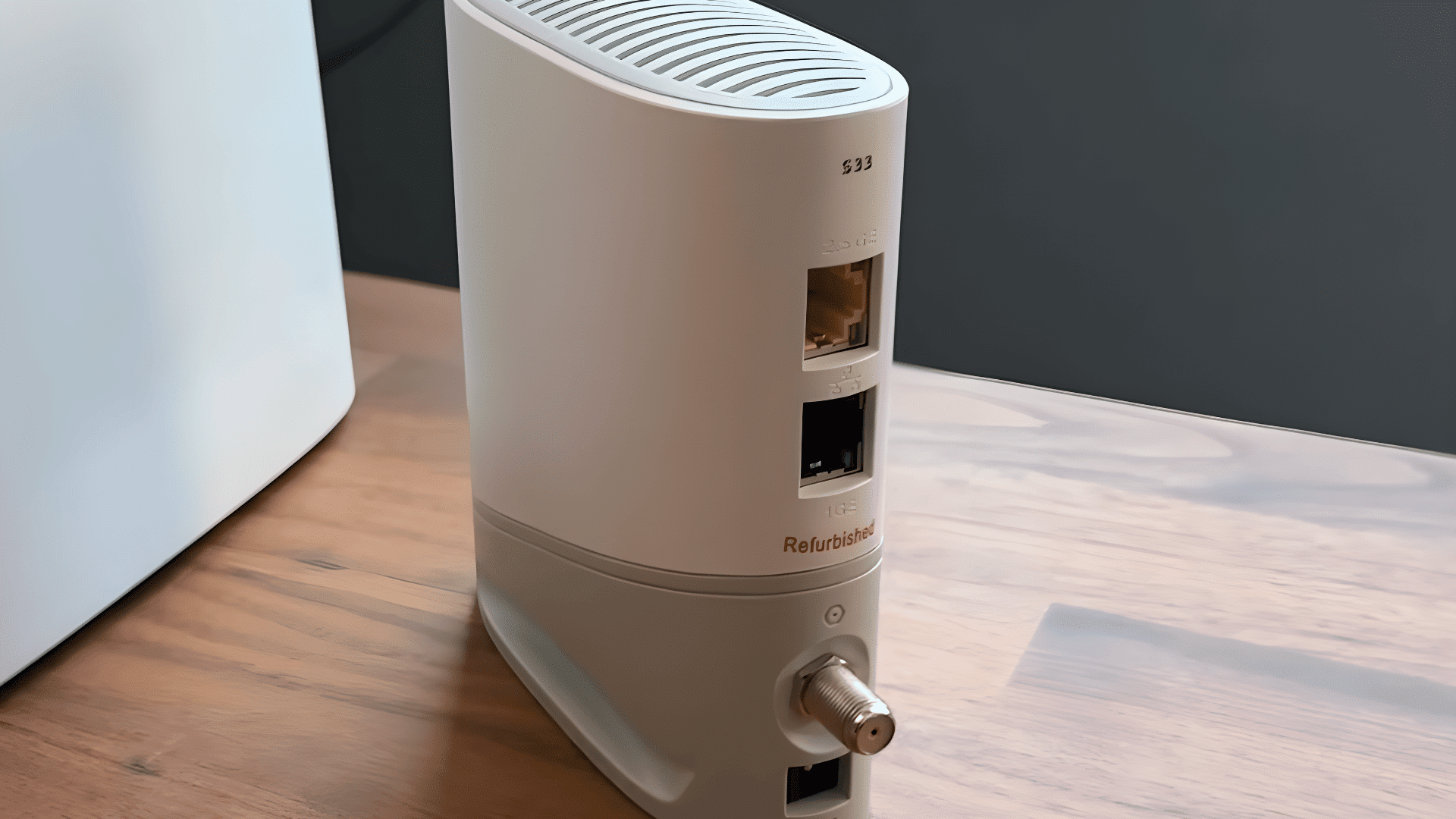
Start by selecting an internet service provider that offers reliable speeds for your household’s needs.
Compare available plans based on download speeds, monthly costs, and contract terms. For basic browsing and streaming, 100-200 Mbps works well for most families with 3-5 devices.
Larger households with heavy gaming, 4K streaming, or remote work may require 300 Mbps or higher.
Also, verify that the provider has good technical support and doesn’t have hidden fees or data caps.
Step 2: Selecting a Modem and Router
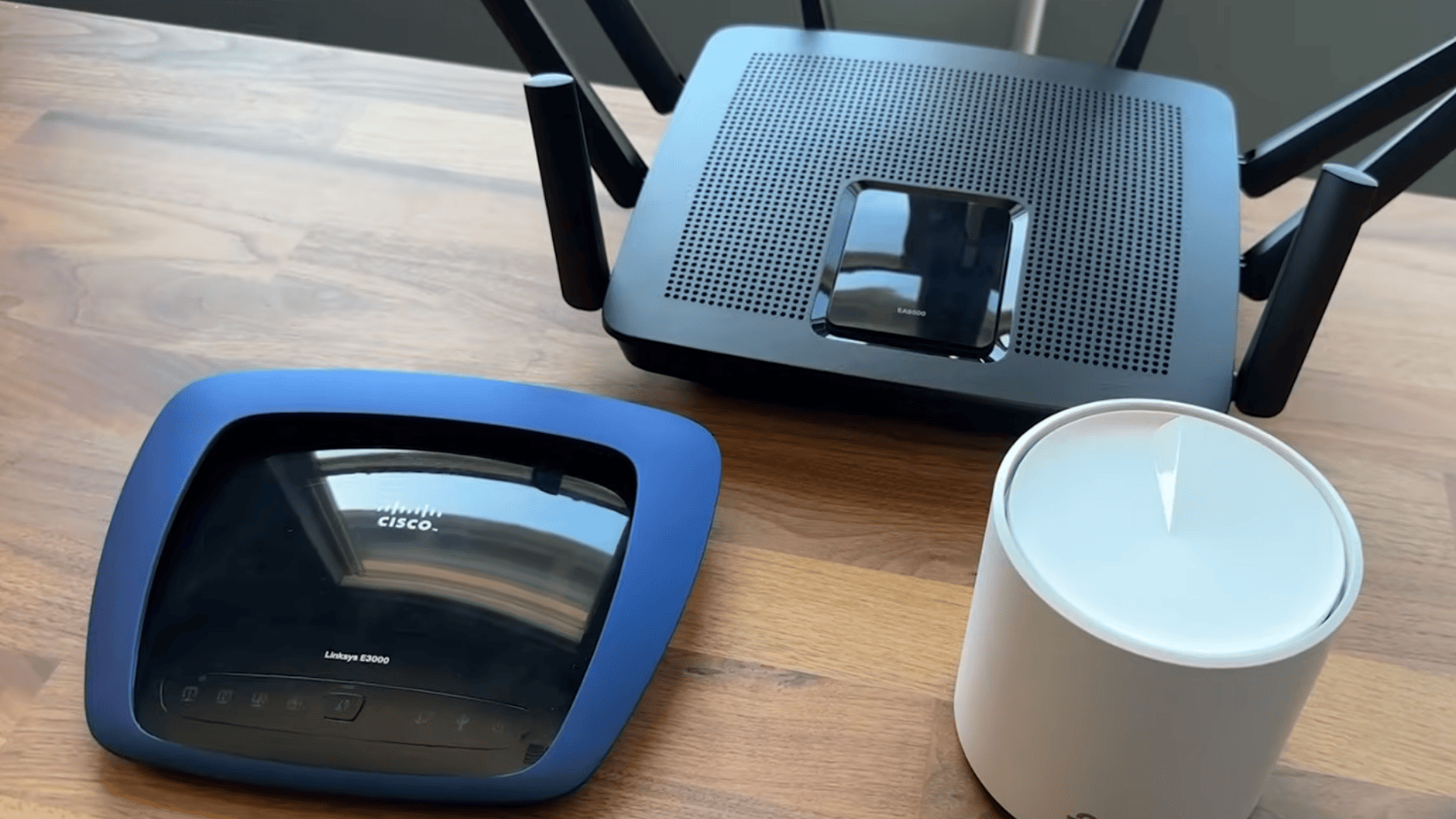
You can bring internet into your home with either a separate modem and router or a single all-in-one gateway device.
The cable modem connects to your ISP through the coax cable line and provides raw internet access. Adding a router gives you Wi-Fi capability, firewall protection, and DHCP for assigning IP addresses to devices.
Gateway devices combine both functions in one unit with built-in Wi-Fi and security features, simplifying your setup while saving space.
Consider your home size and the number of devices when choosing between these options for optimal performance.
Step 3: Connecting and Configuring Your Router
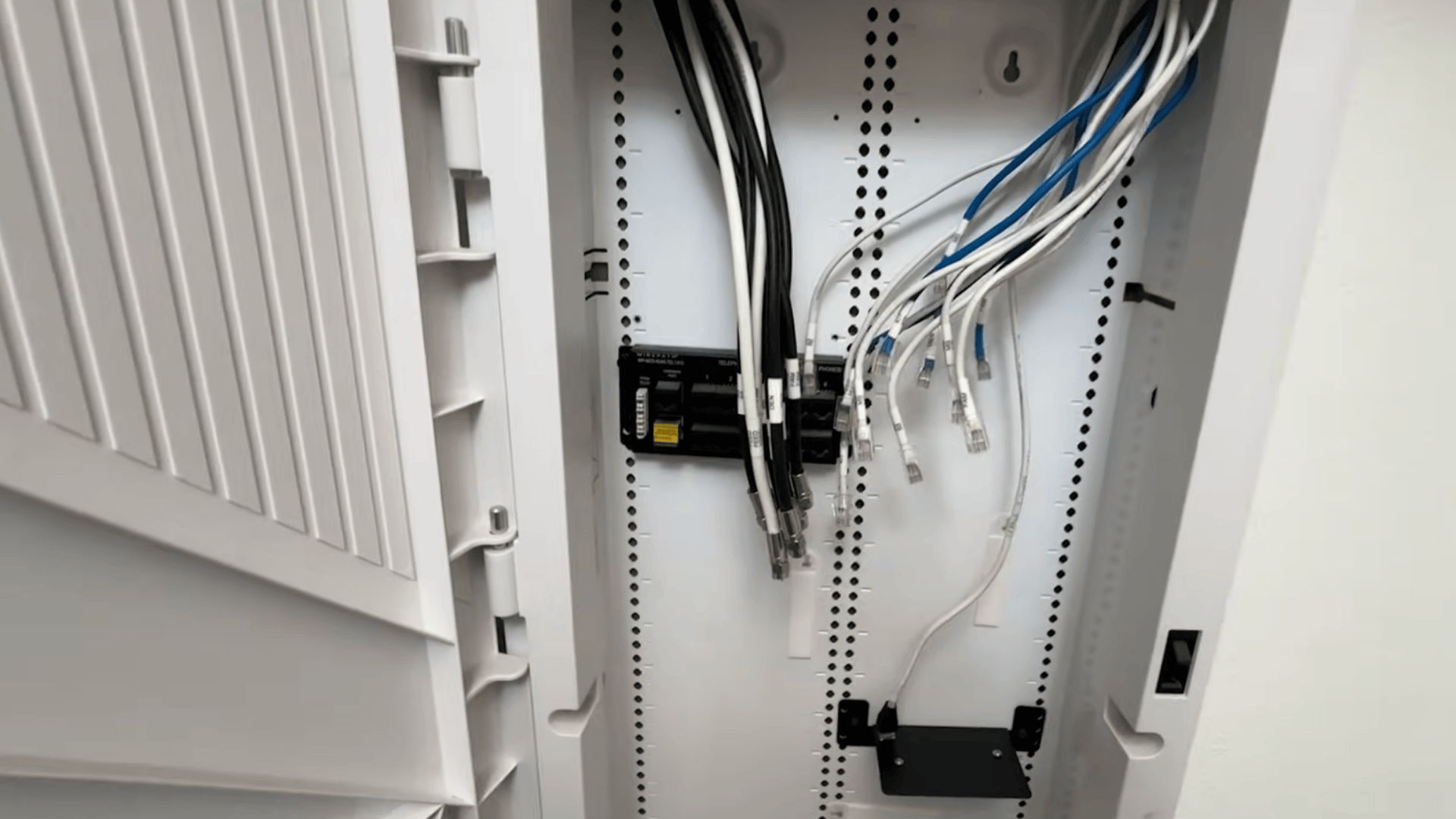
Begin by connecting the coax cable from your wall outlet to your modem’s input port.
If you use a separate router, connect an Ethernet cable from the modem to the router’s internet port, power them on, and wait for the lights to show a connection.
For gateway devices, simply connect the coax cable and power it on.
The device will connect to your provider automatically, so just ensure all cables are firmly plugged in to prevent setup issues.
Most routers have LED indicators that will turn solid green or blue when everything is connected correctly.
Step 4: Setting up Network Security and Wi-Fi
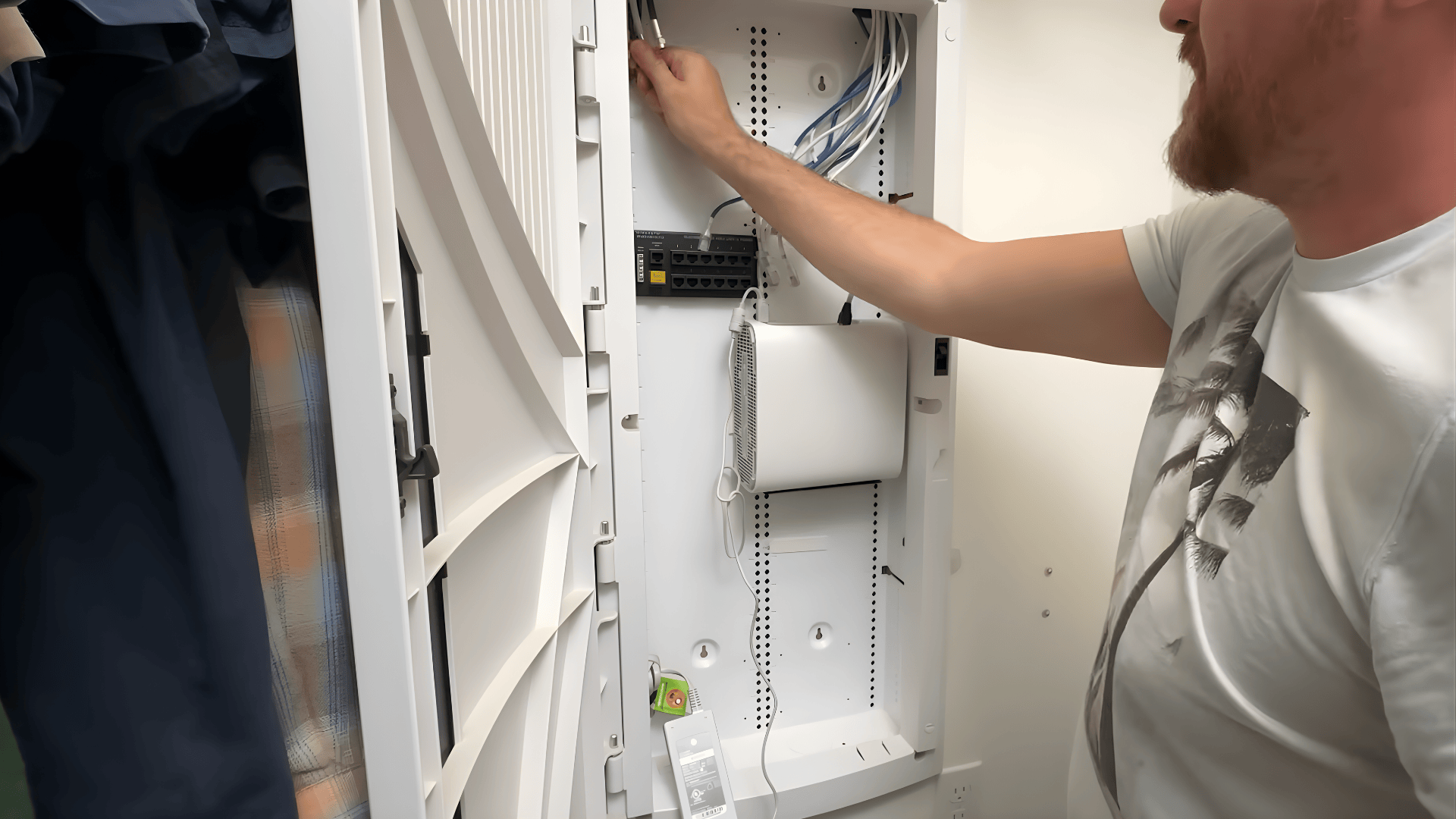
Once your device powers on successfully, access your router’s settings through a web browser using the default IP address printed on the device or manual.
Change the default admin password immediately to prevent unauthorized access to your router settings.
Next, create your Wi-Fi network name (SSID) that your devices will connect to, and set a strong password using a mix of letters, numbers, and symbols.
Use WPA3 if your router supports it, or at least WPA2, to protect your network. Turn off WPS because it has known security risks.
Step 5: Positioning Your Router for Better Performance
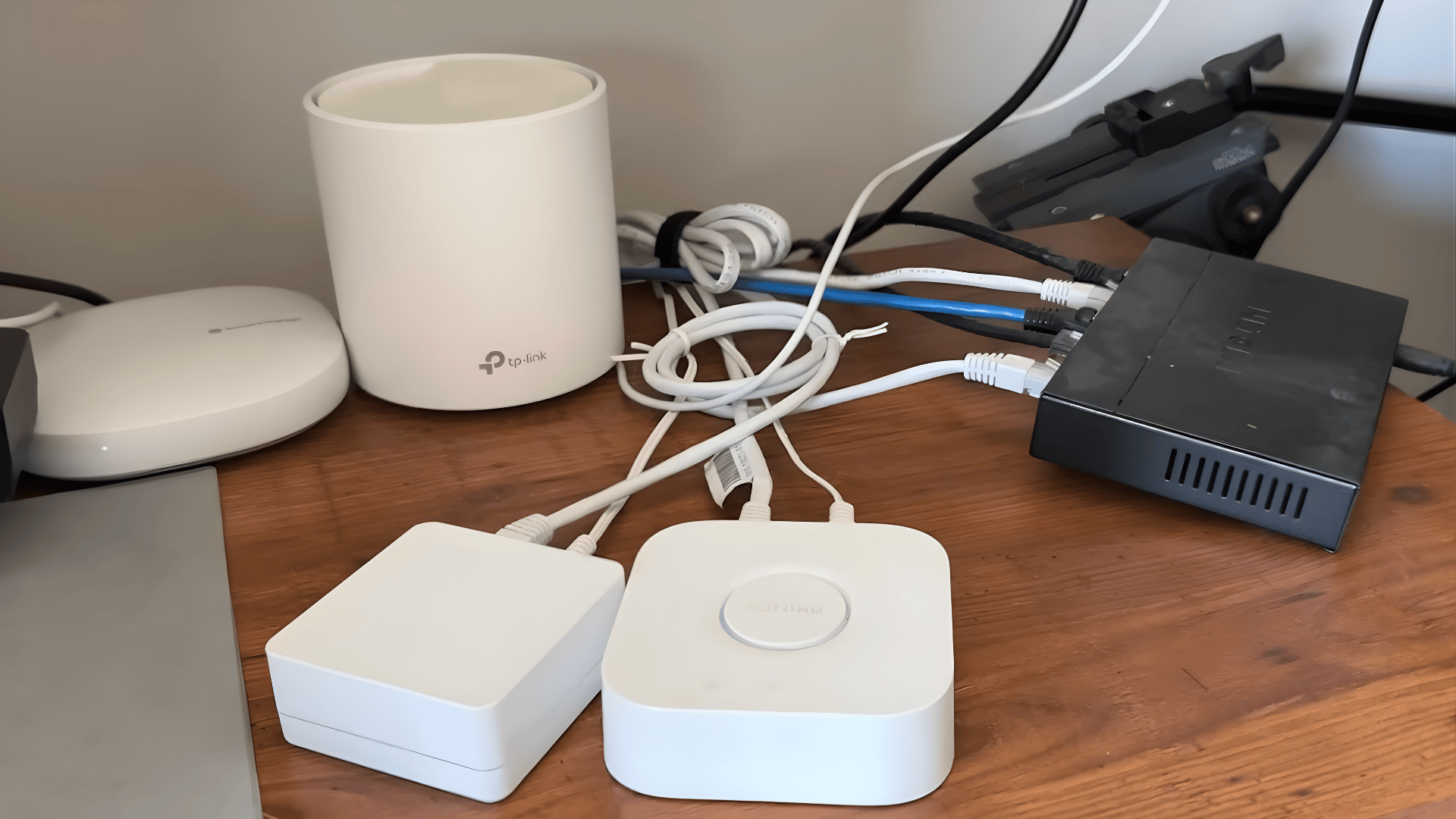
Install your router or gateway in a central location for optimal coverage throughout your home. Avoid placing it inside metal enclosures or network closets, as metal walls significantly weaken Wi-Fi signals.
Keep the device elevated on a shelf rather than on the floor, and position it away from thick walls and large metal objects.
For multi-story homes, placing the router on the middle floor provides the most balanced coverage.
If you must use a network enclosure, consider placing the Wi-Fi unit outside the enclosure for better signal distribution.
Watch this step-by-step video tutorial by Steve DOESfor a detailed visual walkthrough of the entire setup process. You can check out the original video on their YouTube channel here or watch it below.
What Are the Advanced Home Network Setup Options?
Advanced setups help you get stronger coverage, better speed, and more control. They are useful in larger homes or for users who need stable, high-performance connections.
1. Mesh Wi-Fi Systems
A mesh system uses multiple nodes placed around your home to provide wide and even coverage.
Each node connects to the others, so your devices stay on a steady signal as you move. This setup helps remove dead zones and keeps speeds more consistent.
It works well for multi-story homes and for users who want simple management through an app.
Mesh systems are easy to expand when you need more coverage.
2. Wired Ethernet Networks
A wired network gives stable and fast connections because each device links directly to the router through Ethernet.
It helps reduce lag, buffering, and Wi-Fi interference. This setup is great for gaming, streaming, and home offices. It offers the most reliable speed possible and stays steady even when many devices are online.
You can run cables through walls or use simple surface channels.
Wired networks also improve security since the signal cannot be picked up wirelessly.
3. Network Switches for More Ports
A network switch lets you add more Ethernet ports when your router doesn’t have enough.
It connects to the router and allows several wired devices to run smoothly. This setup is helpful in rooms with many devices, like offices or media areas.
It keeps data flowing without slowing the network because switches manage traffic well.
Managed switches add extra features like VLANs, but beginners can start with an unmanaged switch for simple plug-and-play use.
4. Access Points for Stronger Wi-Fi
Access points connect to your router through Ethernet and create extra Wi-Fi zones in areas that need stronger signals.
This gives you faster and more stable wireless coverage than range extenders. It works well for large homes or thick walls that block wireless signals.
Access points let you keep one network name across your home for smoother roaming.
They also offer more control over settings, making them a strong choice for users who want better performance.
Common Home Network Issues and How to Fix Them
Even well-configured networks encounter problems occasionally. These solutions address the most frequent issues homeowners face.
| Issue | Quick Fix | Additional Solution |
|---|---|---|
| Slow Internet Speeds | Run speed test; restart modem/router | Check background apps; contact provider |
| Dead Zones | Reposition the router centrally | Install mesh Wi-Fi or powerline adapters |
| Devices Not Connecting | Verify password; restart devices | Check MAC filtering; update drivers |
| Frequent Disconnections | Switch to 5GHz or a different channel | Update firmware; improve ventilation |
Essential Tips for Maintaining Your Home Network
Regular maintenance keeps your network running smoothly and securely. These are some key practices that you can follow:
- Update router firmware monthly to patch security vulnerabilities and improve performance
- Restart the modem and router every few weeks to clear temporary issues and refresh connections
- Review connected devices quarterly to remove unknown or unused devices that may pose security risks
- Change Wi-Fi password annually and use strong combinations of letters, numbers, and symbols
- Keep router vents clear of dust and ensure proper airflow to prevent overheating
- Monitor internet speeds regularly to ensure you’re getting what you pay for from your provider
Understanding Different Types of Internet Connections
Different homes use different connection types, and each affects speed, coverage, and reliability. Knowing the basics helps you choose the option that supports your daily tasks without slowdowns.
1. Fiber Internet
Fiber uses thin glass strands to send data as light, giving you very high speeds with almost no delay.
It handles streaming, gaming, video calls, and large uploads at the same time without slowing down. Fiber is ideal for busy homes where many devices run all day.
It also stays stable during peak hours, unlike some older options.
The main drawback is limited availability, since not all neighborhoods have fiber lines yet, but it’s the best choice when offered.
2. Cable Internet
Cable internet uses the same coaxial cables that deliver TV service and offers strong speeds for most homes.
It supports HD and 4K streaming, online gaming, school work, and everyday browsing with ease.
Performance may dip during busy hours because the line is shared in the neighborhood, but it’s still reliable for families with many devices.
Cable is widely available, simple to install, and usually affordable. This makes it one of the most common choices for home internet.
3. DSL Internet
DSL delivers internet through standard phone lines and provides basic but steady service. It works fine for light streaming, browsing, emails, and school tasks.
However, it cannot match the speed of cable or fiber, and performance drops as the distance from the provider’s central office increases.
Many rural homes depend on DSL because phone lines reach far areas where newer networks do not.
It’s a good low-cost option for users who only need simple day-to-day access.
4. Satellite Internet
Satellite internet sends data between your home dish and satellites in space, making it useful in remote areas with no other service options.
It works for browsing, watching videos, and general use, but it may feel slower because the signal travels a long distance. Weather can also affect performance.
Newer low-orbit systems have reduced delays, making the experience smoother than older satellite services.
It’s not ideal for fast gaming, but it delivers dependable access where wired connections are unavailable.
Choosing the Right Hardware for Your Home
The hardware you choose shapes how fast, stable, and secure your home network will be. Understanding each device’s role helps you build a setup that fits your space and daily use.
| Hardware Type | What It Does | When to Choose It |
| Modem | Connects your home to your internet provider and receives the incoming signal. | Needed for all wired internet services like cable, fiber, or DSL. |
| Router | Creates your Wi-Fi network and manages all connected devices. | Best for homes with multiple devices and wireless needs. |
| Gateway (Modem + Router) | Combines both functions in one device for simpler setups. | Good for smaller homes or users who want fewer devices. |
| Mesh Wi-Fi System | Uses multiple nodes to spread strong coverage across the home. | Ideal for large homes or places with many dead zones. |
| Network Switch | Adds extra Ethernet ports for wired devices. | Useful for offices, media rooms, or homes with many wired devices. |
| Access Point | Extends Wi-Fi into areas where the main router signal weakens. | Great for big houses, thick walls, or multi-story layouts. |
Conclusion
Building a reliable home network setup doesn’t require advanced technical skills, just careful planning and attention to a few key factors.
Choose the right internet plan, position your router strategically, and configure security settings properly.
For larger homes or special needs, add mesh systems, wired connections, or other enhancements as your situation requires.
When problems arise, systematic troubleshooting usually identifies quick solutions.
With your network properly configured, you’ll enjoy stable connections for work, entertainment, and smart home devices throughout your space.
What networking challenge are you facing in your home?
Share your questions in the comments below, and let’s help you find the right solution.