A frozen or unresponsive Kindle does not always mean something is seriously wrong.
Many common problems, including a device that will not turn on, gets stuck on the Kindle logo, freezes, or runs slowly, can often be fixed with the right restart or reset method.
Knowing which option to use first can save time and help avoid unnecessary data loss.
In this blog, you will learn how to reset a Kindle, including a Kindle Paperwhite, and how to reboot it, using clear, step-by-step instructions.
Also, what to do if a reset does not solve the issue, including charging checks, software updates, and hardware troubleshooting, so the device can work again as quickly as possible.
Quick Answer: How to Reset a Kindle?
A Kindle can be reset by restarting it, force restarting if frozen, or performing a factory reset when other fixes fail.
Start with a soft reset, which restarts the device without deleting any data. If the Kindle is frozen or unresponsive, perform a force restart by holding the power button longer.
Use a factory reset only as a last resort because it erases downloaded content, personal settings, and other locally stored data.
Any books and purchases synced to your Amazon account can be downloaded again after setup.
When Should You Reset Your Kindle?
Reset your Kindle when it becomes unresponsive, gets stuck during startup, restarts repeatedly, or shows persistent performance issues.
In many cases, a restart fixes minor glitches, while a reset is useful for more serious software problems. A reset is not part of regular Kindle maintenance, but it can help restore normal performance when the device is not working as expected.
If the screen is frozen and does not respond to taps or button presses, restarting or resetting may restore control.
The same applies if the Kindle will not turn on after charging, remains stuck on the Kindle logo, or keeps freezing and restarting without warning.
Sluggish performance, delayed responses, and frequent interface glitches are also common signs that resetting the device may resolve underlying software issues
Important Checks Before You Reset a Kindle
Before resetting your Kindle, complete a few basic checks to avoid unnecessary data loss and rule out simpler fixes. These steps can save time and help determine whether a restart or factory reset is the right solution.
- Charge the Kindle: Charge the device for at least 30 minutes to ensure a low battery is not causing the problem.
- Sync With Amazon: If the Kindle is responsive, sync it with your Amazon account to back up books, notes, highlights, and other supported data.
- Know the Difference Between Restart and Reset: A restart reboots the Kindle without deleting data, while a factory reset removes downloaded content, personal settings, and device customizations.
- Check for Software Updates: Install any available Kindle software updates, as they may fix bugs or performance issues without requiring a reset
Why Does a Kindle Freeze or Stop Responding?
A Kindle usually freezes due to a low battery, outdated software, limited system memory, or temporary software glitches.
Most issues can be fixed by restarting, while ongoing problems may need troubleshooting or a factory reset.
A nearly drained battery may not provide enough power for the Kindle to operate smoothly, causing the screen to become unresponsive.
Outdated firmware can also lead to bugs, compatibility issues, and slower performance over time.
Keeping hundreds of downloaded books or using the experimental web browser extensively may consume the device’s limited memory, making it sluggish or causing it to freeze.
A Kindle may appear frozen after sleep. Finding the cause helps determine whether to restart, update, or reset it.
How to Reset Kindle for Common Problems?
Follow these troubleshooting steps in order, from a simple restart to a factory reset. Use the video timestamps to quickly jump to each method.
Step 1: Restart Your Kindle (Soft Reset)

A soft reset is the first solution to try if your Kindle or Kindle Paperwhite is frozen, slow, or not responding. Press and hold the power button for 30 to 40 seconds, then release it.
The screen should turn off, then the Kindle logo and a progress bar should appear while the device restarts.
Wait about a minute for the reboot to finish before testing it again.
A soft reset does not erase books, settings, or personal files, making it the safest troubleshooting step before moving on to more advanced reset methods.
Step 2: Factory Reset Your Kindle
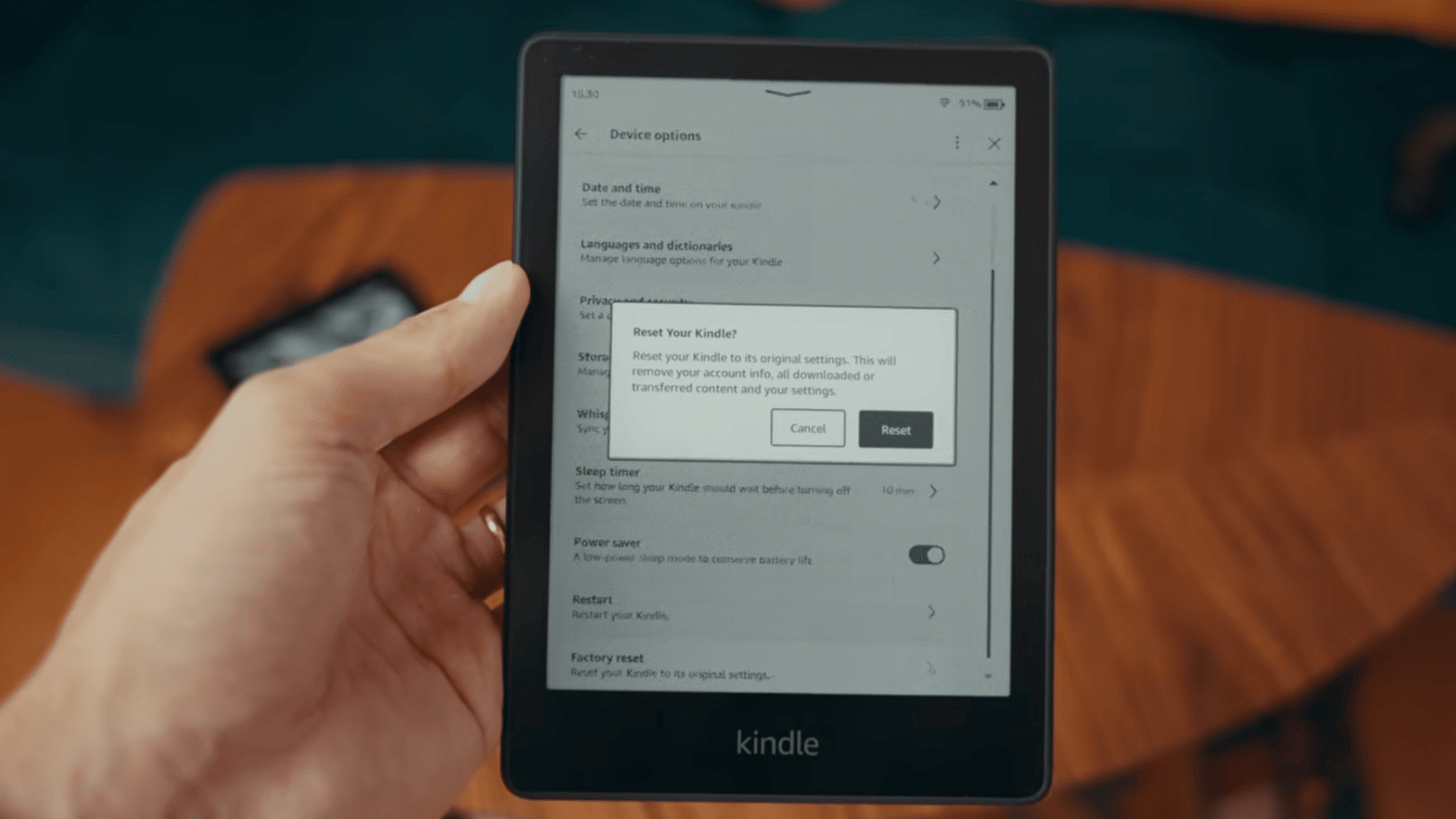
If restarting your Kindle does not fix the problem, a factory reset may be necessary.
This process restores the device to its original factory settings and removes downloaded books, personal settings, and other stored data.
Open Settings, select Device Options, then choose Factory Reset and confirm your selection. The reset usually takes three to five minutes, after which the Kindle returns to the setup screen.
Before using this option, make sure any important content has been synced to your Amazon account.
Step 3: Factory Reset a Kindle Using a Computer
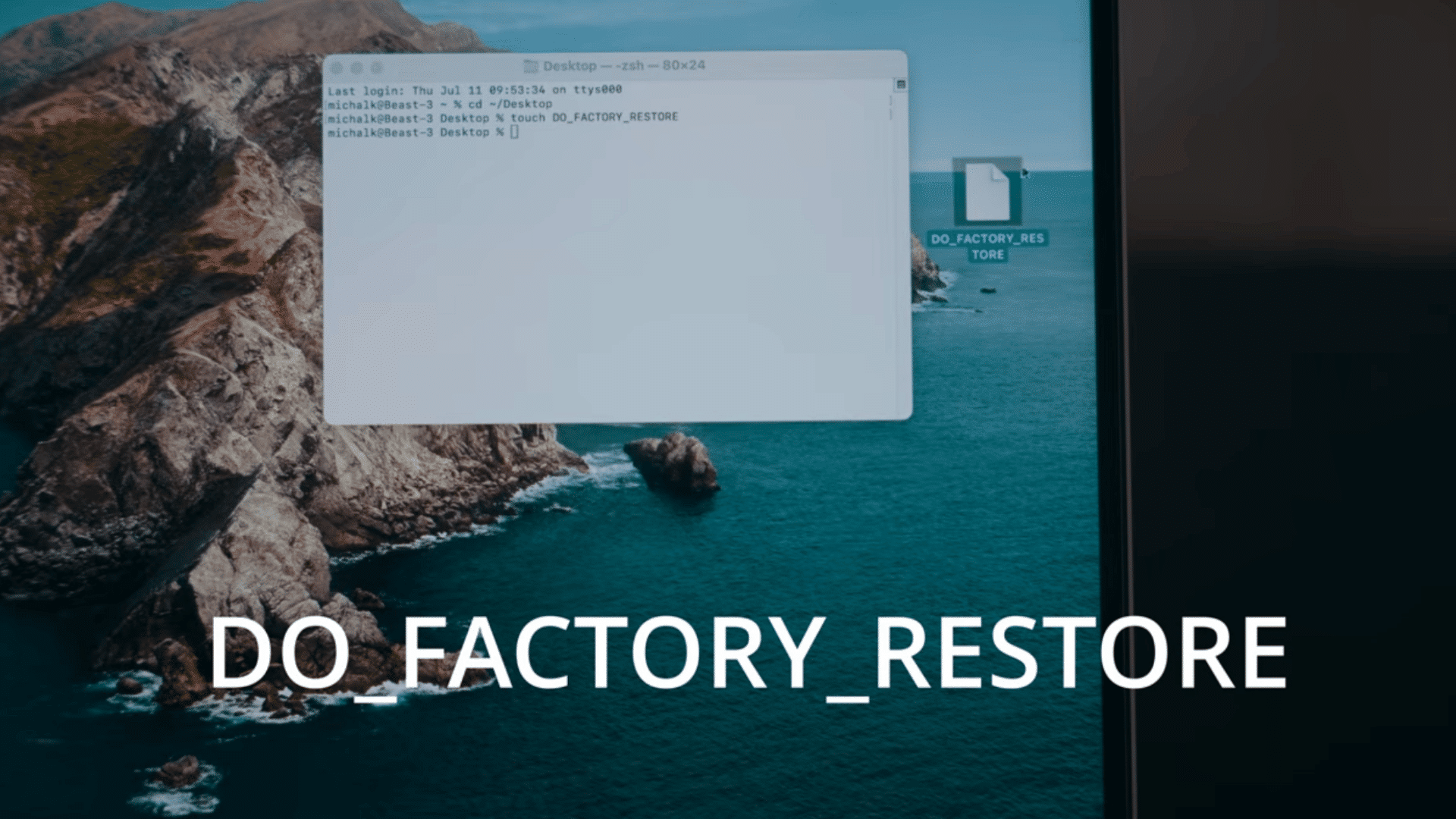
If the touchscreen is unresponsive and you cannot open the Settings menu, you may still be able to reset the Kindle using a Windows PC or Mac.
Create a file named DO_FACTORY_RESTORE without adding any file extension such as TXT or PDF.
Copy the file to the Kindle’s main storage folder, safely eject the device, then press and hold the power button for 20 to 30 seconds.
If successful, the Kindle should detect the file and automatically begin the factory reset process.
Step 4: Reset a Kindle with a Forgotten Passcode

If you cannot unlock your Kindle because you forgot the passcode, the device includes a built-in reset option.
Enter 111222777 in the passcode field on the lock screen. The Kindle will erase all locally stored data and restore itself to factory settings.
Once the reset is complete, you can sign in with your Amazon account and download previously purchased books from the cloud.
This method should only be used when there is no other way to access the device.
Step 5: Restart the Kindle While Charging

If your Kindle does not respond after a normal restart, try repeating the soft reset while it is connected to a wall charger.
Plug the Kindle into a power outlet with a compatible charging cable, then hold the power button for 30 to 40 seconds, then release it.
Watch for the charging light to turn on and the Kindle logo to appear on the screen. This method can help if the battery charge is too low to complete a normal reboot.
Step 6: Connect the Kindle to a Computer After Restarting
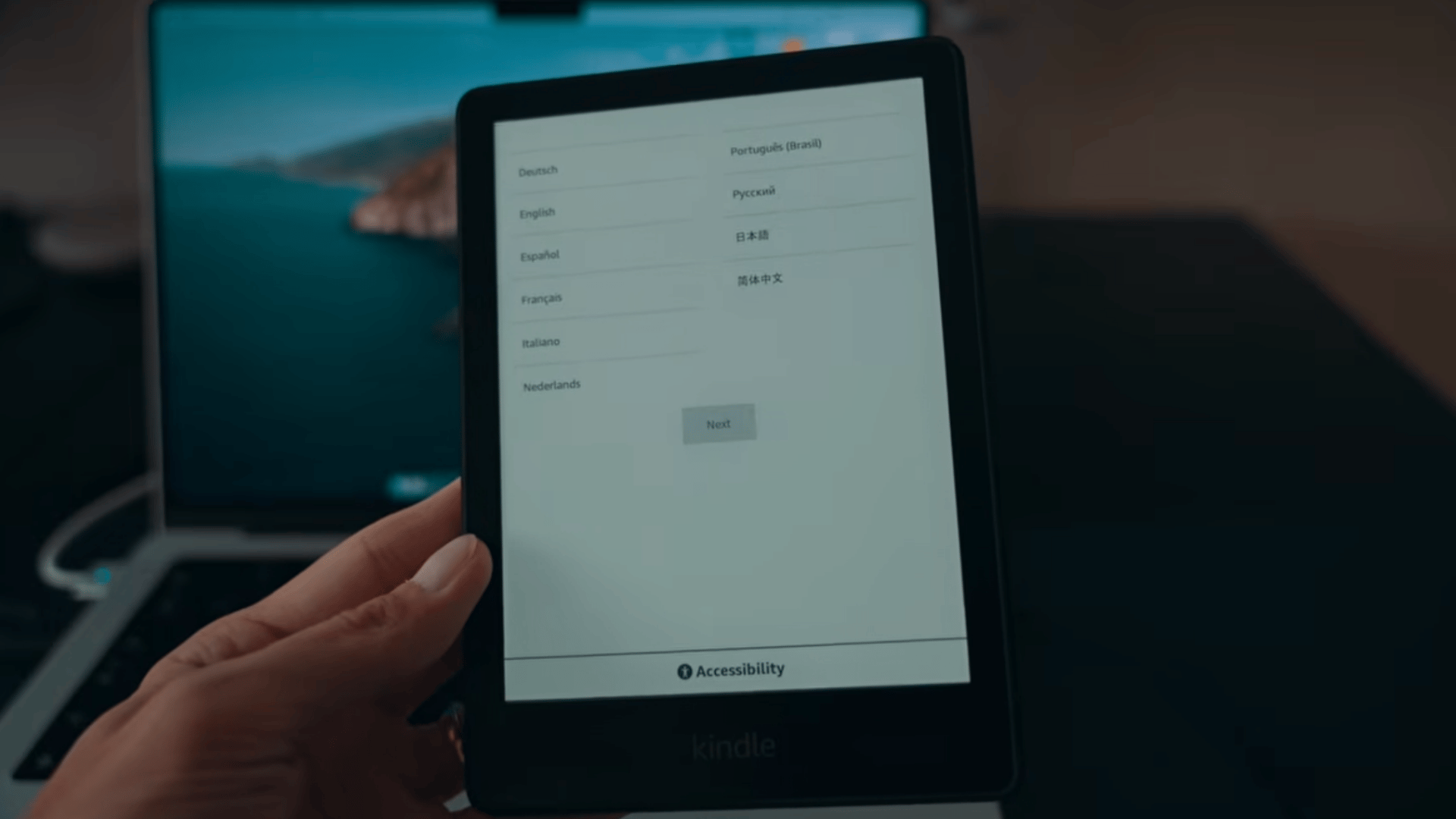
When the Kindle remains unresponsive, perform another soft reset before connecting it to a computer.
With the Kindle disconnected from any power source, hold the power button for 40 seconds. As soon as you release the button, connect the device to your computer using a USB cable.
If the computer recognizes the Kindle, there is a good chance the device is still functioning, allowing you to attempt the computer-based factory reset or continue troubleshooting from there.
Step 7: Check the Battery and Charging Components

Power-related problems can prevent a Kindle from restarting or charging properly.
First, allow the battery to drain completely if the device is stuck on the startup screen, then recharge it and try another soft reset.
Next, charge the Kindle for 30 to 60 minutes using the original cable and adapter if available.
Inspect the charging port for dust or debris, try a different outlet, cable, or adapter, and connect the Kindle to a computer to see if it is detected.
These simple checks often identify charging issues before assuming the device has failed.
Step 8: Update Kindle Software
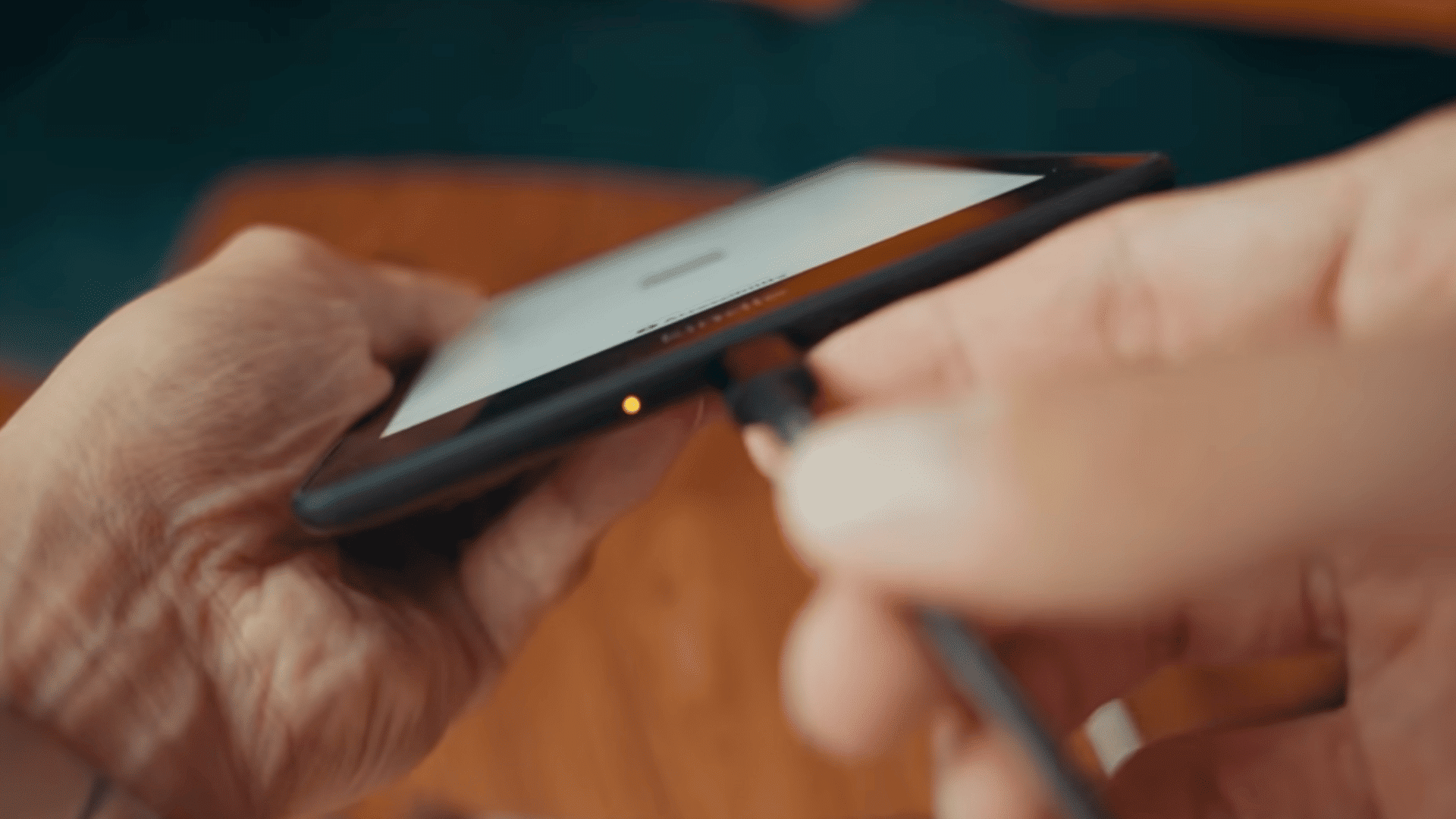
If your Kindle turns on but freezes, lags, or behaves unexpectedly, installing the latest software update may resolve the problem.
Connect the device to a stable Wi-Fi network, open Settings, navigate to Device Options, and check for available software updates.
Installing the latest version can fix known bugs, improve performance, and address issues that cause the Kindle to become unresponsive.
Restart the device after the update finishes to ensure all changes are applied correctly.
Step 9: Check for Physical or Liquid Damage
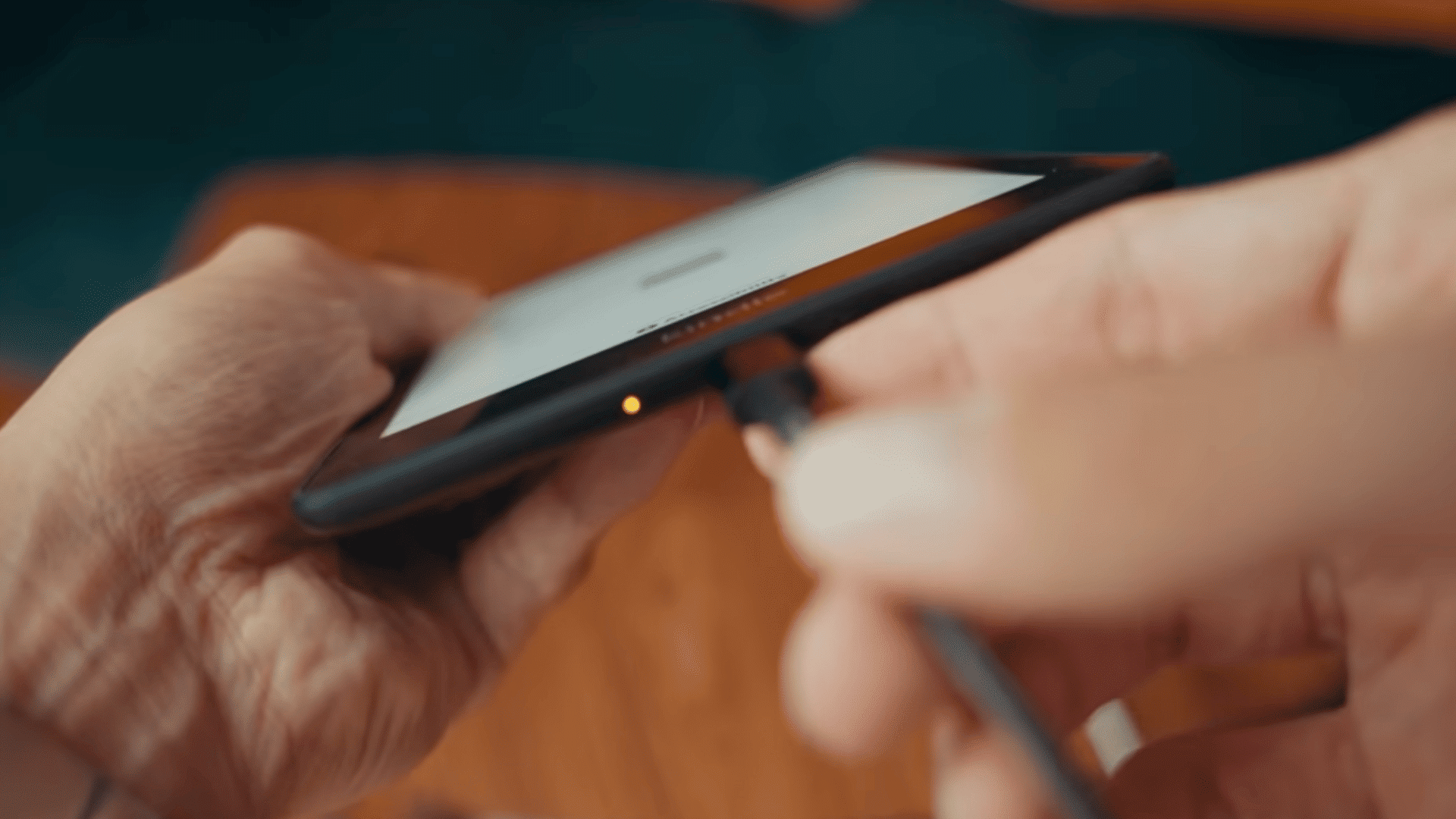
If software resets and charging checks do not solve the issue, inspect the Kindle for signs of physical damage. Look closely for a cracked display, bent frame, damaged charging port, or evidence of water exposure.
Liquid damage can affect internal components even when the outside of the device appears normal.
If you notice any of these problems, additional resets are unlikely to help, and professional repair or replacement may be the most practical solution.
This tutorial is based on a helpful video by How To Do Stuff. You can watch the original tutorial on their YouTube channel here or view it below.
What to Do If Kindle Reset Is Not Working?
If your Kindle still does not reset or respond, the problem may be related to power, hardware, or software. Try these troubleshooting steps before considering a repair or replacement.
- Charge the Kindle for at least 30 Minutes: A deeply discharged battery may prevent the Kindle from restarting or resetting. Leave it connected to a charger for at least 30 minutes.
- Check the Charging Cable and Port: Inspect the cable and charging port for dust, debris, or damage. Clean the port carefully and test with a compatible charging cable.
- Try Another Power Adapter or USB Port: A faulty adapter or USB port may not provide enough power. Use a different wall charger or connect the Kindle to another USB port.
- Update Kindle Software: If the Kindle turns on but has software issues, install the latest Kindle software update to fix bugs that may prevent a reset from working.
- Check for Physical or Water Damage: Drops or liquid exposure can cause hardware problems that prevent normal operation.
- Contact Amazon Support: If none of these steps work, contact Amazon Support for device-specific troubleshooting, warranty information, or available repair and replacement options.
Kindle Reset Methods at a Glance
Use this quick overview to choose the correct Kindle reset method based on the problem, required action, and potential data loss before troubleshooting.
| Method | Use This When | What to Do | Erases Data |
|---|---|---|---|
| Soft Restart | Kindle is frozen, slow, or unresponsive | Hold the power button for 30–40 seconds until the Kindle restarts | No |
| Factory Reset (Settings) | Restart does not fix the problem | Go to Settings → Device Options → Factory Reset | Yes |
| Factory Reset Using a Computer | Touchscreen does not work | Copy the DO_FACTORY_RESTORE file to the Kindle and restart it | Yes |
| Reset With Forgotten Passcode | Unable to unlock the Kindle | Enter 111222777 on the passcode screen to begin a factory reset | Yes |
| Restart While Charging | Kindle will not restart because the battery is drained | Connect the charger and hold the power button for 30–40 seconds | No |
| Connect to a Computer | Kindle remains unresponsive after restarting | Restart the device, then connect it to a PC or Mac to check detection | No |
| Check Battery and Charger | Kindle will not charge or power on | Test another cable, adapter, and outlet, and inspect the charging port | No |
| Update Kindle Software | Kindle works but freezes or runs slowly | Install the latest software update from Settings | No |
| Inspect for Physical Damage | Reset attempts continue to fail | Check for cracks, water damage, or a damaged charging port | No |
| Contact Amazon Support | None of the above methods solves the problem | Request professional troubleshooting, repair, or replacement | No |
What Happens After a Kindle Factory Reset?
A Kindle factory reset erases personal settings, downloaded content, and device-specific data while restoring the device to its original factory state.
Content linked to the same Amazon account can usually be recovered after signing in again.
After the reset, the Kindle must be set up from the beginning, including selecting a language, connecting to Wi-Fi, and registering with an Amazon account.
Downloaded books are removed from the device, but purchased Kindle books remain in the cloud and can be downloaded again.
Device preferences, saved Wi-Fi passwords, and screen lock PINs are erased and must be configured again.
Cloud-synced collections, Whispersync reading progress, and synced notes or highlights can be restored after signing in. However, notes stored only on the device and not synced to the cloud may be permanently lost.
Common Kindle Reset Mistakes to Avoid
Avoiding these common mistakes can prevent data loss, charging problems, and unnecessary factory resets while troubleshooting a Kindle.
- Factory Resetting Too Early: Try a normal restart or a forced restart first, as a factory reset erases downloaded content, settings, and personal information.
- Not Charging Before Troubleshooting: A low battery can make the Kindle appear frozen or unresponsive, so charge it for at least 30 minutes first.
- Forgetting to Sync Books: Sync the Kindle before resetting to save reading progress notes, highlights, and collections linked to the Amazon account.
- Interrupting the Reset Process: Do not press buttons, disconnect power, or restart the Kindle while the reset is running because this may cause software problems.
- Using Damaged Charging Accessories: Faulty cables, adapters, or ports can prevent proper charging and make the Kindle seem broken even when the device itself still works.
Conclusion
Resetting a Kindle is often the quickest way to fix freezing, startup issues, slow performance, or an unresponsive screen. In most cases, a simple restart solves the problem without affecting books, settings, or personal data.
If the issue continues, work through the remaining troubleshooting steps in order before choosing a factory reset.
Because a factory reset removes locally stored content and settings, it should only be used after syncing important data to an Amazon account whenever possible.
Taking a few minutes to check the battery, charging accessories, and software updates can also prevent unnecessary resets.
Following the right method for the specific problem helps restore the Kindle safely and efficiently.
If the device still does not work, contact Amazon Support for additional assistance or repair options.
Frequently Asked Questions
Are Any Kindles No Longer Supported?
Yes. Some older Kindle models no longer receive software updates or new features. Amazon still provides limited services for certain devices, but compatibility gradually decreases over time.
How to Tell if a Kindle Is Outdated
A Kindle may be outdated if it no longer receives software updates, struggles to run newer features, or cannot access the latest Kindle services and improvements.
What Is the Average Lifespan of a Kindle?
A Kindle typically lasts 5 to 10 years, depending on usage, battery condition, charging habits, and whether the hardware remains in good working condition.