If you’ve ever felt like your team is busy but not necessarily productive, the right software stack is usually part of the answer.
Most professionals today use at least three or four productivity tools without even thinking of them as a category. They’re just part of how work happens.
Productivity software is a category of digital tools designed to help individuals and teams complete work faster, stay organized, and reduce manual effort.
It covers a wide range of applications, from word processors and spreadsheets to project management platforms, communication tools, and workflow automation systems.
The goal is simple: convert the hours and effort people put into work into more consistent, measurable results, with less friction in between.
What is Productivity Software?
Productivity software is application software built to help people produce work output more efficiently, whether that output is a document, a completed project, a scheduled meeting, or a processed dataset.
The term goes back to the early days of personal computing, when office suites bundled word processors, spreadsheets, and database programs into a single package.
What started as a way to replace typewriters and paper filing has expanded into an entire ecosystem of tools covering almost every type of knowledge work.
Today, productivity software includes any tool that reduces manual effort, automates repetitive tasks, or helps people and teams coordinate work more effectively.
A communication platform like Slack is a type of productivity software. So is a time tracker, an AI scheduling assistant, or a note-taking app that syncs across devices.
Types of Productivity Software
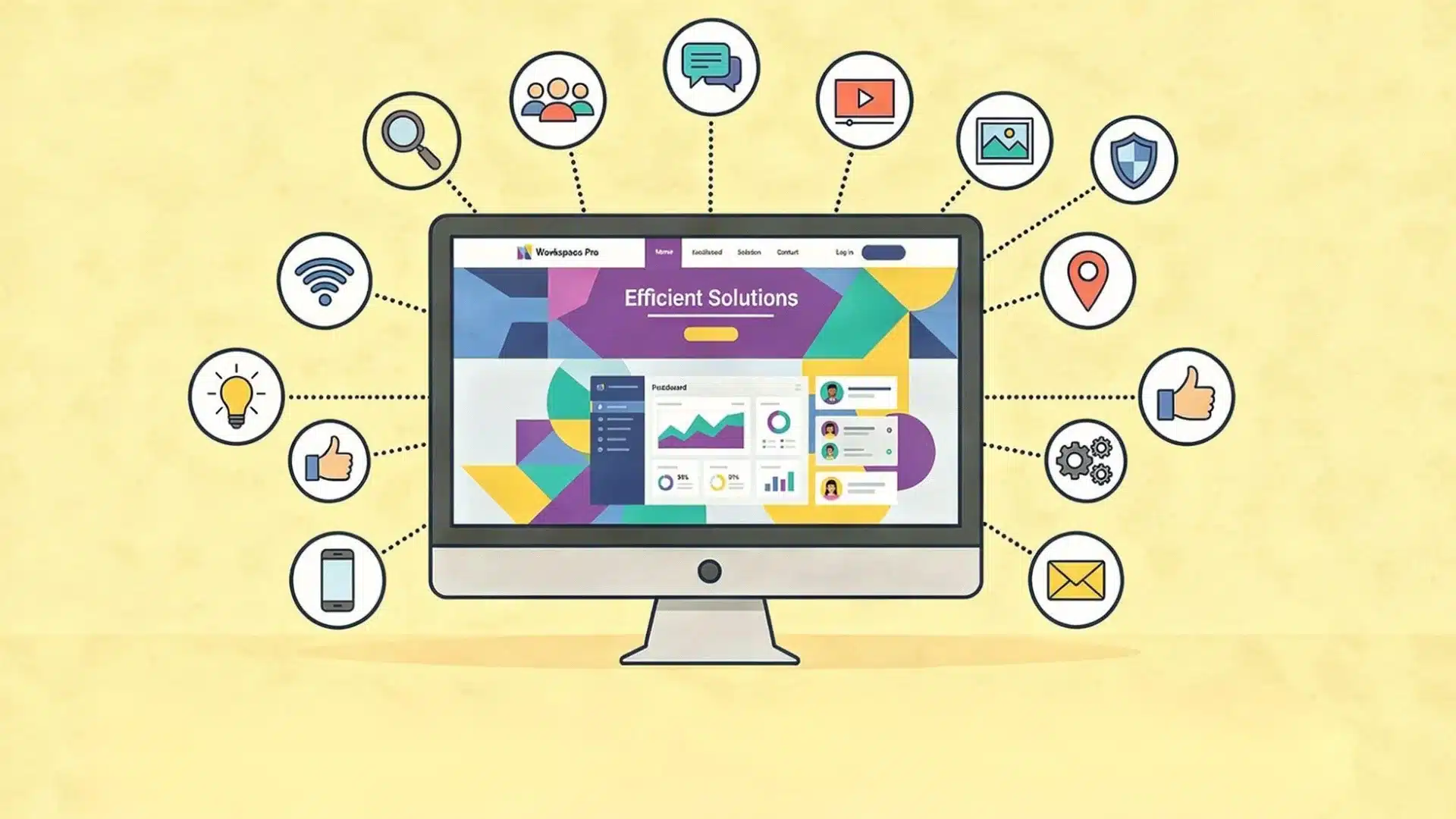
Productivity software covers a wide range of tools, and most teams use several types at once. Each category addresses a specific kind of work friction.
- Document creation tools: Word processors and publishing tools used to create, format, and share documents, from internal reports to client proposals.
- Spreadsheet software: Grid-based tools for organizing, calculating, and visualizing data. Used widely in finance, operations, and any role that involves numbers.
- Project and task management software: Platforms that organize tasks, timelines, and workflows while helping teams track ownership, deadlines, and progress.
- Communication and collaboration tools: Messaging, video conferencing, and shared workspace platforms that replace or supplement email for team coordination.
- Time tracking and scheduling software: Tools that track work hours, generate reports, and help manage calendars and meeting schedules.
- Workflow automation software: Platforms that connect apps and automate repetitive tasks, reducing manual work and improving efficiency.
- Note-taking and knowledge management tools: Apps for capturing ideas, storing information, and creating shared knowledge bases that teams can easily access and update.
Core Features to Look for
Not all productivity tools are built the same, and the features that matter most depend on what problem you’re solving. There are a few things worth checking before committing to any platform.
- Intuitive interface: A tool people won’t actually use doesn’t save time. Look for a clear layout, minimal onboarding friction, and a short learning curve.
- Collaboration tools: Real-time editing, task comments, and shared dashboards make a bigger difference than most teams expect when switching from email-based workflows.
- App integrations: Productivity software works best when it fits into the stack you already have. Check whether the tool connects natively with your email, calendar, and other core systems.
- Cloud access and cross-device sync: Files and tasks should be accessible from any device without extra configuration. This matters especially for hybrid and remote teams.
- Reporting and analytics: Visibility into workload, time spent, and project progress helps managers make data-driven decisions rather than guesswork.
- Automation options: Even basic automation, like auto-assigning tasks or triggering reminders, compounds over time. Prioritize platforms that let non-technical users set these up without IT involvement.
Examples of Productivity Software
The tools in each category vary in depth, complexity, and target audience. Here are the most widely used examples, organized by type.
1. Document Creation
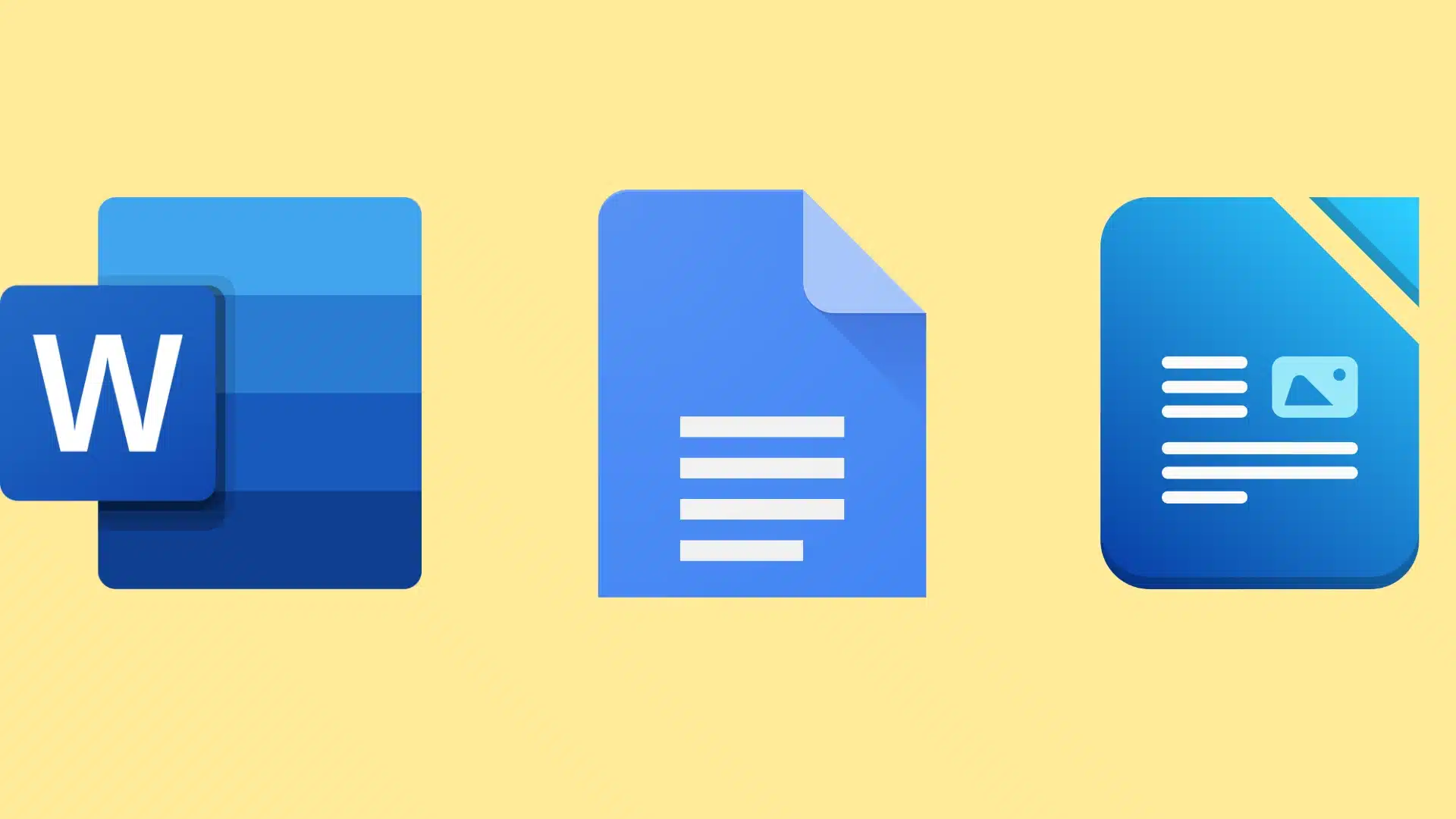
- Microsoft Word: The most widely used word processor globally, part of Microsoft 365.
- Google Docs: Browser-based document editing with real-time collaboration and cloud storage built in.
- LibreOffice Writer: A free, open-source alternative with strong compatibility across file formats.
2. Spreadsheet Software
- Microsoft Excel: The industry standard for data analysis, financial modeling, and reporting.
- Google Sheets: Cloud-native spreadsheet with collaboration features and easy sharing.
- Airtable: A hybrid between a spreadsheet and a database, useful for managing relational data without writing code.
3. Project and Task Management
- Asana: Widely used in marketing, product, and operations teams for managing projects and tracking milestones.
- Trello: A visual, card-based tool built around kanban boards, good for teams that prefer a simple drag-and-drop interface.
- Monday.com: A flexible work operating system with strong reporting and automation features for cross-functional teams.
If you want to go deeper on how one of the most popular tools in this category actually works day to day, the guide to using Trello for project management covers the full setup from board structure to team handoffs.
4. Communication and Collaboration
- Slack: Channel-based messaging with app integrations, widely used in tech and media companies.
- Microsoft Teams: Messaging, video calls, and file sharing within the Microsoft 365 ecosystem.
- Zoom: Video conferencing with webinar and collaboration features, standard for remote and hybrid meetings.
5. Time Tracking and Scheduling
- Clockify: Free time tracking software with detailed reporting, used by freelancers and small teams.
- Toggl Track: Clean, minimal time logging tool with project-level reporting and integrations.
- Reclaim AI: An AI scheduling tool that protects focus time, manages habits, and integrates with Google Calendar.
6. Workflow Automation
- Zapier: Connects thousands of apps and automates task sequences without code, ideal for small to mid-sized teams.
- Microsoft Power Automate: Automates workflows across Microsoft 365 and third-party services, with strong enterprise integration.
- Make (formerly Integromat): A visual automation builder suited to more complex, multi-step workflows.
7. Note-Taking and Knowledge Management
- Notion: A flexible workspace that combines notes, databases, calendars, and wikis in one place. Teams use it as an internal knowledge hub.
- Evernote: Long-running note-taking app with strong search and cross-device sync.
- Microsoft OneNote: Integrated with Microsoft 365, useful for teams already in that ecosystem.
Benefits of Productivity Software
The practical value of productivity software shows up in day-to-day operations more than in abstract metrics. The benefits break down into a few consistent areas:
- Time savings: Automating repetitive tasks such as status updates, approvals, and data entry frees up hours to focus on higher-value work.
- Better collaboration: Shared workspaces, real-time editing, and centralized communication reduce the back-and-forth that slows teams down.
- Visibility and accountability: Project management and time tracking tools give managers and team members a clearer picture of what’s happening and where things stand.
- Fewer errors: Automated workflows reduce the mistakes that come from manual data entry or handoffs between people and systems.
- Flexibility: Cloud-based productivity tools enable teams to work from different locations without losing access to shared files or context.
How Productivity Software is Used in Different Settings

The way teams use these tools changes significantly depending on their size, structure, and work environment.
1. Enterprise Teams
Large organizations use productivity software to coordinate work across departments.
In my experience working with enterprise teams, the challenge is rarely picking a tool. It is getting those systems to actually talk to each other.
Marketing manages campaigns, finance tracks budgets, and operations oversees logistics through connected tools and workflows, but those pipelines break down the moment integration is treated as an afterthought.
Platforms like Monday.com and Microsoft 365 are built specifically for this, offering cross-department visibility and reporting in one place.
2. Remote and Hybrid Teams
Remote work has made productivity software essential, with communication, collaboration, and project management tools handling much of the daily coordination between distributed teams.
The U.S. Bureau of Labor Statistics tracks labor productivity across the U.S. economy and reported a 2.1% increase in 2024, citing the shift to hybrid and flexible work arrangements as a contributing factor.
3. Small Businesses
Small teams often run lean, which makes automation especially valuable.
Replacing manual follow-ups, data entry, and status checks with automated workflows can recover hours each week without adding headcount.
The tradeoff is that smaller teams also have less tolerance for complex setups, so ease of use matters more than feature count.
4. Individual Professionals
Freelancers and solo operators use productivity software differently from teams.
Time tracking, scheduling, and note-taking tend to take priority over collaboration features.
AI-powered productivity apps have become a useful layer on top of these basics, automatically handling scheduling, drafting, and task prioritization.
How Productivity Software Has Evolved Over Time?

Productivity software has changed significantly over the years.
Early tools focused on basic tasks like word processing, spreadsheets, and databases, with office suites becoming the standard for workplace productivity.
The rise of the internet introduced cloud-based tools such as Google Docs, making real-time collaboration and file sharing much easier.
As remote work grew, communication, collaboration, and project management platforms became essential for keeping teams connected, organized, and productive across different locations.
A 2026 BLS Monthly Labor Review article on software investment growth found that AI integration is driving growth, with software investment increasing at an 11.1% annual rate between 2019 and 2024.
While these features can save time, getting the most value still depends on choosing the right tools and using them effectively.
Common Challenges and Limitations of Productivity Software
Productivity software solves real problems, but it also comes with a few challenges that users and teams should consider before adopting new tools.
- Learning curve: Some platforms require time and training before users can fully understand and use all available features.
- Subscription costs: Premium plans, add-ons, and enterprise features can become expensive as teams grow and usage requirements increase.
- Tool overload: Using too many productivity apps can create confusion, duplicate work, and unnecessary complexity.
- Integration issues: Not all tools integrate seamlessly, which can lead to data silos, workflow disruptions, and duplicated tasks.
- Notification fatigue: Constant alerts, reminders, and messages can become distracting and reduce focus during work.
- Data security concerns: Storing sensitive information in cloud-based tools may raise privacy and compliance considerations.
- Dependence on technology: Technical issues, outages, or internet disruptions can temporarily affect productivity and access to work.
User Experiences With Productivity Software
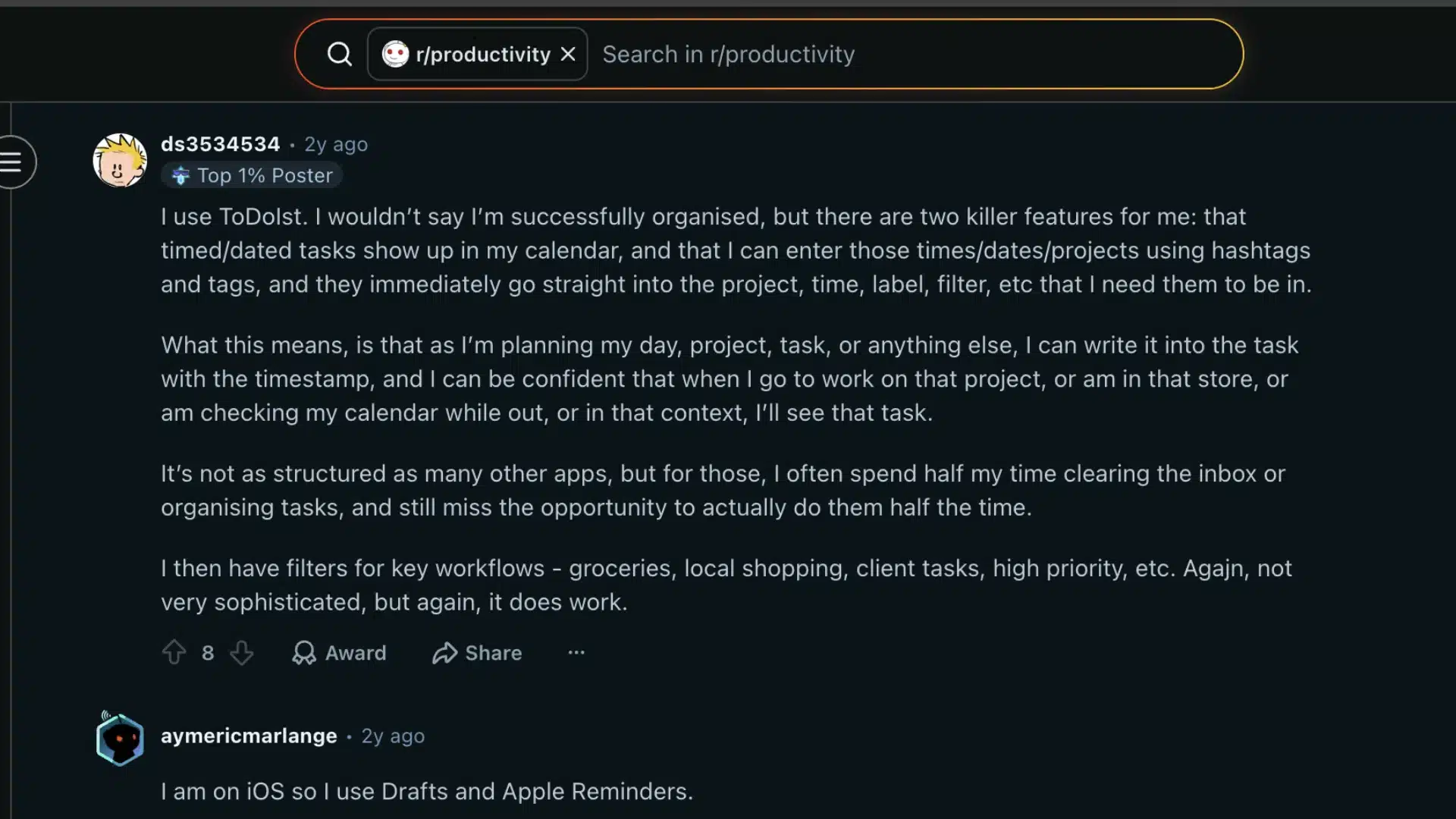
Reddit users present a largely positive view of productivity software, specifically highlighting how Todoist helps the user stay organized without creating unnecessary complexity.
The user values the ability to quickly add tasks with dates, projects, and tags, while calendar integration ensures tasks appear at the right time and in the right context.
A key benefit is that the system reduces the time spent organizing tasks, making it easier to focus on completing them.
The use of filters for different areas of life and work further improves visibility and task management.
Overall, this review suggests that productivity software is most effective when it simplifies organization and seamlessly fits into a user’s workflow.
Rather than offering endless features, the tools that provide the greatest value are often those that help users spend less time managing tasks and more time getting meaningful work done.
How to Choose the Right Productivity Software?
Choosing the right productivity software is easier when you focus on your team’s needs rather than the longest feature list.
- Identify bottlenecks: Start by finding the tasks, processes, or workflows that consume the most time and pose the biggest daily productivity challenges.
- Match team size: Choose software that fits your current team size and operational requirements without adding unnecessary complexity or costs.
- Check integrations: Ensure the tool connects smoothly with the apps and systems you already use to maintain efficient and connected workflows.
- Use free trials: Test real workflows before committing to a paid subscription or long-term contract to evaluate usability and overall effectiveness.
- Prioritize adoption: Select a tool your team can learn and use consistently without extensive training or implementation difficulties.
- Focus on value: The best software simplifies work, removes friction, and improves efficiency while supporting your team’s long-term goals.
The U.S. Small Business Administration recommends choosing productivity software that fits how your team works rather than forcing a single workflow.
For teams evaluating tools that sit at the intersection of sales, support, and productivity, understanding how CRM software fits into the broader stack can help you avoid buying tools that overlap in ways you will not notice until month three.
Conclusion
Productivity software includes a wide range of tools, such as word processors, spreadsheets, automation platforms, and AI-powered apps, designed to make work more efficient.
The market is growing fast, the tools are more capable than ever, and the teams that choose thoughtfully tend to see the clearest results.
Understanding what’s available by category and why each type exists makes it easier to build a stack that actually fits your team’s workflow rather than adding to it.
What does your current productivity stack look like, and where are the gaps? Share your setup or questions in the comments.
Frequently Asked Questions
Is Microsoft Office Considered Productivity Software?
Yes. Microsoft Office is one of the most recognized examples of productivity software.
It bundles tools like Word, Excel, PowerPoint, and Outlook into a suite that handles document creation, data analysis, presentations, and email management on a single platform.
What Is the Difference Between Productivity Software and Project Management Software?
Project management software is a subset of productivity software.
Productivity software is the broader category covering any tool that helps people work more efficiently, while project management software specifically handles task assignment, timelines, workload tracking, and team coordination.
Can Small Businesses Benefit from Productivity Software?
Yes, and often more directly than large organizations. Small teams typically have less administrative support, which makes automation and organized workflows especially valuable.
Many productivity tools have free plans or affordable tiers built with small-business use cases in mind.
How Does AI Fit Into Modern Productivity Software?
AI is being integrated into most major productivity platforms, handling tasks like drafting emails, summarizing documents, scheduling meetings, and auto-assigning tasks.
What is the Difference Between Productivity Software and General Business Software?
Productivity software focuses on individual and team output: documents, schedules, task lists, and communication.
Broader business software, like ERP or CRM systems, manages company-wide processes such as inventory, customer records, or financial operations.