Apps crashing on your phone is one of the most common mobile problems, and it almost always comes down to a fixable cause.
When an app crashes, it either closes without warning or freezes and stops responding. The most common reasons are low RAM, an outdated app, corrupted cache files, or not enough free storage.
In some cases, the issue is limited to a single app, while in others, multiple apps may crash due to a system-level problem.
Identifying the pattern can help you find the right solution faster and avoid unnecessary troubleshooting.
In this blog, you’ll learn why apps keep crashing on Android and iPhone, how to identify the root cause, and the most effective fixes to get your apps working normally again.
Why Do My Apps Keep Crashing?
Before reaching for a fix, it helps to understand what actually went wrong. App crashes are rarely random.
They happen when something in the app’s environment breaks down, and the system has no clean way to recover. Here are the most common causes:
- Low RAM: Too many apps running at once can cause your phone to force-close apps in the background to free up space.
- Outdated app: Older versions may still have bugs that the developer already fixed in a newer update.
- Corrupted cache: Temporary files can become corrupted over time, causing the app to crash as soon as it opens.
- Low storage: Some apps need extra room to save files while running, so full storage can cause sudden crashes.
- OS mismatch: Your phone system and app version may not work well together after a big iOS or Android update, which can cause the app to crash.
- Permission issues: An app may fail if it loses access to something it needs, such as the camera, mic, or location.
- Weak internet: Banking, streaming, and messaging apps can crash when the connection drops or a VPN blocks part of the link.
- Buggy update: The app itself may be the problem if crashes started immediately after updating.
- Overheating: Games, camera tools, and video apps can crash when your phone overheats and slows down. If your phone feels warm during crashes, closing background apps and removing the case can help.
How to Stop Apps from Crashing on Android?
The fixes below are ordered from quickest to most involved. Start at the top and move down only if the crash persists.
1. Force Stop the App
Force-stopping an app clears its active process without deleting any data. Go to Settings > Apps, find the crashing app, and tap Force Stop. Reopen it after.
This is the right first move for any app that’s frozen or stuck in a crash loop.
2. Restart Your Device
A full restart clears your phone’s RAM, stops background processes that may conflict with the app, and resets system services that sometimes develop memory leaks after prolonged uptime.
If an app has been crashing for hours but worked fine before, a restart fixes it more often than any other single step.
3. Update the App
Open the Google Play Store, tap your profile icon, and go to Manage apps and device to check for pending updates.
Outdated apps are among the top reasons for crashes, and Google pushes updates specifically to fix stability issues. If the app just started crashing after an Android OS update, an app update is almost always the missing fix.
4. Clear App Cache and Data
Cached files speed things up under normal conditions, but a corrupted cache can trigger a silent crash. Go to Settings > Apps, select the app, tap Storage and cache, then tap Clear cache.
If clearing the cache doesn’t fix it, try Clear storage (also called Clear data on some devices) as a next step. That does reset the app to a fresh state, so you’ll need to log back in.
For more advanced Samsung-specific diagnostics, you can check what your Samsung system diagnostics log files are recording.
5. Check App Permissions
Open Settings > Apps, select the crashing app, and tap Permissions. Review each permission the app needs and make sure nothing was accidentally denied or revoked after a recent system update.
A social media or camera app that loses access to storage or the camera often crashes on launch rather than showing a helpful error.
6. Update Android OS
Go to Settings > System > Software update. Running a modern app on an outdated OS version leads to incompatibility crashes.
Both Google and Apple recommend keeping devices updated, and Android security patches often include stability improvements that directly affect app behavior.
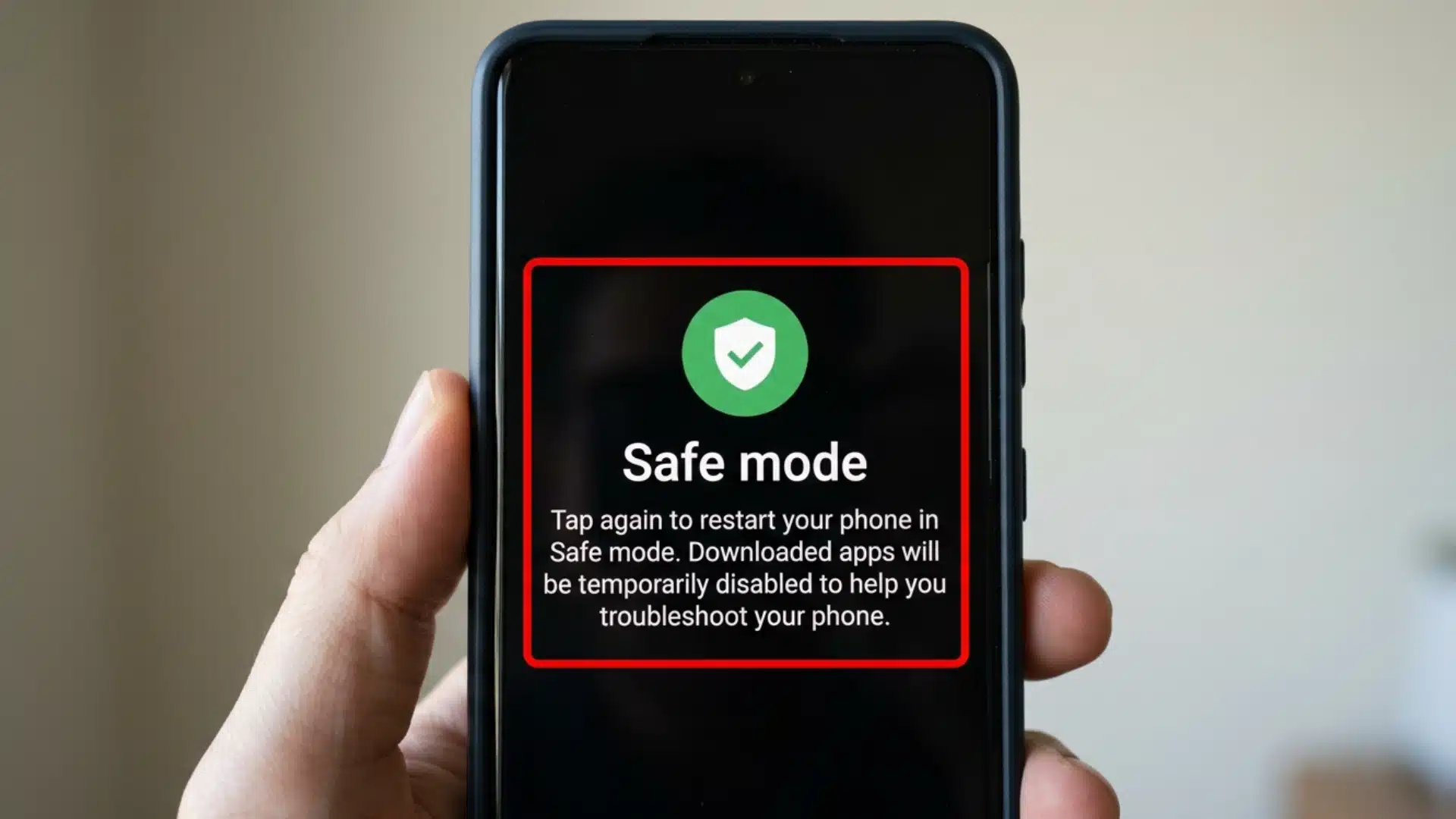
7. Use Safe Mode to Isolate the Problem
Safe mode boots Android with only its core system apps running. If your apps stop crashing in safe mode, the problem is almost certainly caused by a third-party app you installed, not the app that was crashing.
To enter safe mode: press and hold the power button, then press and hold Power off until the safe mode option appears. Tap OK.
If crashes stop in safe mode, go through recently installed apps and remove them one by one until you find the conflict.
Android recovery mode is a useful next step if crashes persist even after removing suspect apps.
8. Reset App Preferences
Misconfigured permissions or disabled system services can cause apps to malfunction repeatedly. Go to Settings > Apps > Menu > Reset app preferences, then confirm.
This restores default permissions, background data settings, and notification settings without deleting personal data.
It is a useful fix when crashes seem to be tied to a configuration change rather than to a corrupted file.
9. Reinstall the App
If nothing above has worked, uninstall the app completely from the Play Store, restart your phone, then reinstall it. This removes any corrupted files that survived a cache clear.
Before reinstalling, save any login credentials you might need. If the app still crashes after a clean install, the problem is likely on the developer’s end, not your device.
Google’s official Android troubleshooting guide covers the foundational steps if you want to cross-reference the process.
When One App Keeps Crashing vs. All Apps Crashing
The pattern of crashes tells you where to look first. Apps do not always crash for the same reason, and getting this right saves time.
If only one app keeps crashing while everything else works normally, the issue is usually with that app. Clear its cache, update it, and reinstall it if needed.
If it still crashes after a clean reinstall, check the Play Store or App Store reviews; if other users report the same problem, a fix depends on the developer, not your device.
If multiple apps crash at the same time, the problem is usually with your device or operating system. Low storage and faulty OS updates are common causes.
Free up storage, install the latest OS update, and on Android, use Safe Mode to check whether a third-party app is causing conflicts.
If crashes began right after an OS update, the best move may be to wait for a stability patch. Apple and Google typically release bug-fix updates within one to two weeks.
If built-in apps like Messages or Mail also crash, check the manufacturer’s support forum to confirm whether it is a known issue.
How to Stop Apps from Crashing on iPhone?
iPhone troubleshooting follows a similar escalation process. Start simple and move forward only if the crash continues.
1. Force-Quit and Relaunch the App
Swipe up from the bottom of the screen (or double-press the Home button on older models) to open the App Switcher, then swipe the crashing app upward to close it.
Reopen it from the Home Screen. This clears the app’s active state without losing any data.
2. Restart Your iPhone
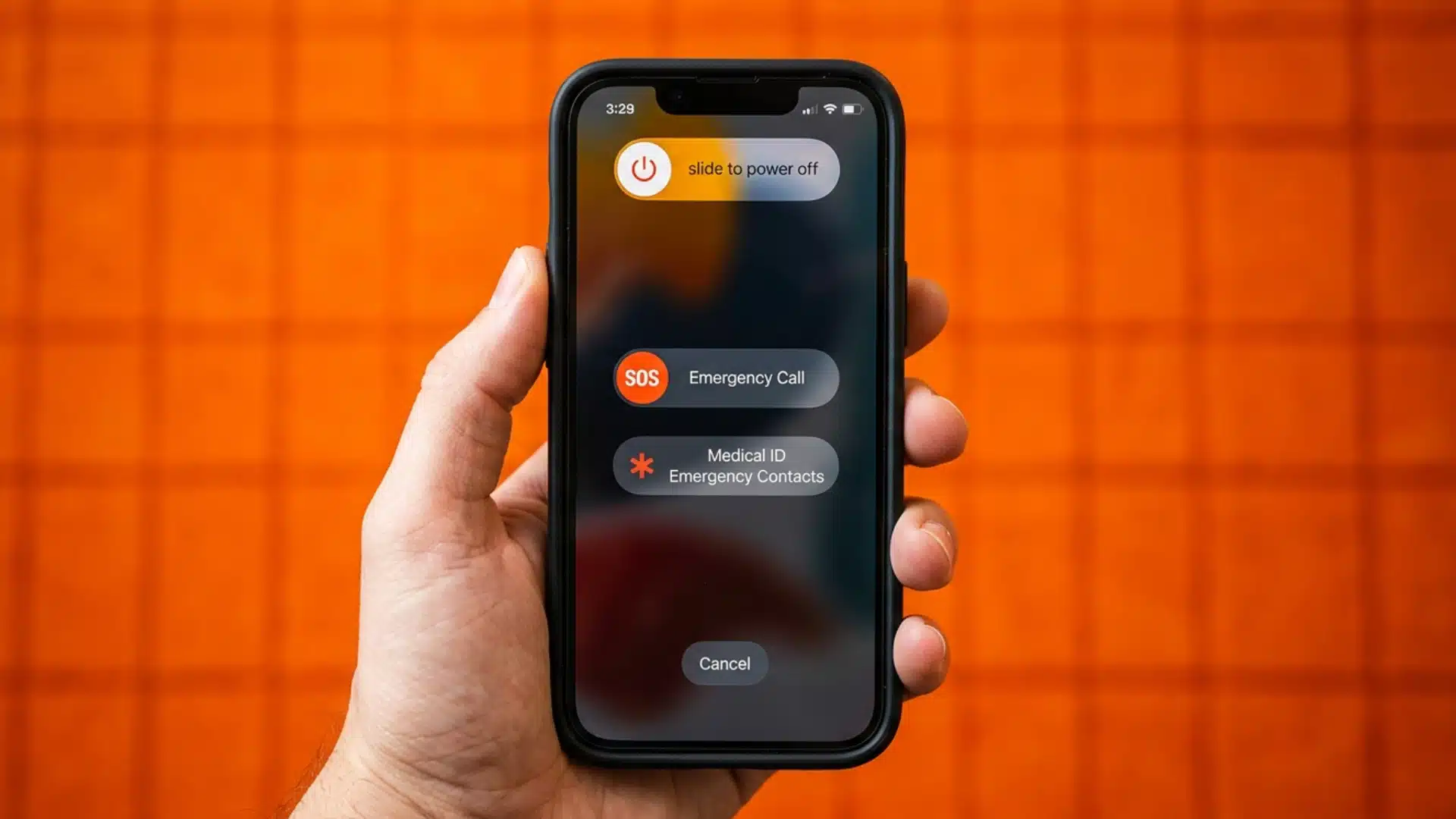
Hold the side button and either volume button until the slider appears, then drag it to power off. Wait a few seconds, then hold the side button again to restart.
A restart clears temporary memory and often resolves crashes that started appearing after extended uptime or after a recent app update.
For those also thinking about the broader iPhone vs Android security picture, keeping iOS updated is one of the most consistent security and stability wins available.
3. Update the App
Open the App Store and tap your profile icon in the top right. Scroll down to pending updates and install any available for the crashing app.
Developers often release patches specifically targeting iOS compatibility issues after major system updates, so an update waiting in the queue is frequently the fastest fix.
4. Check for iOS Updates
Go to Settings > General > Software Update. An outdated iOS version can create compatibility conflicts with apps that have updated their code to require newer system features.
If a native app like Safari or Mail is crashing, check for an iOS update before looking elsewhere. Built-in app crashes are almost always a system-level issue, not the app itself.
5. Free up iPhone Storage
Go to Settings > General > iPhone Storage. Apple recommends keeping at least 1 GB free, but in practice, apps run more reliably with 5-10 GB of headroom.
Use the storage screen to identify large apps and offload ones you rarely use.
The Offload Unused Apps option removes the app binary while keeping your data, which is a useful middle ground before a full delete.
6. Review App Permissions
Go to Settings, scroll down to the app in question, and check each permission toggle. If an app that needs location or microphone access has had that permission revoked, it may crash without displaying an error message.
Toggle permissions off and back on if they appear enabled, but the crash continues.
7. Reset All Settings (Non-Destructive)
If multiple apps are crashing and nothing else has worked, go to Settings > General > Transfer or Reset iPhone > Reset > Reset All Settings.
This restores system settings (Wi-Fi passwords, display preferences, notification settings) to their defaults without deleting any personal data or apps.
Common iPhone problems like frozen screens and Face ID failures can also be resolved using similar steps if resetting settings alone does not clear the crashes.
Apple’s official guidance for apps that stop responding, close unexpectedly, or won’t open walks through the same basic sequence.
How to Prevent Apps from Crashing in the Future?
Most crashes are preventable with a small amount of routine maintenance. After nine years of helping teams manage apps across workflows, the habits below are the ones that actually make a difference over time.
- Keep apps updated automatically: Both iOS and Android support automatic app updates. Turning this on means you are not running outdated versions with known bugs.
- Keep storage at least 10-15% free: Apps that crash due to low storage rarely give a warning first. Set a threshold and clear space before you hit it.
- Restart your phone once or twice a week: This clears accumulated memory and resets processes that tend to develop minor issues with prolonged uptime. Most people restart only when something breaks, which is already too late.
- Review app permissions after major OS updates: System updates can occasionally reset them. A quick check after an update prevents a crash you will not understand until you look for it.
- Limit background apps on older devices: If your phone is more than 3-4 years old, closing apps you are not actively using reduces RAM pressure and makes crashes less likely.
- Install apps only from official sources: Apps from outside the Play Store or App Store carry a higher risk of being poorly coded or actively malicious, both of which cause crashes.
The FCC’s guide on updating your smartphone OS is also worth reading, as it covers why OS compatibility directly affects app stability and what to check before and after a system update.
Why Your Fixes May Not Be Working?

If you’ve tried restarting your phone, updating the app, and clearing its cache, but the crashes continue, the issue may not be something you can fix yourself.
Some crashes are caused by software bugs, server outages, or operating system problems that require a developer or manufacturer update.
If the crashes started after an app or OS update, a software bug may be the cause. Check whether other users are reporting the same issue, as you’ll likely need to wait for an official fix.
If multiple apps, including built-in ones, keep crashing, the issue is likely with your device or operating system. At that point, it’s best to contact the appropriate support service.
How to Contact Support or Report the Issue?
If you’ve tried the recommended fixes and your apps still keep crashing, it may be time to seek additional help. The right support channel depends on the type of issue you’re experiencing.
- Contact the app developer: If only one app continues to crash after updating and reinstalling it, report the issue through the app or leave feedback in the Play Store or App Store.
- Contact Apple Support: If multiple built-in iPhone apps crash or your device becomes unstable after an iOS update, Apple Support can run diagnostics and recommend further steps.
- Contact Google or your device manufacturer: If Android system-wide crashes continue even after advanced troubleshooting or a factory reset, your device may have a software or hardware issue.
- Contact your mobile carrier: If apps crash only while using mobile data but work normally on Wi-Fi, your carrier may need to resolve a network or APN settings issue.
- Check for known outages: If an app crashes immediately after opening despite a clean reinstall, check the developer’s status page or social media to see if a widespread outage or bug has been reported.
Conclusion
Most app crashes come down to a handful of fixable problems: stale cache, low storage, an outdated app, or a mismatch between the app and your current OS version.
Working through fixes in order, rather than jumping to drastic steps like a factory reset, solves the problem in the large majority of cases without losing any data.
The crash pattern (one app vs. many apps) is your best diagnostic tool, and it usually clearly indicates whether the fix is at the app level or the device level.
If you found a fix that worked on your phone, drop it in the comments below. Seeing which specific step solved it helps other readers skip straight to what actually works on their device.
Frequently Asked Questions
Why Do My Apps Keep Closing on Their Own without Any Error Messages?
Background app closures without a visible error usually mean your phone ran out of RAM. The operating system silently kills background apps to free memory for whatever is active in the foreground.
Restarting your phone and closing apps you’re not using will reduce the frequency of this happening.
Does Clearing the Cache Delete My App Data or Logins?
No. Clearing the app cache removes only temporary files, not your account information, saved data, or preferences.
Clearing app data (sometimes called Clear Storage) is what resets logins and settings, and that’s a separate option. If you’re unsure which one to use, start by clearing the cache. It’s completely reversible.
Can a Phone Virus or Malware Cause Apps to Crash?
Yes, though it’s more common on Android than iPhone. Malware can use system resources in the background, causing apps to crash.
If crashes occur alongside rapid battery drain or unusual data usage, run a security scan and check recently installed apps.
How Much Free Storage Do I Need to Keep Apps From Crashing?
A good rule of thumb is to keep at least 10% of your device’s total storage free. On a 128 GB phone, that means keeping about 12-13 GB available.
Apps need free space for temporary files, and both Android and iPhone performance can decline when storage gets too low.