HDCP content protection standards are rules that control how digital video and audio move from one device to another.
You often run into them when you try to stream a movie or connect a device and suddenly see an error on your screen. It can feel confusing, especially when everything looks plugged in the right way.
HDCP stands for High-bandwidth Digital Content Protection. It exists to stop the copying of movies, shows, and other paid content.
If you have ever asked, “Why am I seeing this error?” you are not alone. These errors usually pop up because one part of your setup does not match the HDCP rules.
In this blog, you will learn what HDCP is, why it matters, the different standards involved, and how to fix common HDCP errors without stress.
What is HDCP?
HDCP’s meaning refers to a copy protection system used to control how digital video and audio move between devices.
Its main job is to stop paid content from being copied while it travels from a source device to a screen.
You usually see HDCP at work when you connect a streaming device, game console, or Blu-ray player to a TV or monitor.
HDCP works through a process called a “handshake.” When you turn on your devices, they quickly check each other to confirm they are allowed to share protected content.
If every device in the chain passes this check, the video plays normally. If one device fails, you may see a black screen or an error message.
This system protects content from streaming services like Netflix and Prime Video, as well as Blu-ray discs, cable TV, and some digital downloads.
HDCP Content Protection Standards and Versions
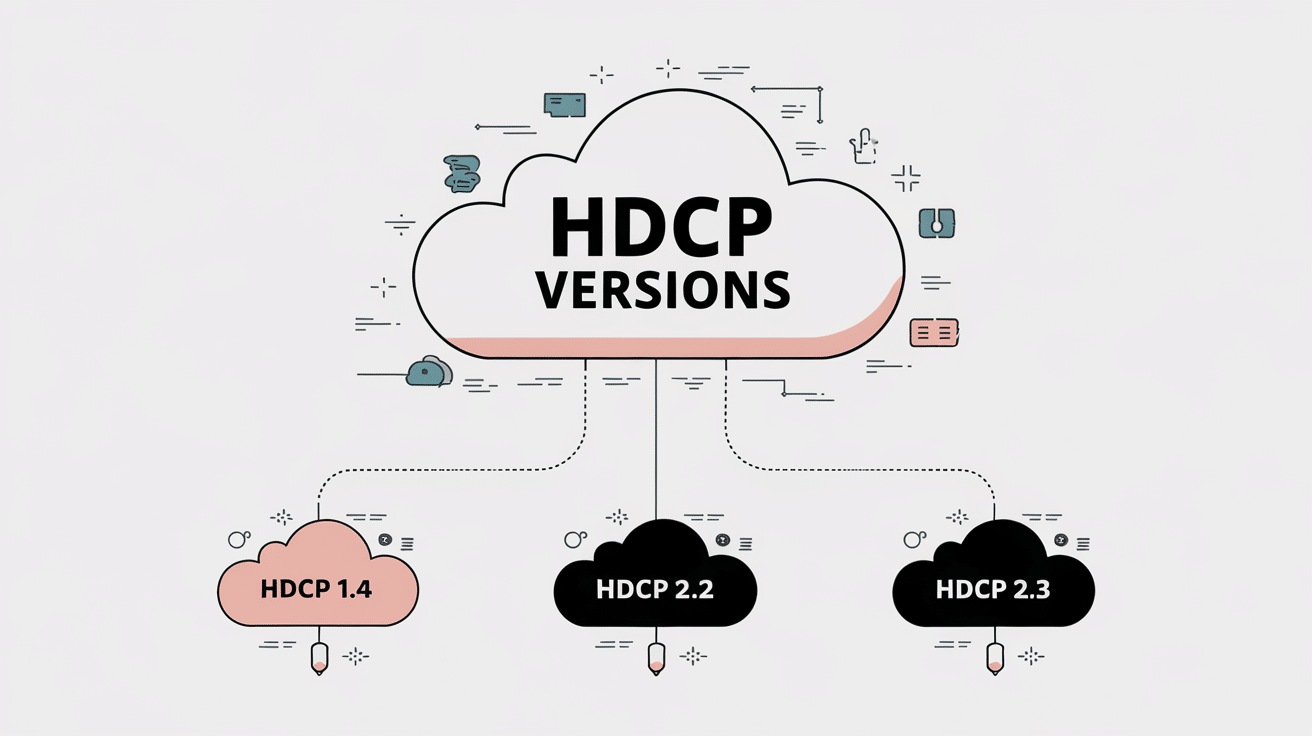
HDCP content protection standards have changed over time to match newer screens and higher video quality. Each version supports different devices and content, which can affect playback and errors.
1. HDCP 1.4
HDCP 1.4 supports video up to 1080p resolution. It is commonly used with older TVs, monitors, Blu-ray players, cable boxes, and early streaming devices.
This version works well for standard HD content and older setups. Problems usually appear when a newer device tries to play protected content on an older display.
Since HDCP 1.4 does not support 4K, streaming services may block playback or lower the video quality if this version is detected in your setup.
2. HDCP 2.2
HDCP 2.2 was designed to support 4K and Ultra HD content. Most streaming services require it for high-resolution playback.
Every connected device must support this version, including receivers and cables. If even one device only supports HDCP 1.4, playback may fail or show an error.
This version introduced stricter rules, which is why many users run into HDCP issues when upgrading to 4K TVs or devices.
3. HDCP 2.3
HDCP 2.3 is the newest version and builds on HDCP 2.2. It improves security but keeps the same basic requirements.
Most users will not see a difference between the two versions during normal use. HDCP 2.3 stays backward compatible with 2.2 devices, so newer equipment usually works with older 4K setups.
Errors with this version are less common and usually relate to older cables or unsupported displays.
HDCP Versions Comparison Table
This table shows how HDCP versions differ in release year, resolution support, device use, and compatibility, making it easier to understand which standard your setup needs.
| Feature | HDCP 1.4 | HDCP 2.2 | HDCP 2.3 |
|---|---|---|---|
| Release Year | 2009 | 2013 | 2018 |
| Max Resolution | 1080p (Full HD) | 4K (Ultra HD) | 4K and limited 8K support |
| Common Use | Blu-ray players, older streaming devices | 4K streaming (Netflix, Prime Video), 4K Blu-ray | Newer 4K and some 8K content |
| Backward Compatible | Not applicable | No (4K won’t work with HDCP 1.4) | Yes (works with HDCP 2.2) |
| Encryption Type | 56-bit | 128-bit | 128-bit with updates |
| Device Examples | PS3, Xbox 360, HD cable boxes | PS4, Xbox One, Roku 4K, Fire TV 4K | PS5, Xbox Series X/S, newer Apple TV 4K |
Common HDCP Errors and What They Mean?
HDCP errors can be confusing and annoying. These issues usually point to a problem in how your devices connect and share protected content.
- HDCP error detected: This message usually appears when one or more devices in your setup do not support the same HDCP version. It often happens with mixed old and new devices.
- Blank or black screen: A black screen means the HDCP handshake failed. Your source device and display could not confirm permission to share protected content.
- Content won’t play at full resolution: This happens when your setup supports HD video but not 4K. The system lowers the quality instead of blocking playback.
- Version mismatch between devices: If one device supports HDCP 1.4 and another needs HDCP 2.2, protected content may not play at all.
- Unsupported cables or adapters: Some older HDMI cables or adapters cannot pass HDCP signals correctly, which can trigger errors.
Simple Ways to Fix HDCP Errors
Most HDCP errors come from simple setup issues. A few basic checks can often fix the problem without buying new devices or changing your whole setup.
1. Check Cable Quality and Connections
HDCP errors often start with the HDMI cable. Old or damaged cables may not pass protected content correctly. Make sure the cable supports high-speed or 4K if needed.
Push both ends in firmly and check for loose connections. Avoid very long cables, since signal loss can cause handshake problems.
Swapping the cable with a newer one is a quick way to rule this out before moving on.
2. Verify Device Compatibility
All devices in your setup must support the same HDCP version. This includes your streaming device, TV, receiver, and soundbar.
If one device only supports an older standard, playback may fail. Check product manuals or settings menus to confirm HDCP support.
Mixing older and newer gear is one of the most common causes of HDCP errors during streaming.
3. Update Firmware or Software
Outdated software can break HDCP communication. Check for firmware updates on your TV, streaming device, and receiver.
Manufacturers often release updates to fix HDCP bugs or improve compatibility. Updates usually install automatically, but manual checks help.
After updating, restart the device to apply changes. Many HDCP errors disappear after a simple software update.
4. Try Different HDMI Ports
Some TVs have HDMI ports with different features. Only certain ports may support newer HDCP versions needed for protected content.
Check the labels near each port or in the TV settings. Move the HDMI cable to another input and test again.
Using the wrong port can block playback even if all devices support the same HDCP version. This is a quick fix that often solves issues without changing cables or devices.
5. Remove HDMI Splitters or Adapters
HDMI splitters, switches, and adapters can cause HDCP handshake problems. Many low-cost accessories do not fully support newer HDCP versions.
Try connecting your streaming device directly to the TV without any add-ons. If the content works, the accessory is likely the issue.
Only use splitters that clearly list support for modern HDCP standards and 4K content.
6. Check Your Display’s HDCP Support
Some TVs and monitors do not support newer HDCP versions required by streaming services. This is common with older displays or budget models.
Check the user manual or the settings menu to confirm which HDCP version your screen supports. If the display only supports HDCP 1.4, 4K content may not play at all.
In some cases, the video may drop to a lower resolution instead. If your display does not meet the required standard, using a different TV or lowering output resolution may be the only workable fix.
7. Power Cycle Your Devices
Power cycling resets how devices communicate with each other. Turn off your TV, streaming device, and any receivers.
Unplug them from power for about one minute. This clears temporary errors and forces a fresh HDCP handshake when you turn everything back on.
Many random HDCP errors get fixed with this simple step, especially after updates or connection changes.
Which Devices Need HDCP?
HDCP works across your entire setup, not just one device. Every connected device must support the same HDCP version for protected content to play without errors.
1. Streaming Devices
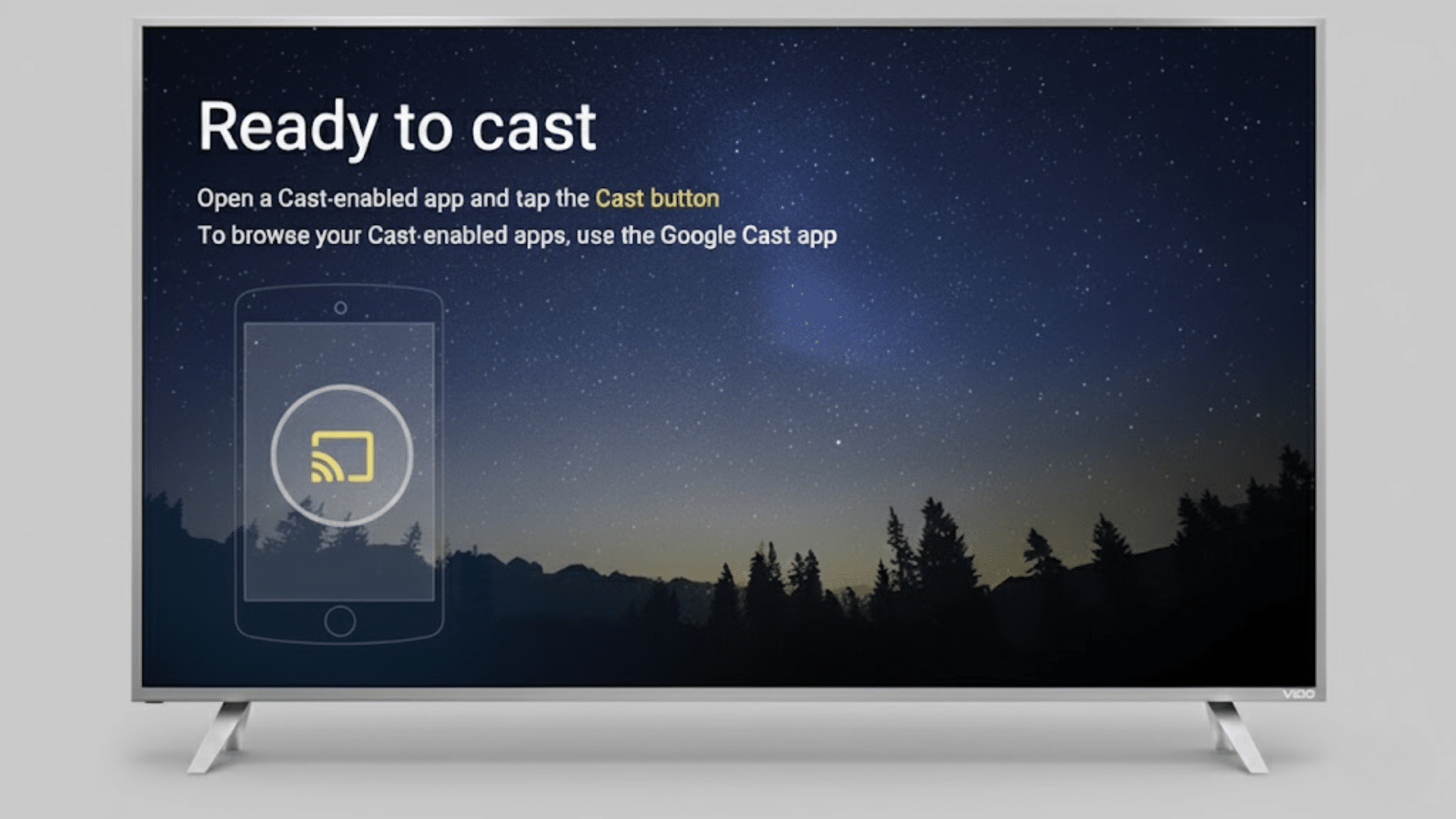
Streaming devices like Roku, Fire TV, Apple TV, and Chromecast depend on HDCP to play protected video. These devices check both the TV and any connected receivers before allowing playback.
If one part of the setup does not support the required HDCP version, the stream may fail or drop to lower quality.
Older streaming devices often support HD content but struggle with 4K playback. This is a common reason HDCP errors appear during streaming.
2. Gaming Consoles
Gaming consoles such as PlayStation and Xbox use HDCP mainly for streaming apps and Blu-ray playback.
Games usually work without HDCP limits, but apps like Netflix or YouTube require it. Consoles can disable HDCP for screen recording, but it must stay enabled for protected content.
If your console supports newer HDCP versions but your TV does not, streaming apps may show errors or blank screens.
3. Blu-ray Players
Blu-ray players rely on HDCP to protect movie content on discs. Standard Blu-ray discs usually work with older HDCP versions.
Ultra HD Blu-ray discs require newer HDCP support across all devices. If your TV, cable, or receiver does not match the required standard, playback may fail.
Many users see HDCP errors when upgrading to 4K Blu-ray players without updating other equipment.
4. TVs and Monitors
TVs and monitors must support the same HDCP version as the source device. Older displays often support HDCP 1.4, which limits 4K playback.
Some newer TVs only support newer HDCP versions on certain HDMI ports. Using the wrong port can block protected content.
Checking the display settings and input labels can help avoid HDCP errors caused by port limitations.
5. AV Receivers
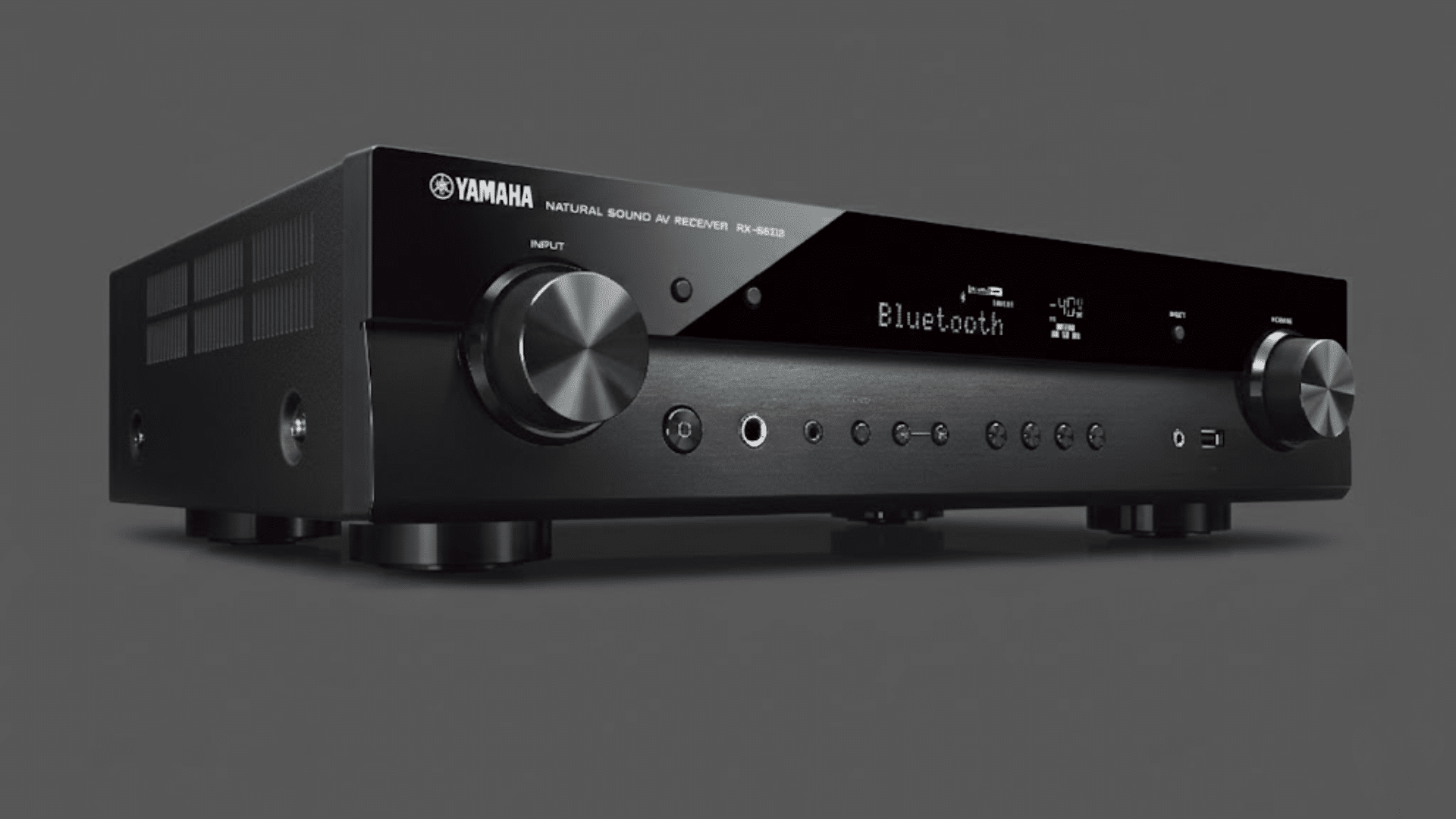
AV receivers sit between the source device and the display, so they must support the correct HDCP version.
An older receiver can block the signal even if the TV and streaming device support newer standards.
This is common in home theater setups that mix old and new equipment. If HDCP errors appear, connecting the source directly to the TV can help confirm if the receiver is the issue.
How to Check if Your Device Supports HDCP?
Before fixing HDCP problems, it helps to confirm what your devices actually support. A quick check can save time and avoid guesswork later.
- Check official specs: Review the product page or manual to find the supported HDCP version under HDMI or video details.
- Review device settings: Look in the display or system menus to see HDCP status on supported devices.
- Test with protected content: Play a 4K stream. Errors or lower quality can point to HDCP limits.
- Look for HDMI port labels: Use ports marked for 4K or HDCP support.
- Check cable requirements: Use high-speed HDMI cables that support modern standards.
- Buying new equipment: Confirm HDCP support on all devices to avoid future playback issues.
Conclusion
HDCP content protection standards can feel confusing, but they mostly come down to how your devices talk to each other.
In this blog, you learned what HDCP is, why it exists, and how different versions affect streaming and playback.
We covered common HDCP errors, what they mean, and simple ways to fix them. You also saw which devices need HDCP support and how to check if your setup meets the right standards.
If errors keep showing up, it may be time to upgrade older cables, displays, or receivers that do not support newer HDCP versions.
Before spending money, always check compatibility across your whole setup. When problems appear, start with basic steps like cable checks and power cycling before trying bigger changes.
I hope you now understand the HDCP meaning and why it matters for smooth video playback.
Are you still seeing HDCP errors after trying these fixes? Share your setup or issue in the comments so others can help.