Website NFC tag alerts often catch people off guard and leave them confused.
A phone suddenly shows a message about a website NFC tag, even when no tag was scanned on purpose.
This confusion can lead to worry, unsafe clicks, or frustration from repeated alerts.
Some users fear their phone is being tracked, but in many cases, the cause is simple, like a nearby card, case, or item with an NFC chip.
Still, not knowing the reason can cause stress and poor choices, such as opening unknown links.
Through this blog, learn what NFC tag is, why alerts appear, how phones read them, and what steps help manage or stop these messages safely and confidently.
What is the Meaning of a Website NFC Tag?
The meaning of the website NFC tag refers to a tag that uses NFC, which stands for Near Field Communication.
It is small in size, often thin and flat, and comes in sticker, card, or label format. A website NFC tag contains memory that stores basic data, such as a website link.
Communication happens only at a very close range between the tag and a phone.
There are different tag types, each with set memory limits.
Every tag has a unique ID used for identification. Most website NFC tags follow the NDEF format, which helps phones read the stored website information correctly and consistently.
Types of NFC Tags

Each NFC tag type serves a different purpose based on its memory size, speed, and use case, which helps them distinguish.
- Type 1 Tags: These tags are low-cost and used for simple tasks. They have small memory and work best for basic website links or text data.
- Type 2 Tags: Type 2 tags are common and widely supported by phones. They store more data and are often used for website NFC tags.
- Type 3 Tags: These tags offer higher data capacity and faster communication. They are mostly used in transport systems.
- Type 4 Tags: These have the largest memory size and security. They support complex data and are used in advanced applications.
- Type 5 Tags: They are often used in tracking, inventory, and industrial environments.
How to turn off NFC on Android?
Turning off NFC on Android can help prevent unexpected website NFC tag alerts, especially for users who do not rely on NFC features regularly.
Repeated pop-ups often occur when the phone detects nearby tags without intent, which can be distracting throughout the day.
To disable NFC, open the Settings app, navigate to Connections or Connected devices depending on the device model, and select the NFC option.
Turning the NFC toggle off stops the phone from scanning nearby tags.
NFC will stay disabled until it is manually turned back on, this approach is useful when contactless cards are stored close to the phone or when tap-based features are rarely used.
How to Manage NFC Settings on iPhone?
NFC settings on iPhone help control how and when your phone reads nearby tags. Adjusting these options can reduce unexpected website NFC tag alerts.
- Open the Settings app on your iPhone to control NFC behavior
- Tap General to access system-level NFC options
- Select NFC to view how your phone reads tags
- Review apps that use NFC and limit access where possible
- Keep NFC on, but avoid placing your phone near unknown tags
- Restart your phone if the website NFC tag alerts continue unexpectedly
Why Do Website NFC Tag Alerts Appear Suddenly?
Website NFC tag alerts can appear suddenly when a phone detects a nearby NFC tag without the user realizing it.
This often happens because NFC works at a very short range and activates through close contact.
NFC cards stored inside phone cases or wallets can trigger repeated alerts, as can nearby contactless bank or ID cards.
In some cases, hidden NFC stickers placed on tables, signs, or products may activate notifications unexpectedly.
Tagged objects in close proximity can also cause alerts when a phone passes near them, even briefly.
Public spaces, retail environments, and shared surfaces increase the chances of accidental NFC detection during everyday movement
How Do Website NFC Tags Work on Phones?
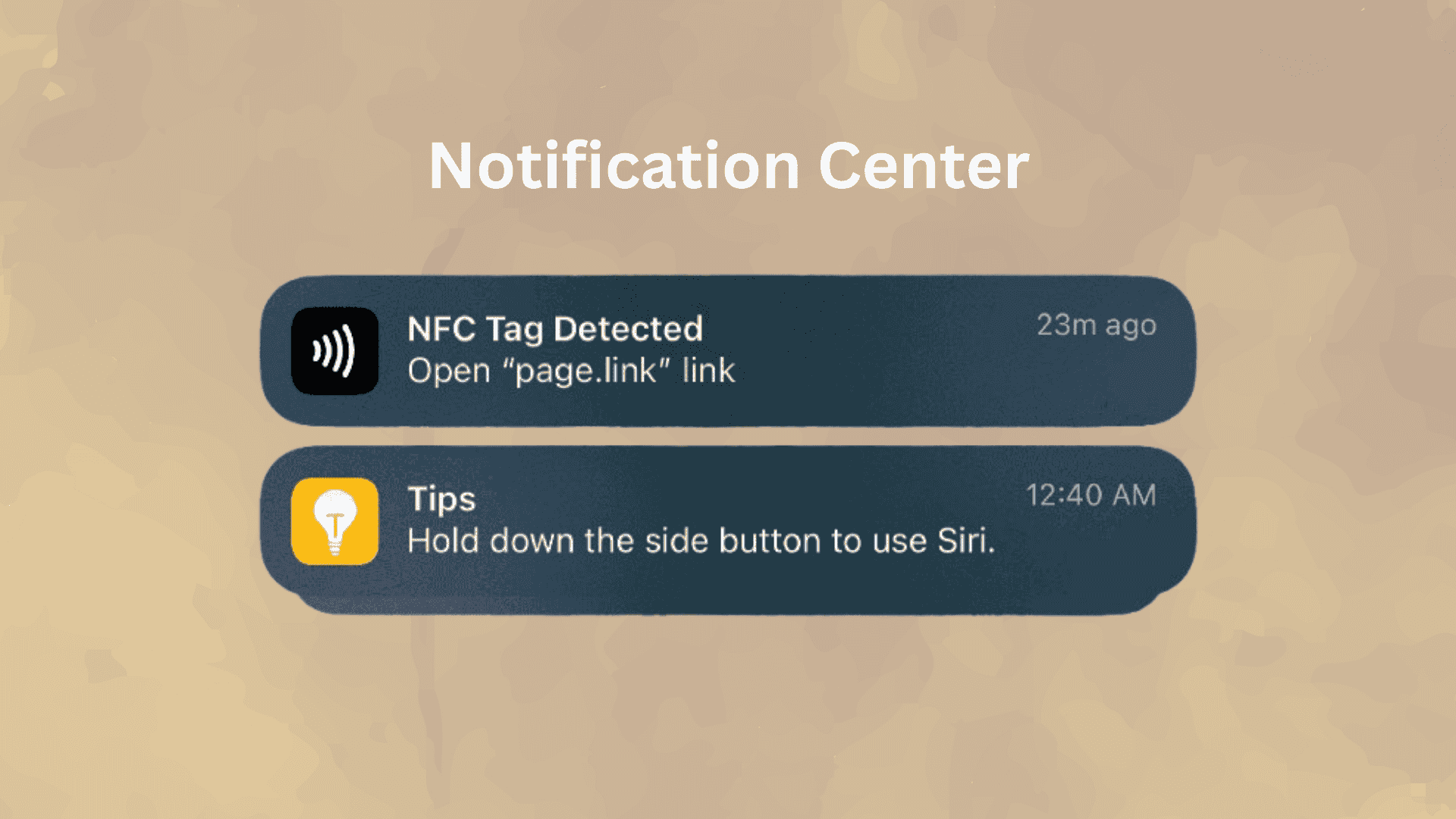
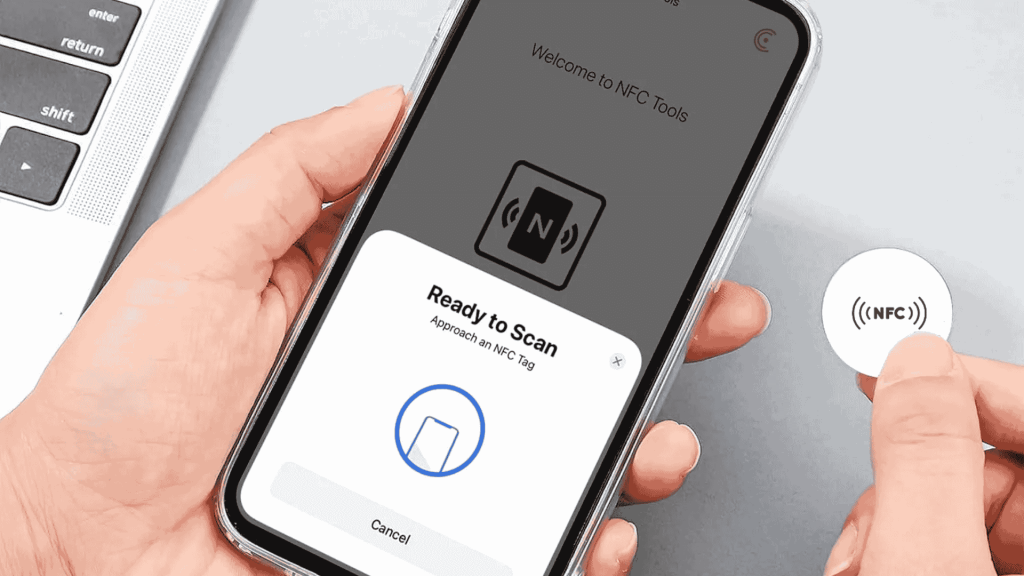
Website NFC tags work by using short-range wireless signals between the tag and your phone.
First, NFC must be turned on in your phone settings. When your phone comes very close, usually within a few centimeters, it detects the tag automatically.
Next, your phone shows an alert saying a NFC tag was found.
After you tap the alert, your phone opens the web link stored in the tag using your default browser.
These tags work on most modern phones, but behavior can differ.
Android phones usually read tags in the background and show a pop-up.
iPhones read tags using the top of the phone and show a banner alert. Older phones without NFC support cannot read these tags.
Real User Website NFC Tag Experience
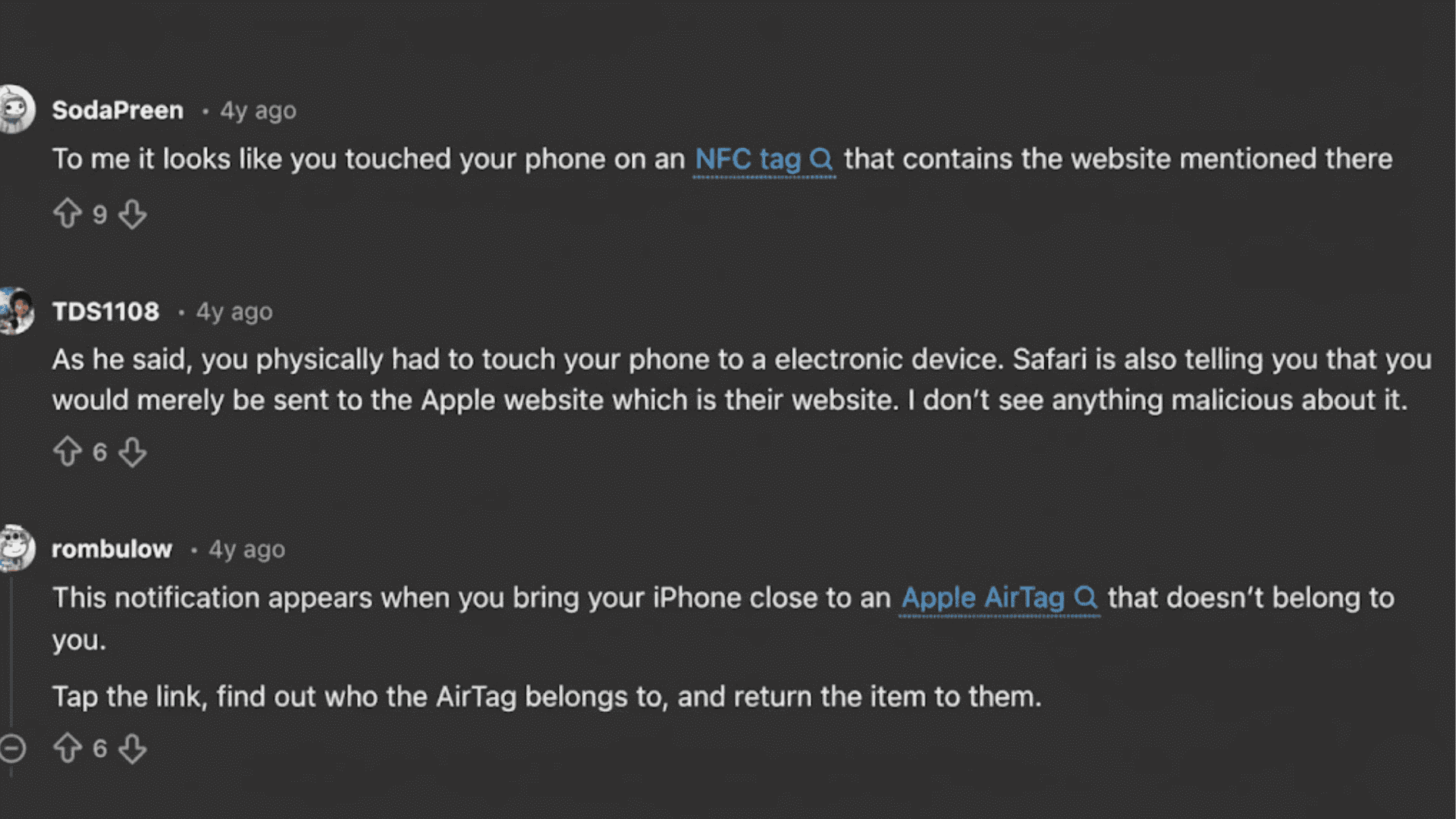
Reddit users often share confusion after seeing website NFC tag notifications appear without warning on their iPhones.
In one AppleHelp thread, users reported receiving alerts they had never seen before and felt unsure about opening them.
Many replies explained that these notifications usually appear when a phone comes very close to an NFC source, such as an AirTag, card, or nearby object.
Some users learned the alert linked to official Apple pages, like found.apple.com, and it was not harmful.
A few users also discussed ways to limit these alerts through iPhone settings.
Overall, the discussion showed that most NFC tag notifications are caused by close contact with known items, not hidden threats.
Website NFC Tag vs QR Code
Website NFC tags and QR codes both help users open websites quickly, but they work in different ways, and the way people interact with them varies.
| Criteria | Website NFC Tag | QR Code |
| How It Works | Uses short-range wireless signals to open a website when the phone is placed very close | Uses the phone camera to scan a printed code and open a website |
| Convenience | High for quick, repeated use | Better for one-time or remote access |
| Ease of use | Very simple once NFC is enabled | Easy but needs proper lighting and alignment |
| Speed | Faster in daily use due to instant tap access | Slightly slower because scanning and focusing take time |
How Are NFC Tags Used in Everyday Life?
NFC tags are used in many simple and practical ways in daily life. People use them to open websites for menus, help pages, or event details with a quick tap.
Businesses place NFC tags on products to share instructions, warranty pages, or support links.
Many users add NFC tags at home to turn lights on or off, adjust music, or set reminders using their phone.
Offices use NFC tags for quick check-ins or access to shared resources.
Some people place tags in cars to open maps or play music. Others use them for routines, like setting alarms or reminders.
These uses save time, reduce typing, and make everyday tasks easier and more organized.
Safety Tips for NFC Tags
Safety tips for NFC tags help you avoid unwanted links and alerts from unknown sources. Simple habits can keep your phone secure during everyday NFC use.
- Check the tag location: Avoid NFC tags placed randomly on walls, poles, or damaged public surfaces.
- Review the alert before tapping: Read the NFC alert carefully and confirm the website details before tapping to open any link.
- Skip unknown website links: Do not open links from NFC tags you do not recognize or trust.
- Keep NFC off when not needed: Turning off NFC reduces accidental scans from nearby tags.
- Watch for repeated NFC alerts: Frequent alerts may come from items in wallets, bags, or phone cases.
- Stay calm with NFC alerts: Most NFC alerts are harmless, and they usually stop right away once your phone moves away from the tag.
Conclusion
Website NFC tag alerts usually come from simple, everyday causes, and most of them are easy to handle with a few quick settings changes on your phone.
Once you understand what triggers these messages, it becomes easier to feel in control.
This awareness also helps you spot unsafe links early and cut down on repeated pop-ups that break your focus during the day.
Many people feel unsure the first time these alerts appear, so you are not alone in that reaction.
Taking a few minutes to review your NFC settings and nearby items can prevent future alerts before they start.
Save or share this guide, and comment below to share your experience.