When I first tried to connect my Govee devices to Apple HomeKit, I quickly realized it wasn’t as straightforward as adding a standard HomeKit-enabled accessory.
Some Govee products now support Matter, while others still require third-party solutions like Homebridge or Home Assistant.
Instead of guessing which method works, I wanted a clear path that explains every option in one place.
My guide shares the exact steps I use to bring Govee lights, strips, and plugs into my HomeKit setup, whether through official Matter support or reliable workarounds.
If you want to control your Govee devices with Siri or the Home app, this guide will help you choose the best method.
Does Govee Work with Home Kit?

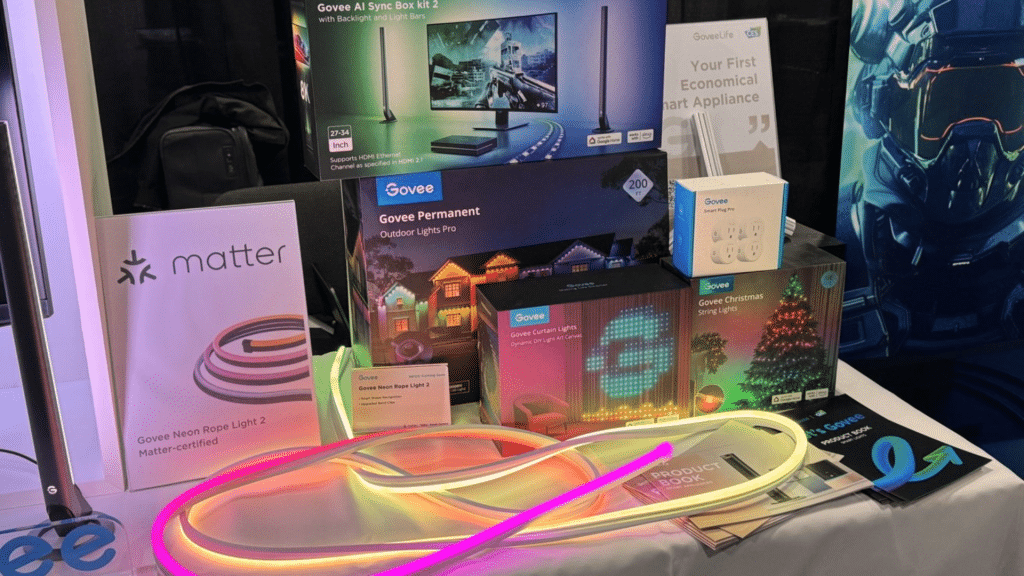
Govee devices do not natively support Apple HomeKit across their entire product lineup, but some newer models now offer Matter compatibility.
Matter-enabled Govee products connect directly to the Home app and work with scenes, automations, and Siri.
For the many Govee devices that are not Matter-compatible, third-party solutions provide alternative pathways.
Tools like Homebridge, HOOBS, and Home Assistant allow users to bridge Govee lights and plugs into HomeKit using community-developed plugins.
These methods use Govee’s cloud or local APIs to handle basic controls like on/off, brightness, and color.
While native support remains limited, the combination of Matter support and reliable third-party integrations allows users to connect Govee products to the HomeKit ecosystem.
How to Add Govee to HomeKit Using Matter?
Matter makes it easy to link supported Govee devices directly to the Apple Home app. This method gives you the simplest setup and full access to HomeKit features.
1. Check If Your Govee Device Supports Matter
Start by confirming that your Govee device is Matter-enabled. Only select models currently support this feature, and you can verify compatibility in the Govee app or on the product page.
If your device is supported, update its firmware to the latest version.
Matter requires both your Govee device and your Apple Home Hub, such as a HomePod, Apple TV, or HomePod mini, to be on updated software.
Once everything is current, you’re ready to begin pairing.
2. Enable Matter in the Govee App
Open the Govee app and navigate to your device settings. Look for the “Matter” option and follow the instructions to generate a pairing code or QR code.
The app may also guide you through a brief setup process to prepare the device for pairing.
Make sure your phone is on the same Wi-Fi network that your HomeKit hub uses. After the code appears, keep the screen open so you can scan it during the Home app setup.
3. Add the Device Through the Apple Home App
Open the Apple Home app and choose “Add Accessory.” Use your iPhone to scan the Matter QR code displayed in the Govee app.
The Home app will detect the device and walk you through naming it, placing it in a room, and adjusting basic settings.
After setup, you’ll be able to control your Govee device with Siri, scenes, automations, and any other HomeKit tools.
This direct integration gives you a smooth and reliable smart-home experience.
Which Govee Devices Support Matter?
As of now, only some Govee devices support Matter, mostly newer smart lights and smart home gadgets designed with the latest firmware.
These include smart light strips, smart bulbs, and a few LED light bars that list “Matter” on their packaging or product pages.
To check whether a specific Govee device supports Matter, look for a “Works with Matter” badge on the box or in the product description on the Govee website or app store.
It helps to update the device firmware regularly, since older models sometimes gain Matter support via updates.
If the device doesn’t mention Matter, it likely won’t connect directly to Apple HomeKit using the official protocol; in that case, third-party tools are needed to bridge the gap.
How to Connect Non-MattGovee Devices to HomeKit?
Connecting non-Matter Govee devices to Apple HomeKit requires using third-party tools that serve as bridges between the two platforms.
1. Homebridge Method (Most Popular)

It is the most widely used solution for adding non-Matter Govee devices to Apple HomeKit.
Homebridge acts as a lightweight server that emulates HomeKit-compatible accessories, allowing Govee products to appear inside the Home app.
Users install Homebridge on a device such as a Raspberry Pi, computer, or NAS, then add a Govee-specific plugin that communicates with the Govee cloud or local API.
Once configured, the plugin enables features such as power control, brightness adjustment, color changes, and scene activation.
Setup takes some technical work, but Homebridge is a flexible and reliable way to add Govee devices to HomeKit.
2. HOOBS Method (Beginner-Friendly)

HOOBS functions similarly to Homebridge but provides a simplified interface, a preconfigured environment, and an easier setup process.
Users can install HOOBS on its dedicated hardware box or run it on their own device.
Once the system is running, adding Govee products involves installing a compatible Govee plugin and entering the required API key.
HOOBS automatically bridges Govee devices to HomeKit, letting you control power, brightness, and color in the Home app. It’s great for users who want Homebridge features without manual setup.
With its clean dashboard and guided setup, HOOBS offers an easy way to add non-Matter Govee devices to HomeKit.
3. Home Assistant for HomeKit Integration
It provides another flexible option for integrating Govee devices with Apple HomeKit, especially for users who want more control over automations and device behavior.
Home Assistant connects to Govee devices through its cloud API or local network.
Once the devices are added, Home Assistant’s HomeKit Bridge exposes them to the Apple Home app, allowing users to manage lighting, color, and power states.
This method supports a wide range of Govee products and allows advanced customization, including automation triggers, schedules, and scenes.
It takes more setup than beginner tools, but Home Assistant offers great flexibility for advanced smart homes.
Which Integration Method Is Best?
Choosing the best method for connecting Govee devices to HomeKit depends on the model you own, the level of control you want, and your comfort with the setup tools.
| Integration Method | Ease of Setup | Device Compatibility | Requires Extra Hardware | Reliability | Best For |
| Matter | Very easy | Limited to Matter-enabled Govee models | No | High | Users with newer Govee devices and iOS users who want native HomeKit support |
| Homebridge | Moderate (technical) | Very broad (most Govee lights/plugs) | Yes (Raspberry Pi, PC, or server) | High when configured correctly | Users who want maximum compatibility and customization |
| HOOBS | Easy to moderate | Broad (similar to Homebridge) | Ideally, yes (HOOBS box) | High | Beginners who want Homebridge features with a simpler setup |
| Home Assistant | Advanced | Broadest compatibility with deep automation | Yes | Very high | Power users building a full smart home ecosystem |
Automations You Can Create in HomeKit
When I link my Govee devices to HomeKit, one of the biggest benefits is the ability to create simple, useful automations that make my routines feel more seamless.
I can set my lights to turn on automatically when I arrive home or have them switch off when I leave.
I also like creating time-based schedules, such as dimming the lights in the evening or brightening them in the morning.
If I use sensors, I can trigger Govee lights based on motion or door activity. Scenes make things even easier by letting me adjust multiple devices with a single tap or Siri command.
These automations help my smart home feel more responsive and personalized to my day.
Pros and Cons of Third-Party Integration
Using third-party tools to connect Govee devices to HomeKit offers added flexibility, but it also comes with limitations. Before choosing this approach, it’s helpful to understand the advantages and trade-offs.
| Pros | Cons |
|---|---|
| Allows adding non-Matter Govee devices to HomeKit | Requires setup through additional software (Homebridge, HOOBS, Home Assistant) |
| Expands HomeKit compatibility beyond official support | May involve technical steps unfamiliar to beginners |
| Enables control of power, brightness, and color in HomeKit | Occasional plugin or API outages can affect performance |
| Works with a wide range of Govee lights and plugs | Dependence on the Govee cloud API may limit local control options |
| Supports automation, scenes, and Siri commands | Additional hardware (like a Raspberry Pi) may be required |
| Offers flexible customization and advanced settings | Updates to plugins or APIs may require maintenance |
Security and Privacy Notes
When integrating Govee devices with Apple HomeKit through Matter or third-party platforms, several security and privacy considerations should be kept in mind.
Matter connections rely on secure, local communication, reducing cloud dependency and limiting exposure to external data.
However, non-Matter integrations often require plugins that connect to Govee’s cloud API, which may involve sharing device information, API keys, or network data with external services.
Users should ensure that Homebridge, HOOBS, or Home Assistant installations run on trusted hardware and are regularly updated to patch vulnerabilities.
API keys must be stored securely, as unauthorized access could allow control of connected devices.
Additionally, using plugins from reputable developers helps reduce risks associated with malicious code or unmaintained software.
Troubleshooting Common Govee–HomeKit Setup Issues
Even with the right method, Govee devices can run into pairing or control problems when linking to HomeKit.
These steps help you understand what’s going wrong and how to fix it quickly.
1. Device Not Showing up During Pairing
If your Govee device doesn’t appear during setup, start by checking your Wi-Fi network. Both your iPhone and the device must be on the same 2.4GHz network.
Make sure Bluetooth is enabled, since Matter pairing requires it. Restart the Govee device and force-close the Home app before trying again.
For Homebridge or HOOBS setups, confirm that the plugin is installed correctly and that your API key is valid.
These basic checks often solve most detection issues right away.
2. Matter Pairing Code Not Scanning
When the Matter QR code won’t scan, clean your phone’s camera lens and increase the screen brightness on the device displaying the code.
You can also try entering the numeric pairing code manually. Ensure the Govee app hasn’t closed or timed out while generating the code.
If the device was previously paired, remove it from HomeKit and factory reset it before trying again.
These steps help clear old data that could block the connection.
3. Homebridge or HOOBS Plugin Not Responding
If your Govee devices appear in HomeKit but don’t respond, restart your Homebridge or HOOBS server to refresh the plugin.
Check your API key in the plugin settings; an incorrect or expired key can break communication.
Make sure your server and plugins are updated to the latest versions, as outdated software often leads to connection problems. Y
ou can also try switching from cloud mode to local API mode if supported. This improves reliability and lowers response delays.
4. Automations Not Triggering in HomeKit
When automations fail, confirm that your HomeKit hub, HomePod, Apple TV, or HomePod mini is online and updated.
Automations won’t run correctly if the hub loses connection or power. Review the automation rules to ensure the right device, time, and conditions are selected.
For Homebridge or Home Assistant setups, check that the server is running because HomeKit depends on it to process events.
Restarting the hub or recreating the automation often brings everything back to normal.
Conclusion
Connecting Govee devices to Apple HomeKit can feel confusing at first, but once you understand the available methods, the process becomes much clearer.
Whether you rely on official Matter support or choose a third-party tool like Homebridge, HOOBS, or Home Assistant, each option opens the door to better control, smarter routines, and a more seamless home experience.
What matters most is choosing the method that fits your devices, your comfort level, and the kind of automation you want in your space.
With the right setup, your Govee lights and plugs can work just as smoothly as any native HomeKit accessory.
If you’ve tried adding Govee devices to HomeKit, or if you’re deciding which method to use, I’d love to hear your experience. Share your questions or setup tips in the comments below.