Editing videos on the go can feel stressful when your tools are slow, limited, and not built for serious content creation.
That is why DaVinci Resolve iPad stands out, turning an iPad into a powerful editor that feels close to desktop software.
It gives creators touch controls and Apple Pencil support, which a regular Mac won’t give while editing remotely.
Many editors use it for rough cuts, color fixes, and audio work when laptops feel heavy or inconvenient during trips or busy days.
I will tell you about features, real user opinions from Reddit, setup basics, and comparisons, so you can decide if it fits you.
Before moving ahead, it helps to clearly understand what DaVinci actually is and who should use it.
DaVinci Resolve iPad Overview
DaVinci Resolve for iPad is a full-featured video editing app from Blackmagic Design, built to run smoothly on modern iPads with iPadOS and Apple Silicon chips.
It first arrived in late2022 and gives editors real editing tools instead of watered-down mobile features meant only for quick social clips.
The app feels close to the desktop version but uses touch controls, Apple Pencil support, and optional keyboards for better control and faster editing.
In real use, many editors say it works best as a serious editing tool while traveling, reviewing footage, or building rough cuts before desktop finishing.
Key things you should know before using it:
- It supports real-time playback for 4K footage on M1 and newer iPads with proper storage setups.
- The free version covers cutting, color fixes, audio tools, and watermark-free exports.
- External drives, cloud sync, and Apple Pencil support make editing feel practical instead of frustrating.
Unique Features of DaVinci Resolve iPad
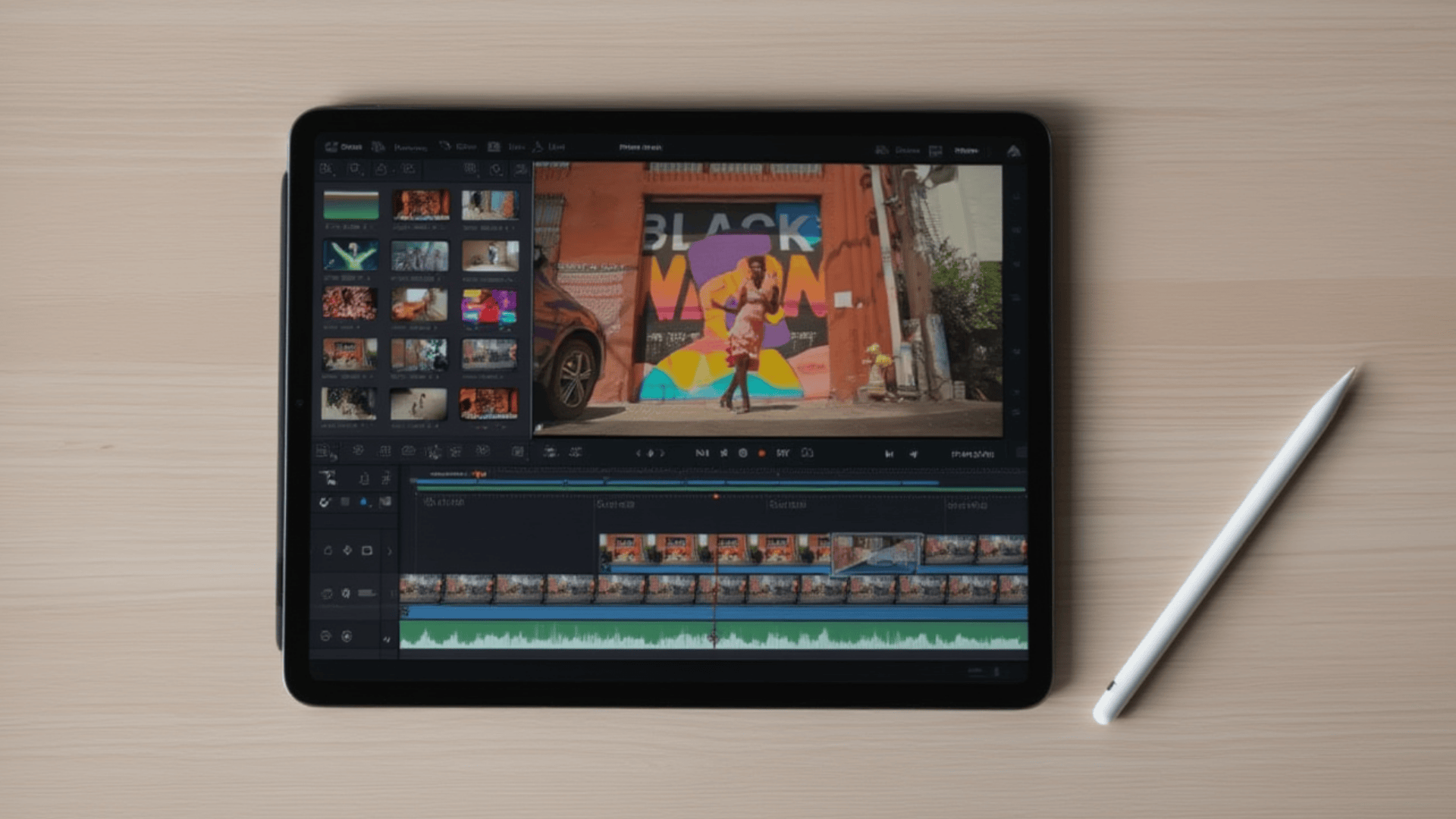
DaVinci Resolve iPad comes packed with tools that feel serious and practical, making mobile video editing feel closer to desktop-level work.
1. AI Magic Mask Tool
The AI Magic Mask tool helps editors select people, objects, or backgrounds without manual frame-by-frame work, which saves time during normal editing sessions.
It tracks movement in real time on M1 and newer-generation iPads, even when subjects turn or move quickly within the frame.
Many users say it works well for quick color fixes, background blur, or subject isolation while editing travel clips or social media videos.
Compared to other iPad apps, this feature feels more stable and accurate, especially when working with 4K clips and longer timelines.
2. Fairlight Audio Editing Tools
Fairlight audio tools on iPad let users edit sound, voice, and music directly in the same app, without switching to another program.
Editors can adjust volume, remove background noise, and balance voices using touch controls or a keyboard while previewing changes in real-time.
Many users say this helps speed up edits when working on interviews, vlogs, or client videos during travel or casual work sessions.
Compared to other iPad editors, audio control feels deeper and more reliable, especially when syncing dialogue with visuals or cleaning rough location recordings.
3. Fusion Visual Effects Support
Fusion tools let users add basic visual effects, motion graphics, and simple titles without leaving the main editing workspace on iPad.
It supports layers, tracking, and simple animations that help creators build polished intros or overlays for YouTube and brand videos.
While it feels tighter on smaller screens, users still appreciate having effects tools available without having to export clips to another app.
Many editors treat Fusion on iPad as a draft stage, then finish heavy effects later on the desktop using the same project file.
4. Blackmagic Cloud Project Sync
Blackmagic Cloud project sync lets editors open the same project on iPad and desktop without sending files back and forth every time.
You can start editing on an iPad during travel, then continue later on a computer with timelines, cuts, and markers already in place.
Many users say this saves effort when switching devices and avoids common sync mix-ups seen with manual file transfers.
This feature feels helpful for solo creators and small teams who want smooth progress without repeating work or rebuilding timelines.
5. Background Rendering Support
Background rendering lets you export videos while you keep working in the app, instead of forcing you to wait on a frozen screen.
This helps when exporting short drafts, social clips, or preview files during active editing sessions.
Users report better results on newer iPads with sufficient storage and updated system software installed.
Compared to other mobile editors that pause everything during exports, this feels more flexible for daily editing and quick turnaround needs.
DaVinci Resolve iPad User Reviews: What Do People Say?
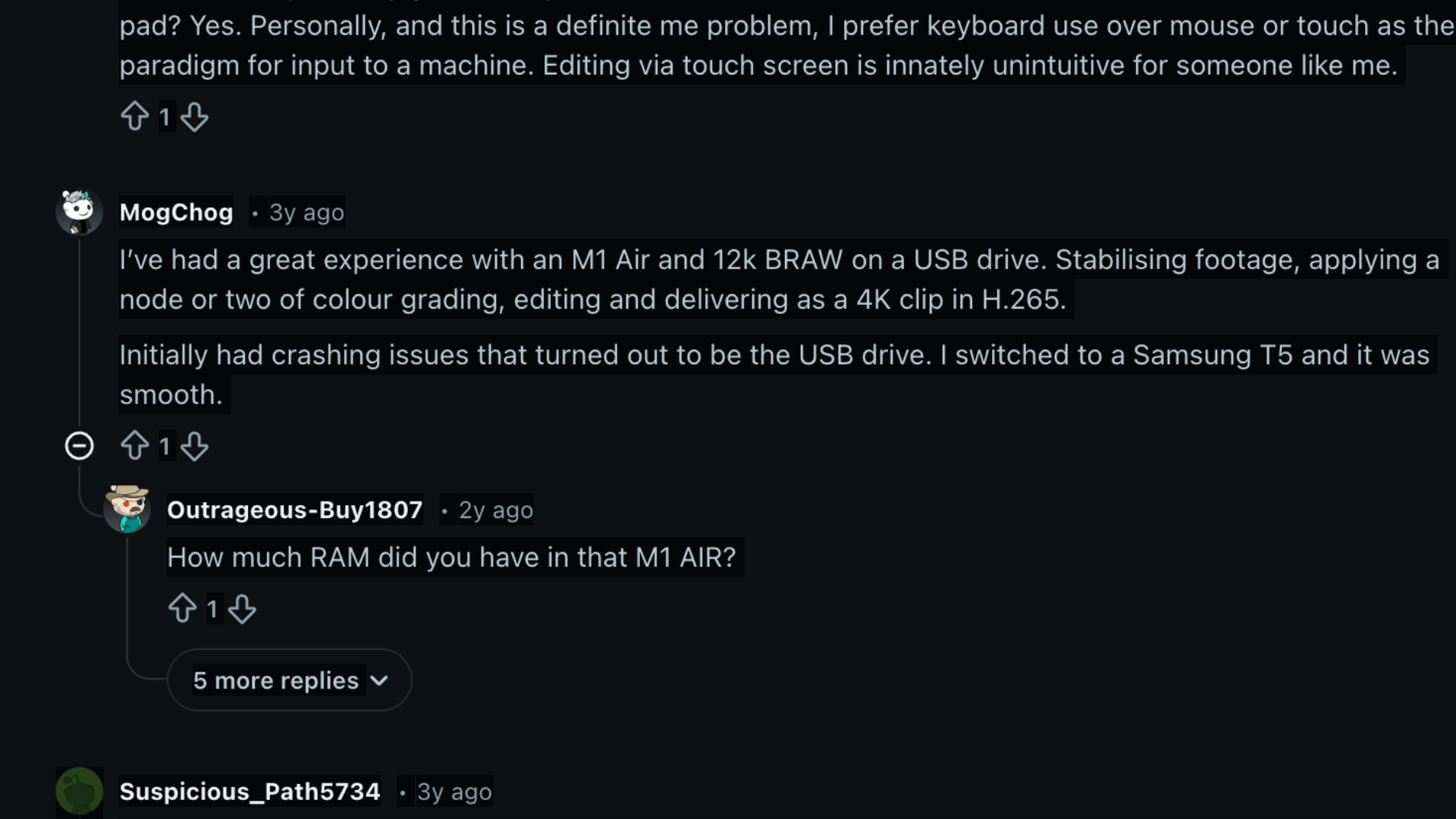
On Reddit, many users openly say that the DaVinci Resolve iPad feels super handy for travel edits, long flights, and couch editing sessions.
People often mention they use it to review footage, build rough cuts, and organize timelines before moving projects back to the desktop later.
Several Reddit users say playback feels smooth on M1 and newer iPads, especially with ProRes or 4K clips stored on fast external drives.
Some comments clearly say things slow down once heavy effects, color work, or long timelines are added, mostly on older iPad models.
Many users admit that touch-only editing feels awkward and strongly recommend using a keyboard, Apple Pencil, or Speed Editor.
Overall, people say it is great for drafts and prep work, but not everyone trusts it for final exports.
Pros and Cons of DaVinci Resolve iPad
Before jumping into DaVinci Resolve on iPad, you should look at what works well and what might slow you down during real editing sessions.
| Pros | Cons |
|---|---|
| The free version offers powerful editing, color, and audio tools without watermarks or forced payments. | The interface feels hard to learn at first, especially if you are new to professional editing apps. |
| Runs smoothly on M1 and newer iPads when working with 4K clips and light effects. | Older iPads can lag or crash when timelines get long or effects become heavy. |
| Supports Apple Pencil, keyboards, and external drives for flexible editing setups. | Touch-only editing can feel slow if you are used to mouse and keyboard control. |
| Easy to move projects between iPad and desktop without rebuilding timelines. | Some users still report bugs, export issues, or random app freezes. |
DaVinci Resolve iPad Setup Guide
Setting up DaVinci Resolve on iPad is simple, but you should follow the right steps to avoid lag, crashes, or annoying performance issues later.
First, check that your iPad runs a recent iPadOS version (18.0 or later) and, preferably, uses an M1 or newer chip for smoother playback.
To get started the right way, you should focus on these setup steps early:
- Download DaVinci Resolve from the App Store over a stable Wi-Fi connection, since the app is large.
- Connect an external SSD if you plan to edit 4K footage or longer projects.
- Pair a keyboard or Apple Pencil to make trimming, shortcuts, and color controls easier.
- Enable proxy files for large clips to keep timelines smooth during editing.
Once setup is complete, test playback and exports with a short project before trusting it for serious work.
DaVinci Resolve iPad vs Top Video Editing Apps
If you are choosing a video editing app for iPad, you should compare how each option handles editing depth, ease of use, and daily workflow needs.
| Feature | DaVinci Resolve iPad | CapCut | LumaFusion | Final Cut Pro iPad |
|---|---|---|---|---|
| Pricing | Free; Studio upgrade $94.99 one-time | Free; Pro $7.99–$9.99/mo or $74.99–$84.99/yr | $29.99 one-time with optional purchases | $4.99/mo or $49/yr |
| Editing Power | Strong timeline, color, and audio tools in one app | Fast social edits with templates | Solid mobile editing features | Polished workflows for Apple users |
| Color Tools | Advanced desktop-style controls | Basic filters and presets | Manual controls without tracking | Good tools behind a subscription |
| Audio Editing | Built-in tools for voice cleanup and mixing | Simple volume and music edits | Basic multi-track audio | Clean audio with Apple sync |
| Best Use Case | Travel edits, rough cuts, serious mobile work | Short social media videos | YouTube and mobile filmmaking | Apple-focused editing workflows |
Conclusion
DaVinci Resolve iPad proves that serious video editing no longer needs a desk, cables everywhere, or a heavy laptop slowing you down.
You get strong editing control, solid color tools, and useful audio options that feel reliable when projects matter and deadlines feel close.
I believe its value shows most when you want flexibility without giving up control or settling for basic mobile editors.
You may still need time to learn the layout, but patience often pays off once the workflow starts feeling natural.
This app fits creators who enjoy control, clean results, and editing freedom while working from different places.
Have you tried DaVinci Resolve iPad yet, or are you still unsure if it fits your workflow? Tell us, share with us in the comments below.