A big screen means nothing if the sound feels small. Crisp visuals lose impact when dialogue is hard to hear, and action scenes lack depth.
Many modern TVs focus on slim design, which often limits speaker performance. That is why understanding how to connect a sound bar to a TV can instantly improve the entire viewing setup.
A properly connected soundbar delivers clearer voices, balanced volume, and stronger bass without complicated wiring.
The process is simpler than most people expect. With options like HDMI ARC, optical cable, or Bluetooth, setup usually takes only a few minutes.
This blog explains how to connect a sound bar to a TV step by step, helping you choose the right method based on your TV model and available ports for better sound at home.
Why a Soundbar Sounds Better than TV Speakers?
Most televisions are built with slim designs, which leaves very little space for strong internal speakers. Because of this, built-in TV audio often sounds flat, with limited bass and unclear dialogue.
Voices may blend into the background music, and higher volumes can cause distortion rather than clarity.
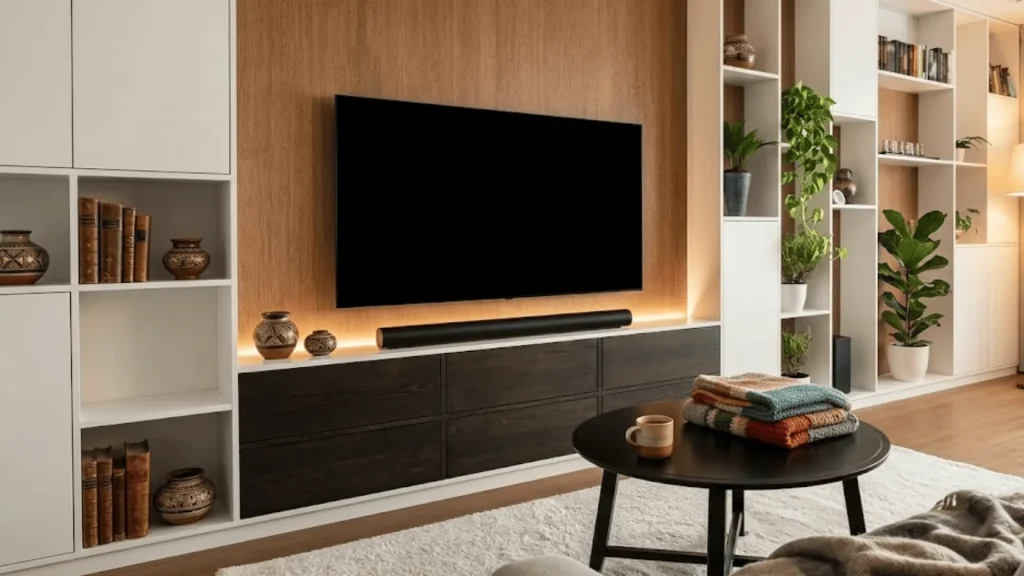
A soundbar works differently. It contains dedicated speakers designed to project audio forward into the room rather than downward or behind the screen.
This improves voice clarity, balances background effects, and creates a wider sound field.
Volume levels feel fuller without needing to turn the TV up too high.
By learning how to connect a sound bar to a TV properly, viewers can enjoy clearer conversations, stronger bass, and a more engaging home viewing setup without complicated equipment.
Check Your TV and Soundbar Ports Before Connecting
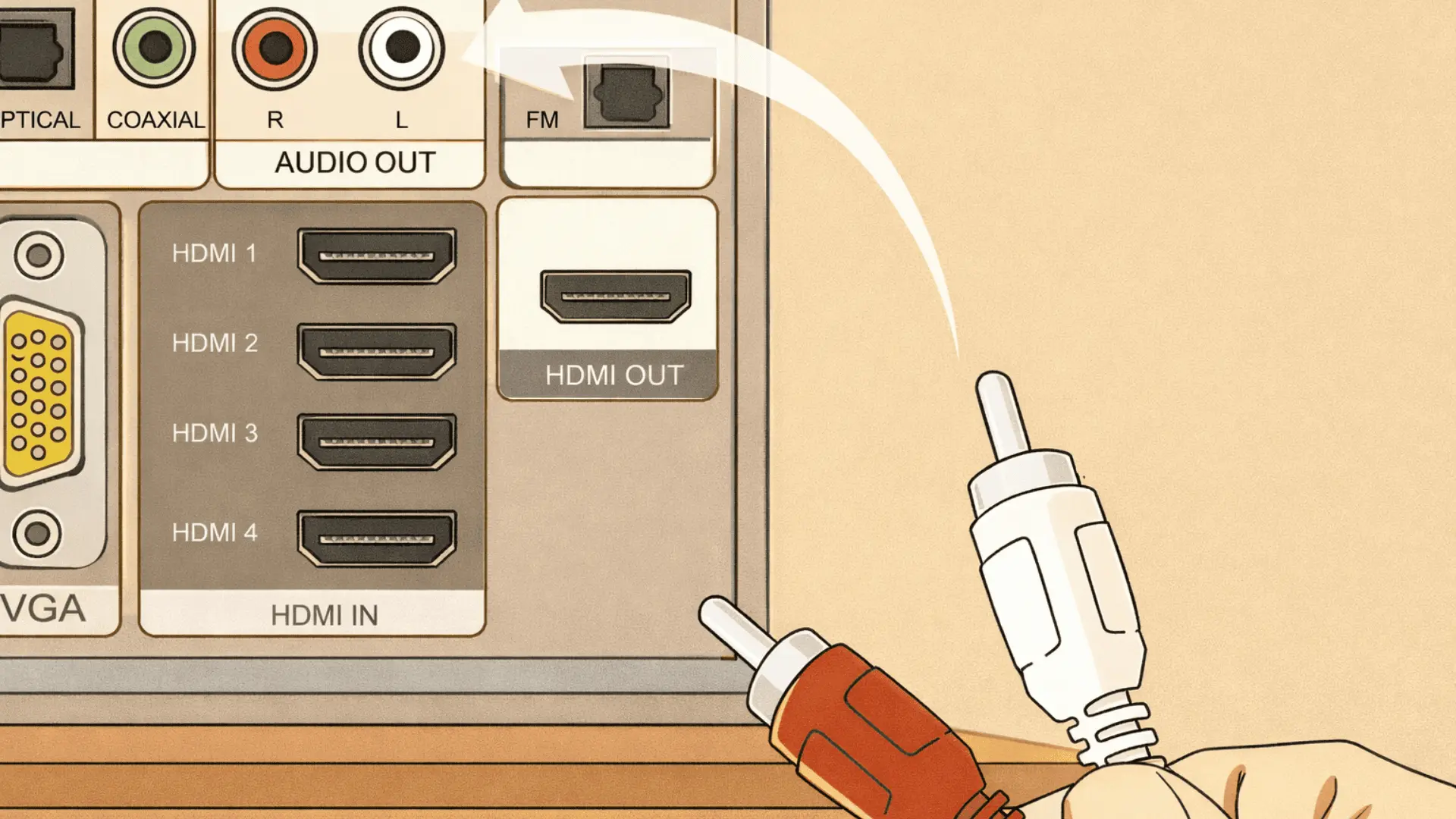
Before connecting a sound bar to a TV, take a moment to check the ports on both devices.
Turn the TV around and check the back or side panels for labeled inputs and outputs. Do the same with the soundbar. Matching the correct ports makes the setup much easier.
Common options include HDMI ARC, which allows audio to travel through a single HDMI cable. Optical ports are small and square-shaped, usually labeled Digital Audio Out.
Some models also support Bluetooth for wireless pairing. Older TVs may include RCA ports with red and white connectors or a 3.5 mm AUX output.
Always review the user manual for both devices. Model-specific instructions often clarify supported formats, settings, and compatibility details.
How to Connect a Sound Bar to a TV Using Different Methods?
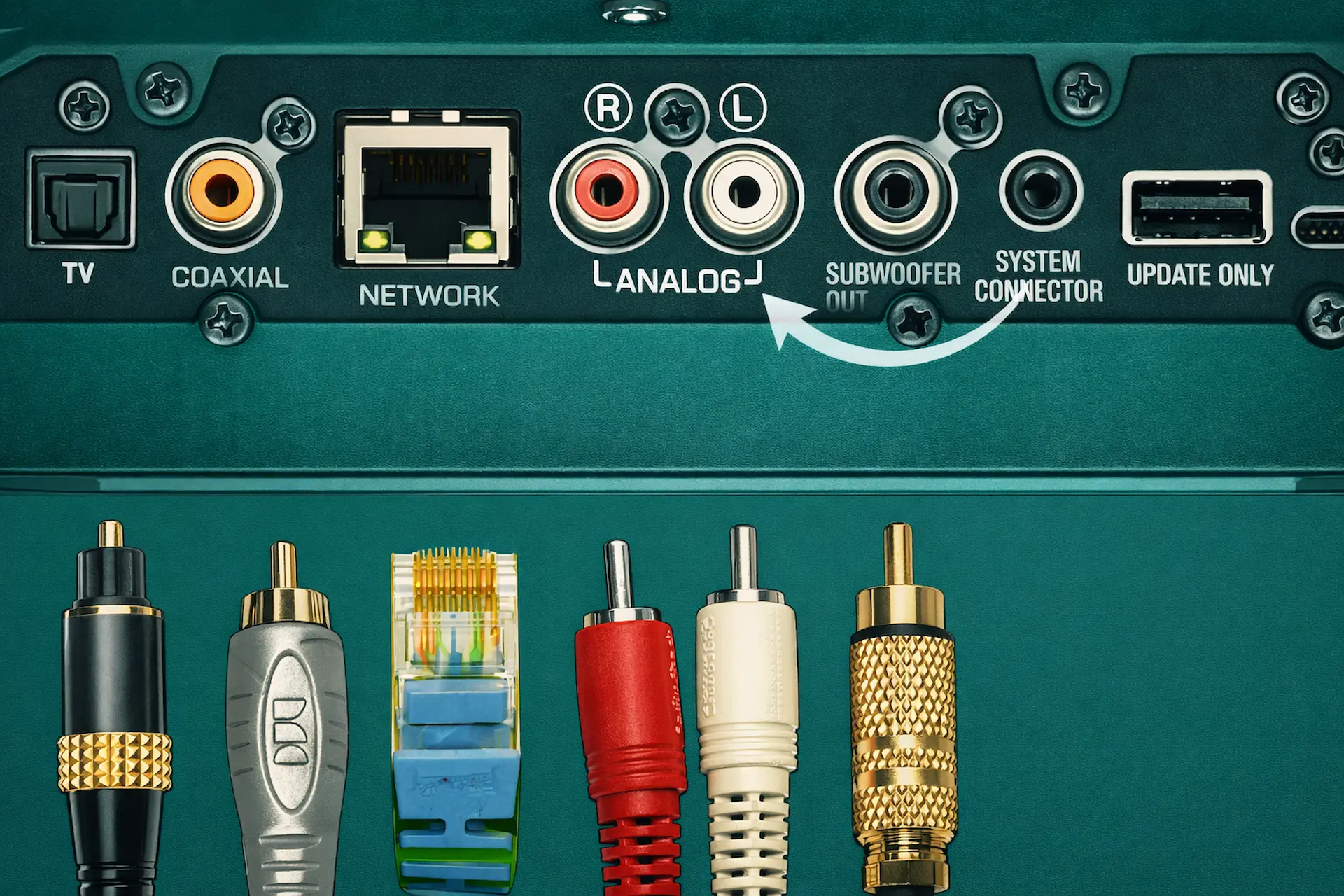
Clear connection choices like Optical, Bluetooth, or RCA make it easy to match the right setup method to your TV and soundbar compatibility.
1. Connecting a Sound Bar to TV Using HDMI ARC
HDMI ARC is one of the simplest and most reliable ways to connect a sound system. It allows audio to pass through a single HDMI cable while also supporting volume control through the TV remote.
- Locate the HDMI ARC port on the TV and the matching HDMI ARC port on the soundbar.
- Connect a high-speed HDMI cable securely to both devices.
- Open the TV settings and enable HDMI ARC and CEC control.
- Set the TV audio output to HDMI ARC instead of internal speakers.
If there is no sound, confirm ARC is enabled in settings, and the cable is connected to the correct port. For audio delay, check the TV sound menu for lip sync adjustment options.
2. Connecting a Soundbar to a Tv Using an Optical Cable
An optical cable is a reliable digital connection that delivers clear audio without a complex setup. It is commonly labeled Digital Audio Out on the TV.
- Insert the optical cable firmly into the TV optical output and the soundbar optical input.
- Open TV settings and change audio output to Optical or Digital Audio.
- Switch the digital audio format to PCM if the sound does not play properly.
- Confirm the soundbar input is set to Optical mode.
If there is still no audio, confirm that the protective caps were removed from the cable ends. Also, disable the internal TV speakers to prevent sound from both devices.
3. Connecting a Sound Bar to a TV with Bluetooth
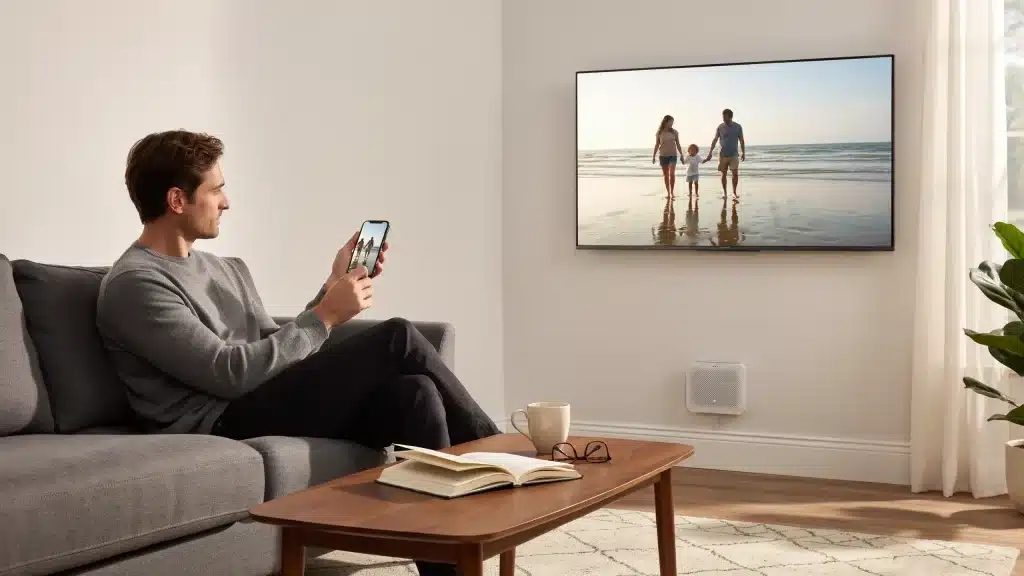
Bluetooth offers a wireless option when cables are not preferred. Both devices must support Bluetooth audio.
- Activate pairing mode on the soundbar.
- Turn on Bluetooth in the TV settings menu.
- Select the soundbar from the list of available devices.
- Confirm the TV audio output switches to Bluetooth audio.
Some TVs may show a slight audio delay during streaming or gaming. Compatibility can also vary by model, so check the manual if pairing fails.
4. Connecting a Soundbar to an Older TV with RCA or AUX
Older televisions may not include HDMI ARC or optical ports. In this case, analog connections can be used.
- Connect red and white RCA cables from the TV audio output to the soundbar input.
- Use a 3.5 mm AUX cable if the TV includes a headphone or audio out jack.
- Select AUX or Line input on the soundbar.
- Set the TV audio output to external speakers if required.
Analog connections provide basic stereo sound but do not support advanced digital formats. Volume may need to be adjusted from both the TV and the soundbar.
I’d like to give credit to the Digital Trends for their informative video, which served as a reference for this blog.
Adjust TV Audio Settings After Connecting a Soundbar
After completing the physical connection, the TV audio output configuration must be adjusted to ensure correct signal routing and format compatibility.
First, disable the internal TV speakers. In the Sound Output or Audio Output menu, select External Speaker, Audio System, or Receiver (HDMI) depending on the TV brand.
This ensures audio is transmitted exclusively through HDMI ARC, eARC, Optical, or analog output rather than duplicating sound through built-in speakers.
Next, configure the Digital Audio Format. Most entry-level soundbars perform reliably with PCM (Pulse Code Modulation). If the soundbar supports surround formats, select Dolby Digital or Dolby Digital Plus.
Incorrect format selection may result in no audio, distortion, or intermittent signal drop.
If audio and video are out of sync, adjust the Audio Delay or Lip Sync setting, typically measured in milliseconds, until dialogue aligns with on-screen movement.
Finally, enable HDMI CEC and confirm ARC or eARC Mode is active. This enables two-way communication between devices and volume control via the TV remote.
Common Issues Connecting a Soundbar to a TV
Minor setup errors can interrupt sound output, but most issues can be resolved quickly with a few simple adjustments.
- No Sound After Connection: Ensure the cable is connected to the right port, the TV audio output is set to external speakers, and the soundbar input matches the connection type.
- Audio Delay: If voices do not match the on-screen movement, adjust the lip-sync setting in the TV sound menu. Switching from Bluetooth to HDMI or Optical can also reduce delay.
- Remote Not Controlling Soundbar: Make sure HDMI CEC is enabled in the TV settings. The soundbar must also support HDMI control so the TV remote can adjust the volume.
- Wrong Input Selected: Use the soundbar remote to select the correct source, such as HDMI, Optical, or AUX. If the sound still does not play, recheck cable placement and port labels.
Reddit Discussion: Best Soundbar Connection Method
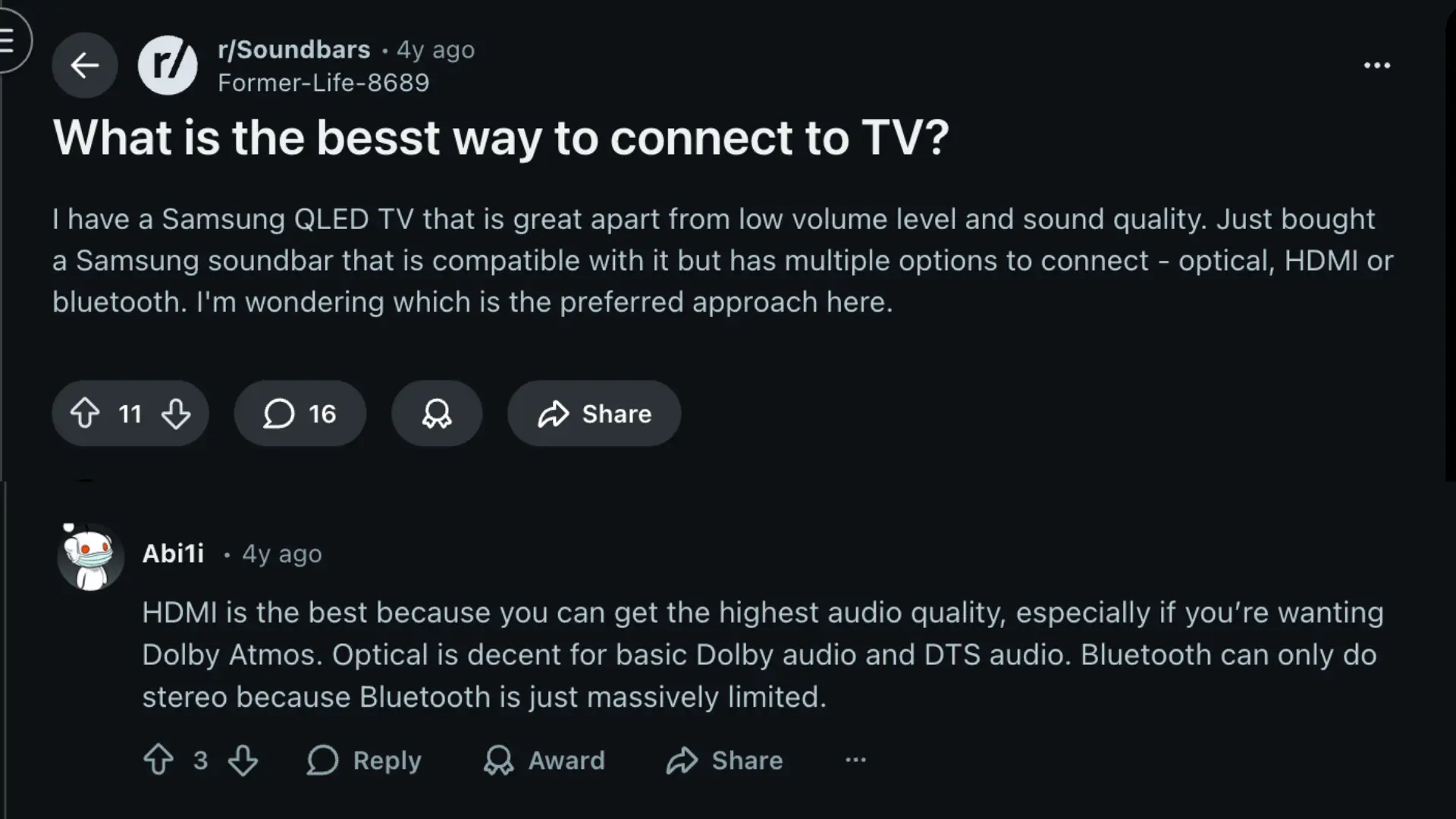
A Reddit user with a Samsung QLED TV asked which connection method works best for a compatible Samsung soundbar: HDMI, optical, or Bluetooth.
Most replies strongly recommended HDMI ARC or eARC as the preferred option.
Several users explained that HDMI provides the highest audio quality and supports advanced formats like Dolby Atmos. Many described HDMI ARC as the most practical and future-ready choice.
Optical was considered a solid second option. Some users reported a slightly lower audio delay than with HDMI ARC in certain cases.
However, optical is limited to compressed surround formats and does not support advanced audio features.
Bluetooth was generally viewed as the least preferred method. Users noted that it is limited to stereo sound and may introduce noticeable audio delay, especially during video playback or gaming.
Overall, community consensus favored HDMI ARC or eARC as the best connection method when available.
Conclusion
Great sound should not feel complicated. Once the correct ports are identified, connecting a sound bar to a TV becomes a quick, practical task.
HDMI ARC stands out as the most reliable option for high-quality audio and simple remote-control integration.
Optical works well for clear digital audio when HDMI is unavailable, while Bluetooth offers a cable-free alternative for basic use.
In most homes, the entire setup takes only a few minutes with the right cable and proper audio settings.
A quick check of the TV and soundbar ports helps avoid confusion and ensures the best connection method is chosen for the specific model. Clear sound can completely change the viewing experience.
Which connection method worked best for your setup? Share your experience or questions in the comments below.