Mic monitoring is a useful feature for Xbox One gamers, allowing them to hear their own voice through their headset during gameplay.
This helps maintain clear communication with teammates while preventing issues like speaking too loudly or too softly.
By adjusting the mic levels, players can achieve the ideal volume for in-game communication.
On Xbox One, mic monitoring ensures a better balance between the game’s sound and the player’s voice, contributing to a smoother gaming experience.
Understanding what is mic monitoring and how it works is essential for players who want to improve communication in multiplayer games.
In this blog, I’ll explore how mic monitoring functions on Xbox One, its benefits for gameplay, and how to adjust settings for optimal use.
Gaining a better understanding of this feature can greatly enhance the overall gaming experience.
What Is Mic Monitoring?
Mic monitoring is a feature that allows players to hear their own voice through their headset while gaming.
This helps to ensure that communication remains clear and balanced, preventing issues like speaking too loudly or too softly.
Without mic monitoring, players may unknowingly disrupt in-game conversations, making it difficult for teammates to hear them clearly.
This feature is especially useful in multiplayer games where coordination is key.
By adjusting mic monitoring settings, users can find the ideal volume to maintain effective communication.
On Xbox One, this feature can be accessed and customized through the audio settings, allowing players to fine-tune their experience.
Ultimately, mic monitoring helps create a more comfortable and efficient gaming environment, enhancing communication and preventing distractions during gameplay.
How Does Mic Monitoring Work on Xbox One?

Mic monitoring on Xbox One is a useful feature that lets players hear their own voice through their headset while gaming.
It helps maintain clear communication by preventing players from speaking too loudly or too softly during matches.
When mic monitoring is enabled, your voice is played back in real time, allowing you to naturally adjust your tone and volume without guessing.
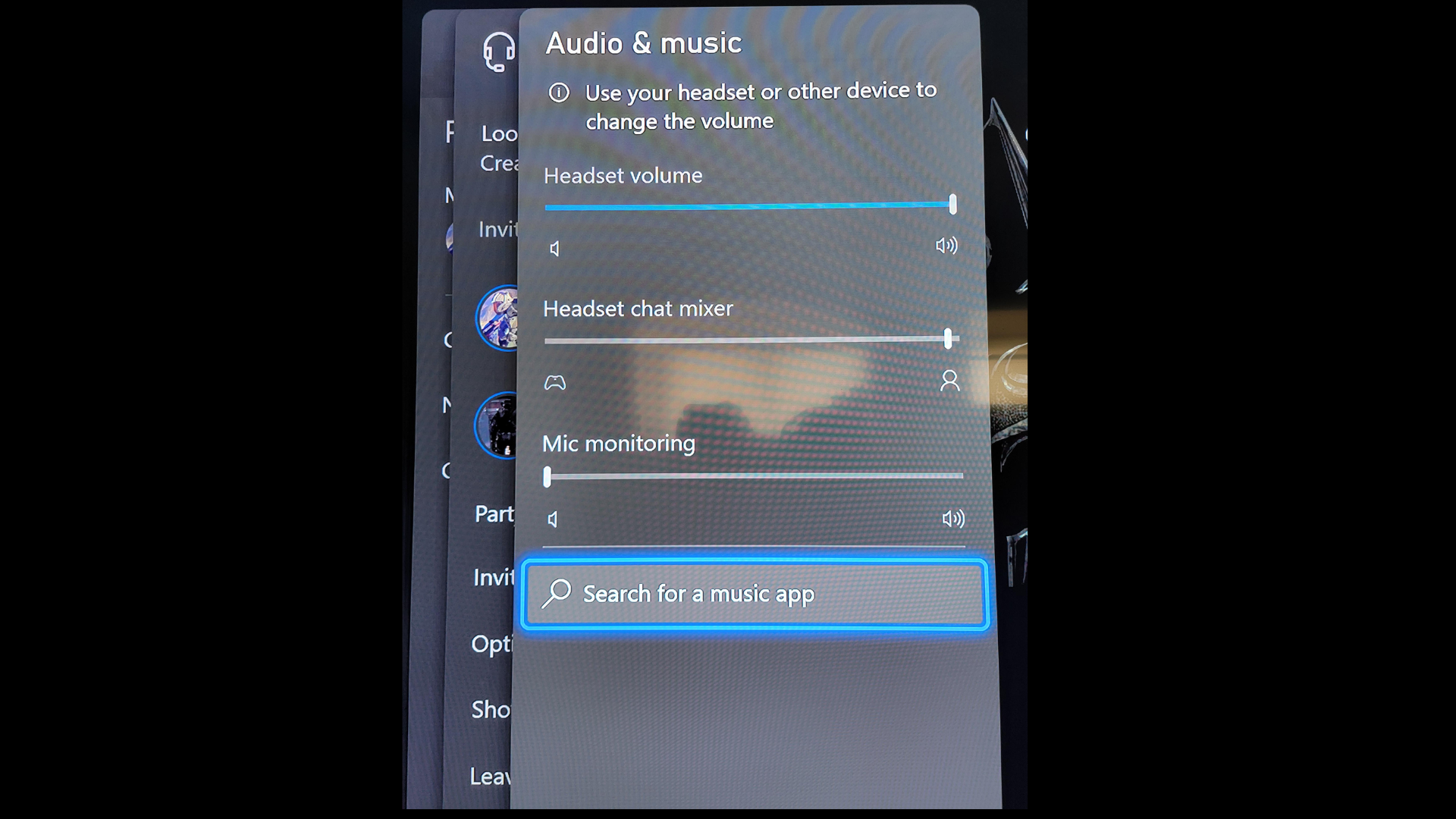
On Xbox One, mic monitoring can be adjusted by going to Settings, then Devices and Accessories, and moving the mic monitoring slider to a comfortable level.
The feature works best with compatible headsets that support audio feedback.
Overall, mic monitoring improves voice clarity, reduces communication issues, and makes teamwork smoother during online gameplay.
How to Enable Mic Monitoring on PC and Other Devices
Mic monitoring lets you hear your own voice, ensuring you’re speaking at the right volume. What is mic monitoring? It helps prevent speaking too loudly or too softly.
1. On Windows PC
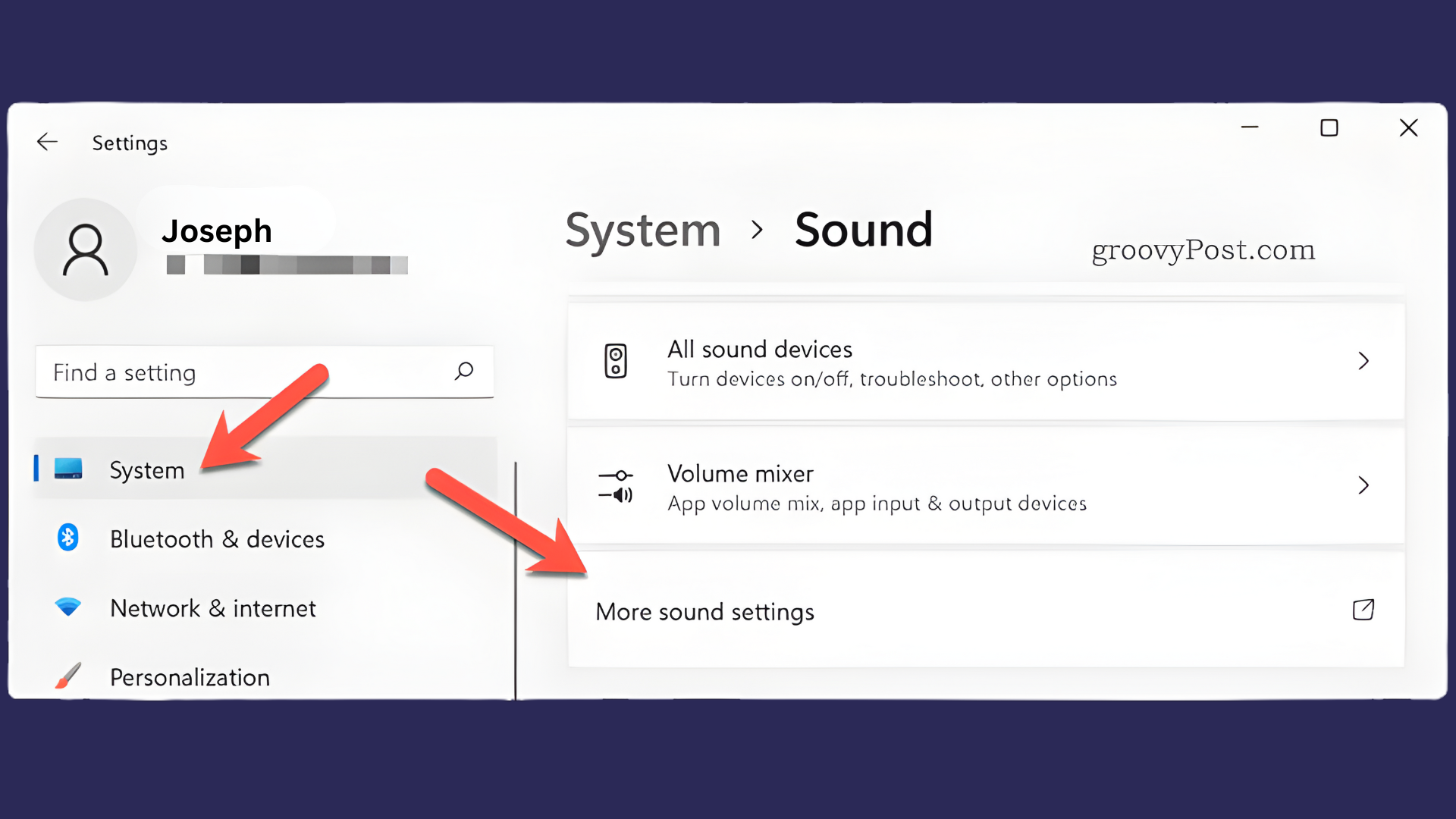
To enable mic monitoring on a Windows PC, open Sound Settings from the Control Panel.
Go to the Recording tab, right-click your microphone, and select Properties. In the properties window, go to the Listen tab and check the box next to Listen to this device.
Adjust the volume slider for the desired monitoring level.
This process allows you to hear your voice while using your mic for gaming, voice calls, or other applications.
2. On Mac
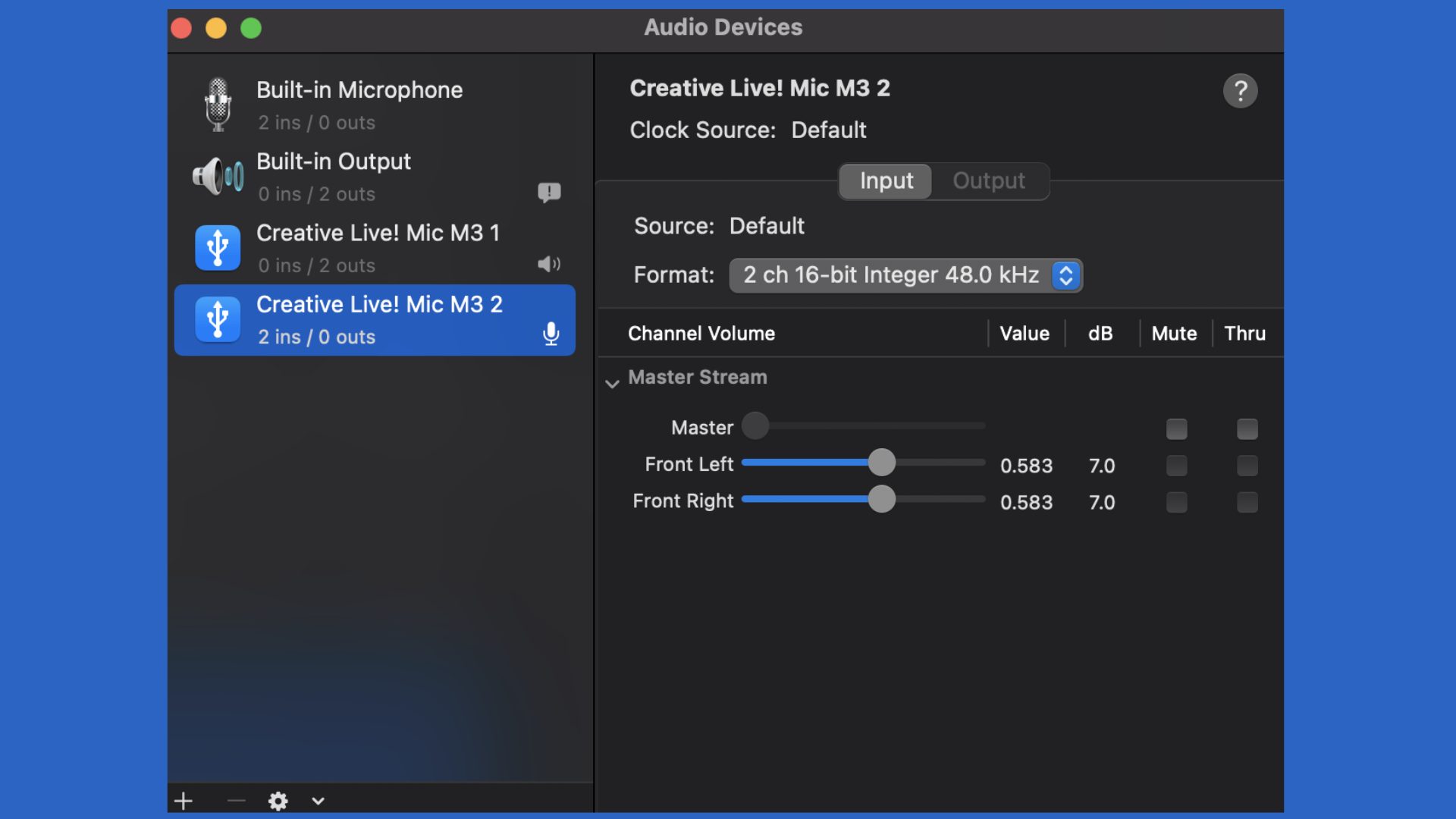
MacOS doesn’t offer native mic monitoring support, but third-party apps like Soundflower or Loopback can enable this feature.
After installing the software, configure it to route your microphone input back to your headphones or speakers.
While macOS lacks this built-in feature, third-party tools provide a workaround for users who want real-time voice feedback during calls or gaming.
These tools let you fine-tune your voice levels and ensure you communicate at the right volume.
3. On Mobile Devices
Most mobile devices do not support native mic monitoring, but you can achieve similar functionality with apps like Discord.
In Discord, go to User Settings, select Voice & Video, and enable the option to monitor your microphone.
Alternatively, certain gaming headsets with built-in mic monitoring features may provide an experience similar to that on PC or console.
With mobile apps and specialized headsets, it’s possible to enhance communication clarity during gaming or voice calls.
Alternatives to Mic Monitoring
For players seeking alternatives to mic monitoring on Xbox One, there are several options that can enhance communication without relying on this feature.
- External Audio Devices: Using a separate microphone or a more advanced gaming headset can provide better voice clarity and volume control.
- Adjusting In-Game Chat Settings: Many games have in-game voice settings that allow for volume adjustments without needing to hear one’s own voice.
- Using Communication Apps: Apps like Discord allow for voice chat management with built-in volume control, providing an alternative to console settings.
- Noise-Cancelling Headsets: These headsets reduce background noise, improving communication without the need for mic monitoring.
Mic Monitoring vs Other Xbox One Audio Features
This section compares what is mic monitoring with other Xbox One audio features, helping gamers decide the best options for their need.
| Audio Feature | Description | Best For |
|---|---|---|
| Mic Monitoring | Let players hear their own voice through the headset. | Gamers who want voice feedback. |
| Party Chat | Private voice chat for friends. | Group communication in multiplayer. |
| Stereo Sound | Balanced game and voice audio. | Gamers who want clear, mixed audio. |
| Surround Sound | 360-degree immersive audio. | Gamers need directional audio. |
| Bass Boost | Enhances low-frequency sounds. | Players who enjoy deep, rich sound. |
Challenges with Mic Monitoring on Xbox One
While mic monitoring on Xbox One can greatly enhance the gaming experience, there are several challenges that players may encounter when using this feature.
- Audio Feedback: Hearing an echo or a feedback loop can be distracting, especially when the mic volume is too high.
- Compatibility Issues: Not all headsets support mic monitoring, which can limit its functionality for some users.
- Unwanted Noise: Background noise can be picked up by the microphone, which may interfere with the clarity of communication.
- Volume Distortion: If the mic monitoring level is set too high, it can distort the voice, making it harder to communicate effectively.
- Adjustment Difficulty: Fine-tuning mic monitoring settings may be tricky for some users, especially for those unfamiliar with audio settings on Xbox One.
Conclusion
What is mic monitoring on Xbox One? It’s a feature that provides significant benefits for gamers who want clear and balanced communication.
While it helps maintain the ideal voice volume, it also prevents unwanted distractions like shouting or muted speech during intense gaming sessions.
Despite some challenges, such as audio feedback or compatibility issues, mic monitoring remains a valuable tool for enhancing in-game interaction.
For me, it plays a crucial role in making multiplayer experiences smoother and more enjoyable.
Whether it’s for casual gameplay or competitive sessions, mic monitoring is a feature worth considering for anyone looking to improve their communication on Xbox One.
Share your thoughts on mic monitoring, how it enhances your Xbox One experience, and do you have any tips for getting the most out of this feature?
Frequently Asked Questions
What Are the Key Benefits of Mic Monitoring on Xbox One?
Mic monitoring ensures clear communication by allowing players to hear their own voice, preventing shouting, and ensuring the right volume for gameplay.
Can I Use Mic Monitoring with Any Xbox One Headset?
Not all headsets support mic monitoring. Make sure to check the headset’s compatibility before purchasing.
Does Mic Monitoring Affect In-Game Sound Quality?
No, mic monitoring does not affect game sound quality, but it may require adjustments to balance both audio elements.