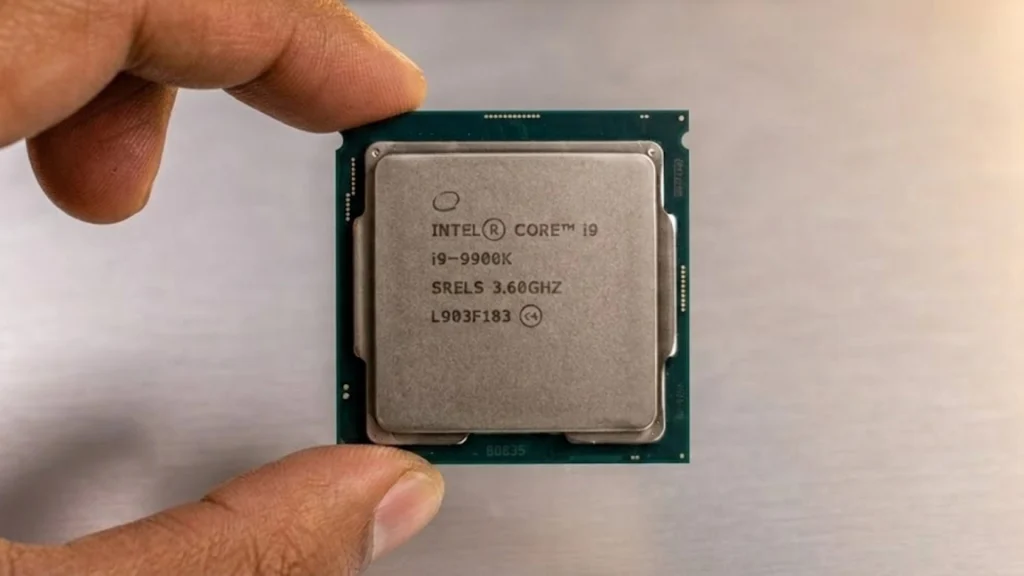
Normal CPU temperature is something most people ignore until the fan gets loud or the system starts to lag. Heat is a silent factor that affects how well a processor runs every single day.
When it stays within a safe range, the system feels smooth and stable. When it climbs too high, performance drops, and parts wear out faster.
A normal CPU temperature simply means the safe heat range a processor can handle during idle, regular use, and heavy tasks like gaming or editing.
Every CPU has limits, and staying within them helps avoid slowdowns, random shutdowns, and long-term damage.
In this blog, you will learn what temperature ranges are considered safe, what is too high, why it changes under different workloads, and how to keep your system cool and steady.
Normal CPU Temperature: What is Considered Safe?
A normal CPU temperature depends on what the processor is doing at any given moment. At idle, most CPUs sit between 30°C and 50°C. That is when the computer is on but not running anything demanding.
During regular tasks like browsing or watching videos, temperatures usually stay between 50°C and 70°C. This is a healthy range and nothing to worry about.
Gaming or running heavy workloads pushes things higher. Temperatures between 70°C and 85°C are common during these sessions. Anything consistently above 90°C is getting too hot.
Most CPUs begin thermal throttling around 95°C to 100°C. This slows the processor down automatically to cool itself off and prevent damage.
Desktop CPUs generally run cooler than laptop CPUs. Laptops have tighter spaces and less airflow, so they tend to run hotter even during light use.
Factors That Affect CPU Temperature
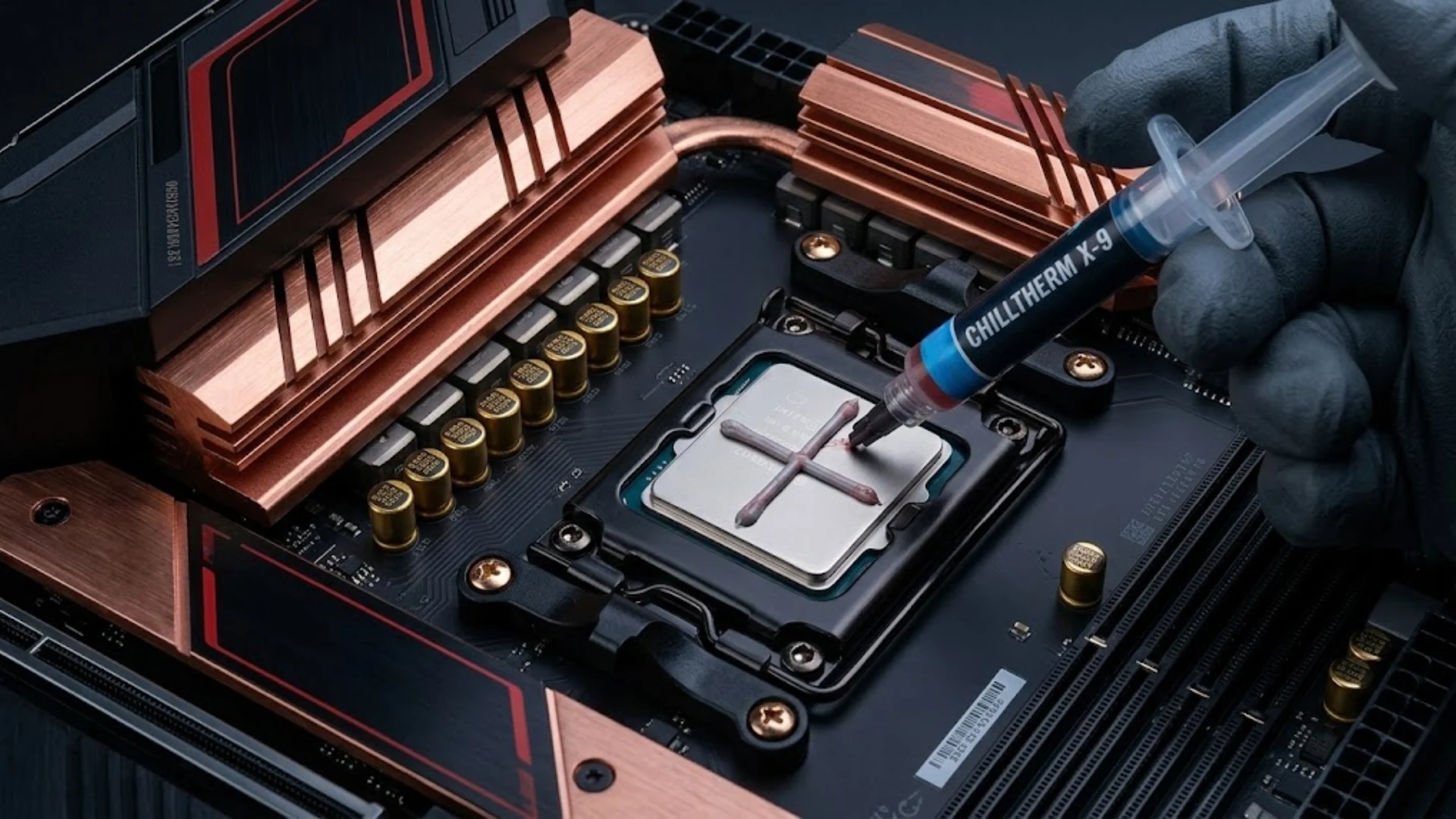
CPU temperature shifts based on several connected factors that affect both heat production and heat removal.
Workload intensity plays the biggest role, since heavy tasks like gaming or rendering push the processor harder and generate more heat than simple browsing.
Ambient room temperature also matters because cool air helps carry heat away more efficiently, while warmer rooms reduce cooling performance.
The quality of the cooling system makes a difference as well, since better heatsinks or liquid coolers manage heat more effectively than basic stock options.
Dust buildup inside the case can block fans and vents, which traps hot air and raises temperatures over time.
Thermal paste condition is another factor, as dried or poorly applied paste reduces heat transfer between the CPU and the cooler.
How to Know If Your CPU Temperature is Too High?
An overheating processor often shows warning signs before serious damage happens, and recognizing them early can help prevent long-term hardware problems.
- Sudden Slowdowns: When temperatures rise beyond safe limits, the CPU reduces its speed to protect itself, which leads to noticeable lag and slower app launches
- Random Shutdowns: If heat levels become too high, the system may power off automatically as a safety measure to prevent hardware damage, especially during gaming or heavy workloads.
- Loud Fan Noise: Cooling fans spin faster to control rising heat, and constant high-speed fan noise often signals that the processor is struggling to stay within a safe temperature range.
- High Temperature Readings: Monitoring tools showing consistently high numbers, particularly under light or moderate use, indicate that the cooling system may not be working properly.
- Frequent System Freezes: Unexpected freezes during demanding tasks can point to thermal stress, as excessive heat affects stability and overall performance.
How to Keep CPU Temperature in a Safe Range?
Keeping heat under control does not require complex changes, but consistent maintenance and small upgrades can make a noticeable difference in system stability.
1. Improve Airflow Inside the Case
Proper fan placement helps create a steady path for air movement, usually with intake fans at the front and exhaust fans at the back or top.
Good airflow allows cool air to enter the case and hot air to exit without obstruction. Cables should be managed neatly to avoid blocking airflow.
Cases with mesh panels often perform better than sealed designs. Balanced airflow reduces internal heat buildup and supports a more stable normal CPU temperature.
2. Clean Dust From Fans and Vents
Dust naturally builds up over time and restricts airflow inside the system. When fans and vents are clogged, cooling efficiency drops and temperatures rise.
Cleaning the interior every few months using compressed air helps maintain smooth airflow. Pay attention to the heatsink, intake filters, and power supply vents.
Even a thin layer of dust can trap heat. Regular cleaning helps maintain consistent performance and keeps temperatures within a safe range.
3. Reapply Thermal Paste When Needed
Thermal paste sits between the CPU and the cooler to improve heat transfer. Over time, it can dry out or lose effectiveness, which reduces cooling efficiency.
If temperatures start rising unexpectedly, replacing old paste can help restore proper contact between surfaces. Apply a small, even amount to avoid air gaps.
Good quality paste improves heat transfer and supports stable operating temperatures during both idle and heavy workloads.
4. Upgrade CPU Cooler
Stock coolers are designed for moderate use and may struggle under sustained heavy loads. Upgrading to a larger air cooler or a liquid cooling system can significantly improve heat management.
Aftermarket coolers typically feature bigger heatsinks, stronger fans, and better overall design. This allows heat to dissipate more efficiently.
An improved cooler not only lowers peak temperatures but also reduces thermal throttling during demanding tasks.
5. Adjust Fan Curves in BIOS
Fan curves control how fast cooling fans spin at different temperature levels. Many systems use default settings that prioritize quiet operation over aggressive cooling.
Adjusting the curve in the BIOS allows fans to ramp up earlier as temperatures rise. This helps remove heat before it builds up excessively.
A balanced fan curve maintains a steady normal CPU temperature while avoiding constant maximum fan speeds.
How to Check Your CPU Temperature?
There are several reliable ways to check your processor’s core temperature, but Windows 11 Task Manager does not currently show detailed CPU thermal data.
Because of this limitation, a third-party application is required to get accurate readings.
It is also a good idea to use two monitoring tools at the same time so you can compare results and confirm accuracy rather than depending on a single source.
Popular programs include NZXT CAM, HWMonitor, and CPU Z. NZXT CAM is lightweight and simple to understand, which makes it suitable for beginners.
HWMonitor provides deeper technical data such as voltages, currents, and sensor health.
Cross-checking data between tools gives a clearer picture of how the processor is performing and whether temperatures remain within a safe range.
When Should You Be Worried?
Not every temperature spike is a problem, but certain numbers should raise concern.
Most modern CPUs can handle brief peaks during gaming or heavy workloads, often reaching 85°C to 90°C without immediate danger.
However, if temperatures consistently stay above 90°C or push close to the maximum rated limit, that is a red flag. Sustained high heat can lead to thermal throttling, system instability, and long-term wear.
It is usually fine if temperatures rise under load and quickly drop back to normal CPU temperature levels once the task ends.
Action is needed when high readings appear during idle use, or when slowdowns, shutdowns, or loud fans become frequent.
Conclusion
Normal CPU temperature is not a single fixed number, since safe ranges depend on how the system is being used.
Idle temperatures are naturally lower, while gaming or heavy workloads push the processor harder and raise heat levels.
What matters most is whether those temperatures stay within safe limits and return to normal after the task ends.
Small steps like improving airflow, cleaning dust, replacing thermal paste, and using proper monitoring tools can prevent bigger issues later.
Paying attention to warning signs such as slowdowns or shutdowns also helps avoid long-term damage. Regular checks and basic maintenance go a long way in keeping performance steady and extending CPU lifespan.
Have you checked your CPU temperatures recently, and were they within a safe range? Share your experience or questions in the comments below.