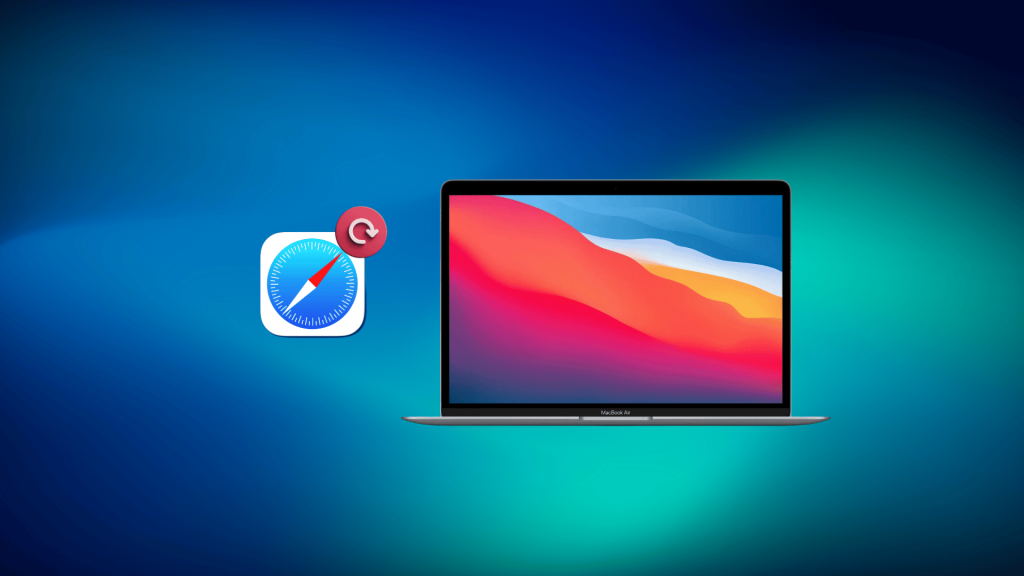
When I needed to update Safari on my Mac, I expected a quick App Store download. Instead, I realized Safari updates work very differently than most apps.
In January 2026, I updated Safari on my MacBook Air (M1, 2020) running macOS Sonoma after several websites stopped loading correctly. Pages froze, and some web apps refused to open.
That’s when I learned an important detail many users miss. Safari does not update on its own. It updates only when macOS updates.
Once I installed the latest macOS update and restarted my Mac, Safari immediately worked better, and the issues disappeared.
This guide walks through the exact steps I followed, how to confirm the update worked, and what to do if your Mac cannot update Safari anymore.
Why Updating Safari Matters?
Updating Safari is important because it keeps the browser secure, stable, and fully compatible with modern websites.
Each new update includes security patches that block threats and protect user data from attacks. Performance improvements also help pages load faster and run more smoothly.
Updated versions of Safari include new features, improved privacy tools, and better support for the latest web standards.
Many sites rely on modern browser technology, so staying current helps avoid loading errors or broken pages. Updates also fix bugs that may cause freezing, crashes, or display issues.
Because Safari updates are tied to macOS updates, users receive system-level improvements that make the entire device safer and more reliable.
Keeping Safari updated ensures a smoother, safer browsing experience on any Mac.
What Does the Latest Safari Update Include?
Safari updates are bundled with macOS releases, so features vary depending on the macOS version and Mac model you use.
Based on recent macOS updates, Safari updates typically include:
- Security patches that protect against known browser vulnerabilities
- WebKit performance improvements for smoother page loading
- Privacy enhancements, including stronger tracking protection
- Bug fixes for freezing, crashes, or display issues
- Compatibility updates for modern websites and web apps
Apple does not release Safari updates separately. The exact improvements you receive depend on the macOS version your Mac supports.
How to Check Your macOS Version?
Checking the macOS version is an essential step before updating Safari because Safari updates are tied directly to system updates.
The version number shows whether the device is running the latest software or needs an update. To check it, users can open the Apple menu in the top-left corner and choose “About This Mac.”
A window appears showing the macOS name and version number, such as Ventura, Monterey, or Big Sur.
This information helps determine which Safari features are available, since each macOS release includes a specific Safari version.
Older macOS versions may not support the newest browser updates, which can affect performance and security.
Knowing the current version makes it easier to follow the right steps, understand update limitations, and decide if the system needs a full macOS upgrade.
How to Update Safari on Mac?
The steps below explain how to check for updates, install them, and make sure the system stays current automatically.
Step 1: Open System Settings or System Preferences

To begin the update process, users need to access the main settings menu on their Mac. On newer macOS versions like Ventura and Sonoma, this menu is called System Settings.
On older versions such as Monterey or Big Sur, it appears as System Preferences. Users can open it by selecting the Apple menu in the upper-left corner and choosing the correct option.
This is the central hub where macOS handles all system updates, including Safari updates.
Opening this menu is essential because Safari updates are bundled with macOS updates rather than installed through the App Store.
Step 2: Select Software Update
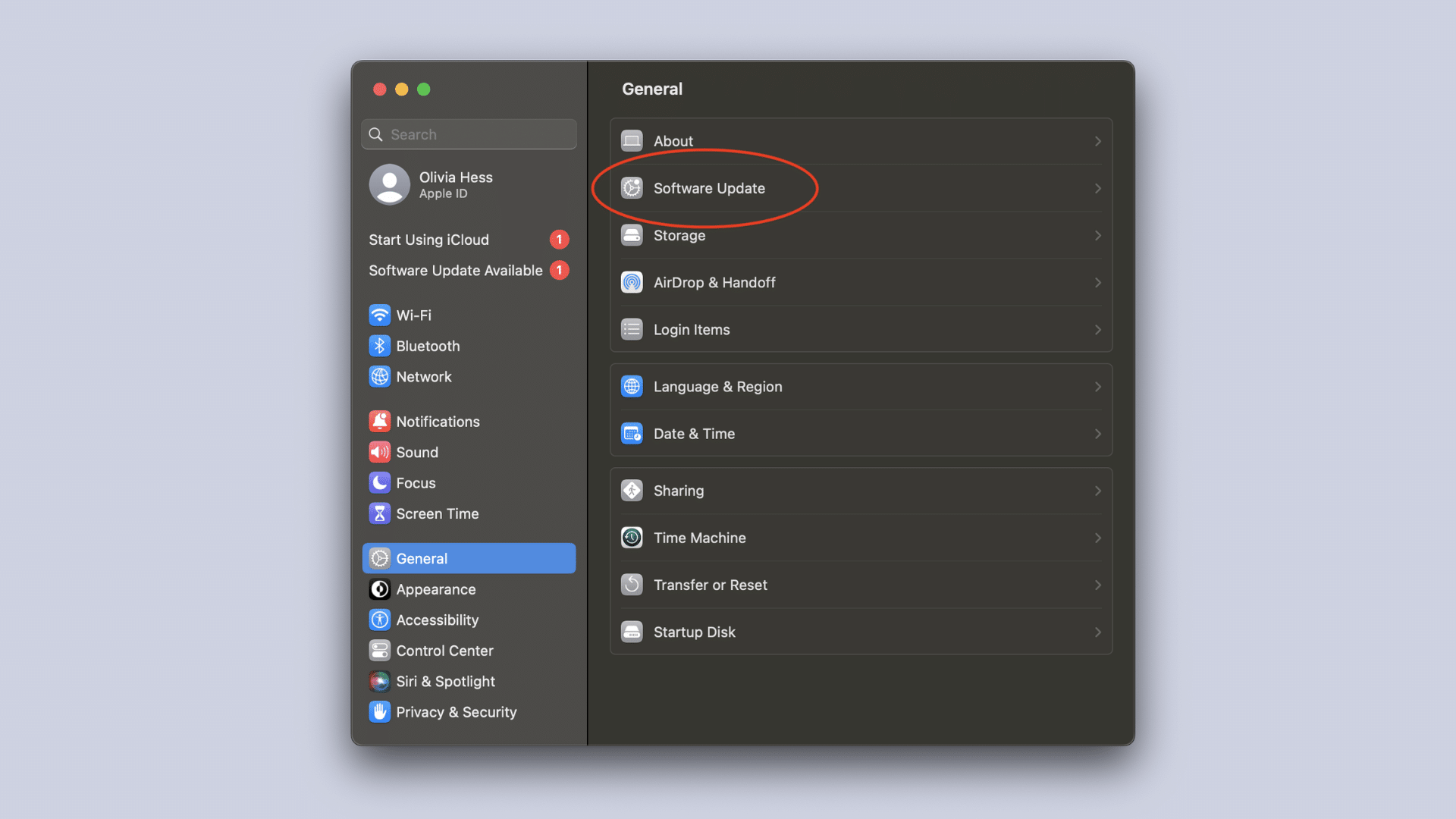
After opening the main settings menu, users should select the Software Update option.
This section automatically scans for available updates and shows whether the Mac is running the latest version of macOS.
If a new version is available, the system displays details about the update, including improvements and security changes.
Users can also see whether their device supports the newest macOS release, which determines the Safari version they can install.
If Software Update shows “Your Mac is up to date,” Safari is already updated to the newest version supported by your system.
Safari will not appear as a separate update.
Step 3: Download and Install the macOS OS Update
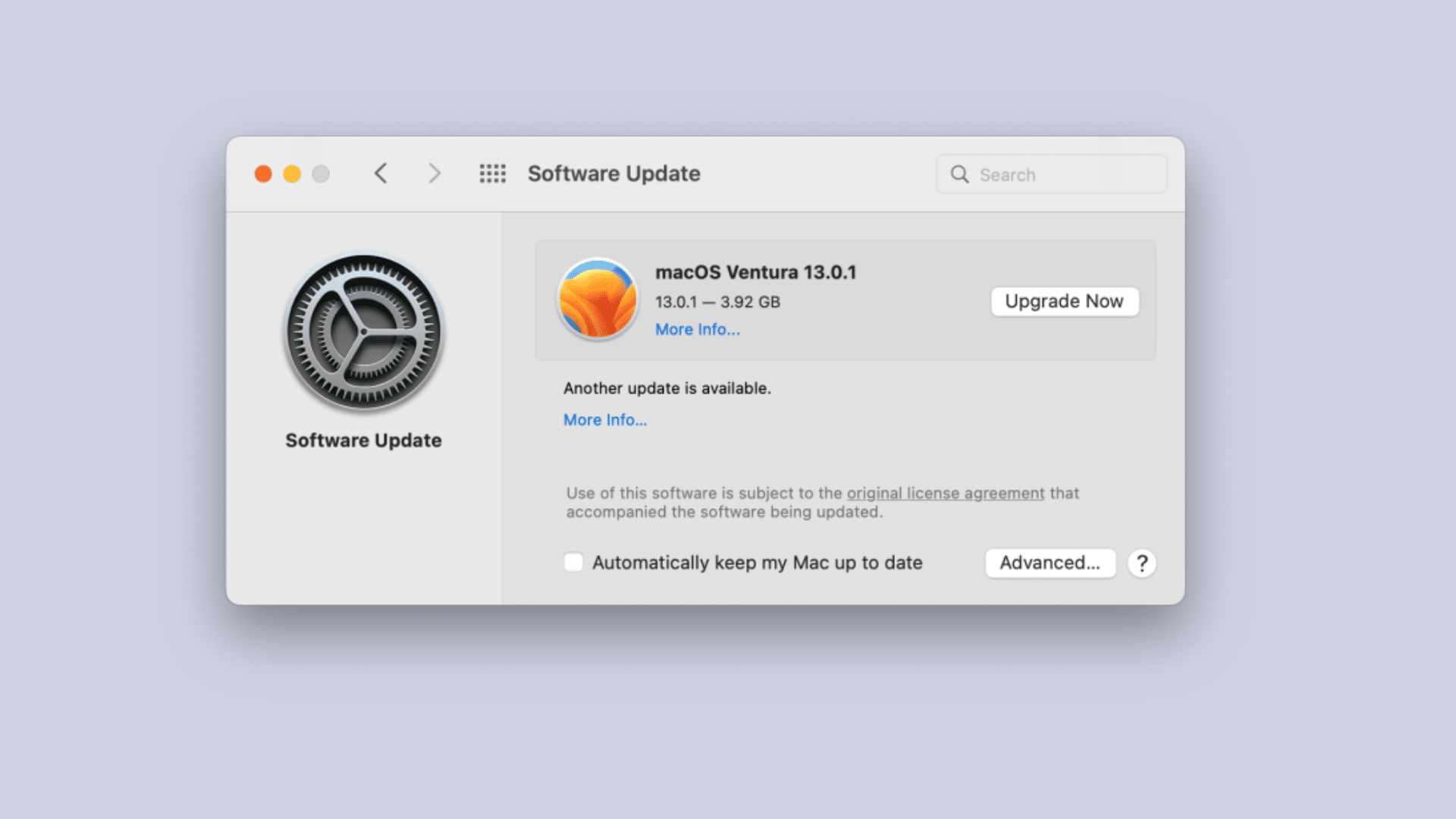
Once an update appears, users can begin the installation process by selecting the download and install option.
The system prepares the update by downloading required files, which may take time. After the download finishes, the Mac restarts automatically to apply the update.
The update process includes improvements for Safari, such as security patches, bug fixes, and performance upgrades.
During installation, the screen may go dark or show a progress bar. Users simply wait until the system completes the update.
During installation, Safari updates automatically as part of the macOS update. There is no separate Safari download or installer.
After the restart, Safari uses the updated version immediately.
Step 4: Enable Automatic Updates
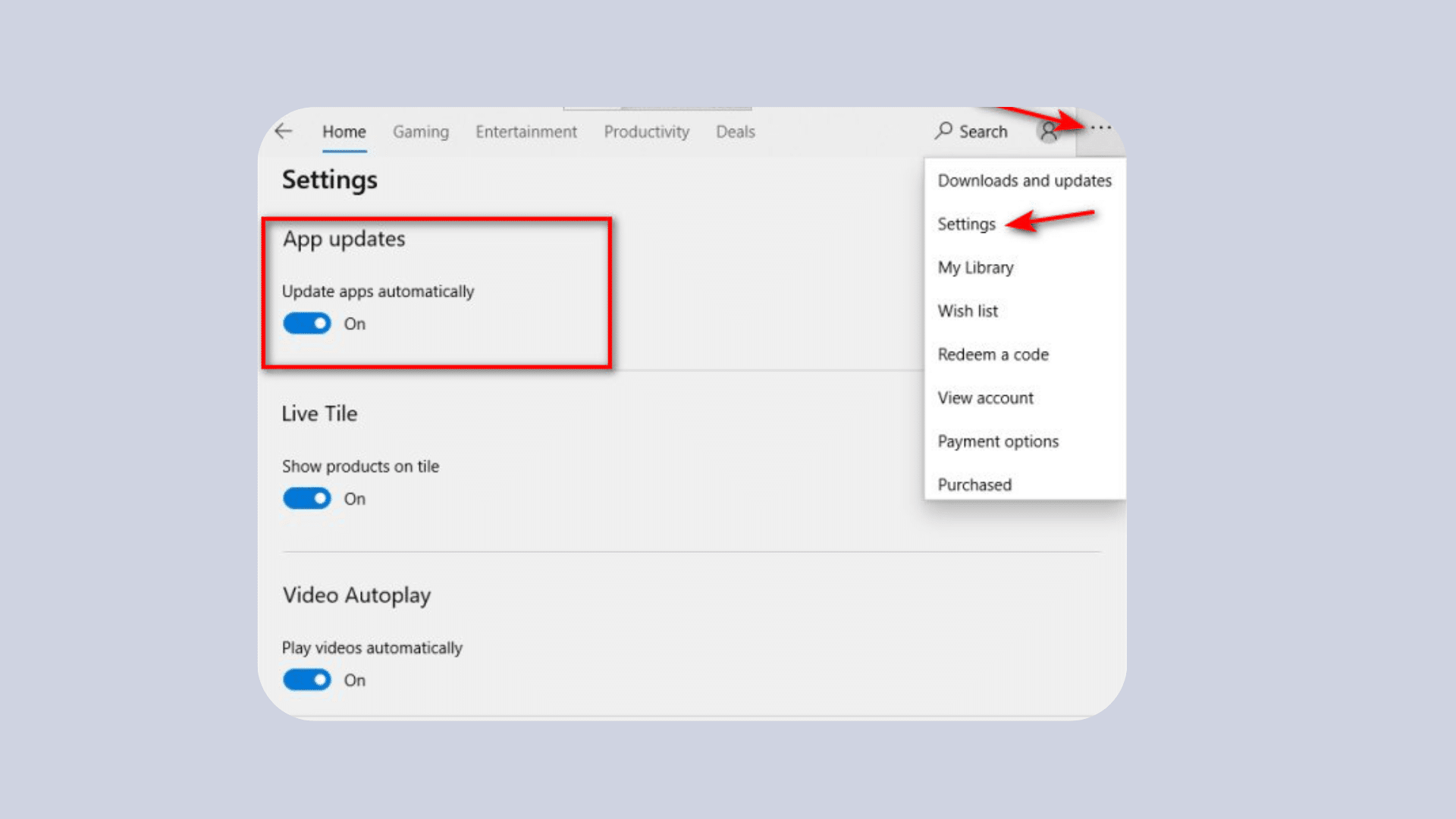
After updating, enabling automatic updates helps ensure Safari remains current without manual checks.
This option is available within the Software Update menu. Users can turn on automatic installation for both macOS updates and security responses.
When enabled, the system periodically checks for new releases and installs them in the background.
Users still receive notifications when updates occur, but the process becomes quicker and more consistent.
Step 5: Troubleshoot Update Issues
If Safari or macOS updates do not install correctly, users can solve the issue through basic troubleshooting. Restarting the Mac often clears temporary glitches.
Checking available storage is also important because large macOS updates require several gigabytes of free space.
Connecting to a stable Wi-Fi network helps prevent download interruptions. If the update still fails, users can reset the Software Update system by shutting down and restarting the device.
Another option is safe mode, which loads only essential system tools and may allow the update to complete.
How to Confirm Safari Updated Successfully
After your Mac restarts, open Safari and click Safari → About Safari in the top menu.
The version number shown confirms whether Safari updated correctly. If the version number changed after the macOS update, Safari updated successfully.
This is the most reliable way to confirm the update instead of relying on visual changes or assumptions.
MacOS and Safari Version
| macOS Version | Approx. Initial Safari Version | Notes / Typical Updates Available |
|---|---|---|
| macOS 10.12 Sierra | Safari 10 | Brought improvements to Tab audio and security (HandWiki) |
| macOS 10.13 High Sierra | Safari 11 | Included better performance and features (HandWiki) |
| macOS 10.14 Mojave | Safari 12 | Added better privacy and Intelligent Tracking Prevention (HandWiki) |
| macOS 10.15 Catalina | Safari 13 | Modern UI updates and performance (HandWiki) |
| macOS 11 Big Sur | Safari 14 → 16 | Includes newer Safari UI and performance enhancements; later updated to 16.x (HandWiki) |
| macOS 12 Monterey | Safari 15 → 17 | Can use Safari 17 via updates (HandWiki) |
| macOS 13 Ventura | Safari 15 → 18 | Updated to newer builds; later Safari 18 installs on recent releases (HandWiki) |
| macOS 14 Sonoma | Safari 17 → 18 | Latest stock Safari versions on Sonoma are 18.x as of 2025 (OS X Daily) |
| macOS 15 Sequoia | Safari 18 → 26 (beta) | Safari 26 beta available and future updates expected (Cinco Días) |
| macOS 26 Tahoe | Safari 26 | Latest Safari versions tie into the newest macOS (Apple Developer) |
Updating macOS on Older Mac Devices
Updating older Macs can be more challenging because Safari updates are directly tied to the macOS version the device supports.
Many older models cannot install the latest macOS releases, which means they also cannot receive the newest Safari features or security patches.
When a Mac reaches its update limit, Safari may still function, but certain websites, web apps, and modern security standards may no longer work reliably.
Users can check the maximum supported macOS version by visiting the “About This Mac” section and comparing their device’s year with Apple’s compatibility lists.
If the system cannot upgrade further, third-party browsers that still support older macOS versions may offer a temporary solution.
Regular system maintenance, clearing cached data, and enabling available security updates can also help extend usability on older devices.
What If Your Mac Can’t Update Safari?
Safari can only update as far as your Mac’s supported macOS version allows.
If your Mac no longer supports newer macOS releases:
- Safari will stop receiving new security updates
- Some modern websites may load incorrectly or fail
- Apple does not offer manual Safari upgrades for unsupported systems
In these cases, using a third-party browser that still supports older macOS versions may provide better security while continuing to use the Mac
Conclusion
Now that I understand how to update Safari on Mac, keeping my browser fast and secure feels much easier.
Following these simple steps helps me stay protected, fix small issues, and enjoy better performance every time I browse.
Updating macOS also ensures Safari gets the latest improvements without extra work.
By checking for updates regularly or turning on automatic updates, I can keep everything running smoothly with almost no effort.
Learning how to do this has made a real difference in my daily workflow.
With the process now clear, I feel more confident keeping my browser and my Mac fully up to date.
Are Safari updates already turned on, or do you prefer checking them manually?
Share your thoughts or questions in the comments below
Frequently Asked Questions
Can Safari be updated without updating macOS?
No. Safari updates are fully tied to macOS updates. Apple does not allow Safari to be updated separately through the App Store.
How do I know which Safari version my Mac supports?
Safari compatibility depends on your Mac model and macOS version. Checking About This Mac shows whether your system supports newer macOS and Safari updates.
Why can’t I find Safari in the App Store?
Safari is built into macOS, so it cannot be updated separately. All browser updates arrive only through system updates.
What if My Mac Is Too Old to Update?
Older Macs may not support newer macOS versions. Safari might stay outdated, but alternative browsers can offer better compatibility and security.
Do I Need the Internet to Update Safari?
Yes. macOS updates require a stable internet connection to download the latest files and install the updated Safari version.