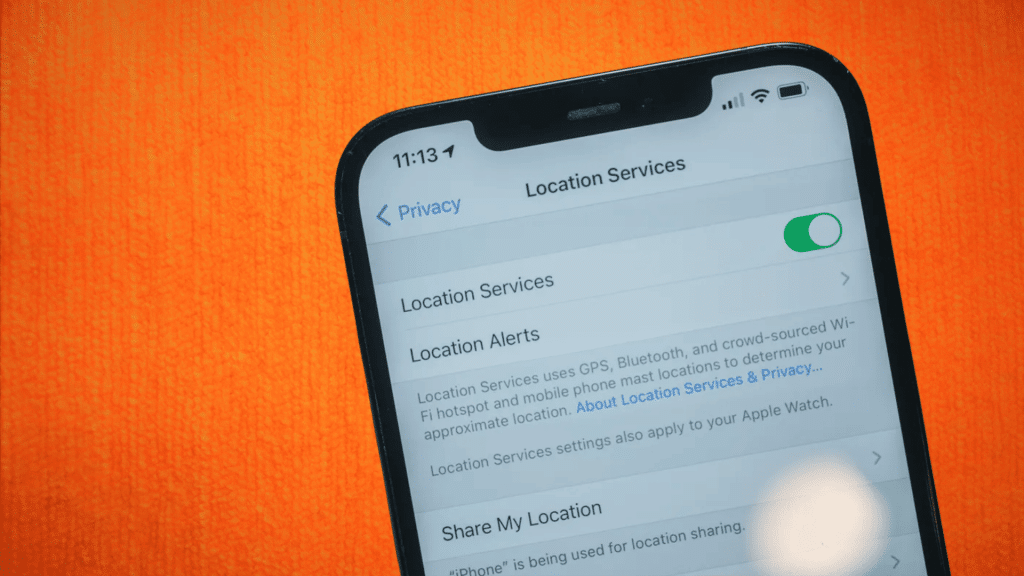
Many iPhone users want more control over their privacy, especially when it comes to location tracking.
Sometimes, you may need to turn off location access without drawing attention or triggering alerts to others.
This is a common concern for people who use Find My or share their location with family, friends, or colleagues.
Knowing what actually happens behind the scenes can help you make the right choice without confusion or stress.
In this guide, I explain how to turn off location on iPhone in a clear and simple way, while addressing whether others are notified or not.
You’ll learn which settings matter most, what changes are visible to contacts, and which options allow quieter control over your location.
By understanding these steps, you can protect your privacy and stay informed without accidentally sharing more than you want.
How Location Services Work on iPhone
Location Services on iPhone control how your device shares its position with Apple, apps, and people you choose.
These services use GPS, Wi-Fi, Bluetooth, and mobile networks to estimate where the phone is.
System features like Maps, Weather, Emergency SOS, and Find My rely on this data to function correctly.
Apps can also request location access, either all the time, only while in use, or never.
Location sharing with others works slightly differently because it depends on Find My settings rather than general app permissions.
This is why turning off one option may not entirely stop location visibility. Understanding this setup is essential if your goal is to limit tracking quietly.
Some changes only affect apps, while others impact shared location and device tracking linked to your Apple ID.
Ways to Turn Off Location on iPhone
This section explains the different ways to control or disable location access on your iPhone, based on how much privacy you want and who you want to hide your location from
1. Turn Off Location Services Completely
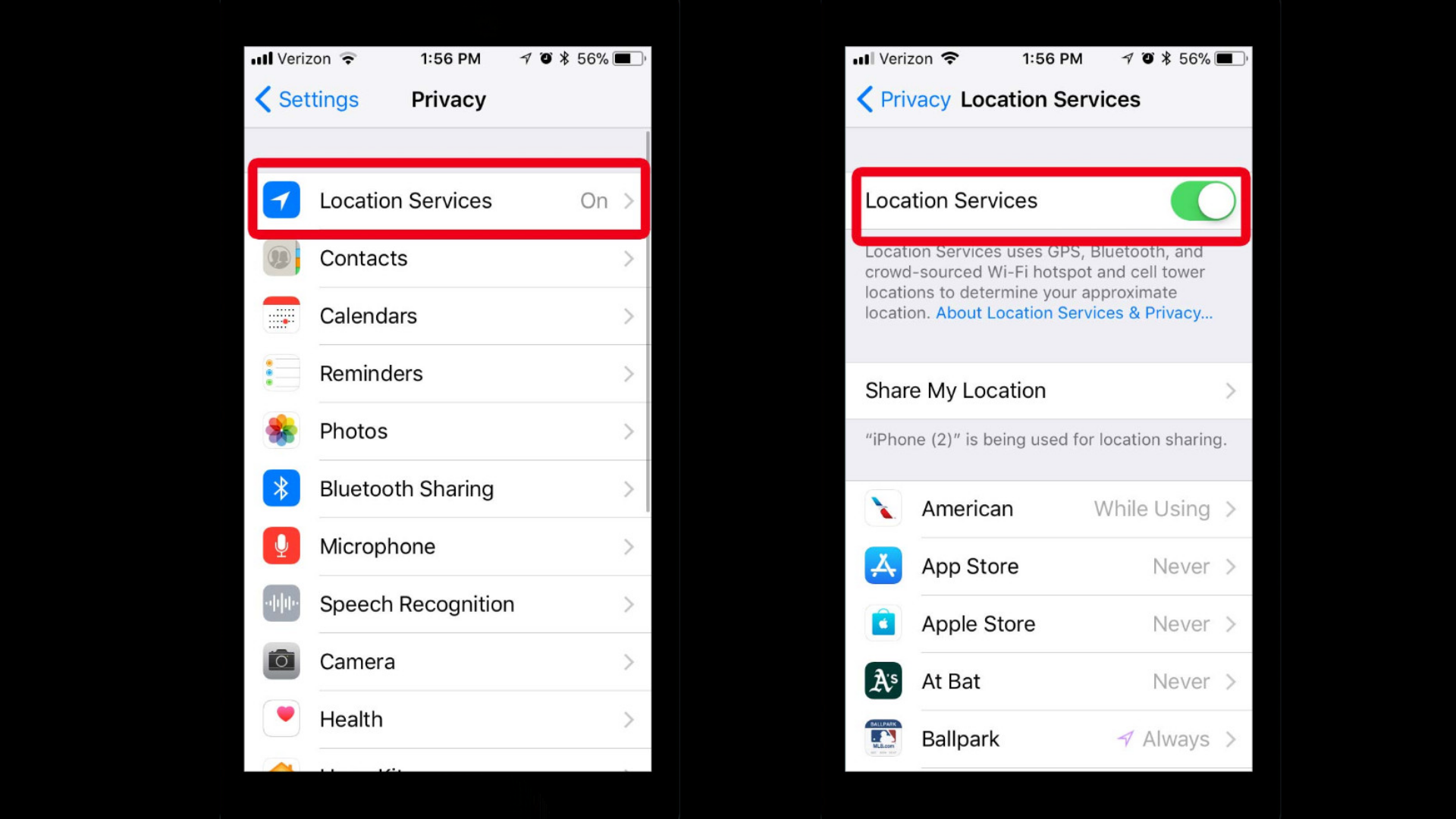
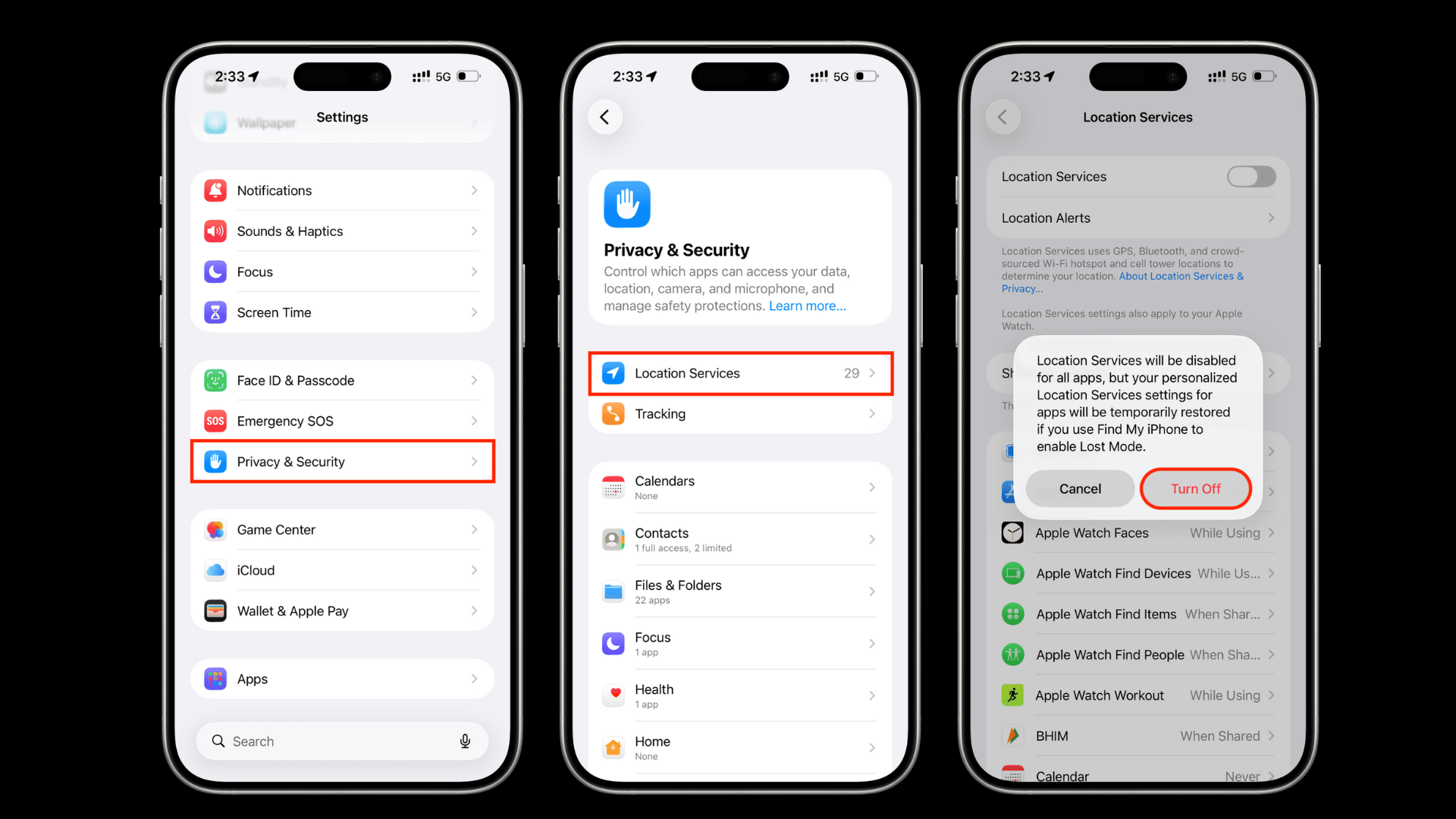
Turning off Location Services at the system level stops your iPhone from sharing location data with apps and most Apple features.
This option works best if you want a full privacy reset, not partial control. It affects everything at once, so it’s essential to understand what changes.
- Open Settings and tap Privacy & Security
- Select Location Services at the top
- Toggle Location Services off
- Confirm your choice when prompted
Once disabled, apps like Maps, Camera, Weather, and Find My stop receiving location data.
This action does not send direct alerts to contacts, but people may notice that your location is no longer updating.
2. How to Turn Off Location for Find My iPhone
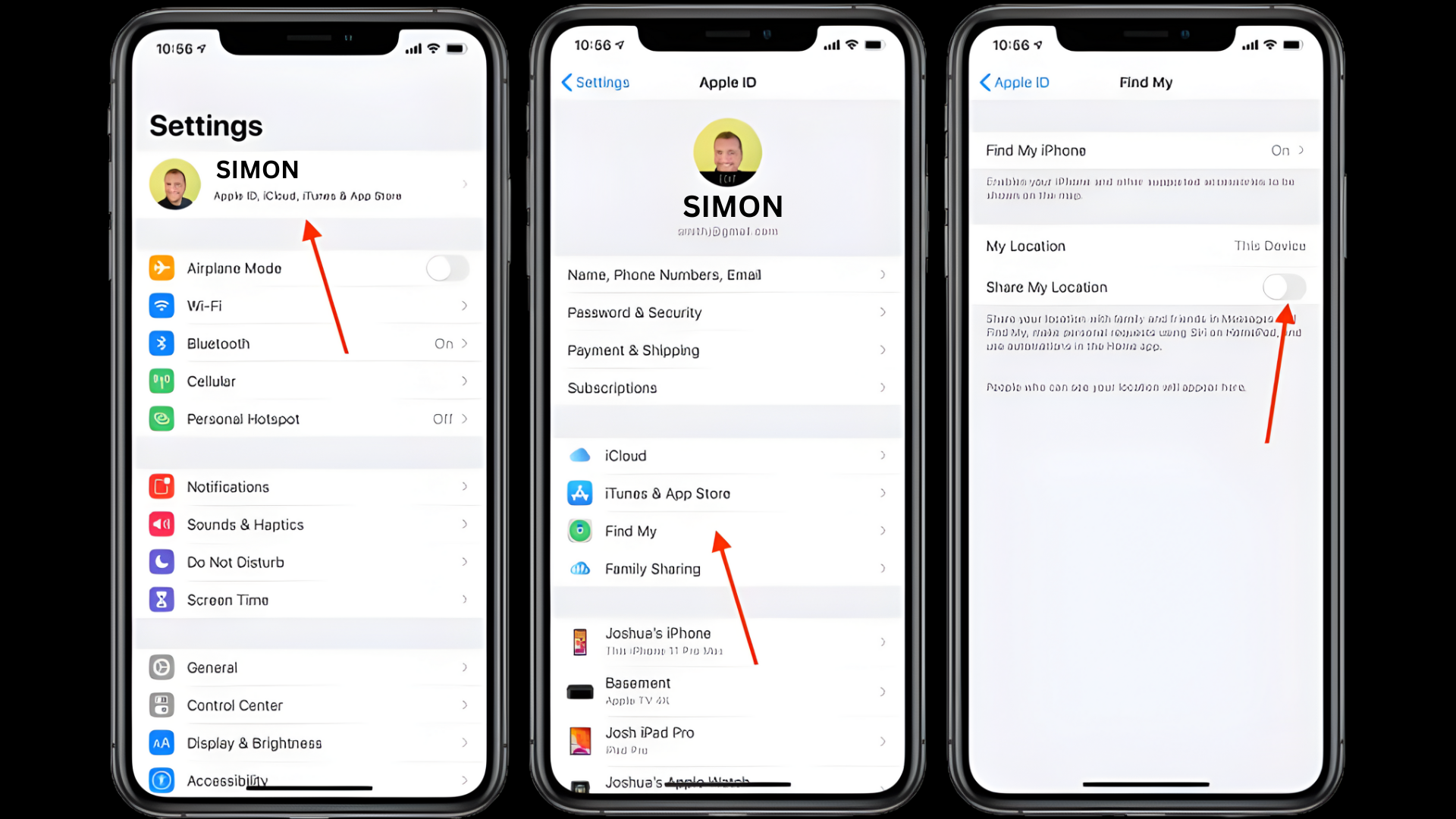
Find My iPhone works separately from general app location settings, which is why many users focus on this feature first.
It connects your device to your Apple ID and controls whether your location is visible to others. Adjusting this setting is often the best option for limiting sharing without obvious signals.
- Open Settings and tap your Apple ID name
- Select Find My from the list
- Tap Find My iPhone or Share My Location
- Toggle the option off as needed
- Enter your Apple ID password if asked
After turning this off, your location stops updating in Find My.
Apple does not send automatic notifications to contacts, but they may see your area listed as unavailable. This makes it a more discreet choice than disabling all location services.
3. Stop Sharing Location With Specific People
If you only want to limit who can see your location, stopping sharing with specific people is the most subtle option.
This method keeps Location Services and Find My active while removing access for selected contacts. It works well when privacy is needed without changing device behavior.
- Open Settings and tap your Apple ID name
- Select Find My and tap Share My Location
- Choose the person you want to remove
- Tap Stop Sharing My Location
- Repeat for other contacts if needed
Once removed, your location no longer appears for that person. No alert is sent, but the contact may notice that your location is no longer visible.
This approach gives targeted control while keeping other location features working normally.
4. Turn Off Location for Specific Apps
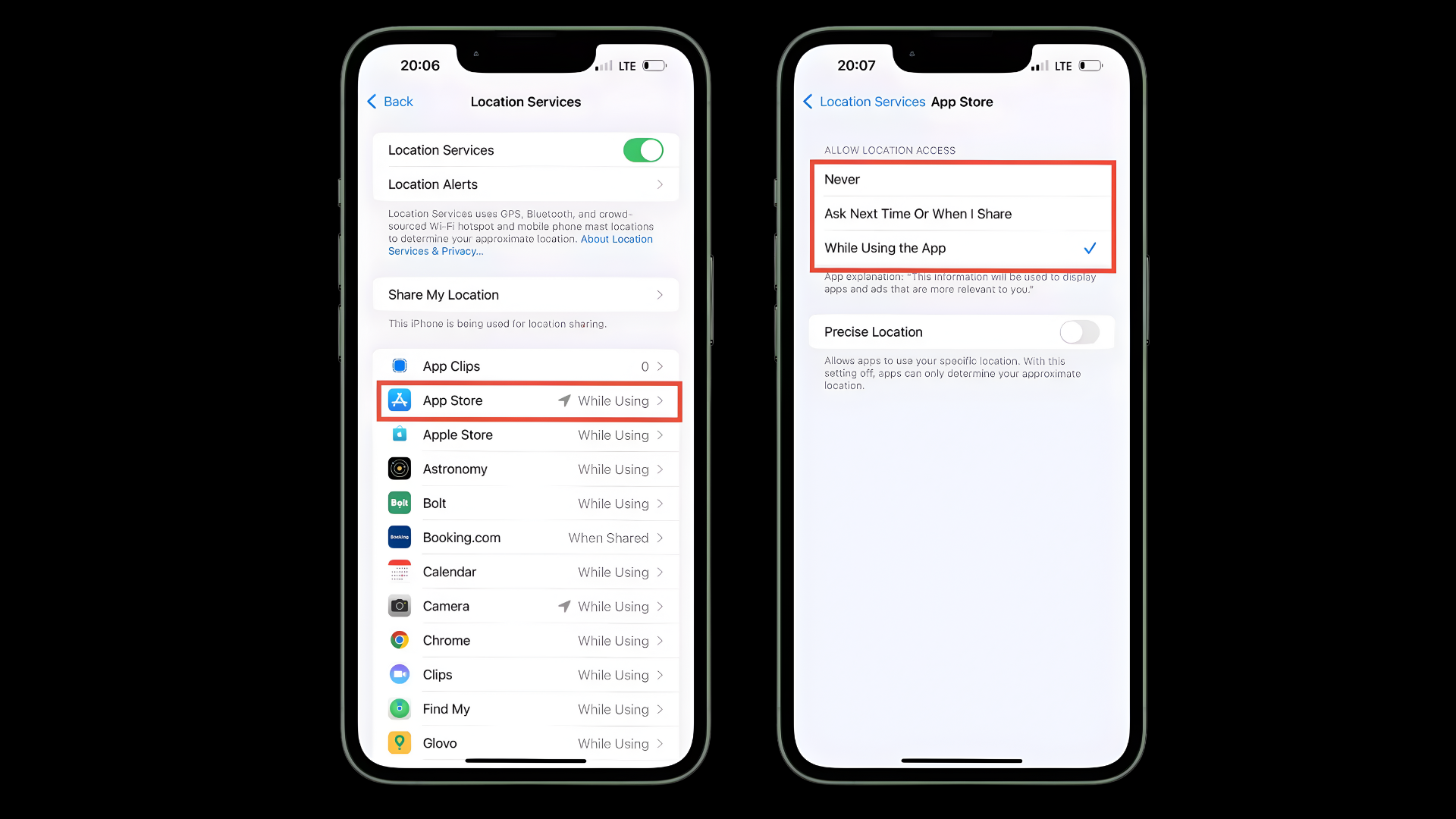
Turning off location access for individual apps gives you more control without affecting system features or shared locations.
This option is practical when you want to limit tracking from certain apps while keeping essential services active. It helps reduce background tracking quietly.
- Open Settings and tap Privacy & Security
- Select Location Services
- Scroll and choose the app you want to adjust
- Set location access to Never or While Using the App
- Turn off Precise Location if available
After making these changes, the selected apps stop collecting detailed location data. This does not notify contacts or affect Find My sharing.
It’s a low-visibility way to manage privacy while keeping your iPhone working as expected.
5. Use Airplane Mode or Turn Off Data
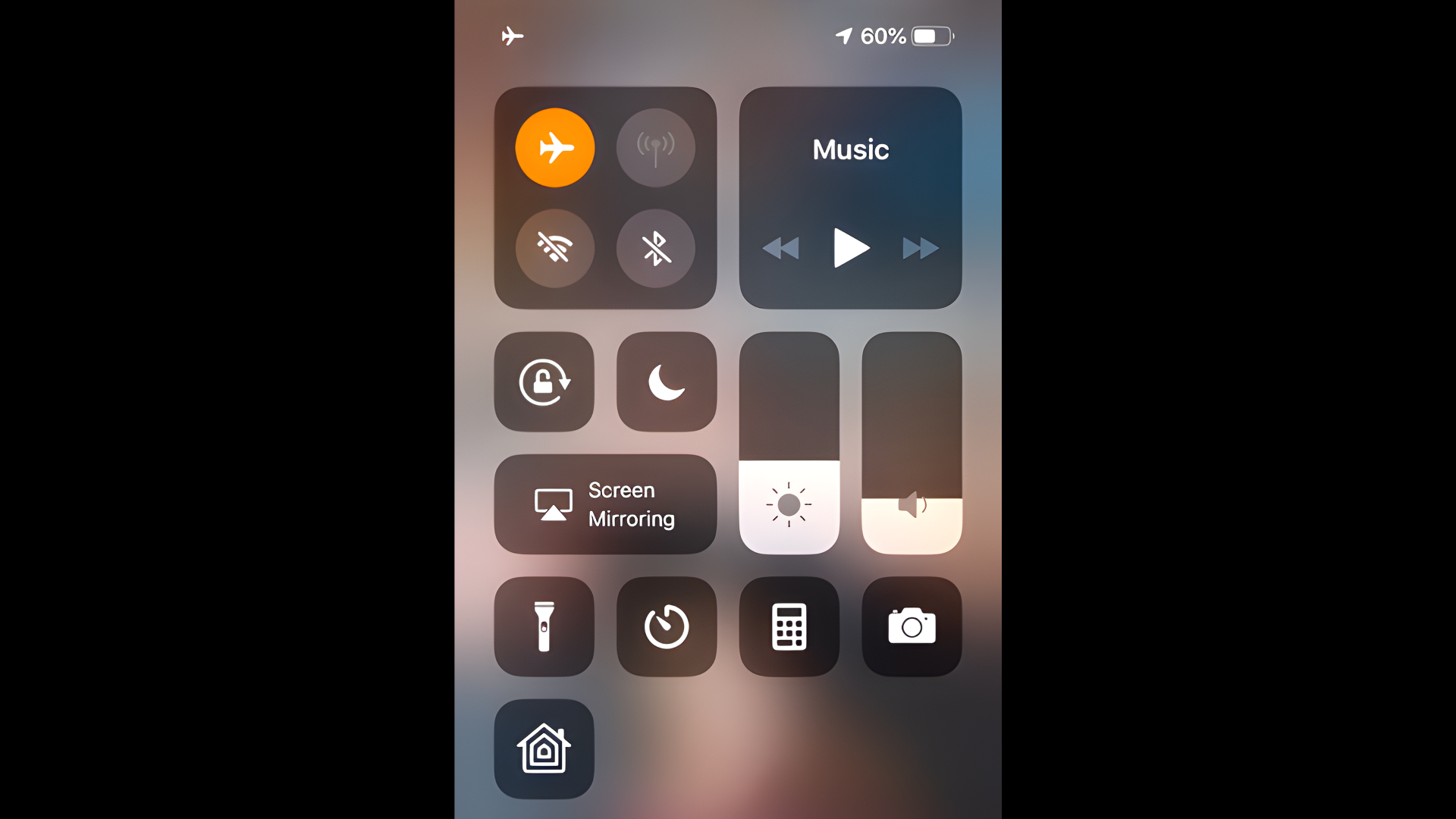
Using Airplane Mode or turning off mobile data can temporarily stop location updates on your iPhone.
Airplane Mode disables cellular, Wi-Fi, and Bluetooth, which limits how your location is shared.
Turning off mobile data alone reduces background tracking but may not fully stop location if Wi-Fi is active.
These methods do not send notifications to contacts, but they are temporary solutions.
Once connectivity is restored, location updates may resume automatically, making this option better for short-term privacy needs.
Will Others Know When You Turn Off iPhone Location?
Many users worry that changing location settings will automatically alert friends or family.
In most cases, Apple does not send push notifications when you turn off location on iPhone through the system or Find My settings.
However, what others see depends on how the location was shared before.
If you disable Location Services entirely, your location may stop updating and appear unavailable.
When you turn off Find My or stop sharing with someone, the contact does not receive a direct alert, but they may notice the change inside the app.
Apple focuses more on visibility than notifications.
Understanding this difference helps you choose the quietest option while managing privacy.
Each method affects what others see, not how they are notified, which keeps the changes subtle.
What to Know Before Turning Off iPhone Location
Before changing location settings, it helps to understand how turning off location can affect safety features, apps, and device recovery.
- Emergency Access: Emergency services may have limited access to your location during urgent situations.
- Device Recovery: Find My will not show your live location if your iPhone is lost or stolen.
- App Performance: Navigation, maps, and weather apps may not work properly.
- Permission Requests: Some apps may ask for location access again later.
- Automations: Location-based reminders and shortcuts may stop working.
- Family Sharing: Shared location updates may pause for family members.
Conclusion
Turning off location on an iPhone is mainly about choosing the right level of privacy without causing confusion.
Apple offers several options, from disabling system-wide tracking to quietly stopping location sharing with specific people.
Each method affects visibility differently, which is why understanding the outcome matters more than simply switching a toggle off.
If privacy is your goal, adjusting Find My or app-level permissions is often less noticeable than turning everything off at once.
I recommend reviewing your settings carefully so important features like emergency access or device recovery are not affected by mistake.
Learning how to turn off location on iPhone the right way helps you stay in control while avoiding unnecessary attention or misunderstandings.
Adjust your iPhone location and Find My settings now to control who sees your location without triggering alerts.
Frequently Asked Questions
Can I Pause iPhone Location without Turning It Off?
You can limit location access through app permissions or location sharing settings.
Does Disabling Location Affect Battery Usage?
Turning off location services can reduce background activity, which may help improve battery life over time.
Can My iPhone Still Be Tracked if Location Is Off?
Real-time tracking stops when location and Find My are off, but Apple may retain limited security data.