Right when a large file is downloading or an important presentation is running, the screen dims, and the system slips into sleep mode, breaking focus and slowing progress.
That moment often prompts many users to search for how to stop Mac from sleeping, as uninterrupted work becomes a headache.
A MacBook is built to conserve energy, but there are times when staying awake is more important than saving power.
Long uploads, remote access sessions, streaming, or extended research require steady performance without constant interruptions.
Learning how to prevent a MacBook from sleeping gives you better control and removes the need to keep touching the keyboard or trackpad just to keep the display active.
With the right adjustments, the device can remain active when needed, creating a smoother workflow and a more reliable experience during critical tasks.
What is Sleep Mode on macOs and How Does it Work?
Sleep mode on macOS is a built-in power-saving feature that puts your Mac into a low-power state when it is not in use.
When sleep mode activates, the display turns off, and background activity slows, but the open apps and documents remain exactly as they were.
This allows the user to resume work quickly without restarting the system.
There are two main types of sleep: display sleep, where only the screen turns off, and system sleep, where the entire Mac reduces power usage.
The Mac goes to sleep automatically after a set period of inactivity or when you close the lid on a MacBook.
macOS uses Battery or Energy settings to decide how long it waits before triggering sleep mode.
How to Stop Mac from Sleeping?
Mac computers are designed to enter sleep mode after a period of inactivity. However, sleep mode can interrupt downloads, presentations, file transfers, or long-running tasks.
Step 1: Adjust Battery Settings
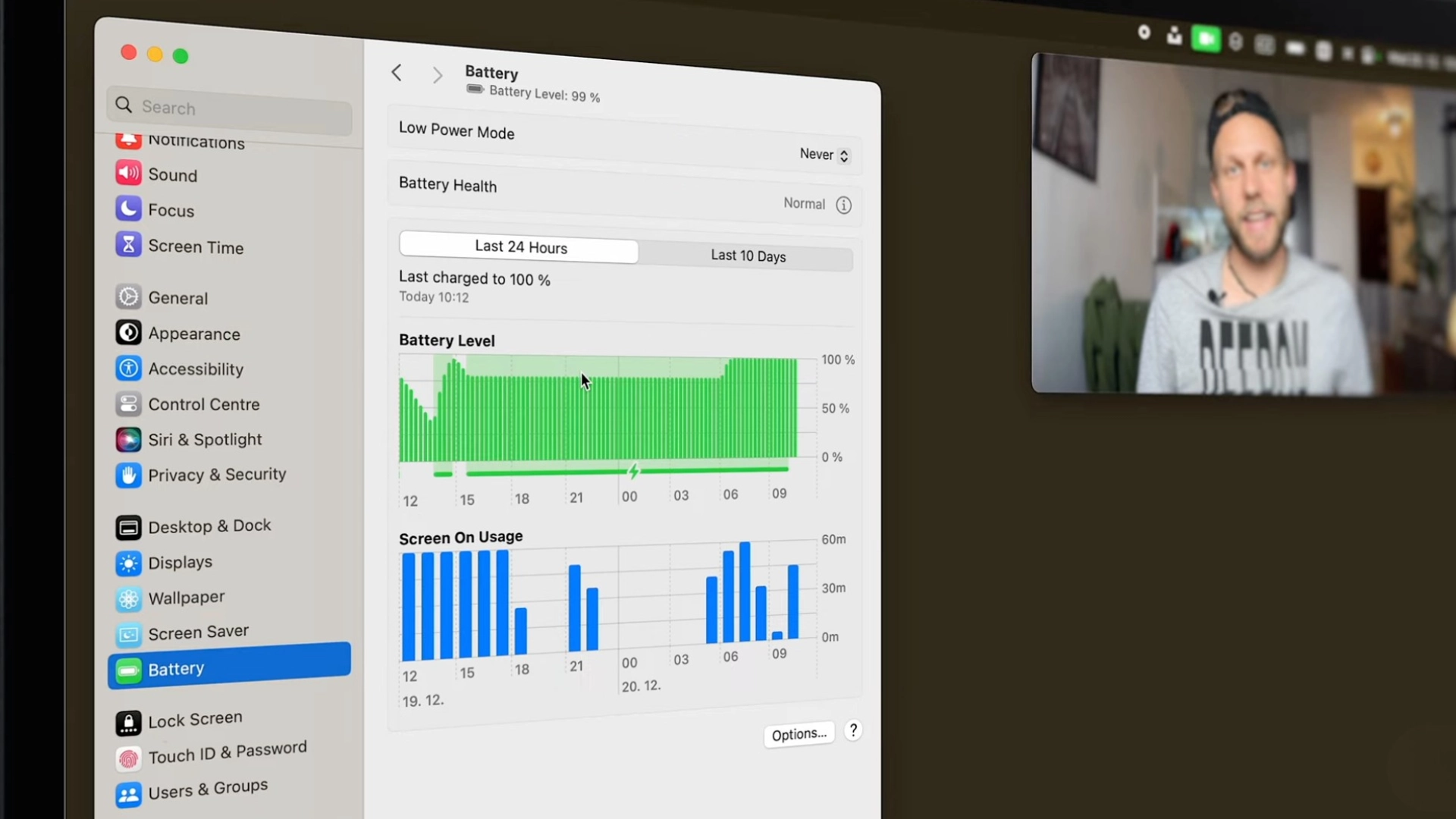
Battery settings control how macOS manages power usage. These options determine when the system sleeps and how it behaves while connected to a power adapter.
This method is quick and works well when the Mac is plugged in and performing tasks like downloads or updates.
- Open System Settings.
- Click Battery in the left panel.
- Click Options.
- Set Wake for network access to Always.
- Turn on Prevent automatic sleeping on the power adapter when the display is off.
After adjusting these settings, the Mac stays awake while connected to power. Sleep may still occur when running on battery unless additional changes are made.
Step 2: Adjust Lock Screen Sleep Settings
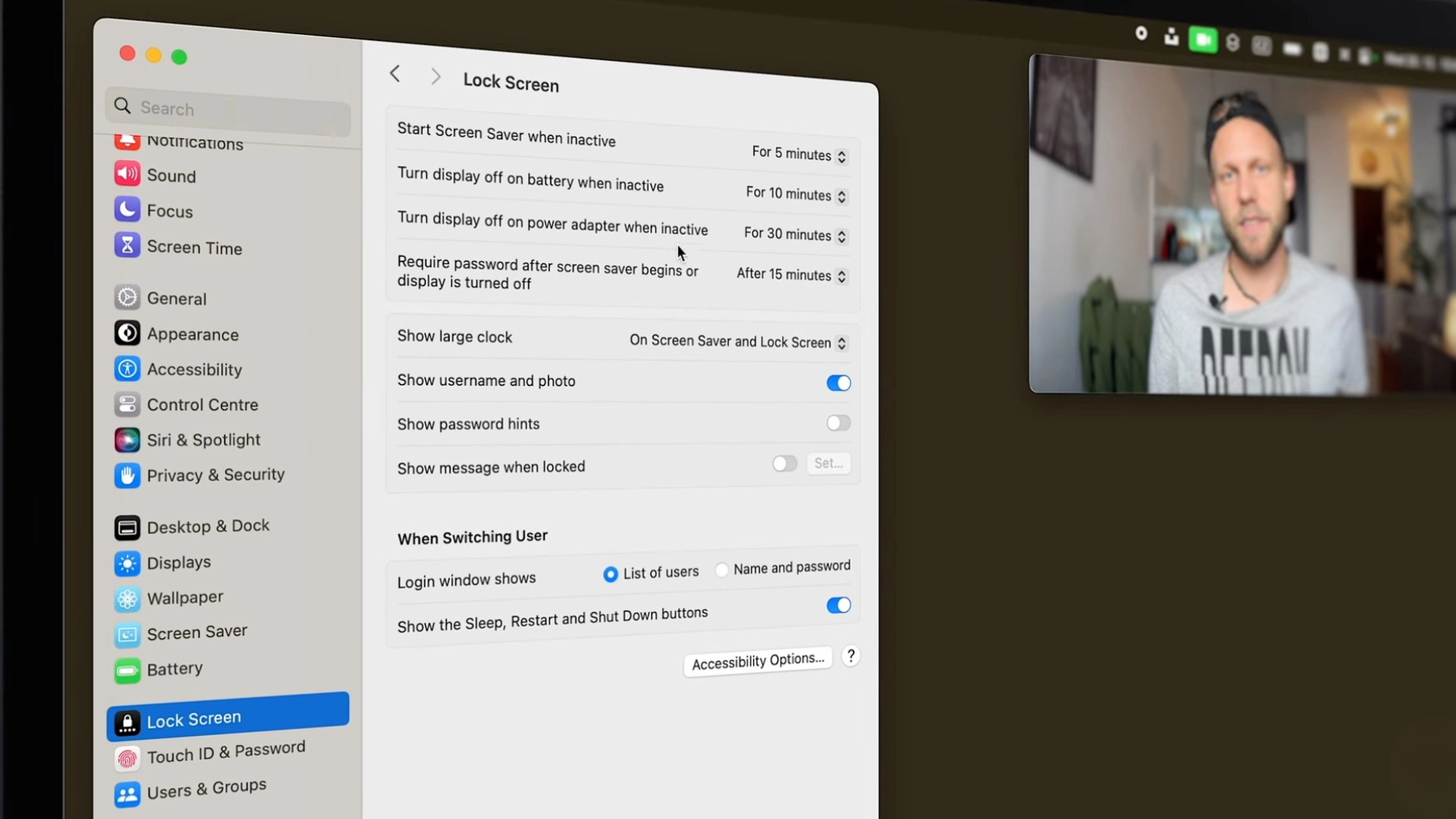
Lock Screen settings control display timeout and screen saver behavior. These options determine when the display turns off and when sleep begins due to inactivity.
This method is helpful during long presentations or extended work sessions where interruptions are not acceptable.
- Open System Settings
- Click Lock Screen
- Locate the Turn display off on the power adapter and select Never
- Locate Turn display off on battery and select Never
- Locate the Start screen saver when inactive and select Never
With these options set to Never, automatic sleep will not occur. Battery drain may increase when running without a power adapter, so use this method carefully.
Step 3: Use Terminal Command
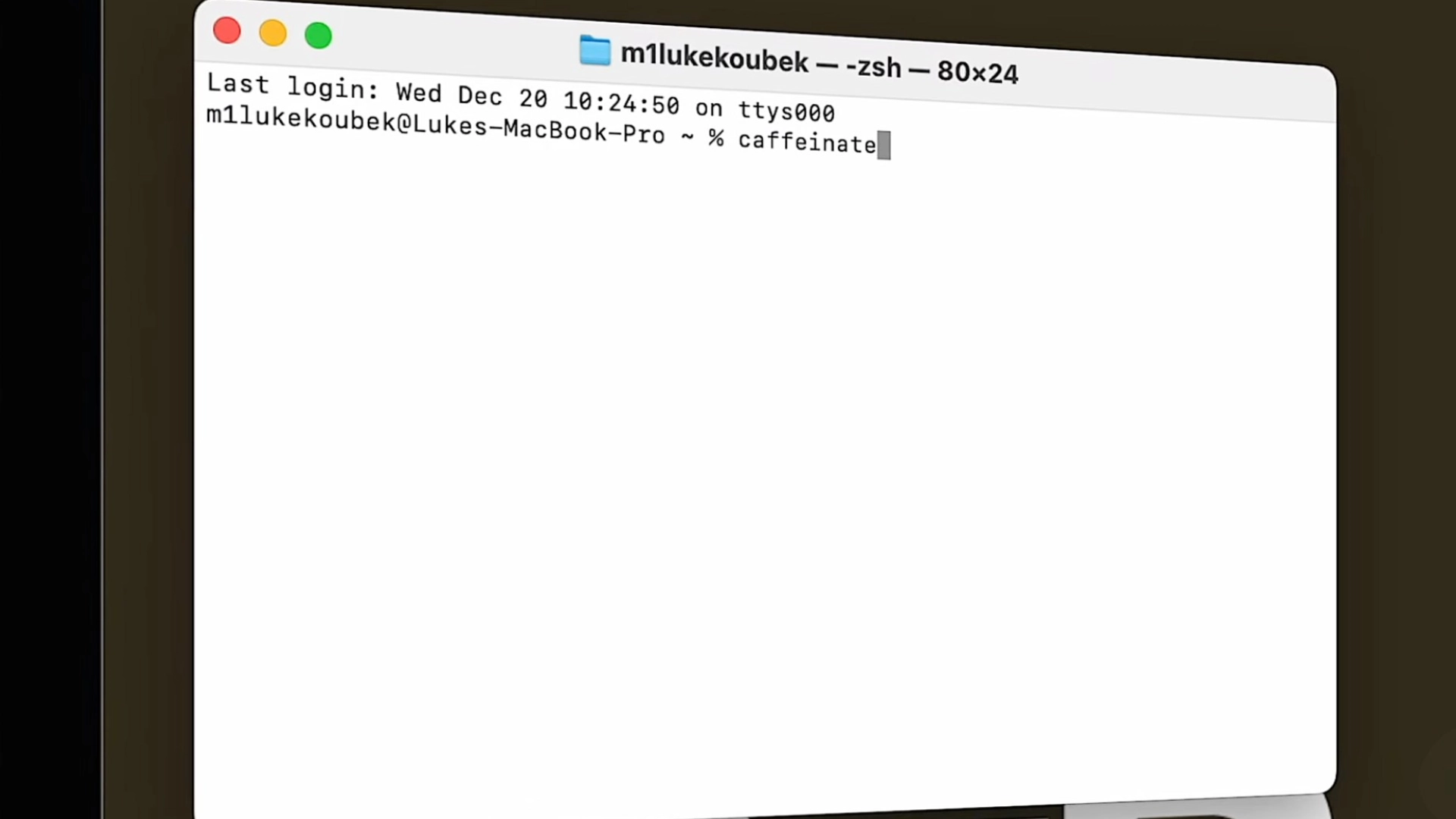
Terminal provides a powerful way to temporarily prevent sleep without changing permanent system settings.
The caffeinate command keeps the Mac awake as long as the process runs. Once the command stops, normal sleep behavior returns automatically.
- Open Spotlight Search
- Type Terminal and press Enter
- In Terminal, type caffeinate
- Press Return
The Mac will remain awake while the command runs, and to stop it, close Terminal or press Control-C together. This method offers flexible control without changing system preferences.
For a visual guide, check out the detailed video by One Byte Academy.
Common Caffeinate Commands and Options
The caffeinate command offers multiple flags to control different types of sleep behavior. Each command can be used based on specific needs, such as long downloads or time-limited sessions.
| Command | Function |
|---|---|
| caffeinate | Prevents the system from sleeping until the command is manually stopped. |
| caffeinate -d | Prevents the display from turning off. |
| caffeinate -i | Prevents idle system sleep. |
| caffeinate -m | Prevents disk sleep. |
| caffeinate -s | Prevents the system from sleeping while connected to a power adapter. |
| caffeinate -t 3600 | Keeps the Mac awake for a specific time in seconds, such as 1 hour. |
| caffeinate -u -t 600 | Prevents display sleep for a limited time, such as 10 minutes. |
Third-Party Tools to Make Your Mac Stay Awake
Built-in macOS settings allow users who need quick toggles, scheduled wake sessions, or advanced control without changing system settings every time.
- Amphetamine: A free menu bar app that keeps Mac awake with one click and supports timed sessions, triggers, and custom rules.
- KeepingYouAwake: An open source utility that offers quick activation and session timers for temporary sleep prevention.
- One Switch: A paid tool that includes a sleep prevention toggle along with other system controls in one dashboard.
- Lungo: A simple app designed to keep the Mac awake for a selected duration without changing system preferences.
- InsomniaZ: Allows MacBook to remain awake even when the lid is closed, useful for specific hardware setups.
Real Users’ Experience on How to Make Macbook Not Sleep
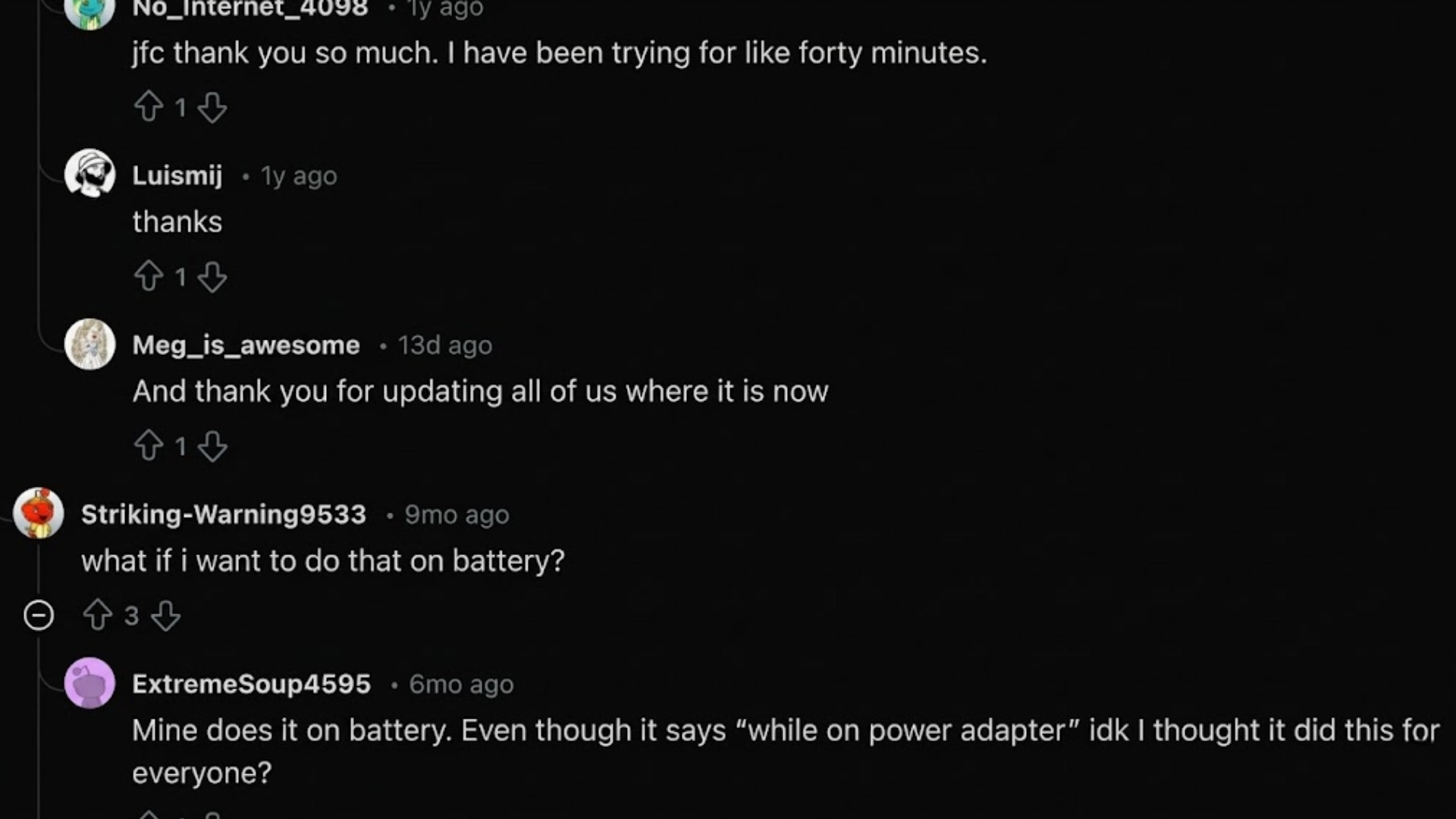
Reddit users consistently mention that macOS keeps moving the sleep settings around, which causes confusion during long downloads.
Earlier versions placed the option under Display and Advanced, but newer updates shifted it to System Settings under Battery, Lock Screen, or Options, depending on the version.
Many users confirm that enabling “prevent automatic sleep on power adapter” works well when the Mac is plugged in.
Others suggest adjusting the screen timeout in Lock Screen settings and disabling “put hard disks to sleep” for uninterrupted transfers.
For those who prefer a quicker fix, several Redditors recommend using the Terminal command caffeinate or caffeinate -d to keep the Mac awake instantly.
A few also mention third-party apps like Amphetamine for automatic control. Overall, community feedback shows multiple reliable ways to prevent sleep mode during extended downloads.
Apple Official Settings You Should Know
Understanding official macOS sleep controls helps prevent unnecessary frustration when adjusting power behavior.
According to the Apple Support, the first step is identifying the macOS version in use, since the interface changed significantly from Monterey to Ventura and Sonoma.
In Monterey, sleep settings are found under System Preferences in Battery or Energy Saver.
In Ventura and Sonoma, these options moved to System Settings under Lock Screen and Battery, which can confuse users following older guides.
Focus Mode or Do Not Disturb may interact with display and notification behavior, creating the impression that sleep settings are not working correctly.
macOS already supports Clamshell Mode, which allows a MacBook to stay awake with the lid closed when connected to an external display, keyboard, mouse, and power adapter.
Reviewing these official controls ensures accurate sleep configuration without relying on third-party tools.
Best Practices to Make Macbook Not Sleep
Keeping a MacBook awake can be useful during long downloads, presentations, remote sessions, or extended tasks. However, constant wake mode can affect battery life and system performance.
- Adjust Sleep Timing Properly: Set display sleep to Never only when necessary and customize system sleep timing under Battery settings for better control.
- Use Power Adapter for Long Sessions: Keep MacBook connected to a power source to prevent battery drain during extended periods of use.
- Check Hot Corners Configuration: Ensure Hot Corners are not set to trigger display sleep or screen saver actions that may override manual wake settings.
- Review Network Wake Settings: Turn off Wake for network access if constant background activity is preventing proper sleep behavior.
- Maintain Security Settings: Keep screen lock and password requirements active to protect data even when sleep is minimized.
Conclusion
Managing sleep settings is essential for uninterrupted performance and better workflow control.
Learning how to stop Mac from sleeping can be done through built-in System Settings, where display and system sleep timing can be adjusted based on power preferences.
For temporary control, the Terminal caffeinate command offers a quick solution without making permanent changes.
Those looking for faster access and advanced options can rely on third-party apps.
Each method serves a different purpose when the goal is short-term activity, overnight tasks, or preventing interruptions during presentations.
Choosing the right approach depends on usage needs and power considerations. Test the available options and fine-tune the setup for specific tasks.
Which method worked best for keeping a Mac awake? Share your experience in the comments below.