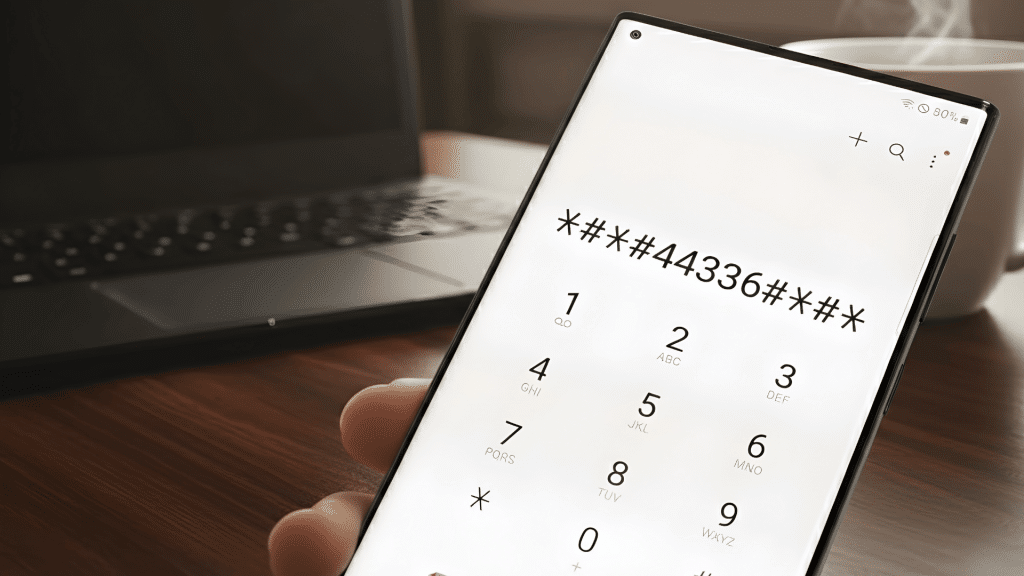
When I couldn’t unlock my Android phone because I forgot the password or the biometrics stopped working, I realized how stressful it can feel to be locked out.
That’s when I learned there’s a simple way to reset the phone even when the lock screen won’t let me in.
The steps may look technical at first, but once I followed them, the process became much easier than I expected.
This guide covers the easiest method to reset an Android phone using recovery mode, button shortcuts, and factory reset options.
My goal is to help anyone who is stuck on the lock screen get their device working again quickly and with less confusion. This method works on most Android phones and takes only a few steps.
Things to Know Before You Reset
Before resetting a locked Android phone, it is crucial to understand what the process will do and what information may be lost.
A factory reset removes the lock screen password, pattern, PIN, and all stored data, including photos, apps, messages, and downloads.
If the phone was previously backed up to Google Drive or another cloud service, the data can be restored later, but anything not backed up will be permanently erased.
Another key point is Google’s Factory Reset Protection (FRP).
After the reset, the phone may require the original Google account email and password linked to the device to complete the setup. This security step prevents unauthorized access.
Users should also ensure the device has enough battery power before starting, as interruptions during a reset can cause system issues.
How to Back Up Data Before a Reset
Backing up data before performing a reset is essential because a factory reset erases everything stored on the device.
The easiest and most reliable method is using Google’s built-in backup tools.
Users can open the Settings app, go to Google Backup, and enable options for app data, photos, contacts, messages, and device settings.
Google Photos can also be used to save pictures and videos automatically to the cloud.
For those who prefer physical storage, connecting the phone to a computer allows files such as images, documents, and downloads to be transferred manually.
Some brands include additional backup features through companion apps or cloud accounts.
Ensuring a complete backup helps prevent permanent data loss and makes the restoration process much smoother after the reset is finished.
Step-by-Step Reset for Any Android
Resetting a locked Android phone follows a simple sequence of steps. These actions help enter recovery mode, wipe the device, and restart it so the phone becomes usable again.
Step 1: Power Off the Phone

To begin the reset process on a locked Android phone, hold down the Power button and the Volume Down button at the same time.
This combination may take a screenshot at first, which is normal, but users should continue holding the buttons until the screen goes completely black and the device powers off.
This step is necessary because most Android reset options are found only in recovery mode, which cannot be accessed while the phone is on.
Waiting for the device to shut down entirely ensures the following button combination will trigger the recovery menu correctly.
Step 2: Enter Recovery Mode Using Button Combination

Once the device powers off, users should switch to a different button combination to enter recovery mode.
On most Android phones, this involves pressing and holding the Volume Up button and the Power button simultaneously.
The phone’s brand logo will appear on the screen; users should continue holding the buttons until the logo disappears.
This signals the system to load the recovery mode interface. Recovery mode allows access to system-level reset options that do not require the locked password.
Step 3: Navigate Recovery Mode Menu
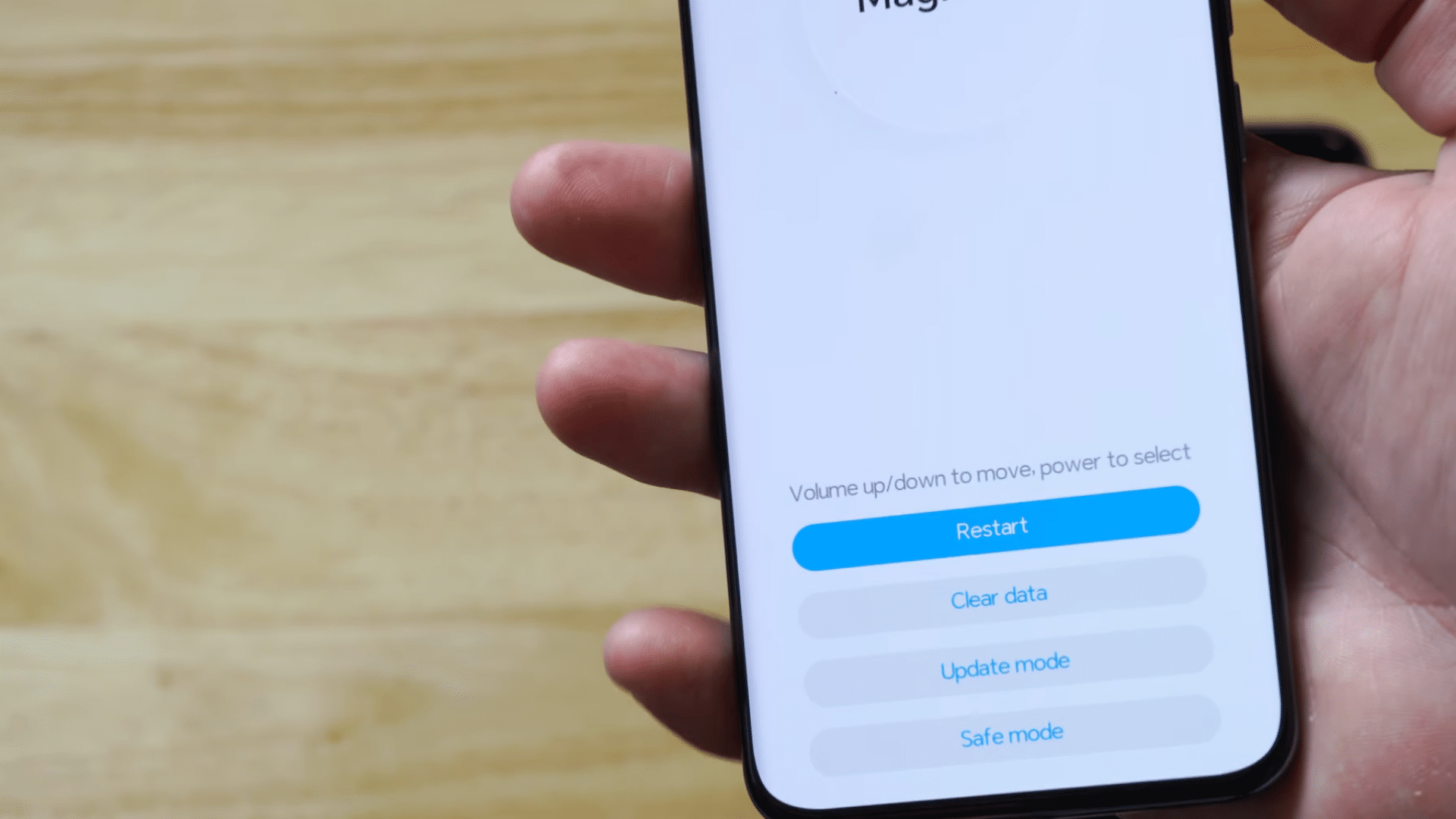
Inside recovery mode, the Volume Up and Volume Down buttons navigate through the menu, while the Power button functions as the selection key.
Recovery mode interfaces vary slightly between brands and Android versions, but the navigation controls remain the same.
On Honor or MagicOS devices, the interface includes a “Clear Data” section, while Samsung models show “Wipe data/factory reset.”
Users must be cautious with selections, as these options will remove information permanently.
Step 4: Select Clear Data / Factory Reset
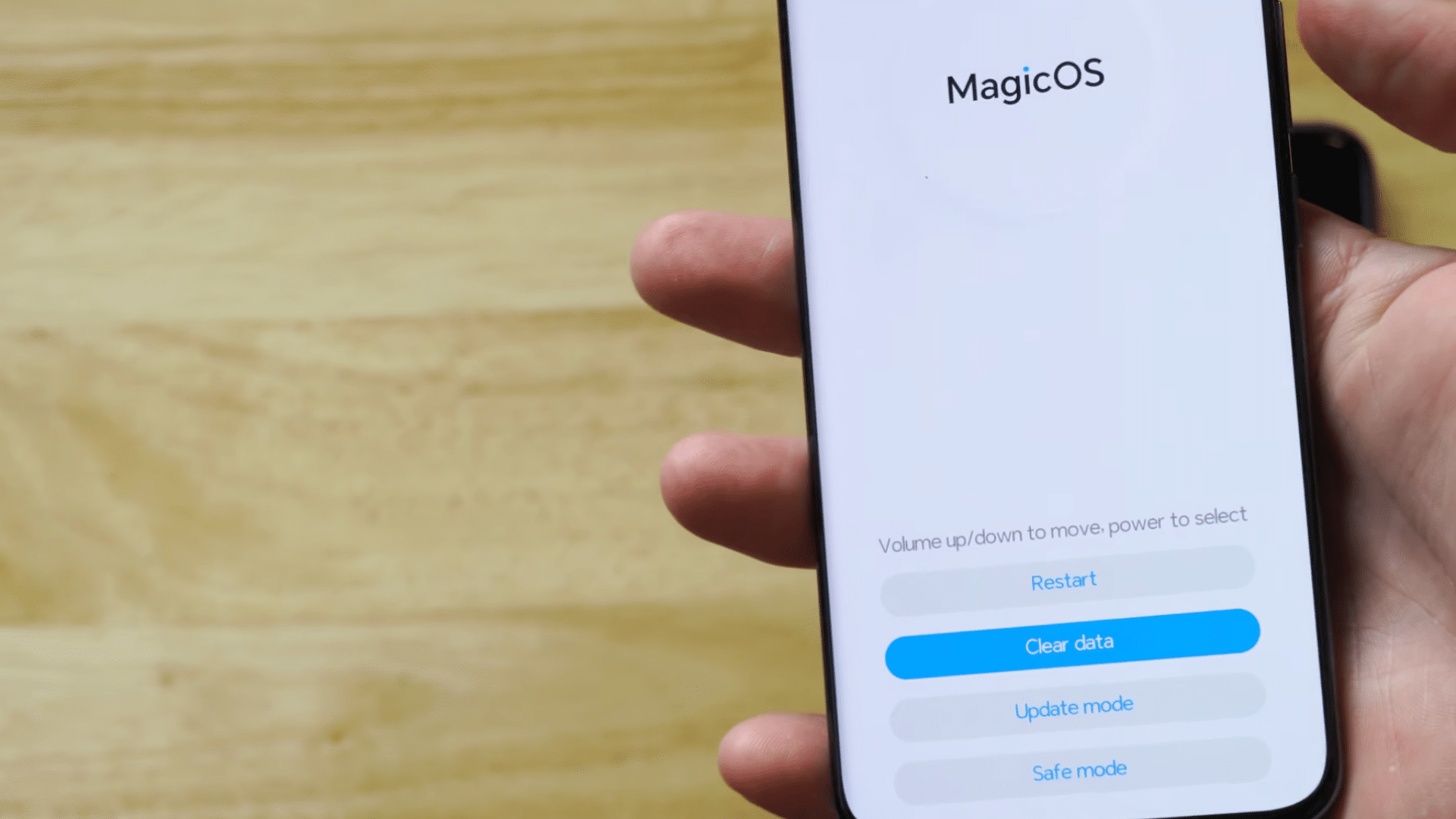
When “Clear Data” or “Wipe data/factory reset” appears highlighted, pressing the Power button begins the reset process.
This step permanently removes the phone’s lock screen password, pin, pattern, and biometric data. It also erases all stored photos, apps, and files unless they have been backed up.
Some Android versions allow limited photo transfer without unlocking, while others require authentication to access internal storage.
Because this step wipes everything, users are encouraged to check backups beforehand if possible. The reset process may take several minutes, depending on the device.
Step 5: Restart the Phone After Reset
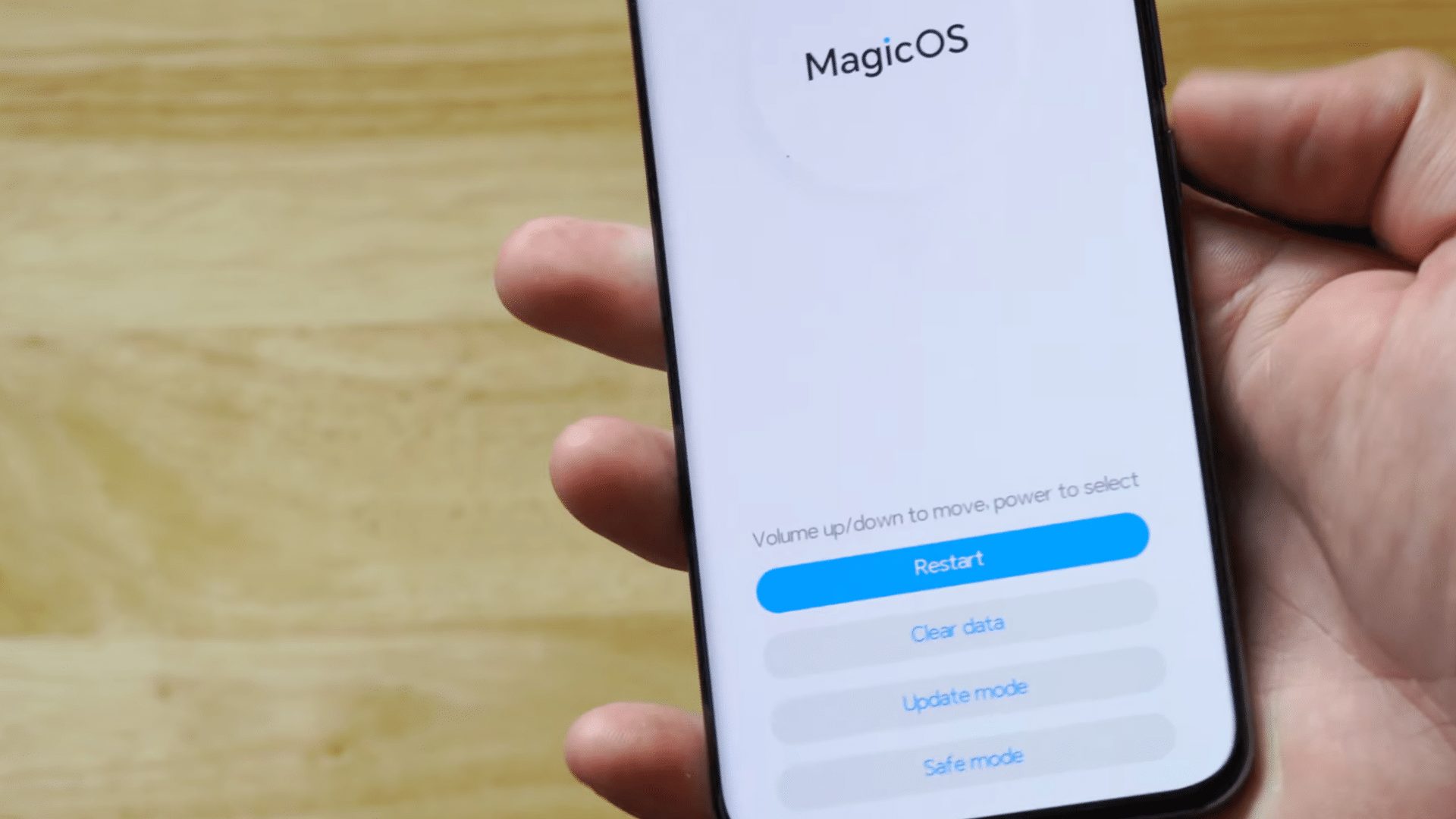
After completing the factory reset, users should navigate to the Restart or Reboot system now option in recovery mode and press the Power button to confirm.
This action restarts the phone with its default settings restored. The reboot may take longer than usual because the system is rebuilding its initial configuration.
Once powered on, the device behaves like new: no password, pin, or biometric lock remains.
Users can then set up the device again from the beginning, including Wi-Fi, Google account, and security preferences.
This tutorial is based on a helpful video by YourSixTech. A big thanks to the creator for providing such a clear and detailed walkthrough. You can check out the original video on their YouTube channel here or watch it below.
What Happens After the Reset?
After the reset is complete, the Android phone will restart and return to its original factory state.
All previous data, apps, and lock screen settings are removed, allowing the device to load as if it were new.
During the initial setup, the phone may ask for the Google account information previously linked to the device; this is part of Google’s Factory Reset Protection and helps confirm ownership.
Once the account is verified, the user can reconnect to Wi-Fi, restore backups if available, and reinstall essential apps.
New security settings, such as a password, PIN, or fingerprint, can also be created. The phone should now run smoothly, free from the issues that made it inaccessible before.
Alternative Ways to Unlock Without Resetting
There are several alternatives to unlock an Android phone without performing a factory reset, and these methods can help preserve data.
One option is using Google’s Find My Device, which allows users to unlock some older devices remotely or change specific security settings if enabled beforehand.
Some phones also support Smart Lock, which unlocks the device automatically when connected to trusted locations, devices, or Bluetooth accessories.
If the phone belongs to a brand like Samsung, Samsung’s Find My Mobile can sometimes remove the lock screen without deleting data.
Another option is checking if fingerprint or face unlock still works, even when the password is forgotten.
For users who recently changed their PIN or password, waiting a few hours can sometimes restore access. These alternatives may offer solutions without wiping the device completely.
Troubleshooting Reset Problems
Issues like the phone not entering recovery mode, buttons not responding, or the update freezing can make the reset feel harder than it should be.
- Restart the phone and try the button combination again.
- Charge the device to at least 50 percent before resetting.
- Switch to a different USB cable or charger if the phone won’t power up correctly.
- Use Safe Mode if the recovery menu won’t load.
- Check for Google FRP requirements after the reset.
These steps make the reset smoother and easier to complete.
Conclusion
After learning the full process, I finally understand how to reset an Android Phone when locked without feeling stressed by each required step.
At first, the button combinations and recovery menus looked confusing, but taking time to read them carefully made everything easier to manage.
I also realized the importance of regular backups, especially because a full reset deletes personal files, apps, and settings.
Now, if my phone freezes or I forget my password, I know I can restore it with clarity and confidence. With the right steps and patience, the device returns to normal quickly.
If you want more guides written in simple language, stay connected and share a comment below so I can help you with your next phone issue right away, as needed.