Running out of screen space right when work starts picking up can feel frustrating fast.
One tab for research, another for email, a document open, and suddenly everything feels cramped on a single laptop display.
Many users search for how to hook up two monitors to a laptop after realizing that the built-in screen simply is not enough for serious multitasking.
Extra screen space can make studying smoother, editing cleaner, and gaming or streaming more organized.
The good news is that setting up dual monitors is often easier than expected with the right cables and settings. This blog explains the hardware requirements, software configuration steps, and common problems users face.
It also includes practical tips often shared in online discussions to help create a stable, efficient dual-monitor setup.
Why Do You Need to Set up Dual Monitors with a Laptop?
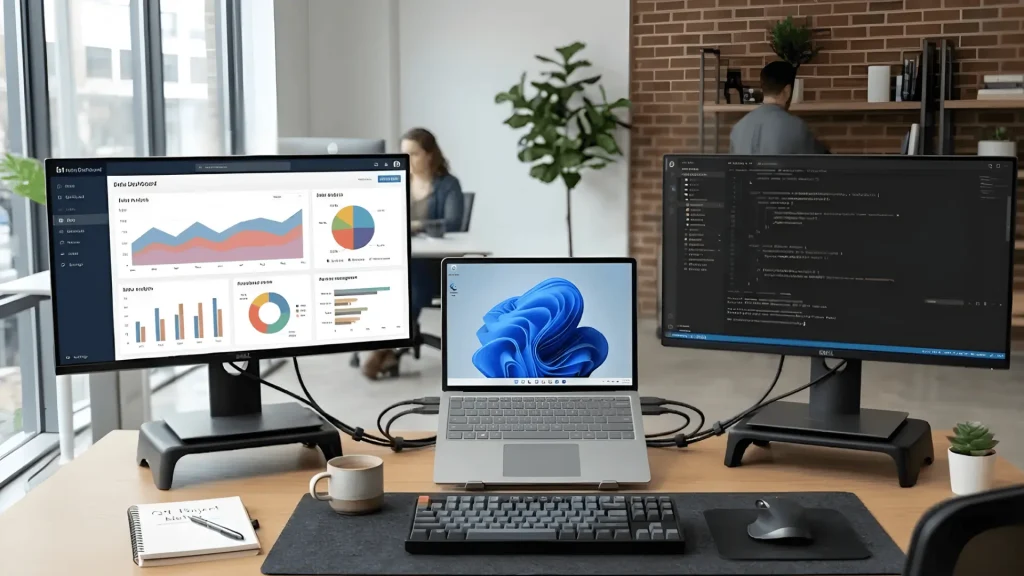
Working on a single laptop screen can feel limiting as tasks pile up. Two external monitors create breathing room for serious multitasking.
One display can handle active work while the other keeps research, email, or reference material visible. This reduces constant tab switching and helps maintain focus.
Remote professionals can attend meetings on one screen while managing documents on another. Developers, traders, and designers benefit from viewing tools and outputs side by side.
After experiencing the efficiency of extra screen space, many users look into connecting two monitors to improve workflow and simplify demanding daily tasks.
Can Your Laptop Support Two External Monitors?
Before purchasing cables or adapters, confirm that the laptop can handle two external displays or not.
Some systems support only one additional monitor, depending on the graphics, processor, and available ports.
Check the manufacturer’s specifications for the maximum number of supported displays and resolution limits. USB-C ports must support DisplayPort Alt Mode to transmit video.
Thunderbolt ports typically support multiple monitors, while older HDMI versions may have resolution restrictions.
Verifying these details prevents compatibility issues and ensures a stable dual monitor setup.
What You Need to Connect Two Monitors?

Before setting everything up, gather the right equipment to avoid connection issues.
You will need two compatible external monitors that support the video output available on your laptop.
Check the input ports on each monitor to ensure they match your laptop’s outputs or the adapters you plan to use.
Next, use matching cables for each port, such as HDMI to HDMI or USB-C to DisplayPort. Using the correct cable type helps maintain a stable signal and proper resolution.
If your laptop has only one video output, a USB-C hub or docking station may be required. This is common with slim laptops that limit built-in ports.
When port types do not match, display adapters become necessary.
Direct connections are enough if your laptop already supports two video outputs. A dock is needed when port availability is limited.
How to Hook Up Two Monitors to a Laptop?
After confirming compatibility and gathering the correct cables or adapters, follow these structured steps to connect both monitors properly and avoid common setup issues.
- Step 1: Shut down the laptop before connecting any cables. This helps prevent display-detection errors and allows the system to recognize both monitors at startup.
- Step 2: Connect the first monitor using a compatible video cable that matches the laptop’s output port, such as HDMI, USB-C, DisplayPort, or Thunderbolt. Ensure the cable is firmly secured on both ends.
- Step 3: Connect the second monitor to the remaining video port. If the laptop has limited ports, attach the second display through a compatible USB-C hub or docking station.
- Step 4: Turn on both external monitors and open the monitor menu to select the correct input source that matches the connected cable type.
- Step 5: Power on the laptop and wait until the operating system fully loads so it can automatically detect the connected displays.
- Step 6: Open display settings and confirm both monitors are detected. Select Extend instead of Duplicate, then drag the monitor layout to match their physical position for smooth cursor movement.
Now that the monitors are physically connected, the next step is to configure the displays properly based on your laptop’s operating system.
How to Connect Two Monitors on Windows?
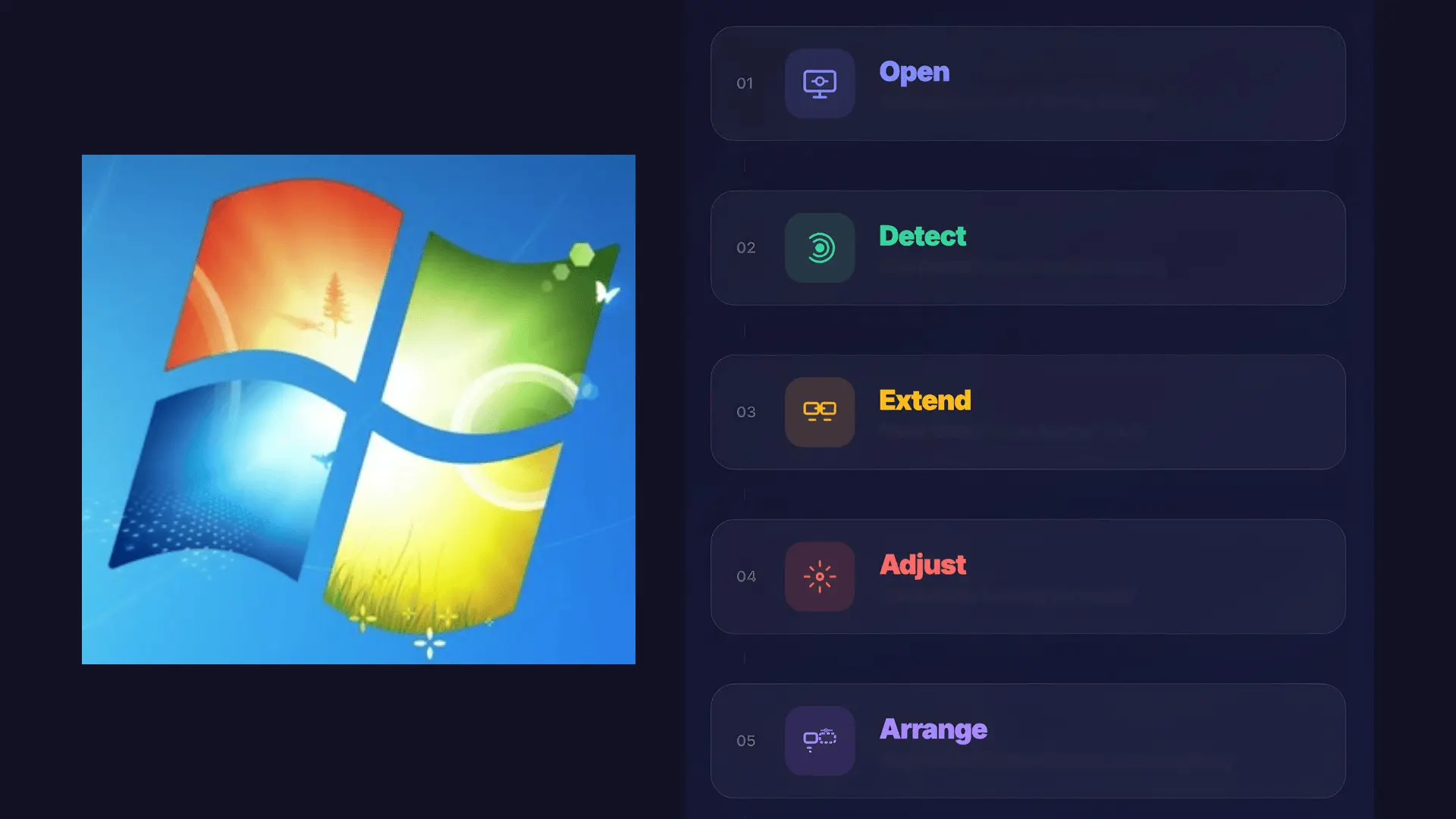
After physically connecting both displays, Windows must be configured correctly so each monitor works as part of an extended workspace rather than mirroring the same screen.
- Open Display Settings: Right-click the desktop and select Display Settings to see the numbered monitor layout.
- Detect the Second Monitor: If a screen is missing, click Detect and ensure both monitors are powered on with the correct input source.
- Enable Extended Mode: Under Multiple Displays, select Extend these displays so each screen works independently.
- Adjust Resolution and Scaling: Set the recommended resolution for each monitor and adjust scaling if text or icons appear too small or large.
- Set Main Display and Arrange Screens: Choose Make this my main display for the primary screen and drag monitor icons to match desk placement.
If problems continue, check cables, update drivers, verify refresh rate, or restart the laptop. Once these settings are configured correctly, both monitors will function smoothly.
How to Connect Two Monitors on a Mac
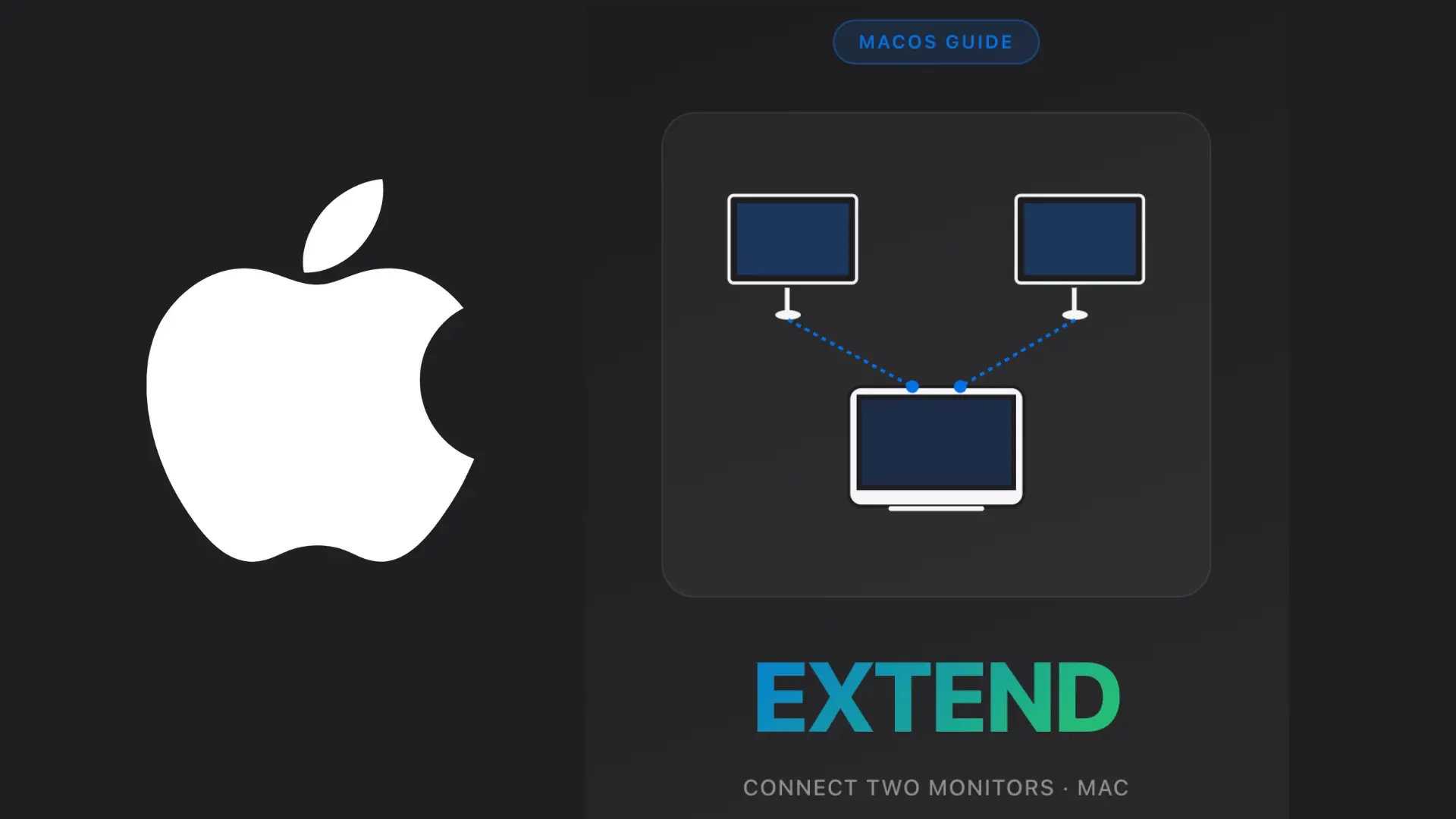
macOS includes built-in display controls that make managing multiple screens simple once both monitors are connected.
- Open: Go to the Apple menu, select System Settings, then click Displays to view all connected monitors.
- Confirm: Check that both monitors appear in the display panel. If one is missing, reconnect the cable or adapter.
- Arrange: Drag the monitor layout to match the physical position of the screens on your desk so the cursor moves smoothly between them.
- Disable: Turn off mirroring if it is enabled so each monitor works as part of an extended desktop.
- Set: Drag the menu bar to the monitor you want as the primary display for apps and the dock.
Apple Silicon Macs have display limits based on the chip. Base M1 and M2 MacBook Air and MacBook Pro models support only one external monitor.
Models with M3 Pro, M3 Max, M4 Pro, and M4 Max chips can support two or more external monitors, depending on the configuration.
Always check the specifications of your Mac model before setting up multiple displays.
When Do You Need a Docking Station or Hub?
Some laptops have only one HDMI port, which limits the ability to connect directly to a single external monitor.
Slim models often reduce the number of built-in ports to keep the design compact, making it difficult to connect two displays without additional hardware.
In these cases, a USB-C or Thunderbolt dock can expand display options. These devices connect to one port on the laptop and provide multiple video outputs, such as HDMI or DisplayPort.
Many docks support dual monitor setups and allow both screens to run in extended mode.
Another benefit is power delivery. A compatible dock can charge the laptop while handling video, data, and peripherals through one cable, reducing desk clutter.
Community feedback often suggests choosing docks from reliable brands, checking supported resolution limits, and confirming compatibility with your specific laptop model before purchasing.
Reddit Tips for Connecting Two Monitors to a Laptop

A Reddit discussion about connecting two monitors to a Lenovo Legion 5 laptop with only one HDMI port revealed several practical solutions.
Many users recommended using a USB-C or Thunderbolt docking station if the laptop supports video output through USB-C.
This allows multiple monitors to be connected through a single connection. Another common suggestion was a DisplayLink USB adapter, which adds an extra display output through a USB port.
Some users also mentioned USB-C-to-dual-HDMI adapters as a simpler alternative to a full dock.
Community advice emphasized checking laptop specifications, monitor inputs, and resolution support before buying adapters.
Most agreed that confirming port capabilities first prevents compatibility issues.
Common Problems When Connecting Two Monitors
Dual-monitor setups are usually simple to configure, but a few technical issues can arise during setup. Understanding these common problems helps resolve connection or display errors quickly.
- Detection Issues: If the second monitor is not detected, open display settings and click Detect. Also, check that cables are firmly connected and the correct input source is selected on the monitor.
- No Signal Error: This often happens when the wrong cable type is used, or the monitor input does not match the connected port. Switch the monitor inputs and restart the laptop.
- Incorrect Resolution: Set each monitor to its recommended resolution inside display settings to avoid blurry text or stretched images.
- Flickering or Lag: Replace low-quality cables, update display drivers, and confirm refresh rate settings are supported by both monitors.
- Audio Output Problems: Open Sound settings and manually select the correct output device if audio is playing through the wrong screen.
Most of these problems can be resolved by adjusting settings before considering new hardware.
Conclusion
Setting up dual screens does not have to feel complicated.
The key steps are simple: check your laptop ports first, choose the correct cables or adapters, connect both monitors securely, and configure display settings properly.
Most issues people face come down to incorrect port assumptions or small setting adjustments that are easy to fix.
Once the hardware matches your laptop’s capabilities and the display mode is set to extend, everything starts working as expected.
Learning how to hook up two monitors to a laptop becomes much easier when you approach it step by step and stay patient during setup.
A well-configured dual monitor workspace can completely change how you work or study.
Have a specific laptop model or setup question? Drop it in the comments and share your experience.