
Ever had a program freeze right when you need it most? I run into this issue on Windows often, especially during heavy work sessions.
In this guide, I explain how to force quit on Windows and how to force close an app on Windows using simple, proven methods.
I discuss everyday situations where apps stop responding and what actually works to close them safely.
You’ll see when to use keyboard shortcuts, system tools, or built-in options without risking your files. I also point out what to avoid so problems do not repeat.
If your screen locks up or a task refuses to close, this intro sets the stage.
Read on, follow along, and decide which approach fits your situation best before you try fixes that waste time or cause stress.
What Do You Mean by Force Quit on Windows?
Force quit refers to closing a program that is frozen, not responding, or causing a system slowdown when standard closing methods fail.
Instead of waiting for the app to recover, the operating system immediately stops the process. This helps regain control of the computer and prevents further performance issues.
Force quitting is often used when software crashes, displays error messages, or refuses to close. Windows provides built-in tools like Task Manager to end these tasks safely.
Knowing how to force quit on Windows helps troubleshoot everyday computer problems. While effective, force quitting should be used carefully, since unsaved work may be lost.
It is a practical solution for managing unresponsive apps and keeping the system running smoothly without restarting the entire computer during unexpected technical situations safely.
How to Force Quit on Windows Using Keyboard Shortcuts?
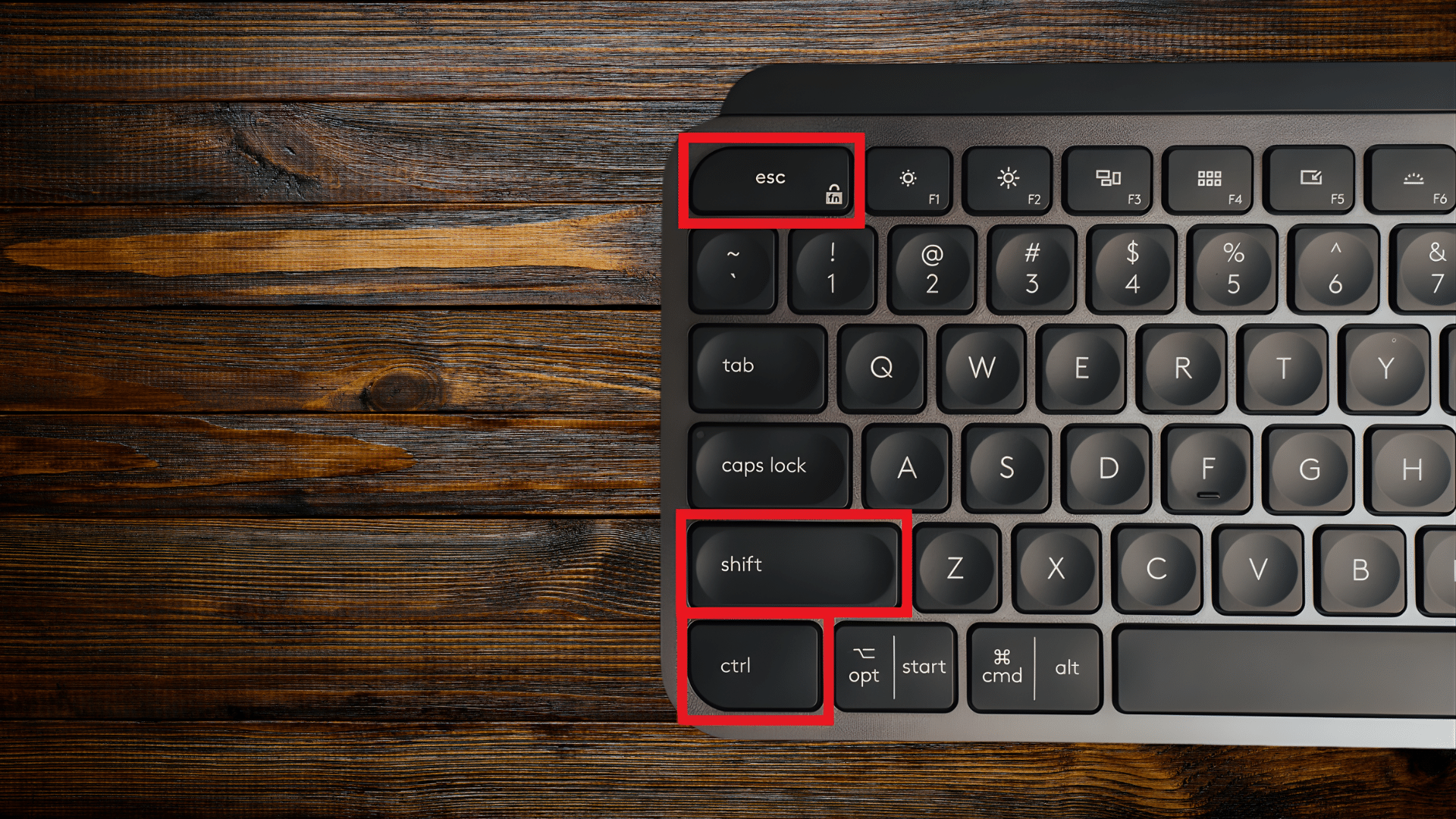
Force quitting on Windows using keyboard shortcuts is a fast way to close frozen or unresponsive programs.
The most common shortcut is Ctrl + Shift + Esc, which opens Task Manager directly. From there, the unresponsive app can be selected and ended with a few keystrokes.
Another option is Ctrl + Alt + Delete, then choosing Task Manager from the menu.
Once Task Manager opens, the arrow keys help navigate to the problem program, and the Delete key or Enter can close it.
These shortcuts are helpful when a mouse is not working or the screen is lagging.
Learning how to force quit on Windows using keyboard shortcuts saves time and helps restore system control quickly.
This method avoids complete system restarts and allows everyday tasks to resume with minimal disruption.
How to Force Quit on Windows Using Task Manager?
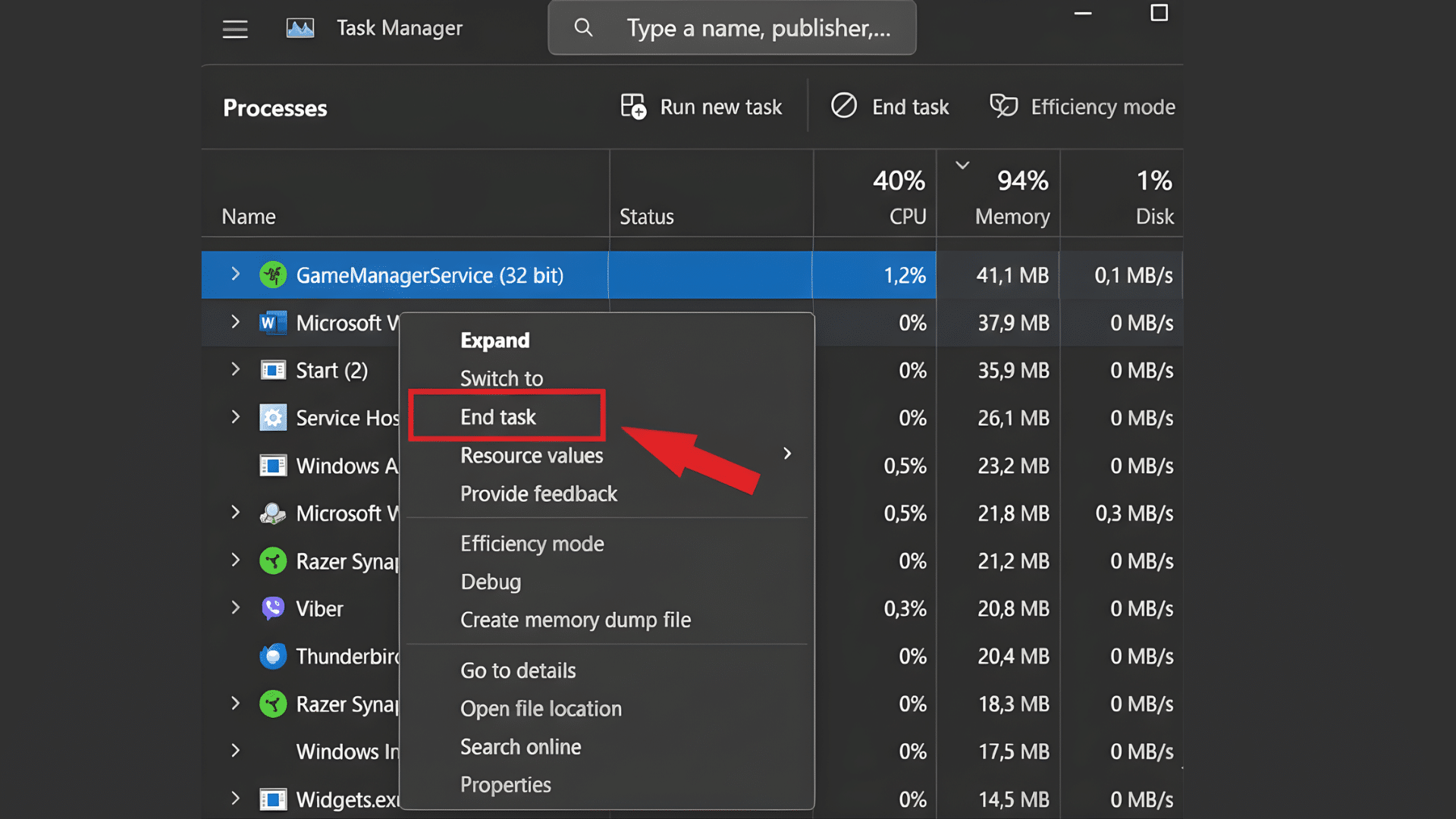
Force-closing an app on Windows using Task Manager is a reliable way to stop programs that freeze or stop responding.
Task Manager can be opened by pressing Ctrl + Shift + Esc or by right-clicking the taskbar and selecting it.
Once open, the Processes tab displays all running apps and background tasks. The unresponsive app should be clicked to highlight it, then the End Task button should be selected.
This action immediately stops the program and frees system resources. Although effective, this method may close the app without saving progress.
Using Task Manager allows better control over system performance without restarting the computer or interrupting other active programs during everyday troubleshooting situations at work computers.
Using Windows PowerShell to Force Close Applications

Using Windows PowerShell to force close applications is a helpful option when traditional methods fail.
PowerShell allows direct control over running processes through simple command-line instructions.
By opening PowerShell with administrative access, active programs can be viewed using commands that list current processes.
Once the correct process name or ID is identified, a single command can immediately stop the application.
This approach is constructive when apps are hidden, frozen, or not visible in Task Manager.
Learning how to force-close an app on Windows using PowerShell improves troubleshooting skills and saves time during system slowdowns.
PowerShell provides a powerful alternative for advanced users who need precise control over system tasks.
Third-Party Tools for Force Quitting Apps

External utilities provide faster shortcuts, deeper visibility, and reliable controls for ending stuck programs when standard Windows options fall short.
1. SuperF4: The Ultimate Force Quit Utility
Designed for instant action, this lightweight utility adds a global keyboard shortcut that immediately terminates the active window.
It bypasses menus, dialogs, and system panels, which helps during freezes, display lockups, or mouse failures.
The tool runs quietly in the background, consuming minimal resources and requiring no complex setup.
A safety prompt can be enabled to reduce accidental closures, while an optional tray icon offers quick access to settings.
Because it targets the foreground application only, the collateral impact on other processes is limited. This approach suits emergencies where speed matters more than diagnostics.
2. Process Explorer: Advanced Task Management
Built for deep inspection, this Microsoft-provided utility exposes detailed process trees, handles, threads, and real-time resource usage.
It helps identify hidden children, locked files, and suspicious behavior that prevents normal closure.
Powerful search and filtering tools pinpoint the exact component causing hangs, enabling precise termination rather than broad shutdowns.
Visual graphs clarify CPU, memory, and I/O pressure, supporting informed decisions during slowdowns. Context menus allow safe ends, suspensions, or priority changes with administrator awareness.
What to Do When Force Quit Methods Fail?
When force quit methods fail, deeper system steps may be needed to regain control.
Restarting Windows Explorer can resolve freezes caused by desktop or taskbar issues without shutting down the system.
Logging out and signing back in may clear locked user processes that resist closure. In severe cases, a complete system restart becomes the safest option to stop all running tasks.
Checking for pending Windows updates can also help, since outdated system files may cause repeated app freezes.
Learning how to force quit on Windows is useful, but consistent failures often point to larger software or hardware problems.
Running a malware scan, updating drivers, or reinstalling the affected application can prevent future issues.
Preventing Applications from Freezing in the Future
The process starts with good system maintenance and smart usage habits. Keeping Windows updated ensures bug fixes and performance improvements are applied regularly.
Updating drivers, especially for graphics and storage, helps apps run smoothly. Limiting startup programs reduces memory strain and prevents background conflicts.
Regularly clearing temporary files and monitoring disk space also improves stability.
Reliable antivirus software protects against malware that can cause crashes and slowdowns. Closing unused apps frees resources and lowers the chance of freezes during heavy tasks.
While knowing how to force quit on Windows is helpful, prevention reduces the need for emergency actions.
Using trusted software, avoiding outdated apps, and restarting the system occasionally keep processes clean.
These small habits improve reliability, protect data, and create a smoother, frustration-free computing experience for everyday personal use.
Conclusion
I’ve learned that knowing how to handle frozen programs saves time, stress, and unnecessary restarts.
Throughout this guide, I covered simple shortcuts, built-in tools, and advanced options that help regain control when apps stop responding.
Learning how to force quit on Windows and how to force close an app on Windows gives me confidence to act quickly without risking system stability.
Instead of panicking or rebooting, I now choose the right method based on the situation. These steps also help protect ongoing work and improve overall performance.
With the right approach, Windows problems feel more manageable and less disruptive.
If this guide helped clarify your options or solve an issue, don’t keep it to yourself.
Share your experience, drop a comment below, and let others know which method worked best for you.
Frequently Asked Questions
Is Force Quitting Bad for Your Computer?
Force quitting is generally safe when used occasionally, but frequent use may signal deeper software issues that should be fixed.
Will I Lose My Work When I Force Quit?
Yes, unsaved changes are usually lost when force-quitting, since the app closes immediately without giving it time to save data.
What’s the Quickest Way to Force Close an App on Windows?
The fastest method is pressing Ctrl + Shift + Esc to open Task Manager, then selecting the app and choosing End Task.