Slow charging can be frustrating, and that’s why this guide focuses on how to fix slow charging using simple steps that actually work.
You might notice your phone taking longer than usual to reach a full battery, and it can slow down your whole day.
In this guide, I’ll walk you through the common reasons this happens and show you how to solve it with clear tips you can try right away.
You’ll learn how to check your cable and adapter, adjust your settings, and spot problems on Android and iPhone devices. I’ll also share signs that tell you when it’s time to replace your charger or battery.
My goal is to give you answers you can use, without any confusing steps.
By the end, you’ll know how to charge your phone faster and keep it working well.
What Causes Slow Charging on Phones?
These are the most common reasons your phone may take longer to charge. These points help you understand what to check first.
1. Cable and Adapter Problems
Many slow-charging issues stem from worn or weak cables and adapters.
A bent connector, loose fit, or old adapter can limit power flow and slow charging. Some adapters don’t provide enough output for modern phones, which leads to longer charge times.
Testing another cable or using the original charger can help you spot the issue quickly.
Since cables wear out faster than most people expect, this is often the first place to look when charging slows down.
2. Low-Quality or Damaged USB-C/Lightning Cables
Low-quality or damaged cables can slow charging by limiting how much power your phone receives.
Cheap cables may not meet fast-charging standards, so they can’t deliver the speed your device supports. Frayed or cracked cables also interrupt power flow and cause charging stops.
Using certified, good-quality cables helps maintain a steady connection and reliable charging speed.
If your phone charges slowly only with certain cables, it’s a strong sign that the cable is the problem.
3. Power Source Issues
The place you plug in matters more than many people realize. Weak wall outlets, old power strips, or laptop USB ports often deliver low power, which slows charging.
Even car chargers can vary in output based on quality.
If your phone charges slowly, try switching to a known good wall outlet with a strong adapter. Testing different power sources helps you see if the problem is not your phone but where you’re plugging in.
This simple check often makes a big difference.
4. Background Apps and Settings Draining Power
Apps running in the background can use power while your phone is plugged in, which slows the charging process.
Social media apps, phone tools like Wi-FI, GPS, and high-brightness settings can drain the battery faster than it charges.
Turning off unused apps and lowering your screen brightness can help the battery recover faster.
Checking your battery settings also shows which apps use the most power. Reducing this load helps your phone charge at a steady pace.
5. Battery Age or Phone Temperature Affecting Charging
Older batteries naturally charge more slowly because they can’t hold power as well as when they were new.
Heat also affects charging speed. If your phone gets too hot, it reduces charging power to protect the battery. Cold temperatures can slow charging, too.
Keeping your phone at a normal temperature helps it charge at its best rate.
If your device still charges slowly after checking everything else, battery age may be the cause, and replacement might be needed.
How to Check Your Charging Cable and Adapter?
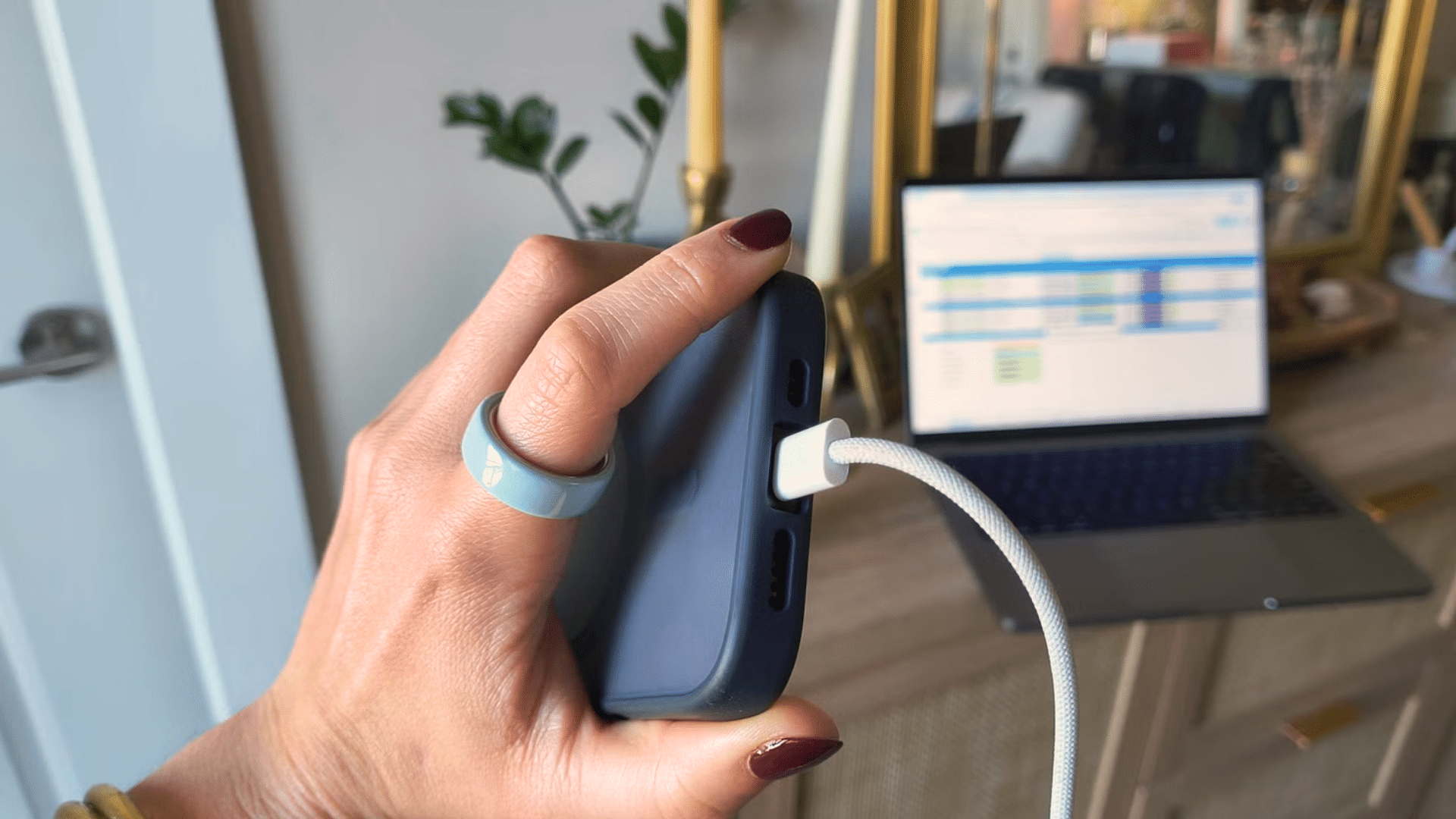
Checking your charging cable and adapter is one of the easiest ways to find the cause of slow charging.
Start by looking for signs of damage like frayed ends, loose connectors, or an adapter that feels unusually warm. These issues often mean the parts can’t deliver steady power.
Try testing your phone with another wall outlet, a different adapter, or a known good cable to see if charging speed improves.
Using certified or fast-charge-rated accessories can also make a clear difference because they meet the power standards your phone needs.
Cheap cables may charge slowly because they aren’t built to handle higher speeds or may lose power through weak wiring.
Sticking with well-made accessories helps your phone charge faster and more reliably.
Fixing Slow Charging on Samsung Galaxy Phones
These steps help you solve charging issues that are common on Galaxy devices. They work on most Samsung models and are simple to follow.
1. Enable Fast Charging in Settings
Samsung phones include options like Fast Charging and Super Fast Charging, but these features can turn off after updates or battery changes.
Go to Settings and check the Battery or Device Care section to make sure fast charging is on.
If it’s off, your phone will charge at a much slower rate. Turning these options back on often improves charging speed right away.
This quick check can make a big difference without changing your cable or adapter.
2. Check Cable and Adapter Compatibility
Galaxy phones work best with cables and adapters that support fast charging standards like Adaptive Fast Charging or USB Power Delivery.
If you use an older or low-quality cable, your phone may switch to slow charging automatically.
Try using the original Samsung charger or a certified fast charger to see if the speed improves. A weak cable often causes charging drops or slow charging.
Replacing it with a proper fast-charge cable usually solves the issue.
3. Turn Off Power-Heavy Features
Features like Always On Display, 5G, Bluetooth, and high screen brightness can slow down charging on Samsung phones.
These features use power while the battery charges, making the process take longer.
Turning them off while charging helps more power go directly to the battery. Airplane mode is a quick option that stops most background signals.
These simple steps reduce battery drain and help your Galaxy phone reach a full charge faster without extra tools.
4. Update Software and Restart the Device
Samsung updates often include fixes for charging bugs or battery issues. If your Galaxy phone is charging slowly, check for system updates in Settings.
Installing the latest software can improve overall performance and charging behavior.
Restarting your device can also help because it closes background apps and resets system tasks that may slow charging.
These updates and restarts refresh your phone’s power management and often restore normal charging speed.
USB-C Charging Problems and How to Solve Them
USB-C charging problems often come from a few simple issues you can check on your own.
Start by looking at the cable, since damaged or low-quality USB-C cables are the most common cause of slow charging.
Some cables don’t support fast charging, which can limit how much power your phone receives.
The adapter also matters, so make sure it matches the power your device needs. A weak adapter can slow charging even if the cable is fine.
The USB-C port can also collect dust or lint, which weakens the connection.
Cleaning it gently can help restore power flow. Testing another cable, adapter, or wall outlet can show you which part is causing the issue.
These checks help you solve USB-C charging problems quickly and safely.
Fixing Slow Charging on Other Android Devices
These are simple steps that help you find the cause of slow charging on Android. Each method is easy to follow and works on most phones.
1. Check Charging Mode and Cable Compatibility
Your Android phone may charge slowly if it’s not set to the right charging mode.
Some phones switch to a basic charging mode when using an old or weak cable. Make sure you’re using a cable that supports fast charging and an adapter with enough power.
Check the notification panel to confirm your phone is in fast charge mode.
A compatible cable and adapter can quickly improve charging speed without extra effort.
2. Disable Battery-Draining Features
Android phones often run features like Bluetooth, Wi-Fi, location, and high screen brightness that can slow down charging.
Turn these off when you plug in your phone to reduce power use.
Airplane mode can help, too, since it cuts background signals. These quick changes let more power go directly to the battery instead of active features.
It’s a simple way to help your phone charge faster without adding extra tools or apps.
3. Clear Background Apps and Optimize Settings
Background apps can drain power, even when you’re not using them. Close unused apps and check your battery settings to see which ones use the most power.
Many Android phones offer built-in optimization tools that help manage apps and free up system resources.
Turning on power-saving mode can also help speed up charging.
These small steps reduce battery load, allowing your phone to charge at a better pace without slowing down from unnecessary tasks.
4. Update Software and Reset Battery Settings
Outdated software can cause bugs that slow down charging, so keep your Android device up to date.
Updates often improve battery performance and fix charging issues. If the problem continues, try resetting battery settings to clear old data that may confuse the system.
You can also restart your phone to refresh background processes.
These updates and resets help your device manage power more efficiently, which can lead to better and more consistent charging speed.
When to Replace Your Charger or Battery?
These are some of the common signs that will tell you it may be time for a new charger or battery.
- Your charger feels loose in the port or works only when positioned a certain way.
- The cable shows wear, fraying, or exposed wiring.
- Your phone charges very slowly, even with different outlets and adapters.
- The battery drains quickly, even after a full charge.
- Your phone gets hot while charging or stops charging suddenly.
- Battery health drops below the recommended level in your device settings.
- Your charger or cable no longer supports the fast-charging features your phone offers.
How to Fix Slow Charging on iPhone Models?
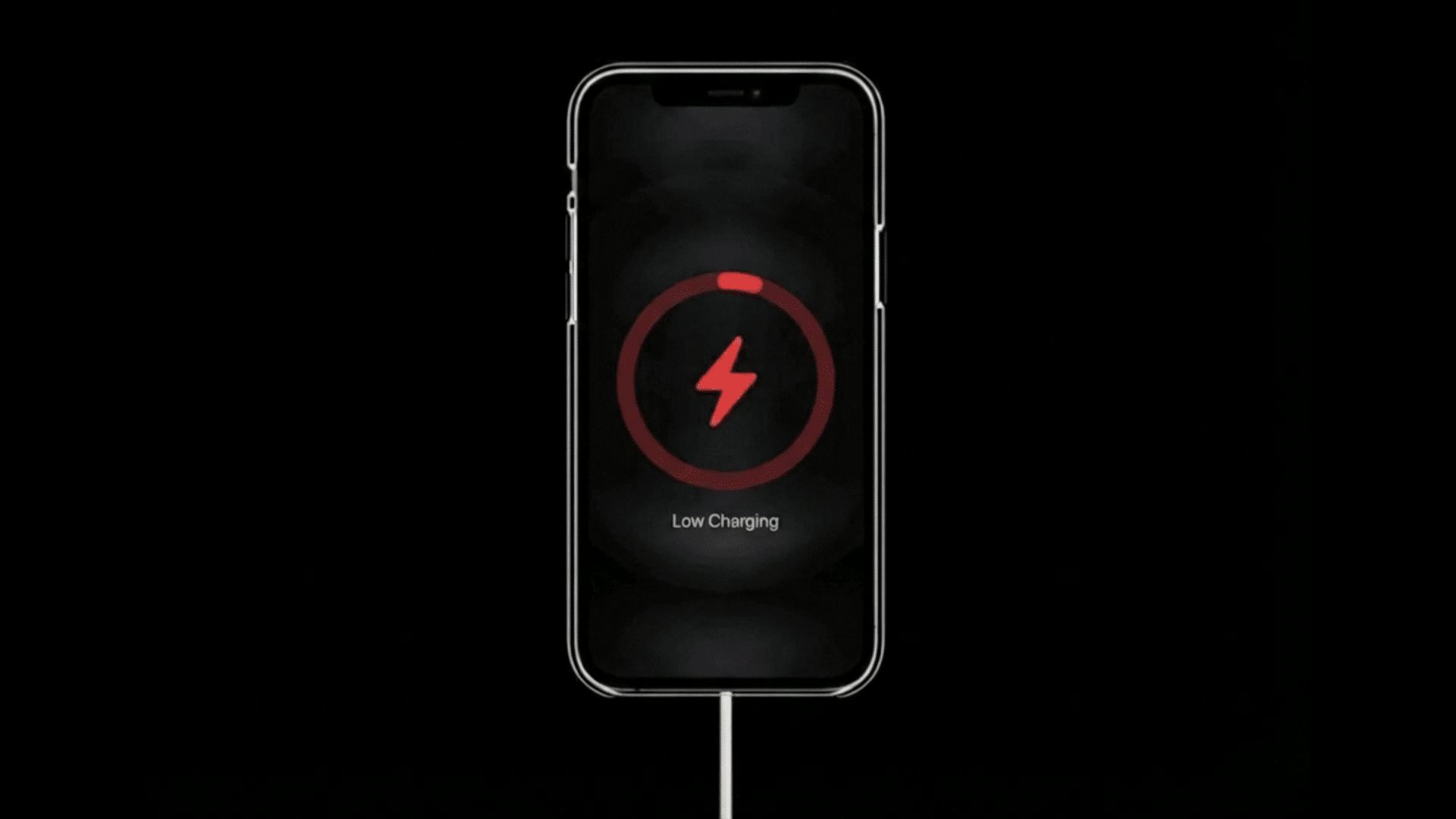
These methods explain what can cause slow charging on your iPhone. They’re simple to use and apply to almost all iPhone models.
1. Check for Optimized Charging
iPhones may charge slowly when Optimized Battery Charging (not reaching a set amount) is active.
Low Power Mode limits certain features to save battery, but it can also affect charging speed. Optimized Charging learns your routine and slows the charge to protect the battery.
Turn these features off if you want faster charging. You can find both in the Settings app.
Making these quick changes often improves charging speed right away.
2. Clean the Charging Port
Dust, lint, and dirt can build up inside the charging port and weaken the connection.
A weak connection makes your iPhone charge slowly or stop charging at times. Use a soft, dry tool like a wooden toothpick to gently remove debris from the port.
Avoid using metal objects. After cleaning, check if the cable fits more securely.
A clean port allows better contact between the cable and your phone, which helps restore normal charging speed.
3. Confirm Cable and Adapter Certification
iPhones work best with certified cables and adapters that meet Apple’s standards.
Non-certified accessories can limit power flow, cause slow charging, or stop working altogether. Look for “MFi Certified” labels when choosing cables and chargers.
If your iPhone only charges slowly with certain accessories, they may not meet the correct power requirements.
Switching to a certified cable and a proper adapter can quickly improve charging performance and prevent connection errors or charging interruptions.
4. Reset Settings or Update iOS
Software issues can affect charging speed, so keeping your iPhone updated is important.
Updates fix bugs and improve battery performance. If slow charging continues, try resetting your settings to clear old data that may cause charging problems.
This won’t erase your personal files. Restarting your phone can also refresh background processes that may slow charging.
These steps help your iPhone manage power more effectively, leading to more stable and faster charging overall.
Quick Tips to Improve Charging Performance
These simple habits can help your phone charge faster. They work on most devices and are easy to use anytime.
- Turn on airplane mode to cut power-heavy signals and speed up charging.
- Close background apps so more power goes directly to the battery.
- Avoid using your phone while it charges to prevent extra drain.
- Keep your device cool by removing the case or moving it away from heat.
- Use original or certified chargers for steady, reliable power delivery.
Conclusion
Fixing slow charging often starts with simple checks, and knowing how to fix slow charging can help bring your phone back to a better charging speed without much effort.
Look at your cable, adapter, and power source first, since these are the most common reasons charging slows down.
Then review your settings, close background apps, and try the tips that match your device. Most slow charging problems can be solved at home, and only a few cases require repairs or a battery replacement.
If your phone has been charging slowly, I’d like to hear what helped you the most.
Share your experience or any tips you found in the comments below.