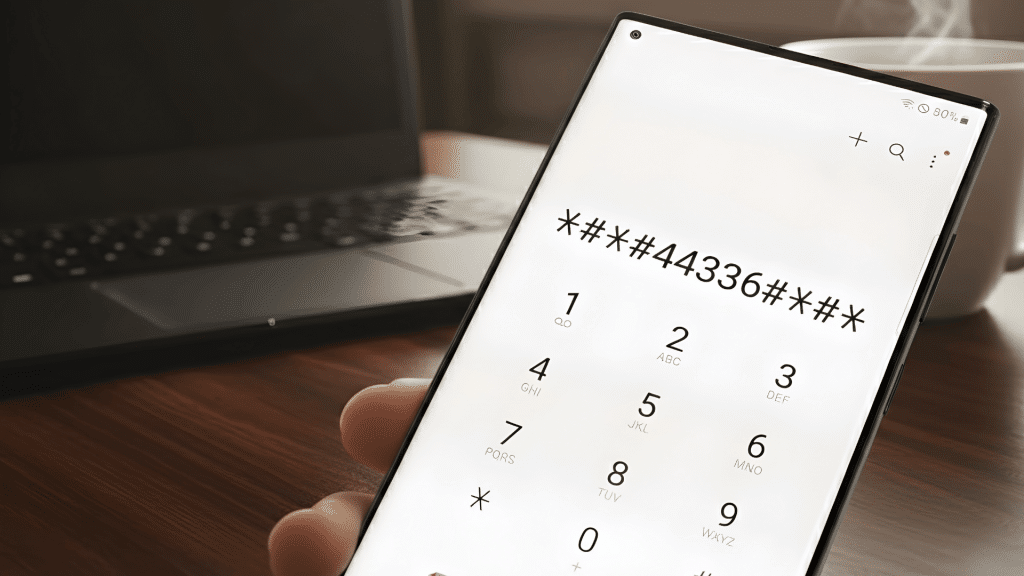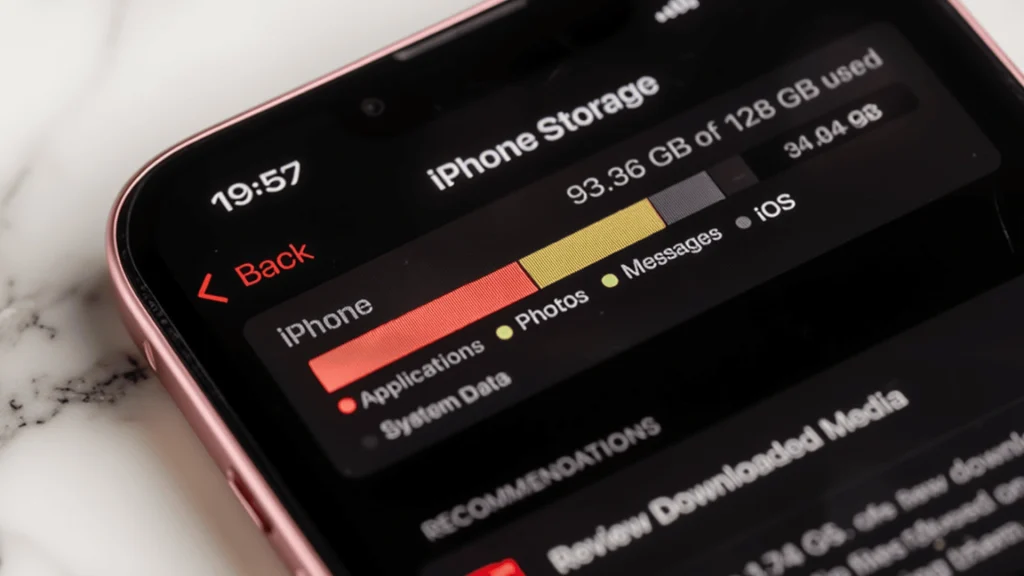
Over time, even a well-cared-for iPhone can start to feel slower and more crowded than it once did, especially with daily use and constant app activity.
Apps lagbefore opening, storage warnings appear unexpectedly, and everyday scrolling no longer feels as smooth.
It often happens so gradually that the change goes unnoticed until frustration sets in.
What many users do not realize is that hidden temporary files quietly build up in the background with daily use.
A small iPhone clear cache app can restore the responsive, effortless experience that made using the device enjoyable in the first place.
This blog discusses how to clear app cache on iPhone, why it is important to clear cache, and the best practices are to keep the optimal performance of the phone.
What is App Cache and Why You Should Clear It?
App cache refers to temporary files that apps store to load faster and run more smoothly.
These files can include saved images, scripts, cookies, thumbnails, browsing data, and other temporary content collected while using the app.
For example, social media apps store images you scroll past, and streaming apps save small data files to reduce loading time.
Over time, this stored data accumulates and uses more storage space than expected. Clearing app cache removes these temporary files and frees up space, which may improve app performance.
However, it does not delete your main account, personal settings, or important saved data unless you fully delete the app.
In some cases, you may need to log in again after clearing the cache, but your essential app information usually remains safe.
Signs When You Should Clear App Cache
If an iPhone starts acting differently than usual, the built-up app cache could be one of the reasons. Temporary files can accumulate quietly in the background, affecting performance.
- Storage Almost Full Alert: iPhone shows low storage warnings even when no large apps or photos were recently added.
- Slow App Loading: Apps take longer than normal to open, refresh, or load content properly due to excessive temporary files.
- Frequent Crashes: Apps close unexpectedly or freeze because an overloaded cache interferes with smooth operation.
- Browser Slowdowns: Safari or Chrome feels laggy, pages load slowly, or websites do not update properly.
- Login Issues After Updates: Apps log users out or fail to sync correctly after updates due to outdated cached data.
Step-by-Step: How to Clear App Cache on iPhone
Clearing the iPhone’s cache helps free up storage, reduce lag, and improve overall performance. Cached files build up from web browsing, social media apps, and system processes.
The steps below are for iOS 26, so make sure your iPhone is up to date.
Step 1: Clear Safari Cache on iPhone
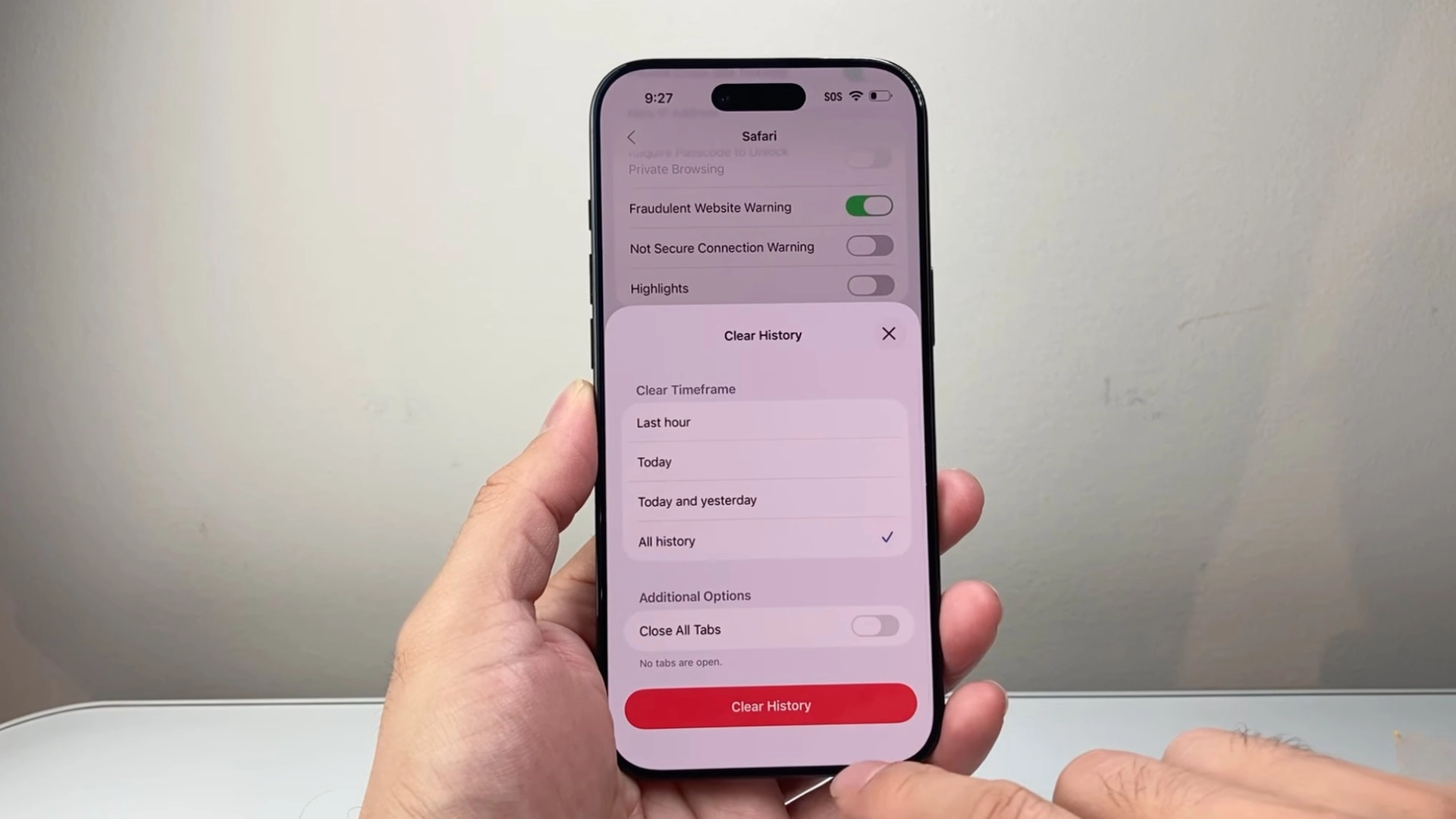
Safari stores browsing history, cookies, and website data to load pages faster. While this can improve speed, it also takes up storage over time.
This method is quick and works well if most storage is being used by browser activity.
- Open Settings
- Scroll down and tap Apps
- Find and select Safari
- Scroll down and tap Clear History and Website Data
- Select All, then confirm
After clearing, Safari may log you out of websites. Pages may load slightly slower the first time since fresh data will be downloaded again.
Step 2: Clear Cache for Individual Apps
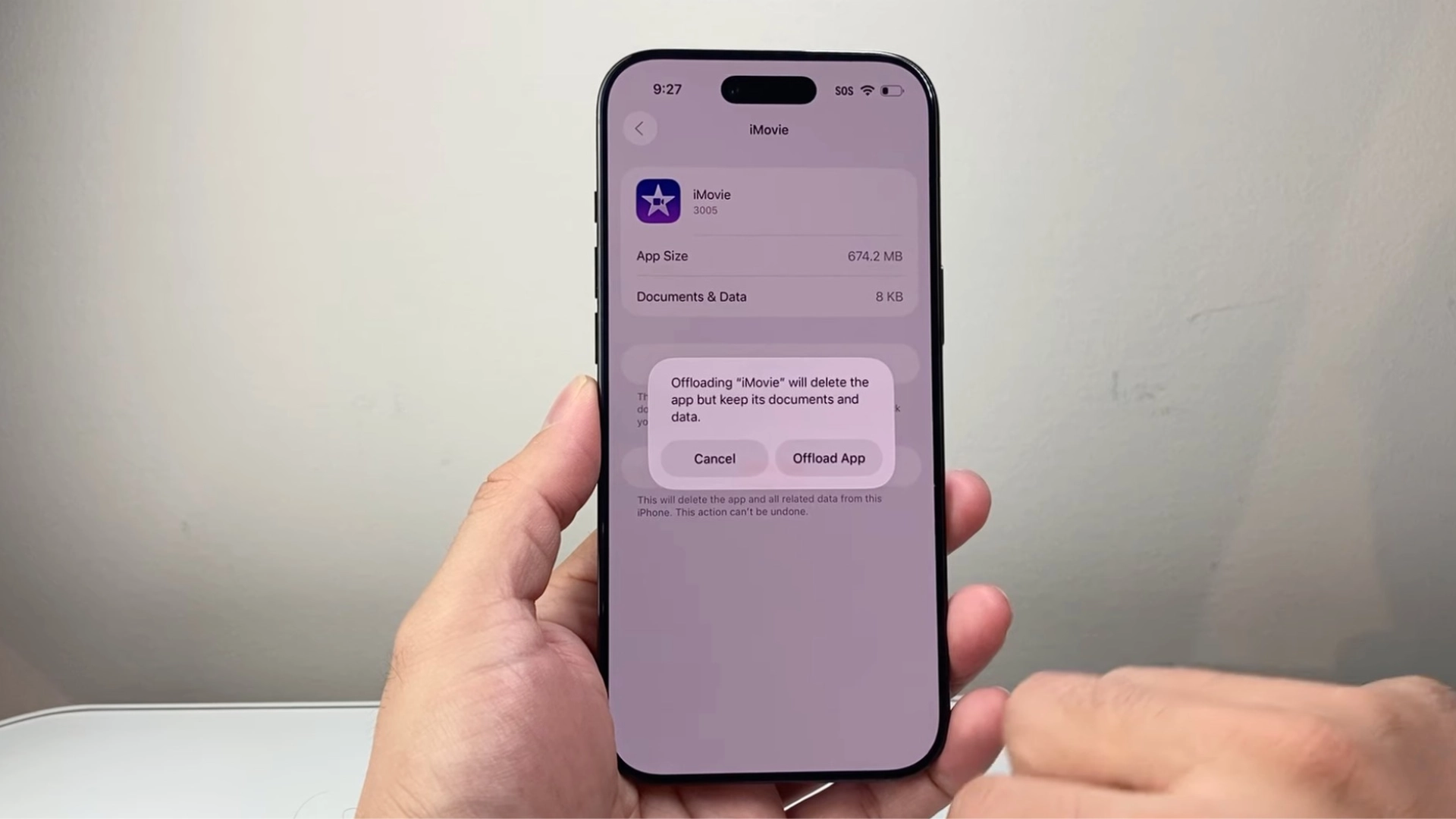
Most apps do not have a direct, clear cache button; instead, the cache is removed by offloading or deleting the app. Offloading removes the app but keeps personal data.
This method works best when a single app is using too much storage or is running slowly.
- Open Settings
- Tap General
- Select iPhone Storage
- Choose the app you want to manage
- Tap Offload App to remove the app but keep data, or Tap Delete App for a full reset
- Reinstall the app from the App Store
Offloading is usually enough for clearing temporary files, but deleting is better if the app continues to have issues.
Step 3: System Cache Refresh
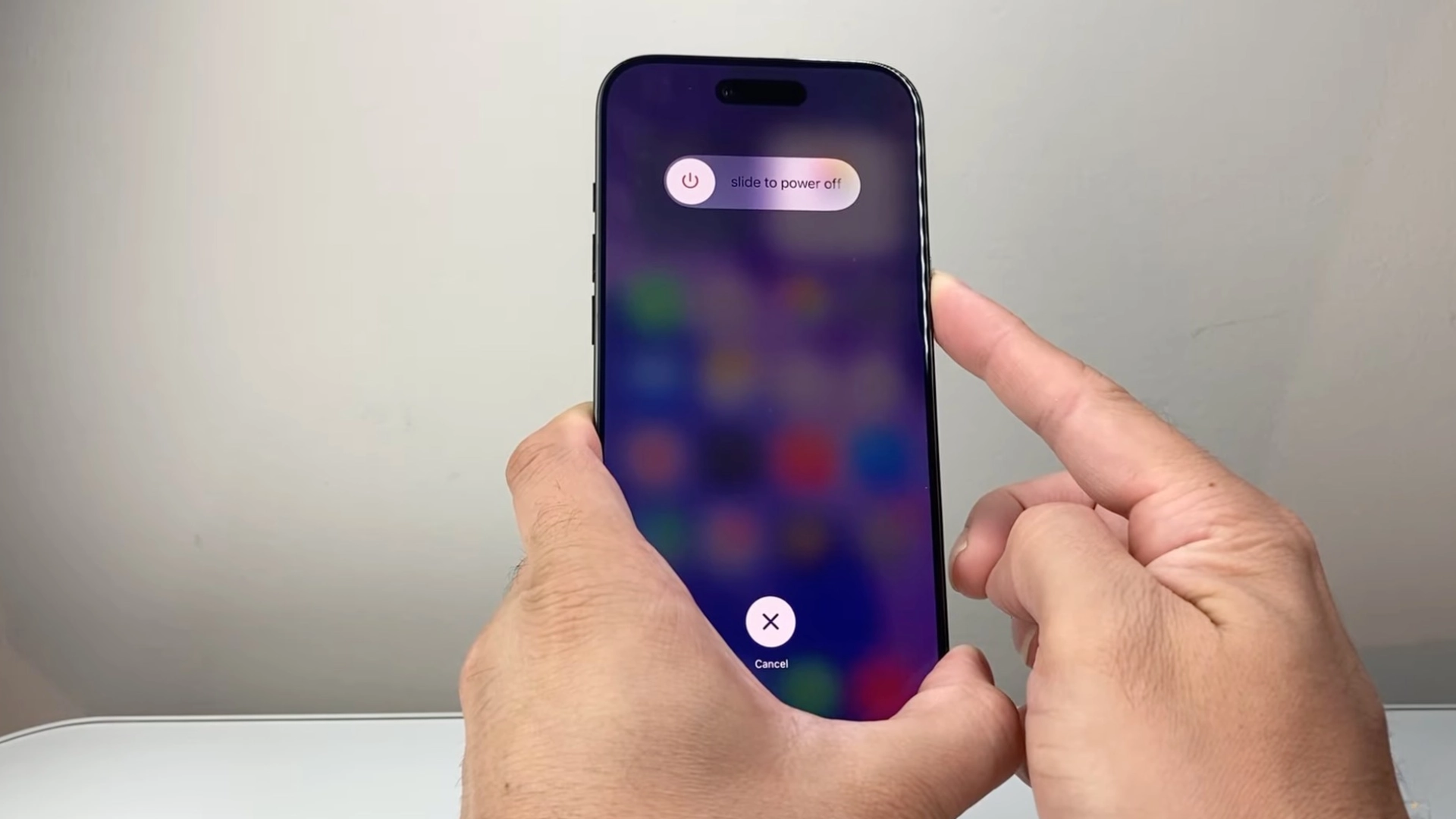
iOS manages system cache automatically, but sometimes a manual refresh helps clear temporary system files.
This method restarts system processes without deleting personal data. It is helpful if the entire phone feels slow or unresponsive.
- Quickly press and release Volume Up
- Quickly press and release Volume Down
- Press and hold the Side Button
- Keep holding until the screen turns black and the Apple logo appears
- Release the button when the logo shows
The phone will restart normally, and photos, apps, and settings remain safe. This simple refresh can improve performance and clear hidden temporary files.
For a visual guide, check out the detailed video by Technomentary.
How to Clear Cache in iPhone App-Wise?
Not every iPhone app requires deletion to remove temporary data. Some popular apps include built-in options that allow users to clear cache directly from their settings.
- Spotify: Open Spotify > Profile icon > Settings and Privacy> Data-saving and offline, then select Storage and tap Clear Cache.
- Reddit: Open Reddit > Profile icon > Settings. Scroll to the bottom and select Clear Local History to remove cached browsing data stored within the app.
- Telegram: Open Telegram and go to Settings > Data and Storage > Storage Usage. Tap Clear Entire Cache or manage specific media categories individually.
- Snapchat: Open Snapchat > Tap Profile icon > Settings (gear icon) > Scroll to Account Actions > Tap Clear Cache > Confirm.
- TikTok: Open TikTok > Go to Profile > Tap the three lines (menu) > Settings and Privacy > Free up space > Tap Clear next to Cache.
What to Do if Removing/Reinstalling Doesn’t Fix Issues?
If deleting and reinstalling an app does not fix the problem, try a few additional steps. First, force restart the iPhone to clear temporary system glitches that may still be affecting performance.
Next, check for pending app updates in the App Store, since bugs in older versions can cause crashes or loading problems.
If the issue continues, visit the app’s support page or contact Apple support to see if the problem is server-related.
Another option is to enable automatic app offloading, a built-in iPhone feature that removes unused apps while keeping their documents and data saved.
This helps free up storage without permanently deleting important information. The app icon remains on the Home Screen with a small cloud symbol next to it.
Tapping the icon reinstalls the app along with its previous data. To enable it, go to Settings > App Store, then scroll down and enable Offload Unused Apps.
No matter what, don’t use third-party apps that claim to clear cache, as iOS is already efficient enough to clear cache with the methods above.
Real User Experience on Clearing Cache
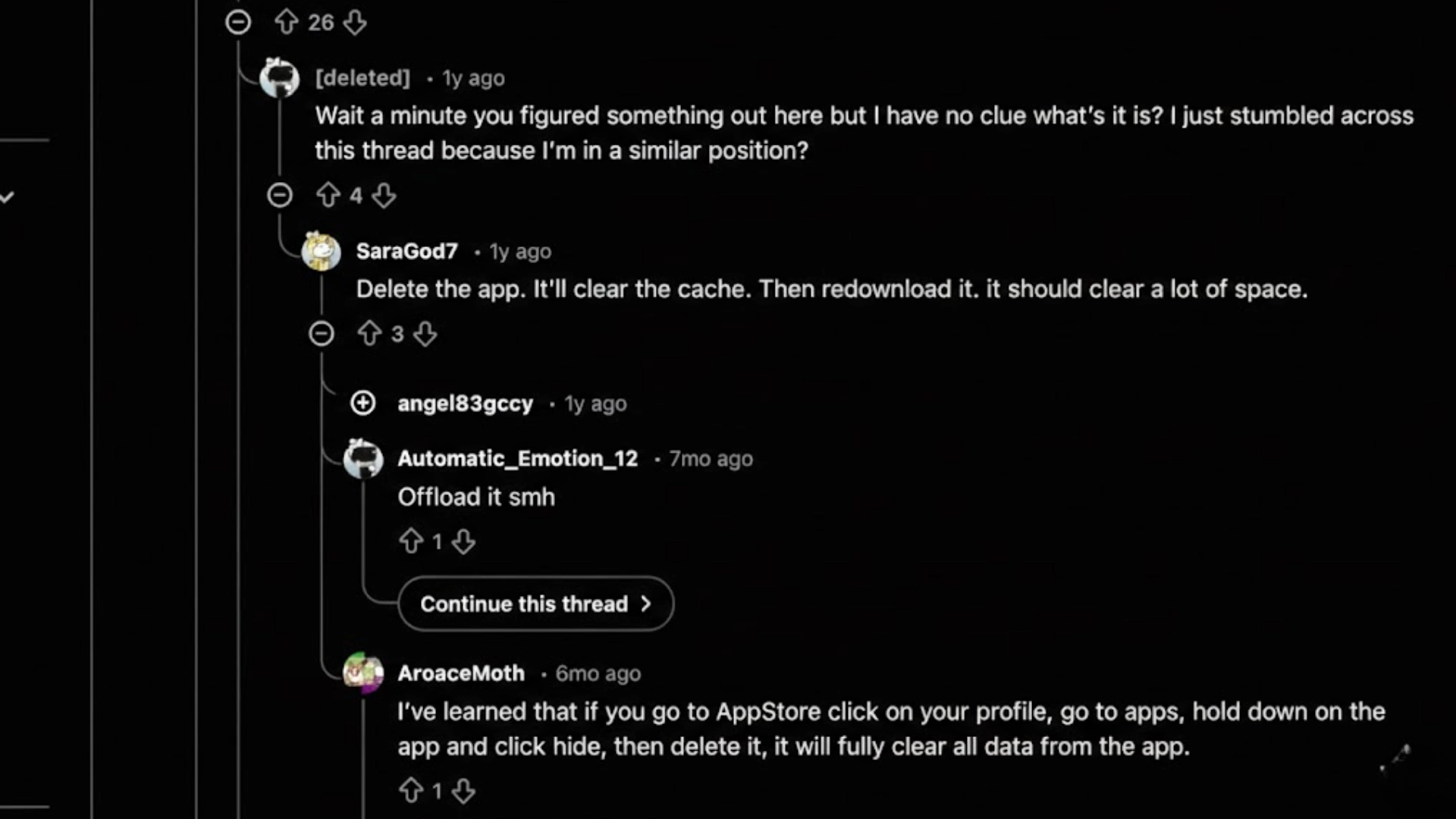
Reddit users largely agree on one thing: iOS lacks a direct “clear cache” button like Android.
Many commenters explain that offloading an app only removes the app file while keeping documents and data intact.
That means logging back into a game or app often restores everything as if nothing was cleared.
The most commented solution is simple but inconvenient: delete the app completely, restart the device, and then reinstall it from the App Store.
Several users report freeing up significant storage this way, especially with apps like Threads or large games.
Others point out that some apps, such as Spotify or social media platforms, include built-in storage management options.
A few advanced users mention Developer Mode or manual file clearing, but most agree that full deletion remains the only reliable method for clearing app data on iPhone.
Best Practices to Keep iPhone Apps Running Smoothly
Keeping iPhone apps fast and stable requires simple, consistent maintenance. Small adjustments in daily usage can prevent slowdowns, crashes, and storage problems.
- Keep Apps Updated: Install the latest app updates to fix bugs, improve stability, and maintain compatibility with iOS.
- Update iOS Regularly: System updates often include performance improvements and security fixes that help apps run better.
- Limit Background App Refresh: Disable unnecessary background activity in Settings to reduce memory usage and improve overall performance.
- Monitor App Permissions: Review location, camera, and data access to prevent apps from overusing system resources.
- Remove Unused Apps: Delete apps that are no longer needed to free storage and reduce background clutter.
Conclusion
Clearing the cache is one of the simplest ways to improve iPhone performance and recover storage space.
Temporary files build up over time, slowing apps and taking up more space than expected.
Regularly managing stored data keeps your device responsive and prevents unnecessary performance drops.
However, learning how to clear app cache on iPhone helps reduce crashes, fix loading issues, and keep everyday apps running smoothly, and promotes long-term efficiency.
Choosing the right way to clear app caches on iPhone depends on storage needs and personal usage habits. Small maintenance steps can make a noticeable difference in overall device stability.
Have you tried any of these methods? Share your experience and tips in the comments, and help others find better solutions.