Your phone buzzes more often than you realize, bringing messages from work, banking alerts, delivery updates, and reminders that quietly shape how the day flows.
These alerts are not random interruptions; they become part of the routine and influence how quickly tasks get handled.
As more people pair their iPhones with smartwatches, the need to understand how alerts sync across devices has grown.
The goal is simple: stay informed without constantly reaching for the phone, but not every smartwatch delivers the same experience.
At the center of this system are notifications on iPhone, which control what appears, how it appears, and which devices receive them.
This blog explains how Garmin and Galaxy watches integrate with an iPhone, what limits exist, and what the latest iOS updates have changed in the notification system.
How Notifications Work on iPhone?
The iPhone notification system is built to keep alerts organized without overwhelming the screen. Every app sends alerts through a central system that controls how and where they appear.
Users can decide whether an app shows alerts instantly, quietly, or not at all. Alerts usually appear in three main places.
The Lock Screen shows recent alerts as soon as the phone wakes. Notification Center stores them in one scrollable list, making it easy to check missed updates later.
Banners appear at the top of the screen while using the phone and disappear after a few seconds. Focus modes add another layer of control by filtering alerts based on activity, like work or sleep.
The notification summaries group less-urgent alerts and deliver them at scheduled times to reduce constant interruptions.
How Third-Party Smartwatches Handle iPhone Notifications?
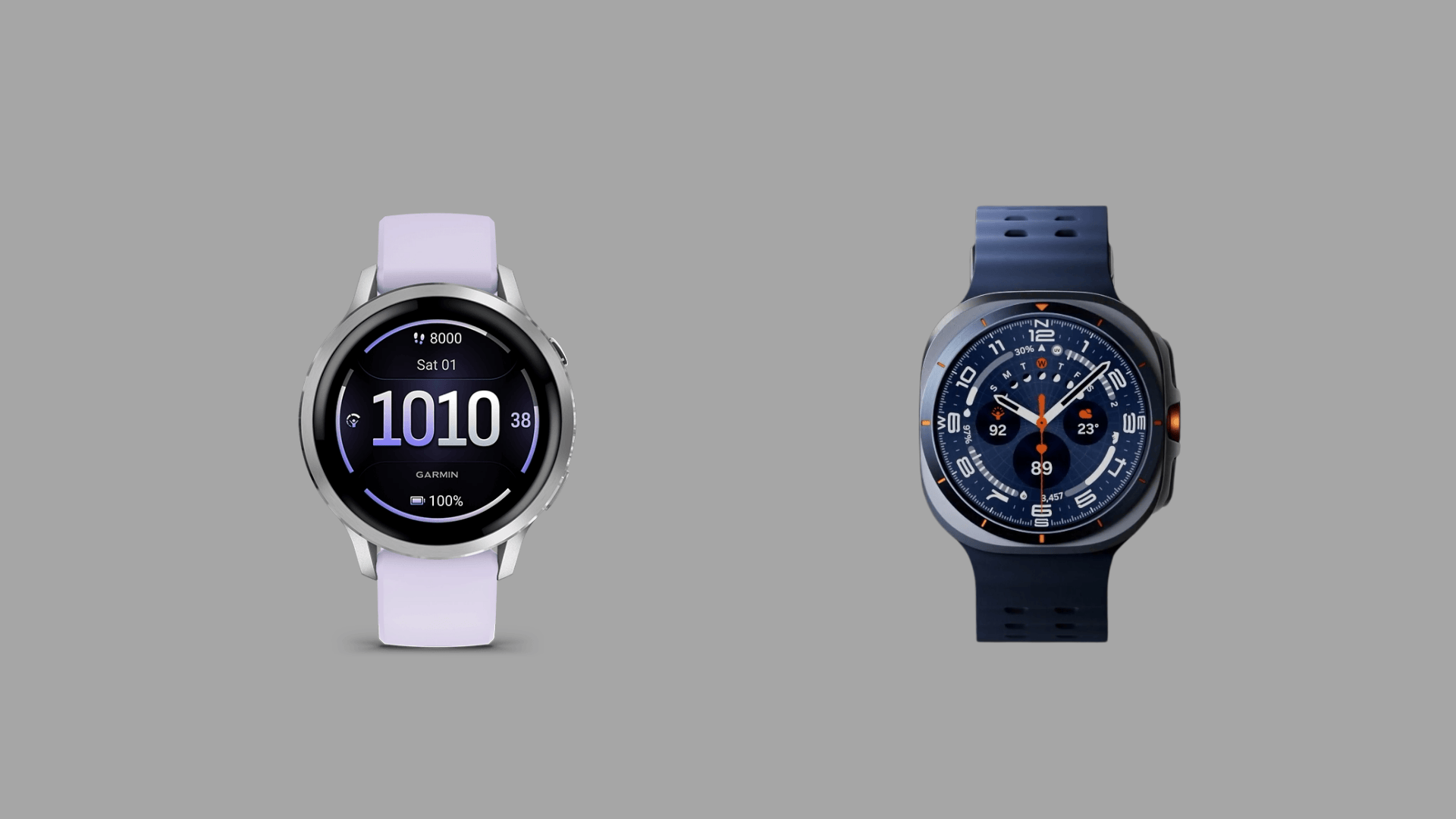
Third-party smartwatches, such as Garmin and Samsung Galaxy Watch, connect to an iPhone through Bluetooth and a companion mobile app.
Garmin uses the Garmin Connect app, while Samsung relies on the Galaxy Watch app for pairing and permissions. Once connected, the watch mirrors the alerts already enabled on the phone.
Calls, text messages, calendar reminders, and app alerts can appear on the wrist as long as notification access is enabled.
The experience, however, is not the same as using an Apple Watch. Most third-party devices still offer view-only alerts for many apps.
Messages can be read, but quick replies often don’t work, especially on iMessage.
Some watches support limited canned responses, but the availability of these features depends on the model and software version.
Overall, the system works well for staying informed, though it has functional limitations compared to native integration.
Why Apple Watch Works Best with iPhone Notifications?
Apple Watch works more smoothly with iPhone alerts because it is built to function inside the Apple ecosystem.
Unlike third-party watches such as Garmin or Galaxy Watch, it connects directly to the system without relying heavily on separate apps.
This deeper connection allows notifications to appear instantly and behave almost exactly like they do on the phone.
Calls, messages, reminders, and app alerts sync quickly and remain consistent across both devices.
Users can also reply to texts, respond to messages with voice or quick replies, and interact with certain alerts directly from the watch.
Settings are easier to manage as well, since notification controls are available inside the Watch app on the iPhone.
Because of this tight integration, Apple Watch usually delivers the most reliable and complete notification experience for iPhone users.
Key Differences: Apple Watch vs Garmin vs Galaxy Watch
A clear breakdown of how each smartwatch handles alerts with iPhone, covering integration depth, replies, customization options, and real-world sync performance.
| Basis | Apple Watch | Garmin Watch | Galaxy Watch (iPhone) |
|---|---|---|---|
| Integration | Native iOS support | Garmin Connect app | Galaxy Watch app |
| Notification Access | Calls, texts, apps, system alerts | Mirrors enabled phone alerts | Mirrors enabled phone alerts |
| Message Replies | Full replies: voice, dictation, quick reply | Mostly view only, limited quick replies | Mostly view only, replies limited |
| App Controls | Detailed per-app controls | Basic controls in the Garmin app | Limited controls in the Galaxy Watch app |
| Sync Reliability | Very fast and stable | Stable, small Bluetooth delays are possible | Stable but occasional delays |
Common Issues with Third-Party Smartwatch Integrations
Third-party smartwatch integrations can be helpful to users, but they often face recurring problems that affect notification reliability, performance, and overall daily usability.
- Notification delays: Alerts may arrive late or fail to sync correctly, especially when the phone’s operating system restricts background app refresh or required permissions.
- Limited interaction support: Many integrations allow users to view notifications only, without options to reply to or interact with alerts, as in native smartwatch integrations.
- App compatibility issues: Updates to iOS or smartwatch firmware can sometimes break connections, causing features to stop working until developers release fixes.
- Battery drain concerns: Constant syncing between third-party apps and devices can increase power usage and reduce battery life on both the phone and smartwatch.
- Inconsistent settings behavior: Notification preferences may reset or fail to apply properly, forcing users to repeatedly adjust permissions and alert settings.
Latest iOS Updates That Changed Notifications on iPhone
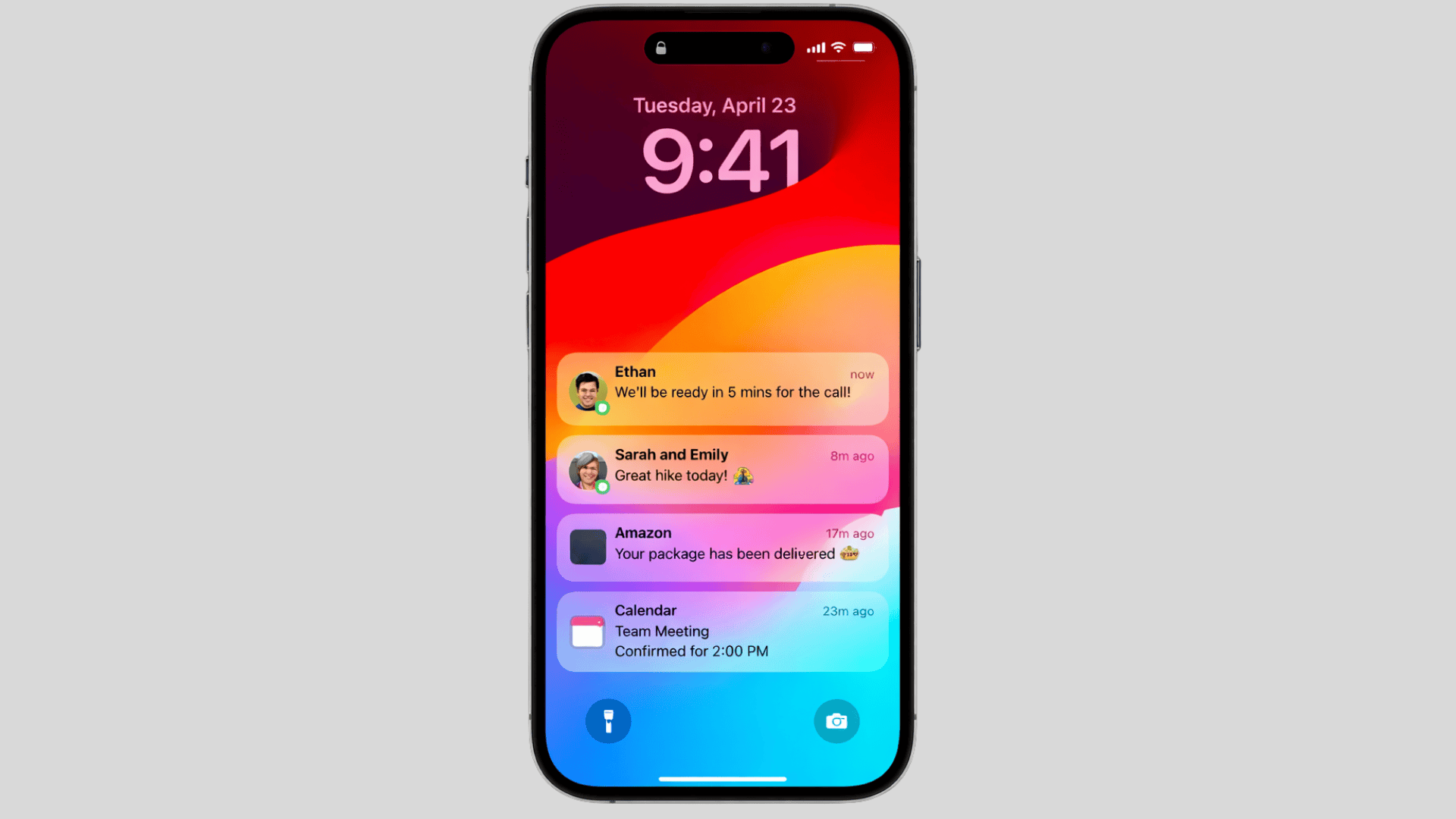
Recent iOS updates have reshaped how alerts appear, feel, and function, making daily interactions smoother and far less distracting.
1. Lock Screen Redesign and Liquid Glass
The Lock Screen received a visual refresh with the Liquid Glass design language in newer iOS versions.
The clock and interface elements adapt around the wallpaper and incoming alerts, creating a layered effect that feels cleaner.
Instead of covering large portions of the screen, alerts sit more naturally within the layout. This makes important details easier to read while still keeping the background visible.
2. Live Activities Improvements
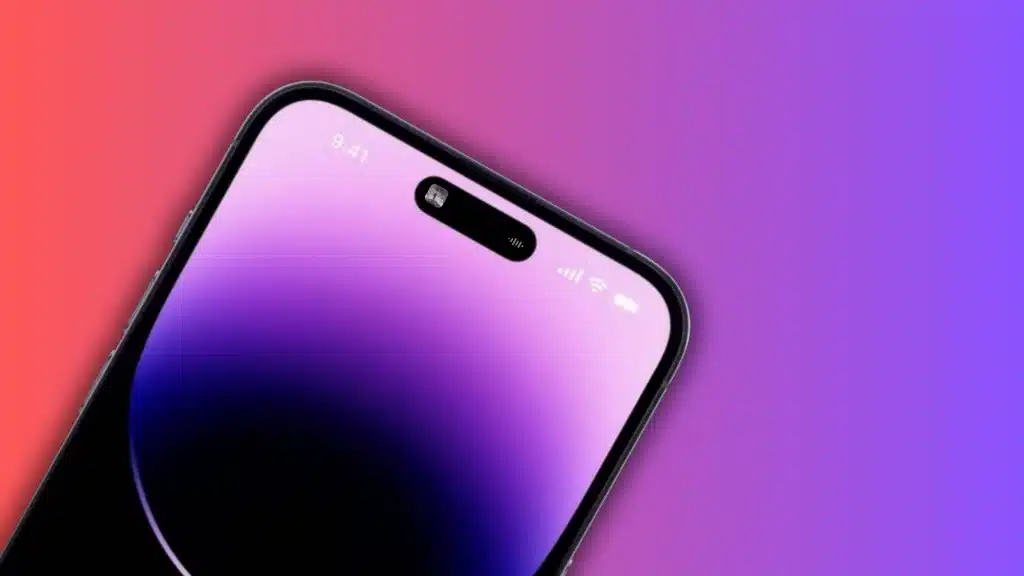
Live Activities now provide smoother, more persistent updates directly on the Lock Screen and in the Dynamic Island.
Ongoing events such as ride tracking, sports scores, delivery progress, or timers update in real time without needing to open the app.
The refresh feels fluid and consistent, allowing quick glances for essential information. These updates stay visible longer when relevant, helping users track important activities without repeatedly unlocking the device.
3. Interactive Widgets and Notification Stacking
Interactive widgets on the Lock Screen now let you perform quick actions without opening full apps, saving time for simple tasks.
Alongside this, notification stacking groups alerts from the same app into expandable bundles. Instead of filling the screen with repeated alerts, they collapse neatly into a single stack.
This layout reduces clutter while still keeping everything accessible. Expanding a stack reveals individual alerts in an organized format.
4. Focus Filter Refinements
Focus modes now offer better filtering and automation. Specific apps or contacts can be allowed or silenced depending on the selected mode, whether it is work, personal time, or sleep.
Scheduling options are more flexible and can be set to activate automatically based on time, location, or app usage.
This refinement gives clearer control over which alerts break through, helping maintain attention during important tasks or quiet hours.
5. Notification Summaries and Smarter Grouping
Notification summaries have become more intelligent with Apple Intelligence features introduced in iOS 18 and refined in later updates.
Non-urgent alerts are grouped and delivered at scheduled times rather than appearing instantly.
The system generates short, easy-to-scan previews that help users understand what happened without opening every app.
New Notification Features in Recent iOS Versions
Recent iOS updates have also introduced Notification Forwarding in iOS 26.3, but the feature is currently limited to the European Union (EU) region.
Once enabled, notifications from supported apps can appear on connected devices without needing separate syncing from each app.
To enable it, open Settings, go to Notifications, and look for the Notification Forwarding option. Turn it on and choose the devices that should receive mirrored alerts.
This makes it easier to keep notifications consistent across different screens. New regulations in the European Union, particularly the Digital Markets Act (DMA), have also influenced these changes.
These rules encourage broader compatibility, which helps improve full notification forwarding support for third-party devices and apps connected to the iPhone.
Tips to Manage Notifications Better on iPhone
Small adjustments to settings can make alerts less distracting and more useful throughout the day.
- Review App Permissions: Open Settings and check which apps are allowed to send alerts. Turn off notifications for apps that do not provide real value. This reduces daily noise quickly.
- Adjust Per App Styles: Choose between banners, Lock Screen alerts, or Notification Center only. Limiting where alerts appear keeps the screen cleaner and less overwhelming.
- Use Focus Modes Smartly: Set up Work, Personal, or Sleep modes to allow only selected apps and contacts. Automate them by time or location for better control.
- Customize Previews: Change preview settings to show always, when unlocked, or never. This helps balance privacy with convenience.
- Disable Unnecessary Sounds: Turn off alert tones for less important apps. Keeping sound for priority apps makes important alerts easier to notice.
Conclusion
Notifications on iPhone are meant to keep everyday updates simple and easy to notice without becoming distracting.
When alerts are set up the right way, they help you stay aware of messages, reminders, and app updates without needing to check your phone all the time.
Some people prefer seeing every alert on their phone, while others like the convenience of glancing at a smartwatch during the day.
The goal is not to remove notifications, but to make them work with your routine. With a few adjustments in settings, alerts can feel more organized and less overwhelming.
Over time, this balance makes it easier to stay informed while still focusing on what matters during the day.
How do you usually handle notifications on your iPhone? Share your experience and tips with others in the comments below.